

1 Before you start
This is not graded, and it does not count towards anything. Answer every question even if you are only guessing — having a go at something before you have been taught it is one of the best ways to remember it afterwards. The lesson ends with another short check, and there you will be shown the correct answer for anything you missed. Choose an option for every question and confidence rating, then click Submit answers.
You open a file with with open("data.tsv") as f: and want to walk it line by line. Which loop is correct?
Why is with open(...) as f: preferred over plain f = open(...)?
You loop over a file with for line in f: and call print(line). There is a blank line between every entry. Why?
You read a line from a tab-separated file and want each column as a separate value. What is the right call?
After parts = line.strip().split("\t"), you want to compare parts[3] to a number. What must you do first?
You open a file with open("output.csv", "w"). What happens if the file already exists?
Inside with open("out.txt", "w") as f:, which call writes text and adds a newline at the end for you?
Inside a script run as python analyse.py patients.tsv 0.05, what is sys.argv[2]?
I can read a tab-separated file line by line, split each line into columns, and process them one at a time.
I can write a script that takes a filename from the command line, reads it, and writes a result to another file.
2 Introduction
Real data never lives inside your script. It arrives as a TSV from a colleague, an Excel sheet from a clinic, or a list of arguments you typed at the command line. This part of the module is about pulling that data into your program and writing your results back out.
This is Part II of the Functions and Input/Output module. Part I covered functions themselves — defining them, passing arguments, scope. This part covers the two remaining tools that let your functions interact with the outside world:
- Reading and writing files — pull text or tabular data into your program, and save your results back to disk.
- Command-line arguments with
sys.argv— let a script accept its inputs from the terminal so you do not have to edit the file every time you want to run it on a different dataset.
Try every snippet in the Python Scratchpad on the right. By the end of this part you will write a short script that takes a filename and a threshold from the command line, reads the file line by line, applies a function from Part I, and writes the result to a new file.
3 Reading and writing files
Real data does not arrive as a list typed into your script. It arrives as a TSV of patient records, a CSV of p-values, a plain text file of gene symbols. Your script needs to open the file, read its contents, do something with them, and often write a result back out. Python's built-in open() function is the door to all of that.
The simplest read pattern looks like this. The with line opens the file and gives it a short name (f) you can use inside the indented block. As soon as the block ends, Python closes the file for you — even if your code crashes partway through.
Try the code below:
Note: The “samples.txt” has been pre-loaded in the Python Scratchpad for you.
Try this snippet in the Python Scratchpad on the right.
with open("samples.txt") as f:
    contents = f.read()
print(contents)f.read() pulls the whole file into a single string. That is fine for small files but a bad idea for a 50 GB file. The more common pattern is to walk the file line by line — open() gives you an iterable, so a for loop just works.
Try this snippet in the Python Scratchpad on the right.
with open("samples.txt") as f:
    for line in f:
        print(line.strip())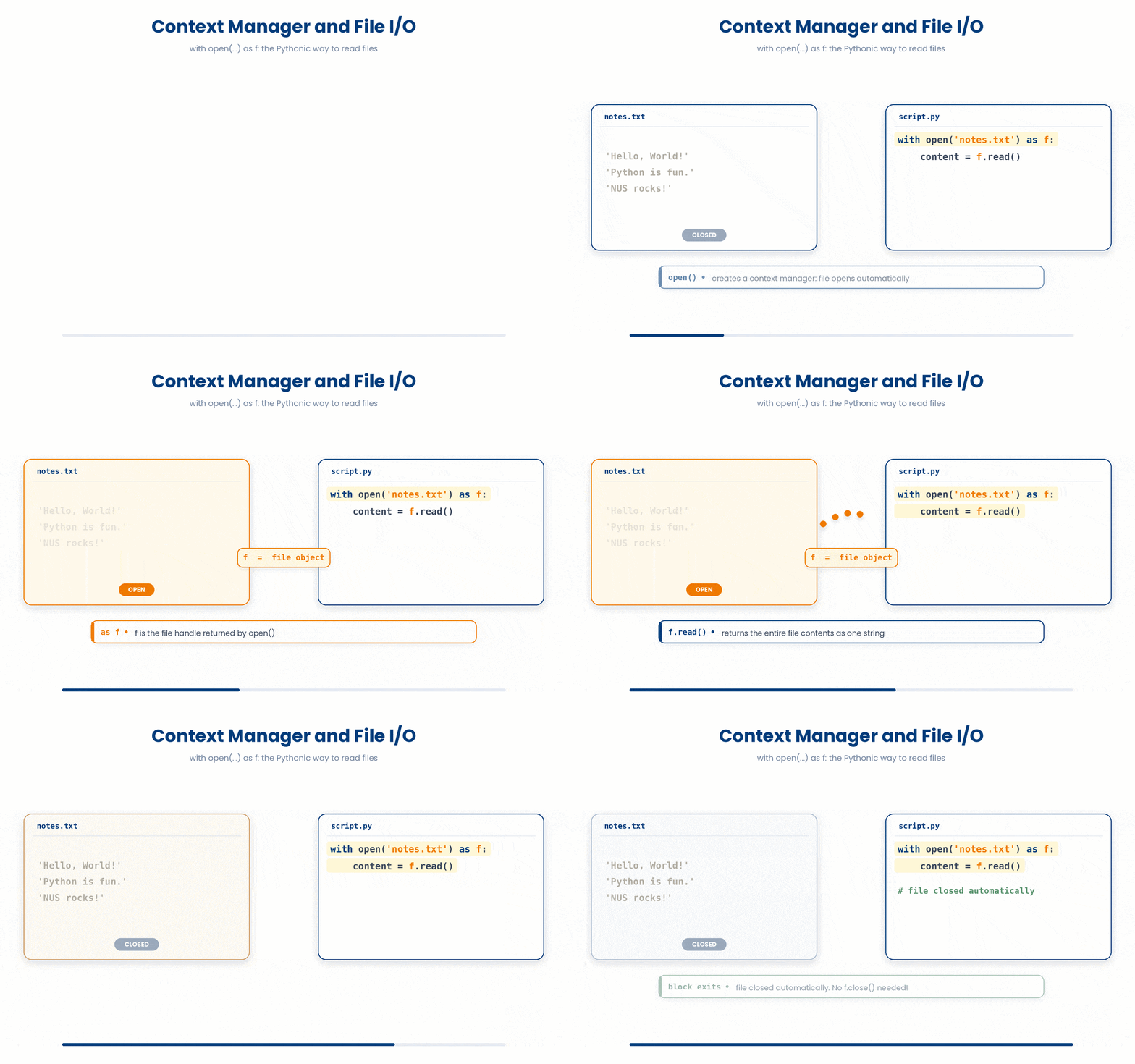
Here is why the loop above copes with a 50 GB file just as well as a small one: open() does not hand you the whole file as a list of lines sitting in memory. It hands you something that produces one line at a time, only when asked, and forgets each line once you move past it. A lazily-produced sequence like that is called a generator, and you can build one yourself with the keyword yield.
Try this snippet in the Python Scratchpad on the right.
def countdown(n):
    while n > 0:
        yield n
        n -= 1

launch = countdown(3)
print(next(launch))
print(next(launch))
print(next(launch))A generator function looks like an ordinary function, except instead of computing everything and sending it all back with one return, it yields a single value, pauses exactly where it is, and waits. Calling next() on it resumes the function up to the next yield, hands back that value, and pauses again. Nothing inside countdown runs until the first next() asks for a value — that laziness is the whole point, and it is exactly what lets a for loop walk a 50 GB file one line at a time instead of loading it all first.
Try this snippet in the Python Scratchpad on the right.
with open("samples.txt") as f:
    first_gene = next(f)
    print("first line:", first_gene.strip())
    for gene in f:
print("also here:", gene.strip())Something that is important for you to remember.
First, each line you get from the loop ends with a newline character. If you print it directly, you get blank lines between the entries because print adds its own newline on top. .strip() removes leading and trailing whitespace — including the newline — and is almost always what you want.
Compare and contrast the following codes. Try it yourself!
(a) with print(line)
Try this snippet in the Python Scratchpad on the right.
with open("patients.tsv") as f:
 for line in f:
print(line)(b) with print(line.strip())
Try this snippet in the Python Scratchpad on the right.
with open("patients.tsv") as f:
 for line in f:
print(line.strip())Second, if your file is tab-separated, you split each line into columns with line.split("\t"). That gives you a list of strings; remember that everything is a string until you convert it.
To write to a file, pass a second argument to open() specifying your mode: "w" to write (which overwrites existing content) or "a" to append (which adds to the end).
Inside your file-handling block, you have two main ways to write text:
print(value, file=f): This is the simplest approach. It works exactly like a standard print statement, but directs output to the file and automatically adds a newline.
f.write(text): This lower-level method writes exactly the string you pass it without adding a newline.
While f.write() is the right tool when you need precise control, print() is often cleaner and less error-prone for everyday output.
Try this snippet in the Python Scratchpad on the right.
results = [("P001", 22.4), ("P002", 27.8), ("P003", 31.5)]
with open("bmi_results.tsv", "w") as f:
    print("patient_id\tbmi", file=f)
    for pid, bmi in results:
print(f"{pid}\t{bmi:.1f}", file=f)One habit worth forming right away: pass encoding="utf-8" explicitly to every open() call, whether you are reading or writing. Plain English text reads back fine either way, but the moment a file holds anything outside the original 128 ASCII characters — an accented name, a µ in a unit, a curly quote pasted from Word — Python needs to know which encoding to use to turn those bytes back into the right characters. Leave the argument out and Python falls back to a platform default, and that default is not the same on every computer. A script that reads a file correctly on your machine can silently misread the same file, or fail outright, on someone else's.
Try this snippet in the Python Scratchpad on the right.
with open("samples.txt", encoding="utf-8") as f:
    for line in f:
print(line.strip())4 Command-line arguments with sys.argv
So far, every value your script depends on is hard-coded in the file. The filename you read from, the threshold you filter on, the patient ID you are interested in — all written into the .py and changed by editing the .py. That works once. The second time you run the same analysis on a different file you start to mind.
The standard fix is to let the script accept its inputs from the command line when you run it, which is what sys.argv is for.
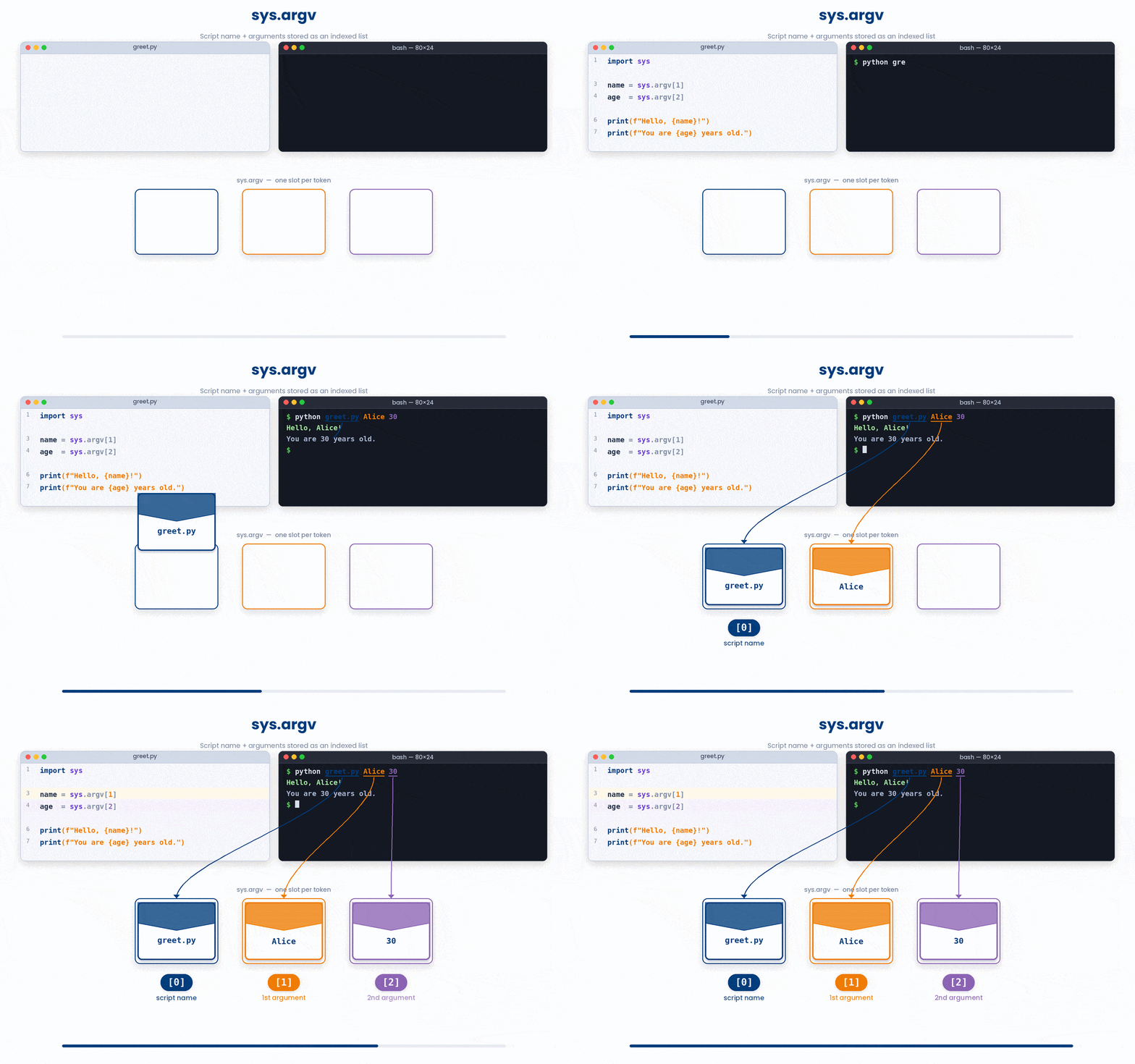
The sys module is part of Python's standard library, so you do not install anything — you just add import sys at the top of your script. The list sys.argv holds the command-line arguments.
A few important points about sys.argv:
- The first entry,
sys.argv[0], is the name of the script itself. - Anything after that is a value the user typed on the command line, in order.
- Every entry in
sys.argvarrives as a string, even if the user typed a number. If you need a number as argument, convert it withint()orfloat()before using it
Actually running a script like this needs a few things — Python installed locally, a working terminal, and a .py file saved to your computer — which is beyond the scope of this tutorial.
For now you only need to recognise sys.argv when you see it in real code and understand that it is how a script picks up values typed at the command line.
The terminal setup is something you can pick up later, when you start writing analysis scripts you run yourself.
5 Putting it together
The two tools in this part are almost always used together, and they combine with the functions from Part I to make a full reusable command-line tool. A typical short script takes a filename and a threshold from the command line, opens the file with with open() as f, walks each line, applies a function from Part I to decide whether to keep or transform it, and writes the kept rows to a new output file.
Work through this example in three stages. You unlock each stage only after the tutor confirms the previous one. Each stage removes more of the scaffolding — by the end you are writing it yourself.
Problem: Create a small proteins.tsv (the editor starts empty), keep only the rows where abundance is above 100.0, and write them to abundant.tsv.
sample = """uniprot_id\tabundance
P12345\t152.4
Q9Y6K1\t42.7
P38398\t201.5
"""
with open("proteins.tsv", "w") as f:
    f.write(sample)

with open("proteins.tsv") as fin, open("abundant.tsv", "w") as fout:
    fout.write(next(fin))
    for line in fin:
        parts = line.strip().split("\t")
        abundance = float(parts[1])
        if abundance > 100.0:
            fout.write(line)

with open("abundant.tsv") as f:
print(f.read())- First we create the input file: build a small TSV as a multi-line string and write it to proteins.tsv in "w" mode, since the editor starts empty.
- Open input and output in one with-statement; copy the header across with next(fin) so it is not mistaken for data.
- Loop over the remaining lines, split each on the tab, convert the abundance column (index 1) to a float, and write the line out only when it exceeds 100.0. The closing block re-opens the output and prints the kept rows.
The same solution with key parts replaced by ???.
Fill in every ??? so the code matches the reference,
then ask the tutor to check it.
Your turn: Now try one in memory only. Build a TSV string with header uniprot_id then length, and three rows — P001 with 95, P002 with 600, P003 with 180. Skip the header, split on the tab, convert length to int, and print how many proteins are longer than 200.
6 Check your understanding
You have reached the end of the module. Try the same questions again — your answers here, paired with your pre-test answers, are how we measure what the module taught you. Answer every question and confidence rating, then click Submit and see results to view your score.
You open a file with with open("data.tsv") as f: and want to walk it line by line. Which loop is correct?
Why is with open(...) as f: preferred over plain f = open(...)?
You loop over a file with for line in f: and call print(line). There is a blank line between every entry. Why?
You read a line from a tab-separated file and want each column as a separate value. What is the right call?
After parts = line.strip().split("\t"), you want to compare parts[3] to a number. What must you do first?
You open a file with open("output.csv", "w"). What happens if the file already exists?
Inside with open("out.txt", "w") as f:, which call writes text and adds a newline at the end for you?
Inside a script run as python analyse.py patients.tsv 0.05, what is sys.argv[2]?
I can read a tab-separated file line by line, split each line into columns, and process them one at a time.
I can write a script that takes a filename from the command line, reads it, and writes a result to another file.
7 Your results
Here is how your post-test answers compare with your pre-test answers. The pre/post pairing is the most reliable way to see what this module actually taught you.
Submit the post-test to see your results.
What is the one thing from this module that is still unclear to you?