

1 Before you start
This is not graded, and it does not count towards anything. Answer every question even if you are only guessing — having a go at something before you have been taught it is one of the best ways to remember it afterwards. The lesson ends with another short check, and there you will be shown the correct answer for anything you missed. Choose an option for every question and confidence rating, then click Submit answers.
Which command copies local results.tsv into /tmp on the remote host cluster?
What is the main advantage of rsync over scp?
What does rsync --dry-run do?
What is the difference between rsync -av data dest/ and rsync -av data/ dest/?
How do you keep a long job running on a server after your SSH connection drops?
Which scp flag sets a non-standard port, and why avoid the lowercase one?
Which scp flag lets you copy an entire folder to the remote machine?
On a shared server like Bandit, why copy files into /tmp rather than your home directory?
I can copy files to and from a remote machine with scp.
I can use rsync to sync a folder, and I understand the trailing-slash rule.
I can run a long remote job inside tmux so it survives a dropped connection.
2 Introduction
Logging in is half the story. The other half is getting files to and from the remote machine, and keeping your work alive when the connection drops over a network.
Unlike the earlier lessons that practised over localhost, here you connect to a real public server on the internet: the OverTheWire Bandit game. It is the same set of skills you will use to reach the teaching cluster, just on a server that is safe to experiment on.
In this lesson, we will cover the following:
- Logging in to our practice server withssh
- scp - simple copies to and from a remote machine.
- rsync - the efficient, resumable workhorse for real data.
- The trailing-slash rule that trips everyone up.
- ssh + tmux: jobs that survive a dropped connection.
3 Logging in to practice server
- Every command below talks to the same machine. Its details are:
- Host (the address): bandit.labs.overthewire.org
- Port: 2220
- Username: bandit0
- Password: bandit0
Open a terminal (Terminal on macOS or Linux; PowerShell or Command Prompt on Windows, both of which already include ssh and scp) and connect:
Try this snippet in the Bash Scratchpad on the right.
$ ssh bandit0@bandit.labs.overthewire.org -p 2220Your prompt changes to bandit0@bandit:~$. That is your sign that you are now on the server.
To leave and return to your own machine, type exit (or press Ctrla+D).
4 scp - Copy Files Over SSH
scp (secure copy) works exactly like the standard cp (copy) command, but it allows you to copy files across a network. One side of the command will carry a host: prefix to specify the remote machine.
You can copy files from your computer to the server, from the server back to your computer, and copy entire folders using the -r (recursive) flag:
# General syntax
$ scp [source] [destination]

# Copy a file to the server
$ scp -P 2220 results.tsv bandit0@bandit.labs.overthewire.org:/tmp/

# Copy a file from the server to your local machine
$ scp -P 2220 bandit0@bandit.labs.overthewire.org:/tmp/results.tsv ./pulled_back.tsv

# Copy an entire folder to the server
$ scp -P 2220 -r reports/ bandit0@bandit.labs.overthewire.org:/tmp/reports/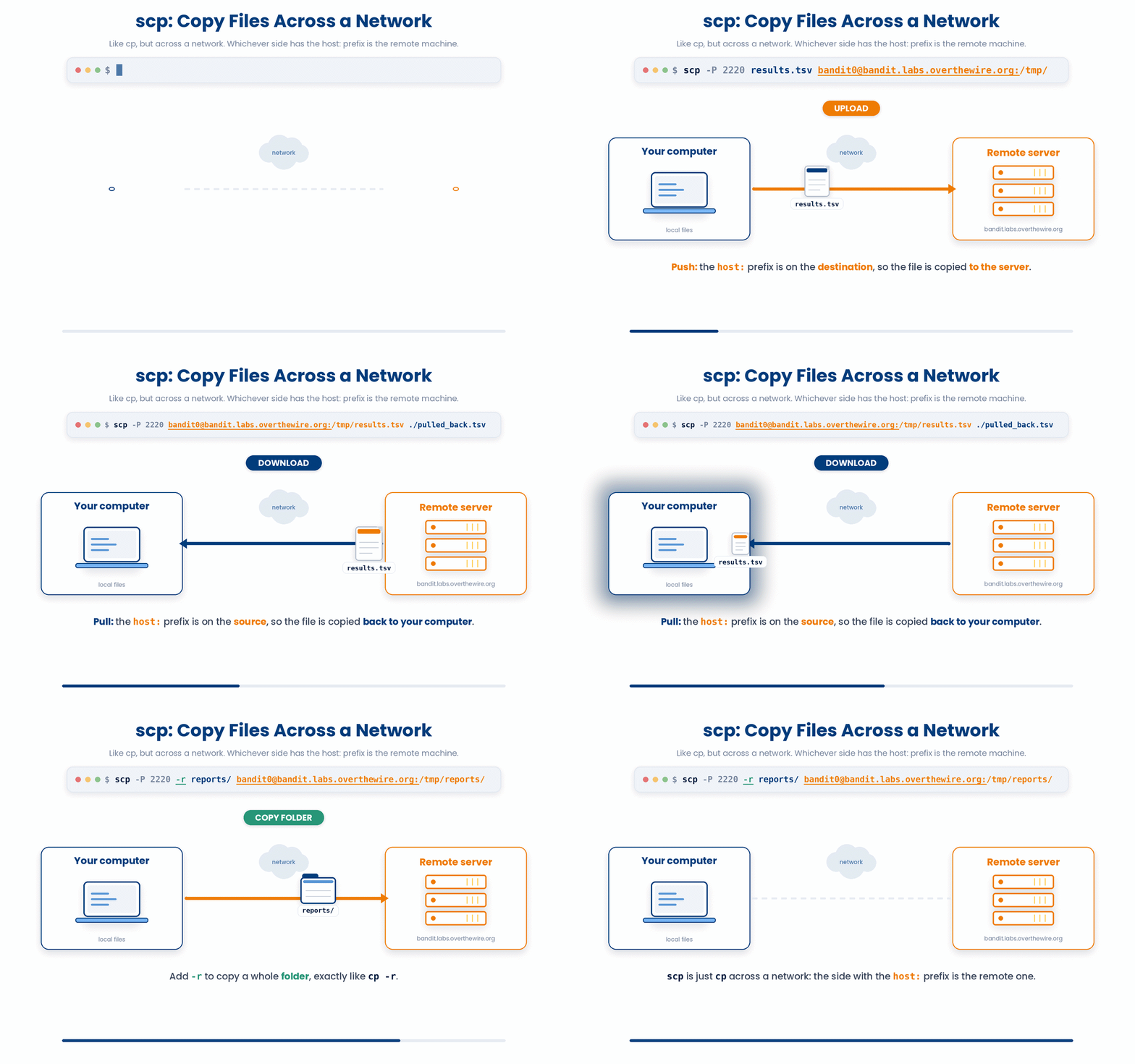
Anything before the colon is the local path; anything after the host: is the remote path. If you have an alias set up in your ~/.ssh/config, you can use that instead of the full address.
4.1 Navigating Shared Servers
When working on shared infrastructure—whether it is our Bandit training environment or a real computational cluster—you will commonly encounter two security configurations:
- Custom Ports (-P): Production servers often hide SSH access behind non-standard ports. scp sets the port using a capital -P (unlike ssh, which uses a lowercase -p). If you accidentally use a lowercase -p with scp, it attempts to preserve timestamps instead, defaults to port 22, and the server will reject you.
- Write Permissions (/tmp): Your instinct may be to copy files directly into your home directory (~). However, on shared environments like Bandit, home directories are strictly controlled by the system. You will receive a Permission denied error. Instead, write to /tmp—a shared scratch area open to everyone. Treat /tmp strictly as a temporary workspace; it is cleared regularly, so never leave critical data there.
Try It: Create a File and Send It Up
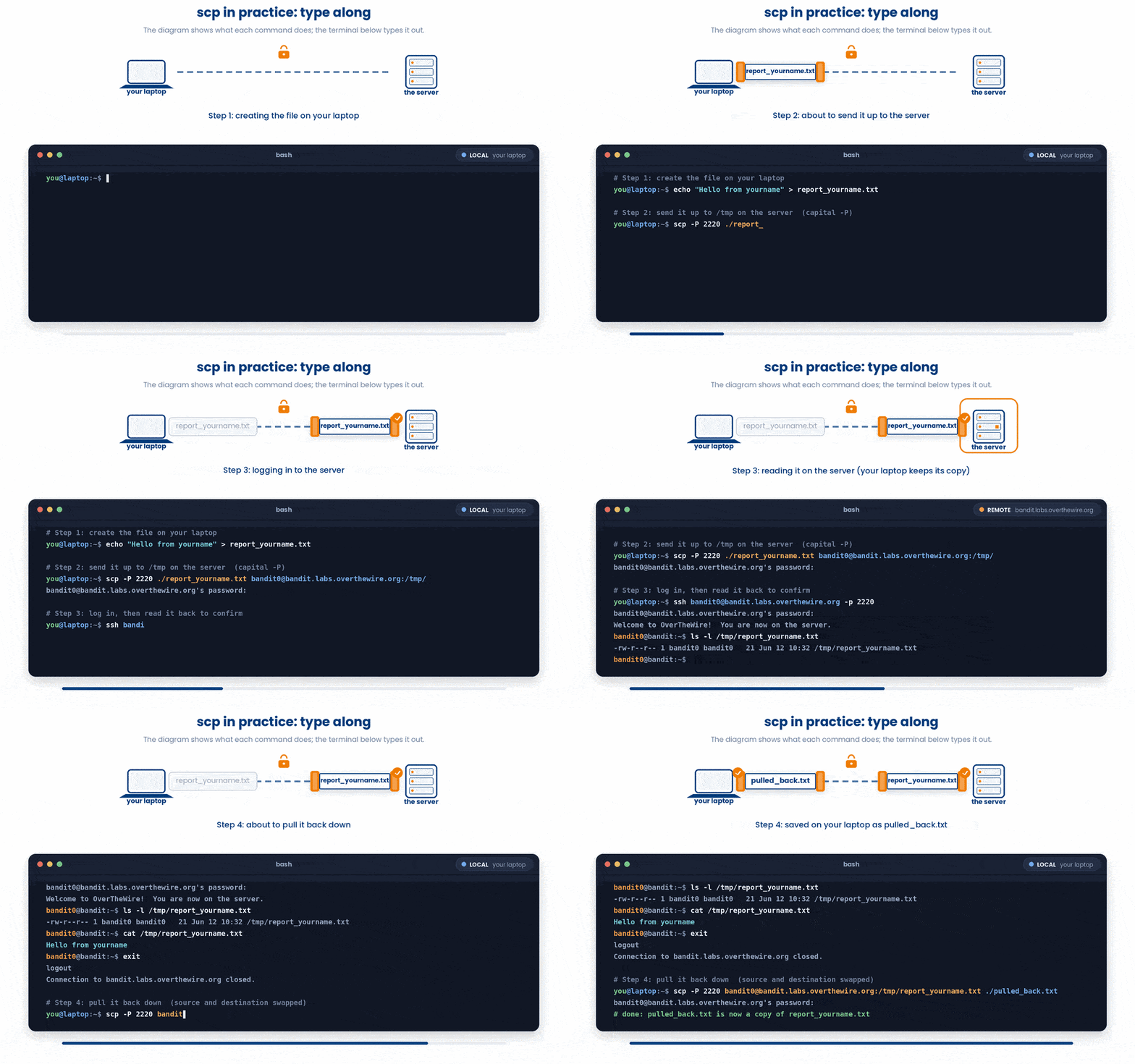
This is the core exercise. You will make a small text file on your own computer, send it up to the server, confirm it arrived, then pull it back down.
Here is an overview of what you be doing first.

Here are the exact steps.
Step 1. Create a text file, using your own name in the filename so it does not clash with a classmate's (scp overwrites silently, and /tmp is shared, so two people using the same name would overwrite each other). On macOS or Linux, type:
Note: Make sure your terminal is pointed to your local computer
Try this snippet in the Bash Scratchpad on the right.
$ echo "Hello from yourname" > report_yourname.txtOn Windows, the simplest route is to open Notepad, type a line, and Save As report_yourname.txt.
Step 2. Send it up to /tmp on the server (capital -P, and the password is invisible, as before):
Try this snippet in the Bash Scratchpad on the right.
$ scp -P 2220 ./report_yourname.txt bandit0@bandit.labs.overthewire.org:/tmp/If it works, the command finishes with no error.
You will be asked for the password (which is, bandit0)
Step 3. Log in, then look at the file and read it back to confirm it arrived, then log out:
Try this snippet in the Bash Scratchpad on the right.
$ ssh bandit0@bandit.labs.overthewire.org -p 2220
$ ls -l /tmp/report_yourname.txt
$ cat /tmp/report_yourname.txt
$ exitYou should see the line of text you wrote. That confirms the file travelled from your laptop to the server. You may try and edit it using Vim.
Step 4. Pull it back down. Run this on your own machine, with the source and destination simply swapped:
Note: Make sure your terminal is pointed to your local computer
Try this snippet in the Bash Scratchpad on the right.
$ scp -P 2220 bandit0@bandit.labs.overthewire.org:/tmp/report_yourname.txt ./pulled_back.txtOpen pulled_back.txt and you will see the same text. You have now moved a file up to the server and back down again over a secure connection.
5 rsync - The Workhorse
While scp is great for single files, rsync is the tool of choice for datasets. rsync only copies the differences between the source and destination. If you run it once, it copies everything; if you change two files and run it again, it transfers only those two files. This makes it fast, resumable, and ideal for syncing data.
$ rsync -av reports/ localhost:/tmp/reports/
sending incremental file list
report_001.txt
report_002.txt
report_003.txt
Here are some of the common flags that you can pair with rsync
- -a - archive mode: recurse and preserve permissions, timestamps, and structure.
- -v - verbose: list what is transferred.
- -z - compress in transit, worth it on a slow network.
- --progress - show a live progress bar for big files.
- --dry-run - show what WOULD transfer without touching anything.
- Always run a --dry-run first when using an unfamiliar rsync command to prevent accidental overwrites.
$ rsync -avz --dry-run cohort/ localhost:/tmp/backup/cohort/
# lists the files that would transfer
changes nothing
6 The Trailing Slash Rule
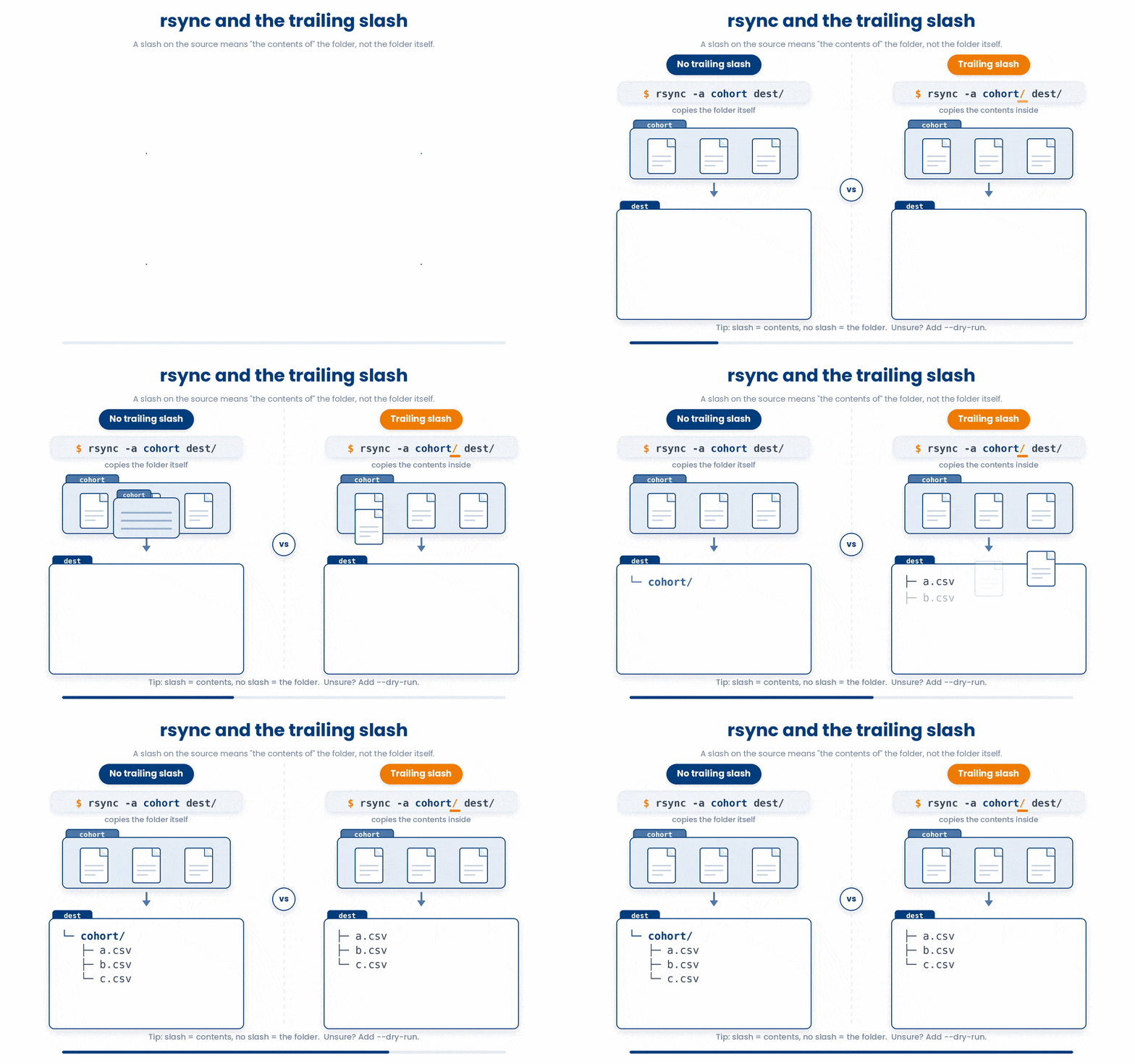
The most common mistake with rsync involves the trailing slash on the source directory. It determines whether you copy the folder itself, or the contents inside the folder.
- No Slash (cohort): Copies the folder. The result is dest/cohort/...
- With Slash (cohort/): Copies the contents. The result is dest/... directly.
If you get this wrong, you may accidentally nest folders (dest/cohort/cohort) or dump files one level too high. When in doubt, use --dry-run.
Note: rsync is native to macOS and Linux. Windows users will need to run it inside WSL or directly on the remote server
7 Staying Connected - ssh + tmux
Here is a scenario every computational researcher faces: you SSH into a server, start a long script, and your Wi-Fi briefly disconnects. The SSH session dies, the script is killed, and your work vanishes.
The solution is combining ssh with tmux. While you won't run long jobs on Bandit, this is the exact workflow you will use on real research clusters
Step 1. Log in, start a tmux session on the remote machine, and launch the job inside it:
$ ssh cluster
$ tmux new -s run
$ ./cohort_summary.sh big_cohort.csv out.tsv
# press the tmux prefix, then d, to detach, after which you can safely disconnect
Step 2. Detach and disconnect.
Press your tmux prefix (Ctrl + b), release, then press d to detach. You can now safely type exit to drop the SSH connection and close your laptop. The job continues running on the server.
Step 3. Reconnect later.
From anywhere, SSH back in and reattach to the session to pick up exactly where you left off.
$ ssh cluster
$ tmux attach -t run
# the job ran the whole time
the full scrollback is here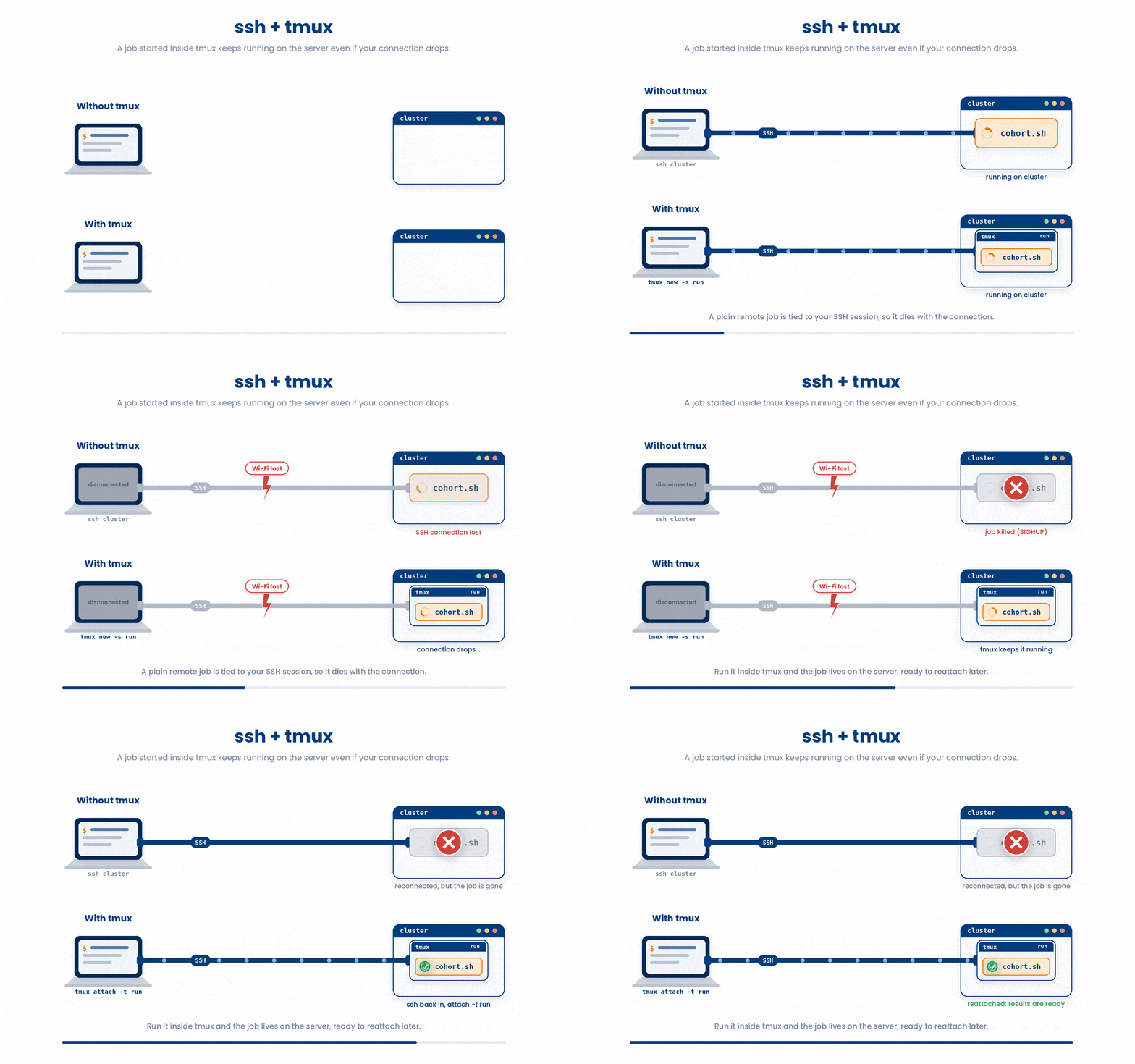
Never run a long job directly in a bare SSH session. Start tmux first. If your connection drops, your job neither knows nor cares.
8 Check your understanding
You have reached the end of the module. Try the same questions again — your answers here, paired with your pre-test answers, are how we measure what the module taught you. Answer every question and confidence rating, then click Submit and see results to view your score.
Which command copies local results.tsv into /tmp on the remote host cluster?
What is the main advantage of rsync over scp?
What does rsync --dry-run do?
What is the difference between rsync -av data dest/ and rsync -av data/ dest/?
How do you keep a long job running on a server after your SSH connection drops?
Which scp flag sets a non-standard port, and why avoid the lowercase one?
Which scp flag lets you copy an entire folder to the remote machine?
On a shared server like Bandit, why copy files into /tmp rather than your home directory?
I can copy files to and from a remote machine with scp.
I can use rsync to sync a folder, and I understand the trailing-slash rule.
I can run a long remote job inside tmux so it survives a dropped connection.
9 Your results
Here is how your post-test answers compare with your pre-test answers. The pre/post pairing is the most reliable way to see what this module actually taught you.
Submit the post-test to see your results.
What is the one thing from this module that is still unclear to you?