

1 Before you start
This is not graded, and it does not count towards anything. Answer every question even if you are only guessing — having a go at something before you have been taught it is one of the best ways to remember it afterwards. The lesson ends with another short check, and there you will be shown the correct answer for anything you missed. Choose an option for every question and confidence rating, then click Submit answers.
What does ssh student@server do?
Which file do you copy TO a server to enable key-based login?
How do you run a single command on a remote host and return immediately?
What is the purpose of ~/.ssh/config?
SSH refuses your private key, saying permissions are too open. What fixes it?
In ssh bandit0@server -p 2220, what does the -p 2220 part set?
The first time you connect to a new server, SSH shows a fingerprint and asks whether to continue. What should you do?
How should the private key (id_ed25519) of an SSH key pair be handled?
I can log into a remote machine with ssh and log back out.
I can generate an SSH key pair and use it to log in without a password.
I can set up a ~/.ssh/config alias and keep my key file permissions correct.
2 Introduction
Everything so far has run on the machine directly in front of you. However, real analysis rarely happens on your laptop. You will usually run jobs somewhere else — a lab workstation, a cloud VM, or a shared HPC cluster — and reach it over the network.
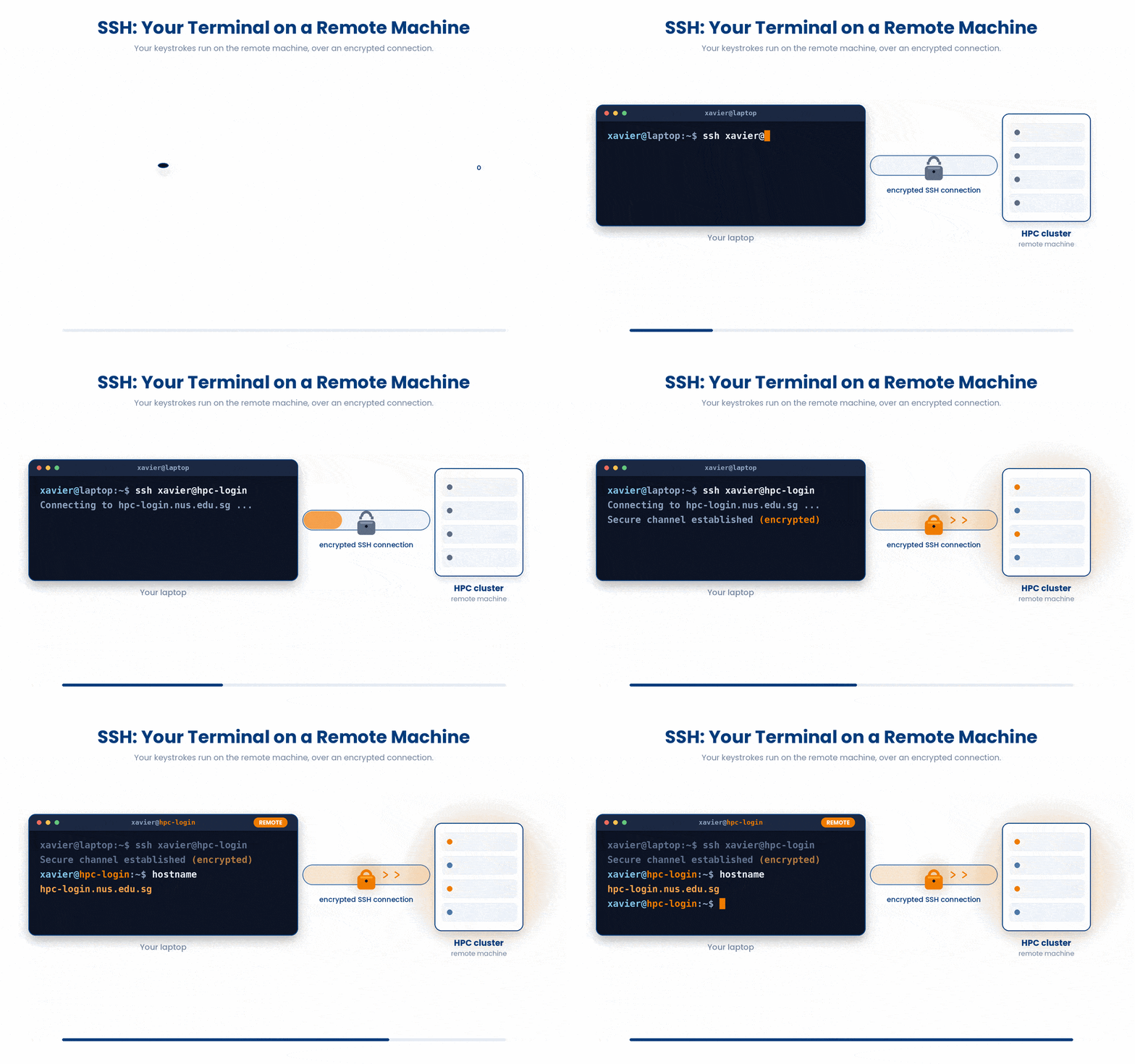
To access these computing infrastructure, you will need the SSH (Secure Shell)
3 What SSH Does
SSH (Secure Shell) opens an encrypted terminal on a remote machine so you can work exactly as if you were sitting at its keyboard.
In this lesson we will cover the following:
- Logging in, and running a single remote command.
- Passwords vs SSH keys - and why keys win.
- Generating keys, enabling key login, and ~/.ssh/config.
4 Setup
Note: You will need to use Terminal or Powershell depending on the operating system of your computer. You cannot use the bash scratchpad for this tutorial.
To practice connecting to a real remote server, we will use the OverTheWire Bandit wargame. It is a safe, read-only Linux environment perfect for learning.
Open your terminal (Mac/Linux) or PowerShell (Windows) and type this exact command:
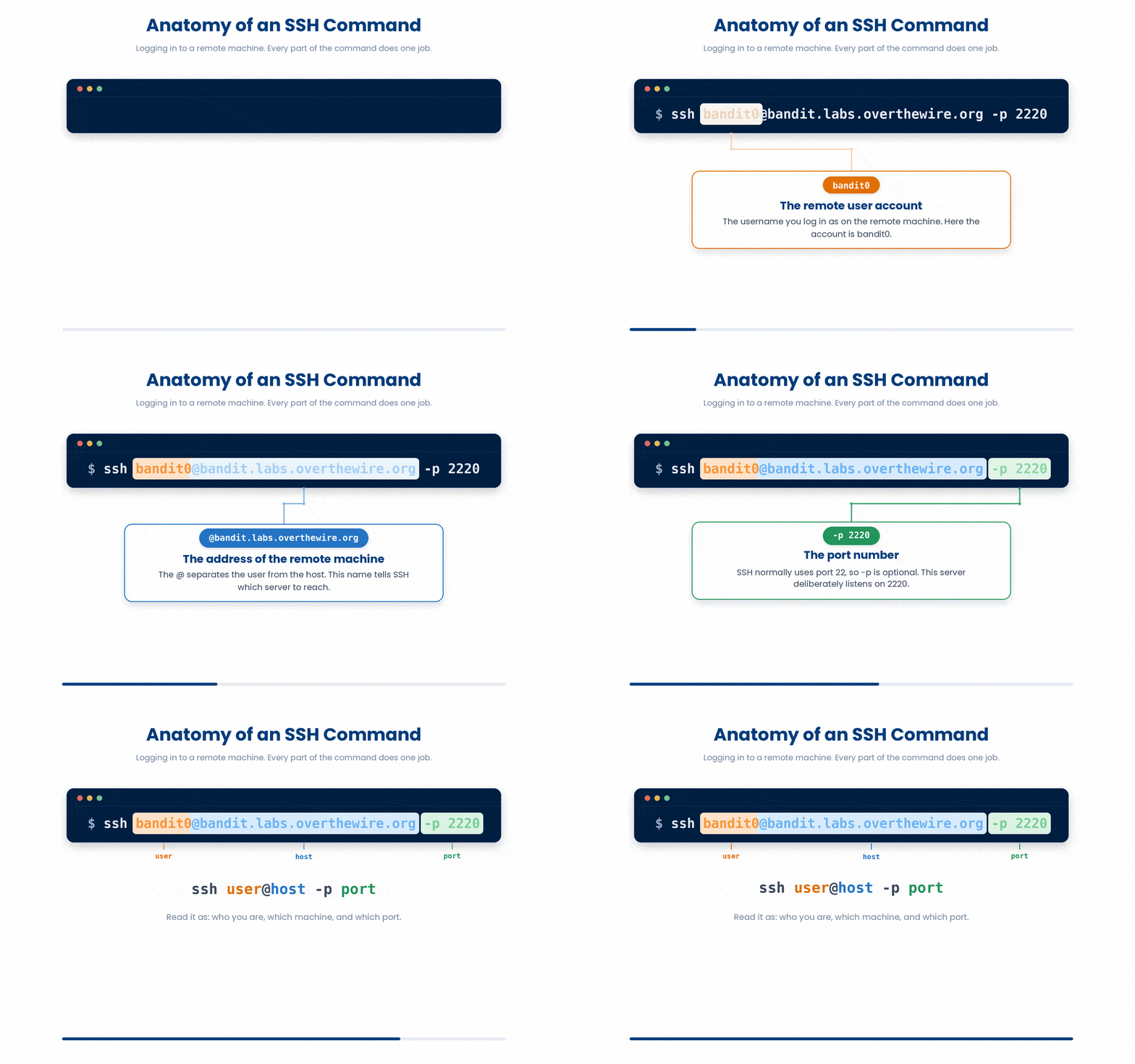
$ ssh bandit0@bandit.labs.overthewire.org -p 2220Let’s break down what you just typed:
- bandit0: The remote user account you are logging into
- @bandit.labs.overthewire.org: The address of the remote machine
- -p 2220: The port number. SSH normally defaults to port 22, so you do not normally have to type this. But this server deliberately uses 2220.
There are two common beginner pitfalls:
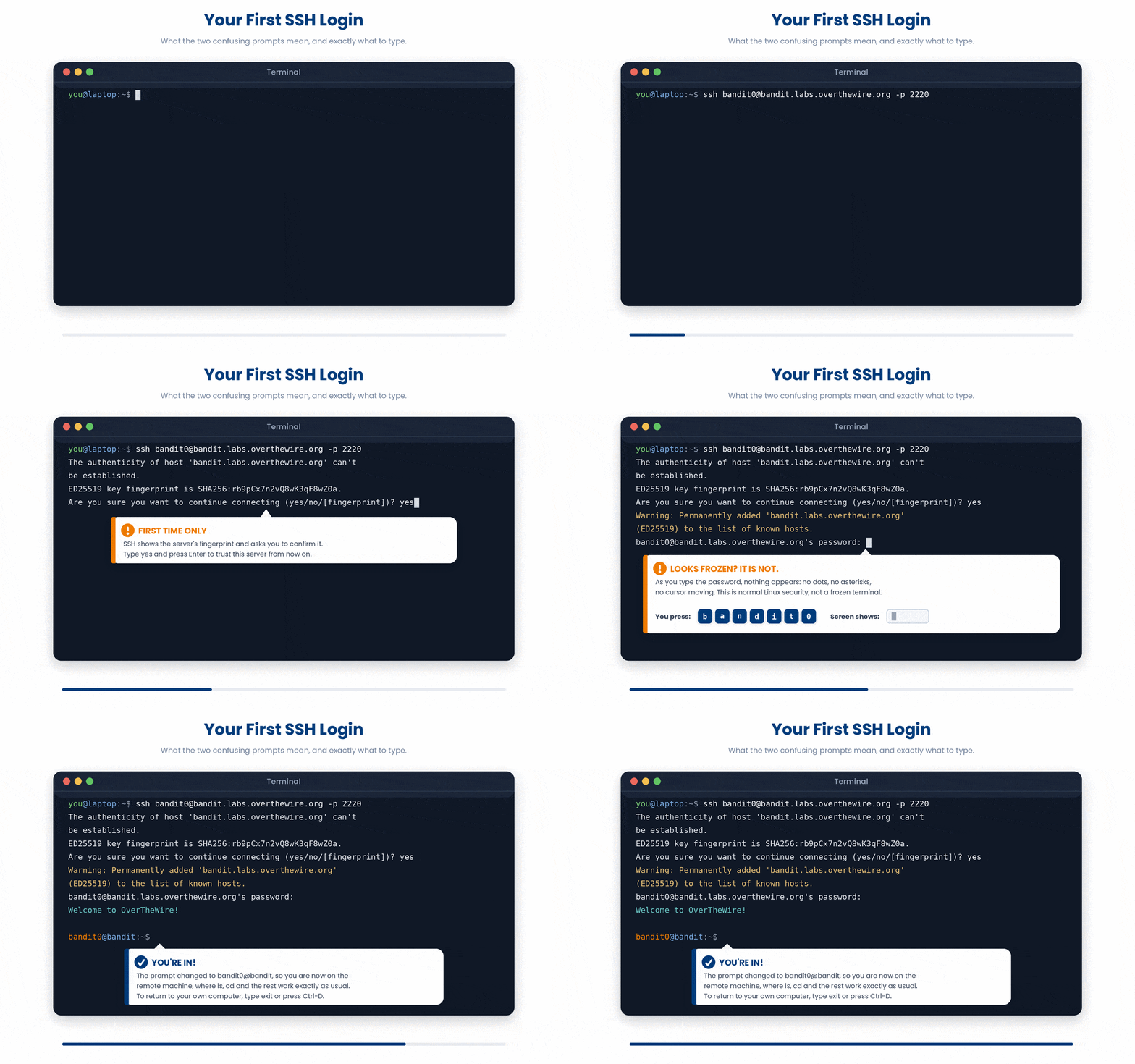
(a) The Fingerprint Prompt
The first time you connect to any new server, SSH will show a fingerprint and ask:
Are you sure you want to continue connecting (yes/no/[fingerprint])?.
Type yes and press Enter. This tells your computer to trust this server moving forward.
- (b) The Invinsible Password:
- It will ask for a password (the password is bandit0).
- When you type your password, nothing will show on screen — no dots, no asterisks, no cursor movement. This is normal Linux security, not a frozen terminal. Just type bandit0 and press Enter.
Once connected, the prompt changes to the remote machine and you are simply in a shell - ls, cd, everything you know works. To come back to your own machine, log out with exit or Ctrl-D.
5 Running One Command Remotely
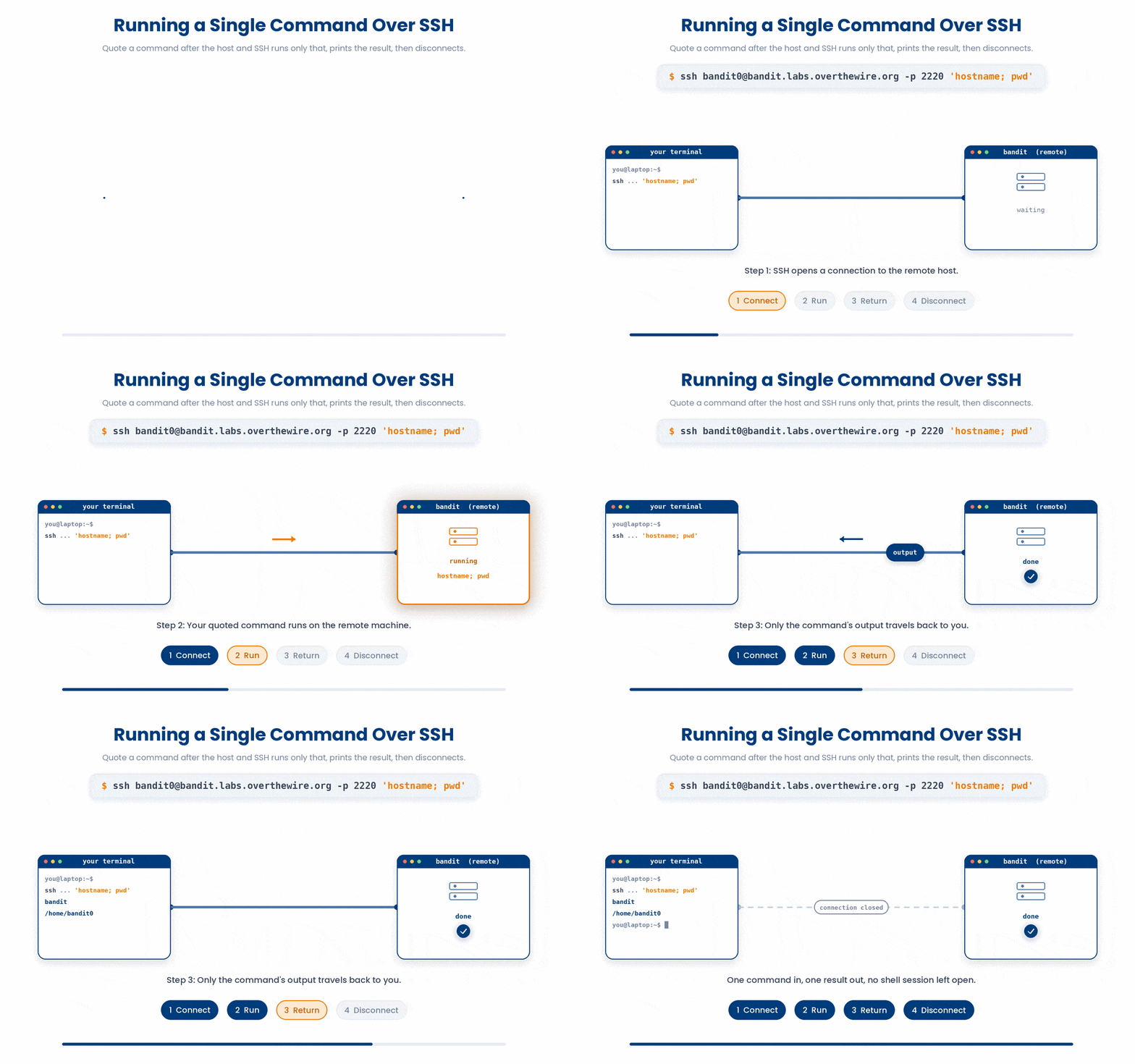
You do not always need a full interactive session. If you put a command in quotes at the end of your SSH string, it will connect, run just that command, print the result to your screen, and disconnect immediately:
$ ssh bandit0@bandit.labs.overthewire.org -p 2220 'hostname; pwd'This is how scripts drive remote machines — checking disk space, kicking off jobs, or fetching data — without a human needing to sit at the terminal.
6 Passwords vs Keys
By default, SSH asks for a password every time you connect. That is fine once, tedious to do daily, and impossible to use in automated scripts.
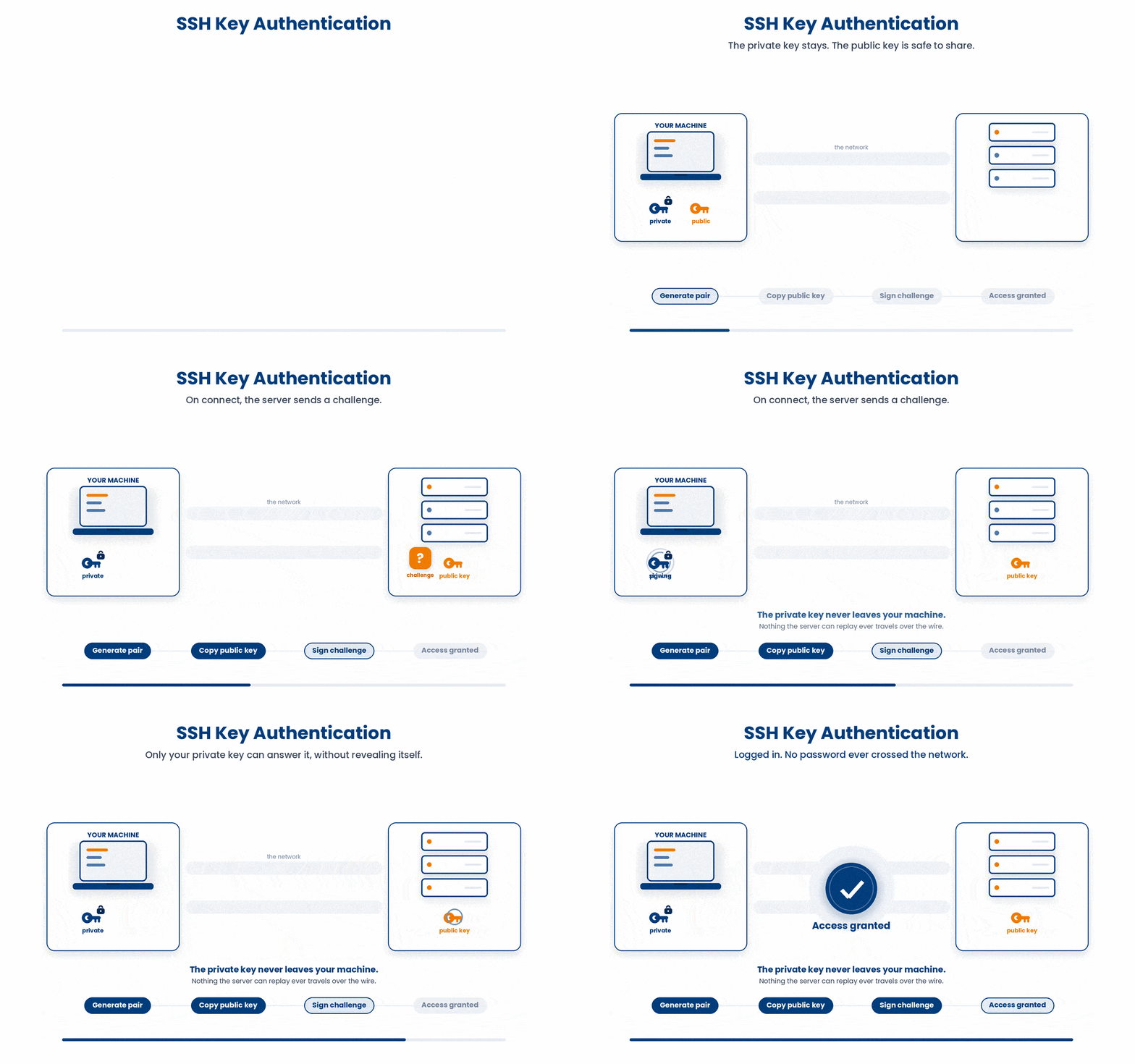
SSH keys replace the password with a cryptographic pair you generate once:
- A PRIVATE key (~/.ssh/id_ed25519) that never leaves your machine. Treat it like a password - never share it, never commit it to Git.
- A PUBLIC key (~/.ssh/id_ed25519.pub) that you copy to any server you want to log into.
- When you connect, the server uses your public key to set a challenge that only your private key can answer. No password crosses the network, and your login becomes instant.
6.1 Generate a key pair
Note: You can generate a key pair, but you cannot install it on the Bandit server, so key-based login is not possible there. Hence, this section is purely as reference only.
Here is the command to generate the keypair on Terminal on macOS or Linux. Setting this up in Windows is slightly more complicated and is not covered in this tutorial.
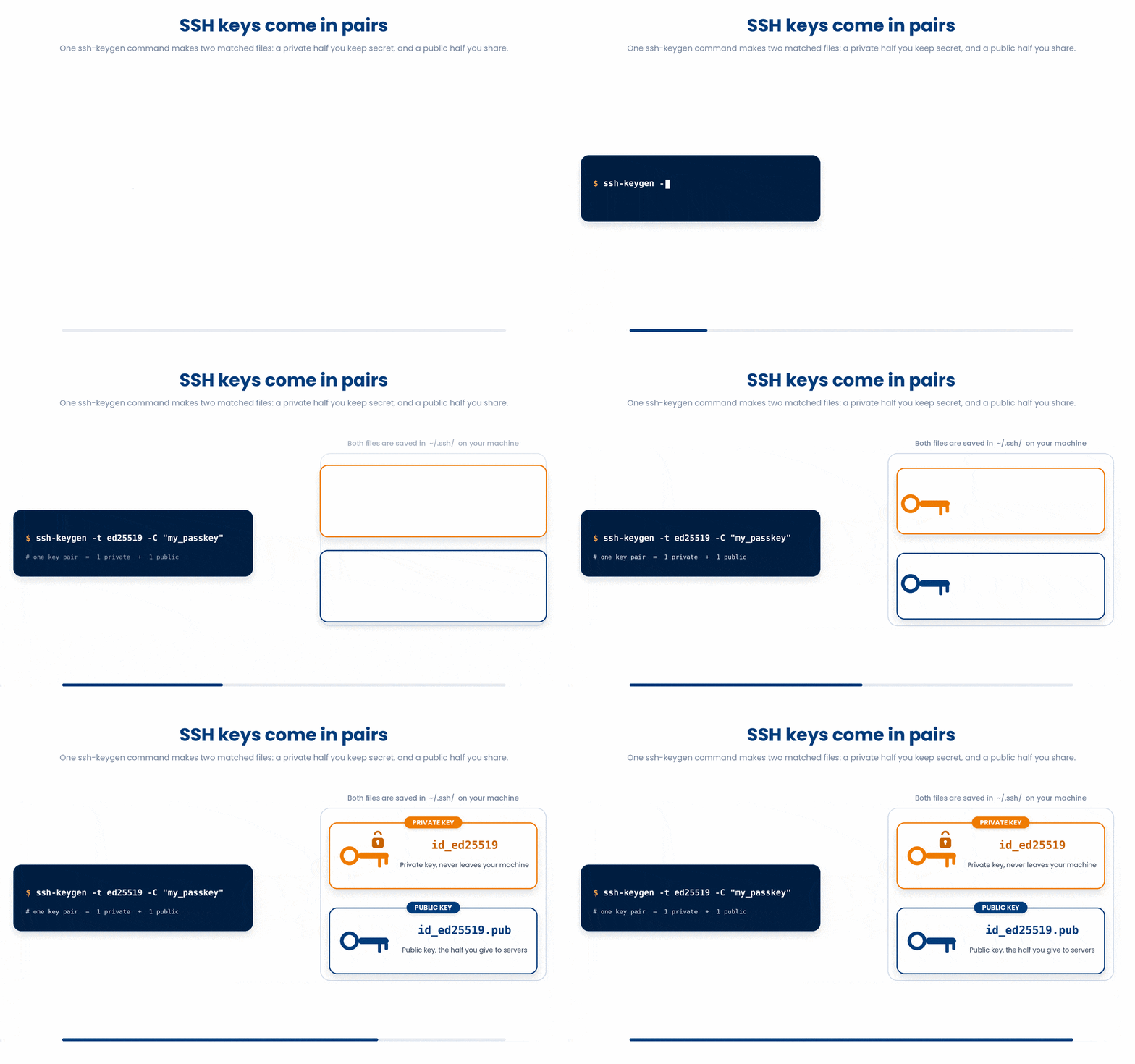
$ ssh-keygen -t ed25519 -C "my_passkey"What the parts mean:
-t ed25519 picks the key type
-C "..." sets the comment, which is just a text label baked into the public key. Worth knowing for teaching: this label is purely cosmetic. It does not bind the key to that host or username in any functional way. You could put your email there instead and it would behave identically.
It then asks you two things:
"Enter file in which to save the key", defaulting to ~/.ssh/id_ed25519. Press Enter to accept.
"Enter passphrase (empty for no passphrase)". A passphrase encrypts the private key on disk so a stolen file is useless without it. For a throwaway practice key, press Enter twice to leave it empty.
That produces two files in ~/.ssh/: id_ed25519 (the private key, which never leaves your machine) and id_ed25519.pub (the public key, the half you hand to a server).
You can view the public one with:
$ cat ~/.ssh/id_ed25519.pubYou will then put the public key on the server
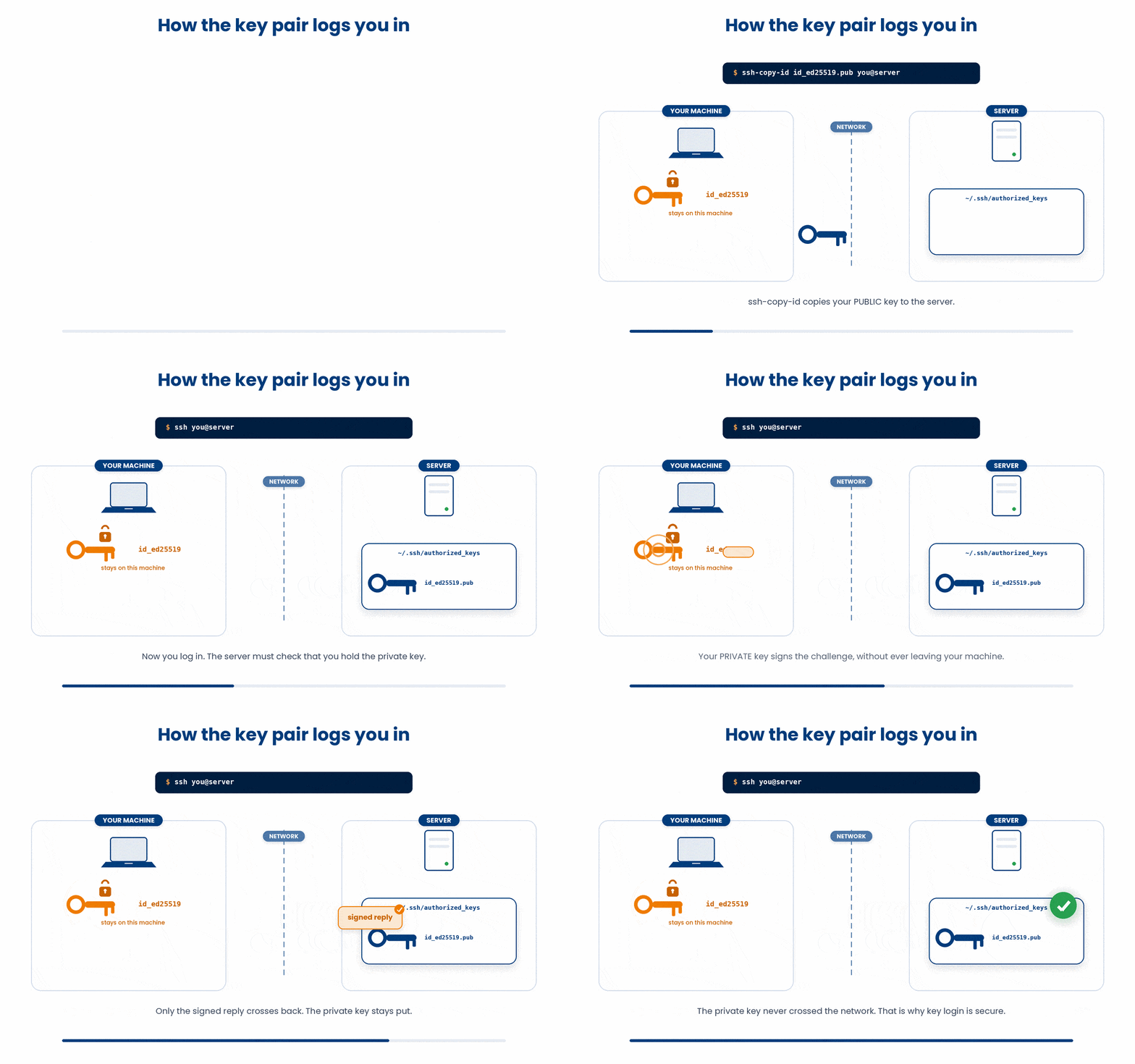
$ ssh-copy-id -i ~/.ssh/id_ed25519.pub you@your-serverYou can add -p PORT before the host if the server uses a non-standard SSH port, e.g. ssh-copy-id -i ~/.ssh/id_ed25519.pub -p 2220 you@your-server.
It logs in with your password once, appends your public key to ~/.ssh/authorized_keys on the server, and fixes the permissions for you. After that, ssh you@your-server lets you in with no password.
7 Key File Permissions
SSH is incredibly strict about permissions. If your private key can be read by other users on your laptop, SSH will assume it is compromised and refuse to use it.
If SSH ever complains that your permissions are "too open," run these two commands to lock them down:
$ chmod 700 ~/.ssh
$ chmod 600 ~/.ssh/id_ed25519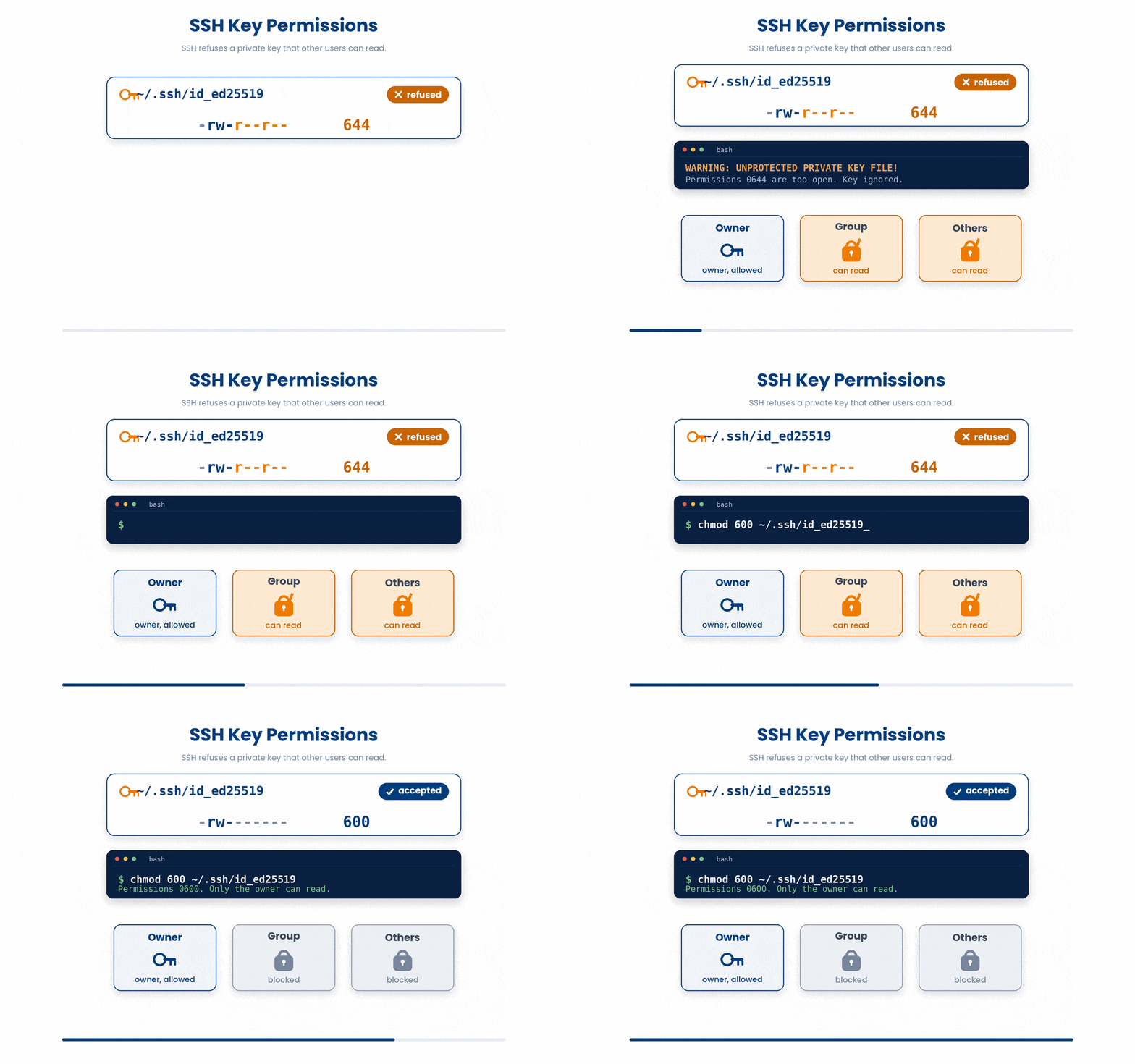
8 Shortcuts with ~/.ssh/config
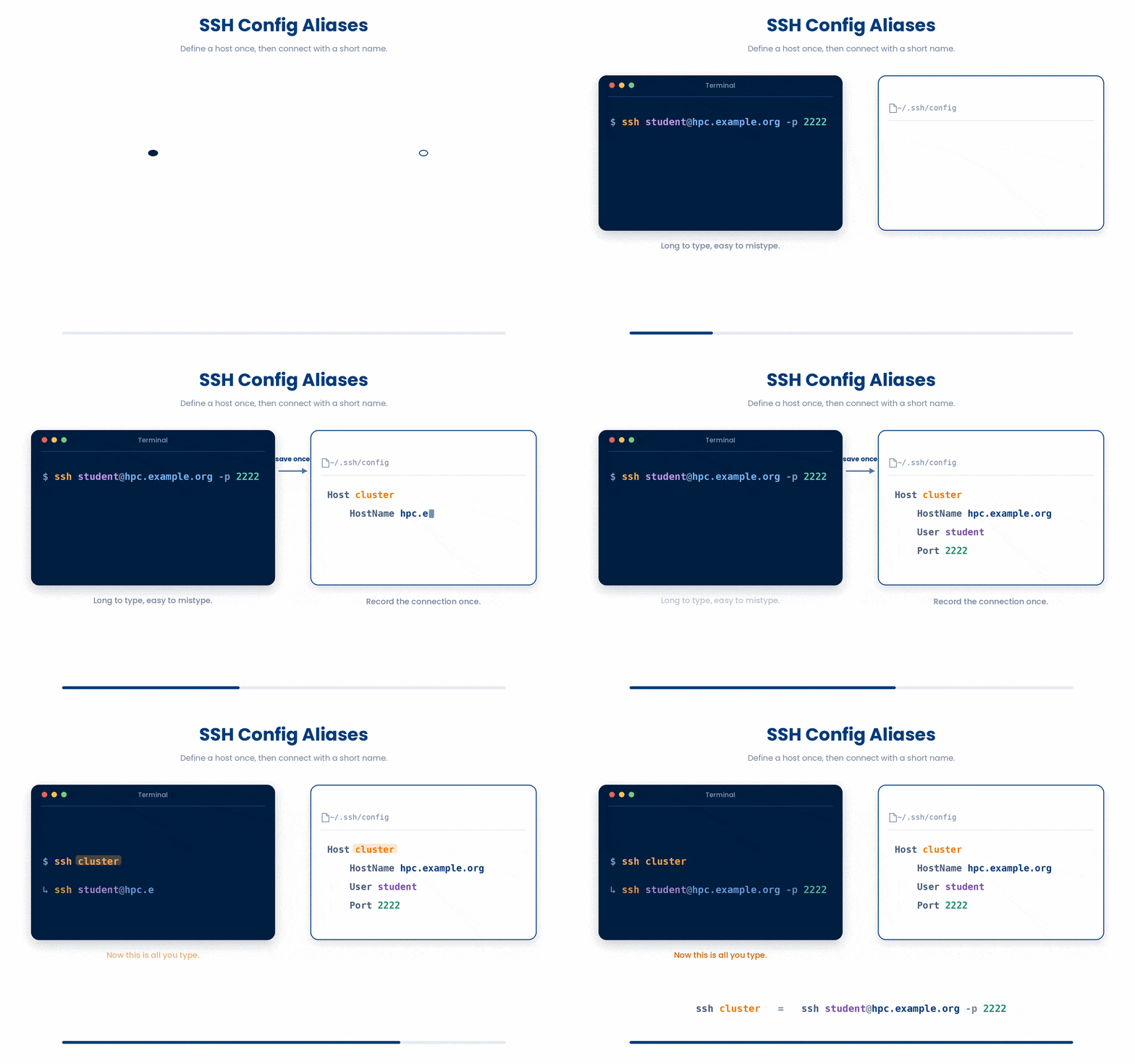
Typing ssh student@hpc.example.org -p 2222 every time gets tiresome. You can define a short alias in your SSH config file.
Edit or create the file ~/.ssh/config and add:
# ~/.ssh/config
Host cluster
    HostName hpc.example.org
    User student
    Port 2222
Now, typing ssh cluster expands to the full connection string automatically.
9 Check your understanding
You have reached the end of the module. Try the same questions again — your answers here, paired with your pre-test answers, are how we measure what the module taught you. Answer every question and confidence rating, then click Submit and see results to view your score.
What does ssh student@server do?
Which file do you copy TO a server to enable key-based login?
How do you run a single command on a remote host and return immediately?
What is the purpose of ~/.ssh/config?
SSH refuses your private key, saying permissions are too open. What fixes it?
In ssh bandit0@server -p 2220, what does the -p 2220 part set?
The first time you connect to a new server, SSH shows a fingerprint and asks whether to continue. What should you do?
How should the private key (id_ed25519) of an SSH key pair be handled?
I can log into a remote machine with ssh and log back out.
I can generate an SSH key pair and use it to log in without a password.
I can set up a ~/.ssh/config alias and keep my key file permissions correct.
10 Your results
Here is how your post-test answers compare with your pre-test answers. The pre/post pairing is the most reliable way to see what this module actually taught you.
Submit the post-test to see your results.
What is the one thing from this module that is still unclear to you?