

1 Before you start
This is not graded, and it does not count towards anything. Answer every question even if you are only guessing — having a go at something before you have been taught it is one of the best ways to remember it afterwards. The lesson ends with another short check, and there you will be shown the correct answer for anything you missed. Choose an option for every question and confidence rating, then click Submit answers.
What is the main reason to run a long job inside tmux?
The default tmux prefix key is:
You are inside a session with a job running and want to leave it running and go home. What do you do?
Which command reattaches to a running session named cohort?
After the prefix, which keys split the current window into panes?
In the tmux hierarchy, which containment relationship is correct?
Which command starts a new tmux session named cohort so you can find it again later?
Your mouse wheel will not scroll and you need to read output that rolled off the top of a pane. What do you press?
I can start a named tmux session, detach from it, and reattach later.
I can create windows and split panes inside a session.
I understand why tmux is safer than nohup for a long or remote job.
2 Introduction
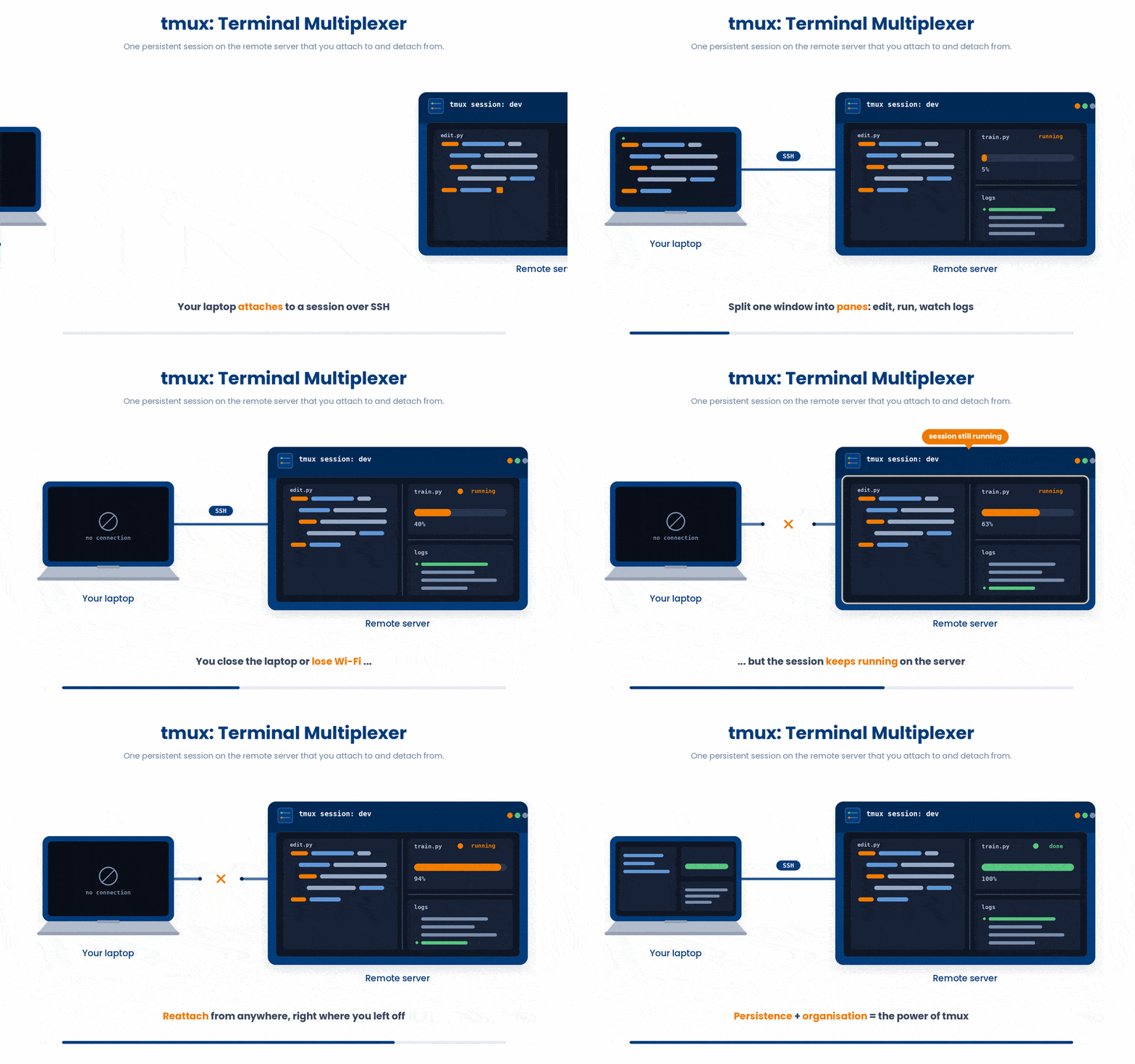
tmux stands for terminal multiplexer. Think of it as a tool that gives you two powerful abilities:
- Persistence: your code keeps running in the background even if you close your laptop, lose Wi-Fi, or log out.
- Organization: you can split one terminal window into multiple tabs and panes, so you can edit code, run it, and watch logs all at once
In this particular tutorial, there are two kinds of input:
- Commands that you type at the prompt. For example tmux ls
- Keyboard shortcuts that uses the Prefix. We will bold it. For example, Ctrl + b then c. You don’t “run” these; you press the keys.
To understand Tmux, imagine a tree-like hierarchy of your workspace:
Session: A dedicated workspace that runs in the background. Your work lives here. Even if you disconnect your terminal, the session stays alive.
Window: A full-screen tab inside a session. You can have several open at once.
Pane: A split-screen tile within a single window. Perfect for side-by-side multitasking.
In short: a session contains windows, and a window can be split into panes.
3 Sessions That Outlive the Terminal
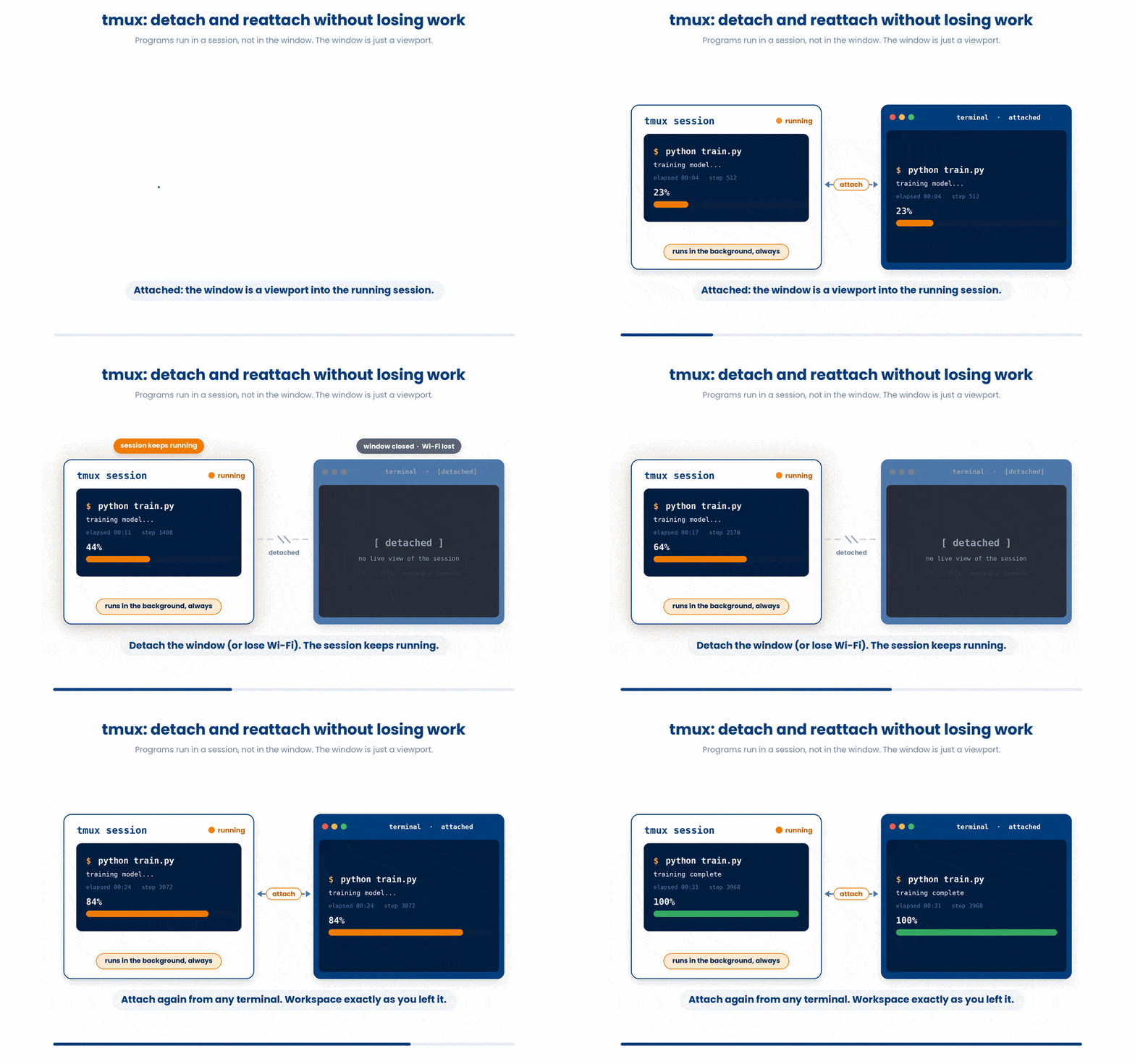
Normally your terminal window and the programs inside it are tied together. Close the window (or lose Wi-Fi) and everything crashes, taking your progress with it.
Tmux changes this by adding a layer in between:
- It runs a continuous session in the background.
- Your terminal window is just a viewport looking into that session.
- You can detach the viewport at any time; the session keeps running, untouched.
- Later you can attach again from any terminal, and your workspace is exactly as you left it.
Inside a session you organize work further with windows (like browser tabs) and panes (screen splits).
4 Installing tmux
Note: Tmux cannot be run in the bash scratchpad. You can fire up a Terminal if you on macOS or UNIX-based system. If you are using Windows OS, you can launch via WSL.
The following tutorial assumes that you are running on the Terminal on your local computer
First, check whether you already have it
$ tmux -VIf that prints a version (e.g. tmux 3.4), you are set. If you get command not found, install it using the line from your system:
# Debian/Ubuntu/WSL
$ sudo apt update && sudo apt install -y tmux
# macOS (Homebrew)
$ brew install tmux# Fedora/RHEL
$ sudo dnf install -y tmux5 The Prefix Key
To launch Tmux, type the following:
$ tmuxTo avoid mixing up its own shortcuts with keystrokes meant for programs running inside it (Python, Vim, etc.), tmux uses a two-step handshake called the Prefix key.
The default prefix is: Ctrl + b
To run any tmux shortcut:
Press and hold Ctrl, then tap b.
Release both keys.
Tap the command key.
To know if you did the prefix key properly, try the following:
Press and hold Ctrl, then tap b.
Release both keys.
Press the lower case t
If you did it correctly, a large digital clock takes over the pane. Press q or Esc to dismiss it.
To leave tmux entirely, type exit in the shell. That closes the current pane (and the window, then the session, once it is the last pane).

6 Starting, Detaching, Reattaching
This is a cleaner, more interactive alternative to old methods like running scripts with nohup: you can jump right back into a live session and see real-time output.
Step 1. Start and leave it running
Always name your sessions with the -s flag so you can find them later:
$ tmux new -s cohortA green status bar appears at the bottom of the screen. You are now safely inside tmux.
Step 2. Detach and leave it running
Once a long-running pipeline or script is going, you can safely walk away by detaching:
Shortcut: Ctrl + b and then press d
tmux drops you back to your ordinary prompt. Your job is still running invisibly in the background.
Step 3. List and Reattach
Whether you closed your laptop, went to lunch, or logged out, your session is waiting.
- List your active sessions
$ tmux ls- Reattach to your session
$ tmux attach -t cohortStep 4. Kill the Session
When the pipeline is completely finished, close the session so it stops using resources. You can either type exit inside the Tmux terminal, or destroy it from the outside using:
$ tmux kill-session -t cohort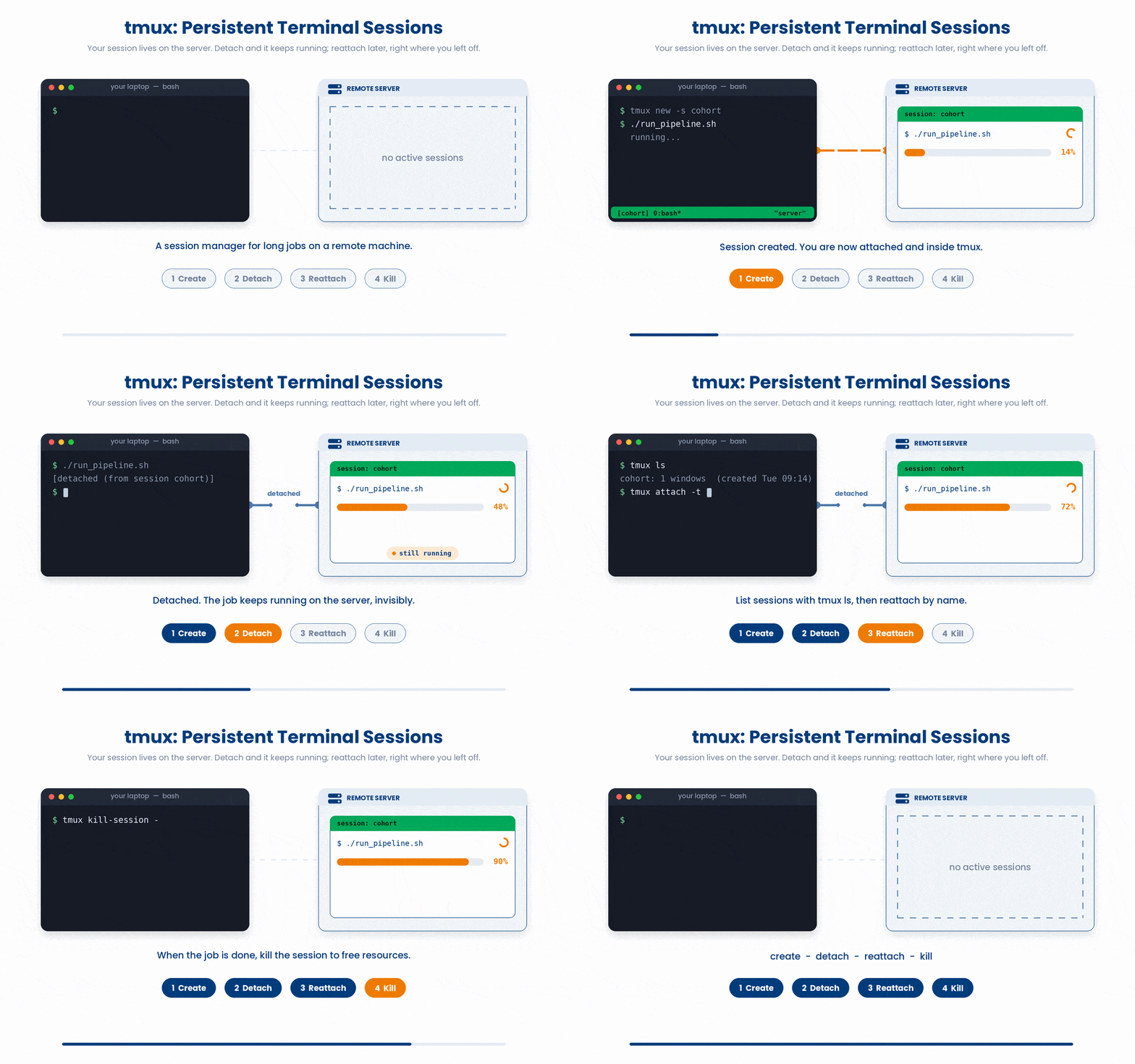
7 Windows - Tabs Inside a Session
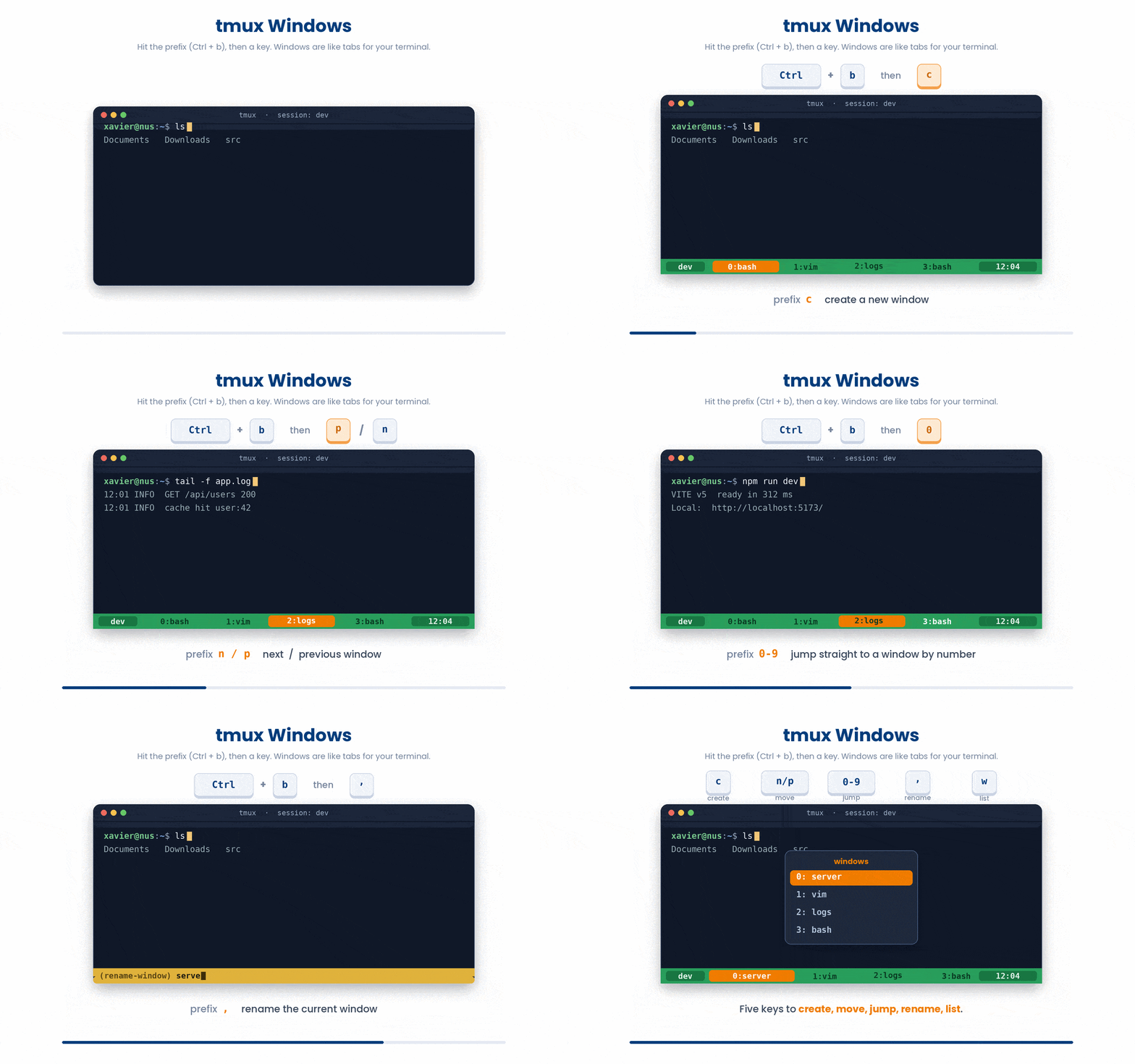
A window fills your entire terminal. Think of them like browser tabs: flip between full-screen tasks without opening new terminal applications.
A typical layout might include:
- Window 1: Vim with your analysis script open.
- Window 2: running the actual script.
- Window 3: exploring the output data.
- Here are some of the common window shortcuts
- Remember that prefix means ctrl + b (by default)
- prefix then c - Opens a brand new window
- prefix then n or p - Flips to the next or previous window
- prefix then 0-9 - Jumps straight to a specific numbered window
- prefix then , - Renames the current window for easy organizing
- prefix then w - Opens a list of windows so you can pick one
8 Panes - Splitting One Window
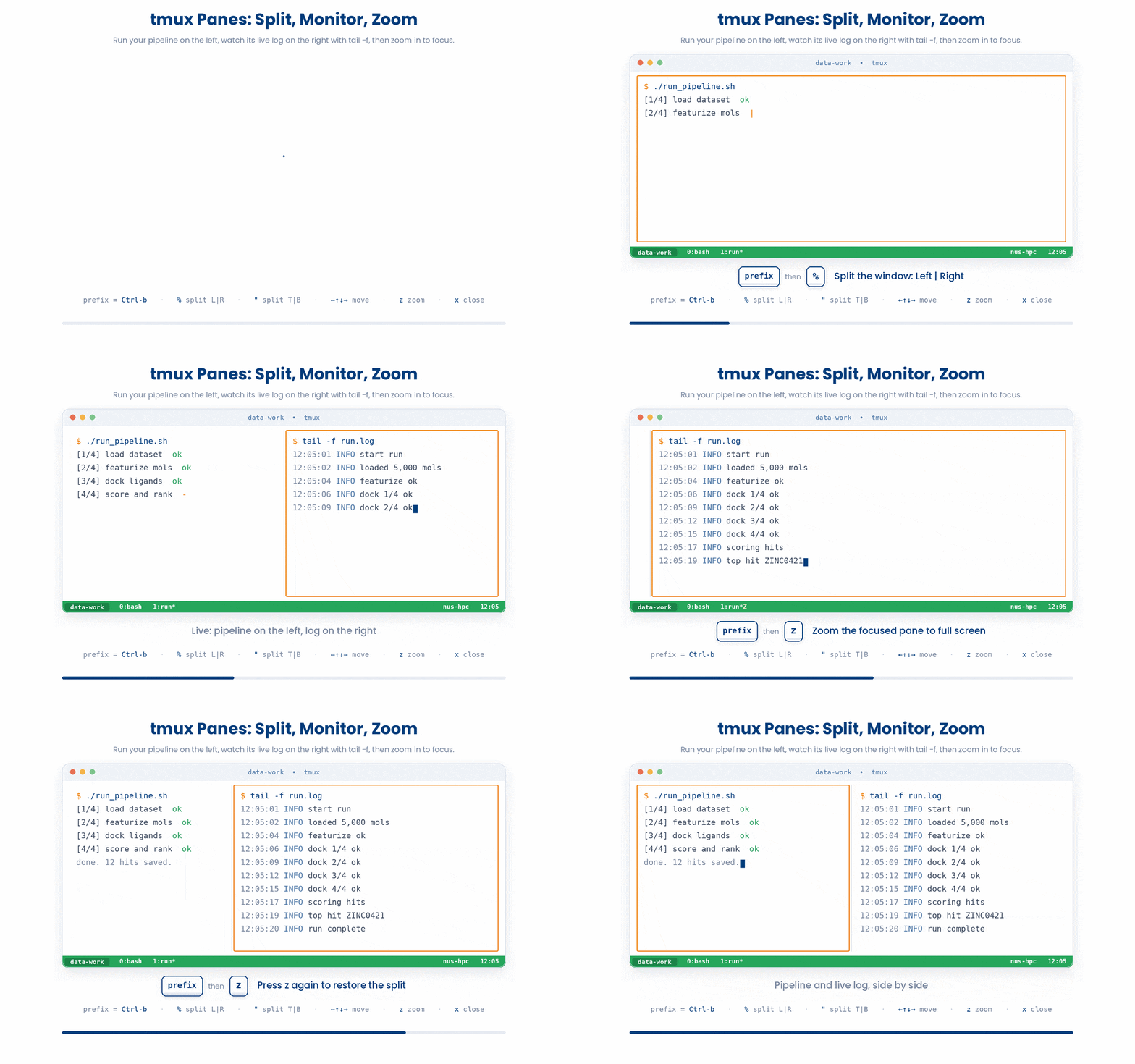
Panes let you tile a single window so you can watch multiple processes at the same time. The default bindings feel cryptic at first, but they quickly become muscle memory.
A classic data-work split: Run your pipeline in the left pane, and keep a live log (tail -f run.log) going in the right pane to watch its progress. If you need to see one side clearly, you can zoom into it and then restore the split.
- prefix then % - Splits the screen Left / Right
- prefix then " - Splits the screen Top / Bottom
- prefix then arrow keys - Moves your cursor between the active panes
- prefix then z - Toggles the current pane to full screen (and back)
- prefix then x - Closes the current pane (asks for confirmation)
9 Scrolling Back
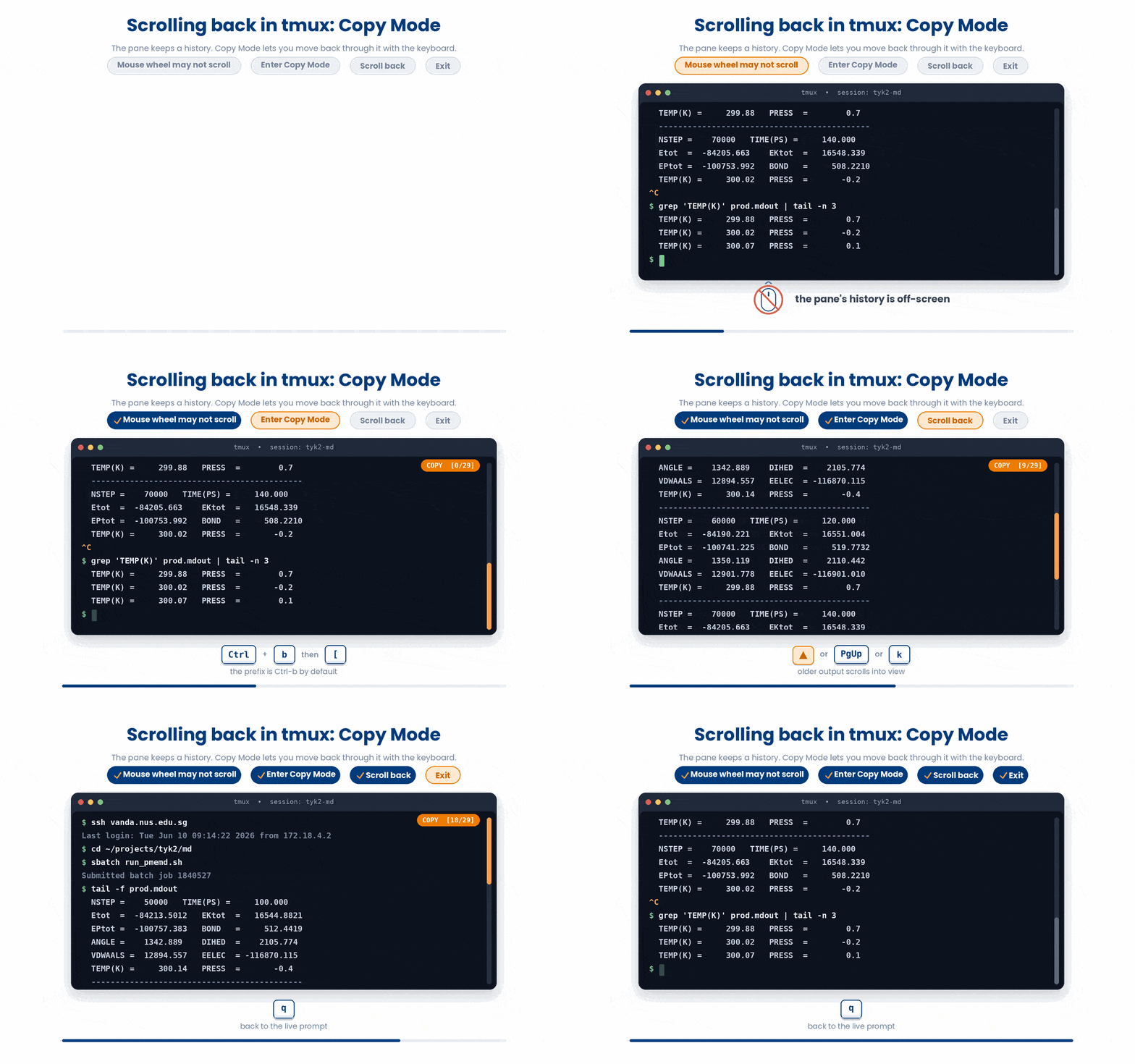
By default, your mouse wheel may not scroll inside a Tmux session. To read terminal output that has rolled off the top of your screen, you need to use Copy Mode:
Enter Copy Mode: Press prefix then [
Scroll: Use your arrow keys, Page Up, or standard Vim navigation keys (j, k, Ctrl-u, Ctrl-d).
Exit: Press q to leave copy mode and return to your prompt.
10 A Little Configuration
Tmux reads a hidden file called ~/.tmux.conf when it starts. While you do not strictly need one, many developers find the default Ctrl-b prefix to be an awkward reach.
A common tweak is to remap the prefix to Ctrl-a and enable your mouse so you can click between panes and scroll naturally. You can add these rules to your config file:
set -g prefix C-a
bind C-a send-prefix
set -g mouse on11 The Payoff Workflow
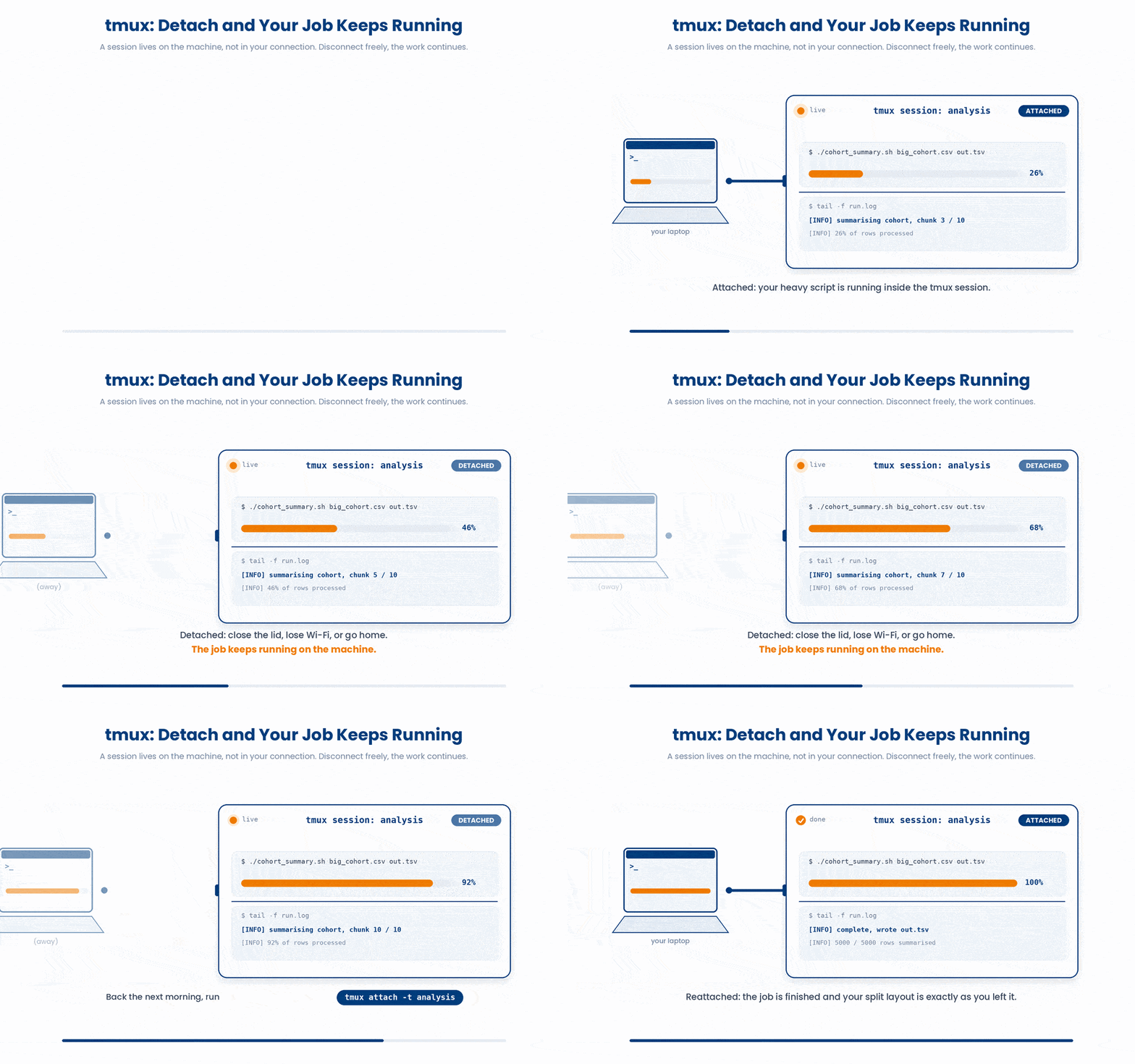
Here is how you put all of these tools together for a long, heavy task (like a cohort run) directly on your laptop:
Start a Session: Run tmux new -s analysis to create a dedicated workspace.
Split the Screen: Press prefix then " to create a top and bottom pane.
Launch the Job: In the top pane, run your heavy script (e.g., ./cohort_summary.sh big_cohort.csv out.tsv).
Monitor the Job: Click or navigate to the bottom pane and run tail -f run.log to watch the live progress.
Detach and Walk Away: Press prefix then d. You can now shut your laptop lid, lose Wi-Fi, or go home. The job keeps running safely.
Return to Work: The next morning, open your terminal and run tmux attach -t analysis. Your job will be finished, and your exact split-screen layout will be waiting for you.
12 Check your understanding
You have reached the end of the module. Try the same questions again — your answers here, paired with your pre-test answers, are how we measure what the module taught you. Answer every question and confidence rating, then click Submit and see results to view your score.
What is the main reason to run a long job inside tmux?
The default tmux prefix key is:
You are inside a session with a job running and want to leave it running and go home. What do you do?
Which command reattaches to a running session named cohort?
After the prefix, which keys split the current window into panes?
In the tmux hierarchy, which containment relationship is correct?
Which command starts a new tmux session named cohort so you can find it again later?
Your mouse wheel will not scroll and you need to read output that rolled off the top of a pane. What do you press?
I can start a named tmux session, detach from it, and reattach later.
I can create windows and split panes inside a session.
I understand why tmux is safer than nohup for a long or remote job.
13 Your results
Here is how your post-test answers compare with your pre-test answers. The pre/post pairing is the most reliable way to see what this module actually taught you.
Submit the post-test to see your results.
What is the one thing from this module that is still unclear to you?