

1 Before you start
This is not graded, and it does not count towards anything. Answer every question even if you are only guessing — having a go at something before you have been taught it is one of the best ways to remember it afterwards. The lesson ends with another short check, and there you will be shown the correct answer for anything you missed. Choose an option for every question and confidence rating, then click Submit answers.
What does adding & to the end of a command do?
You press Ctrl-Z on a running foreground job. What happens?
A job is suspended. Which command makes it continue running in the background?
What is the difference between kill %1 and kill -9 %1?
Which command lets a job keep running after you close the terminal?
After running a command with & the shell prints [1] 20345. What are these two numbers?
What does the jobs command list, and how do you refer to job number 1?
A background script keeps printing over your prompt. What do you add to send its output to a log file?
I can start a command in the background and get my prompt back.
I can suspend a foreground job with Ctrl-Z and resume it with bg or fg.
I can list jobs and stop one with kill, and I know when -9 is a last resort.
2 Introduction
Imagine you kick off a cohort analysis that will take ten minutes, and your terminal freezes. The prompt won't return until the job finishes.
Job control is the set of shell features that fixes this. It lets you push a running command into the background, reclaim your prompt, and check on, pause, resume, or stop the job at will.
Mastering these skills allows long-running jobs to keep executing even after you close your terminal.
Here, we will cover some of the topics below:
- Foreground and background: one terminal, several jobs.
- Starting in the background with &, suspending with Ctrl-Z.
- jobs, fg, and bg to list and move jobs around.
- Signals and kill; keeping jobs alive with nohup and disown.
3 Foreground and Background
By default, every command runs in the foreground. It "owns" the terminal until it finishes, meaning your prompt is completely unavailable. While this is fine for instant commands like ls, it is incredibly frustrating for a ten-minute analysis.
Conversely, a background job runs concurrently while handing the prompt straight back to you. A single terminal window can host many background jobs at once.

4 Starting a Job in the Background - &
To launch a command directly into the background, simply add an ampersand (&) to the very end of your command:
Try this snippet in the Bash Scratchpad on the right.
$ ./cohort_summary.sh big_cohort.csv out.tsv &The shell will immediately return two numbers:
- [1] (Job Number): A small, terminal-specific counter used with job control commands.
- 20345 (PID): The system-wide Process ID.
The prompt returns instantly, and your job runs quietly in the background.
![Appending & runs a command in the background so the shell prompt returns immediately, and the shell reports two identifiers for it: a terminal-local job number ([1], used with fg/bg/kill %1) and a system-wide process ID (20345, used with ps/kill/top).](GIF_background_job.gif)
A background job will still print its output directly to your terminal screen, scribbling over whatever else you are trying to do. For any "chatty" script, redirect its output to a log file by adding &> run.log before the final &:
Try this snippet in the Bash Scratchpad on the right.
$ ./cohort_summary.sh big_cohort.csv out.tsv &> run.log &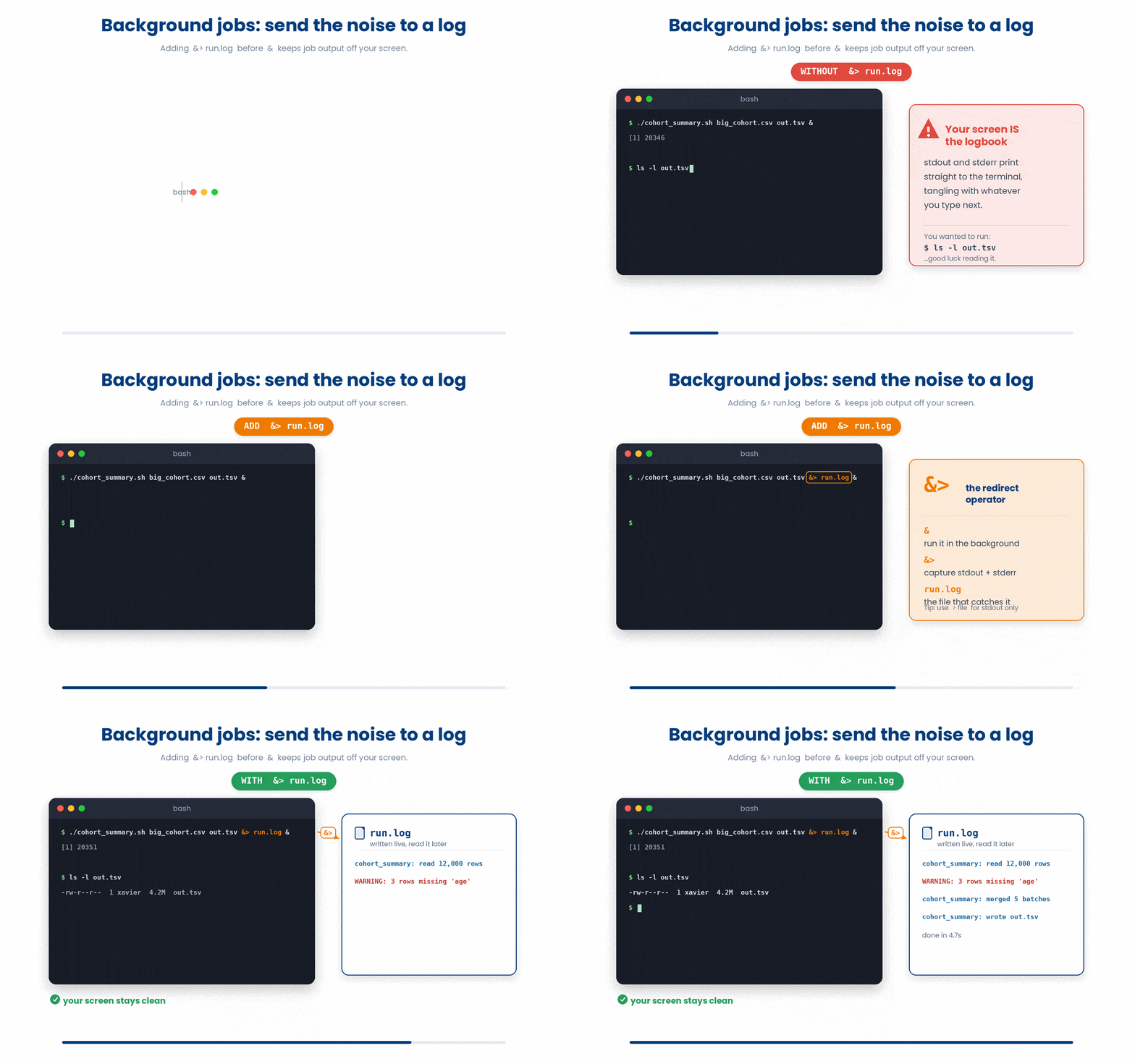
5 Suspend and Resume - Ctrl-Z, bg, fg
It is incredibly common to start a job in the foreground, only to realize seconds later that it’s going to take a long time. You don't have to kill it and start over. Instead, press Ctrl-Z to suspend it.
Try this snippet in the Bash Scratchpad on the right.
$ ./cohort_summary.sh big_cohort.csv out.tsv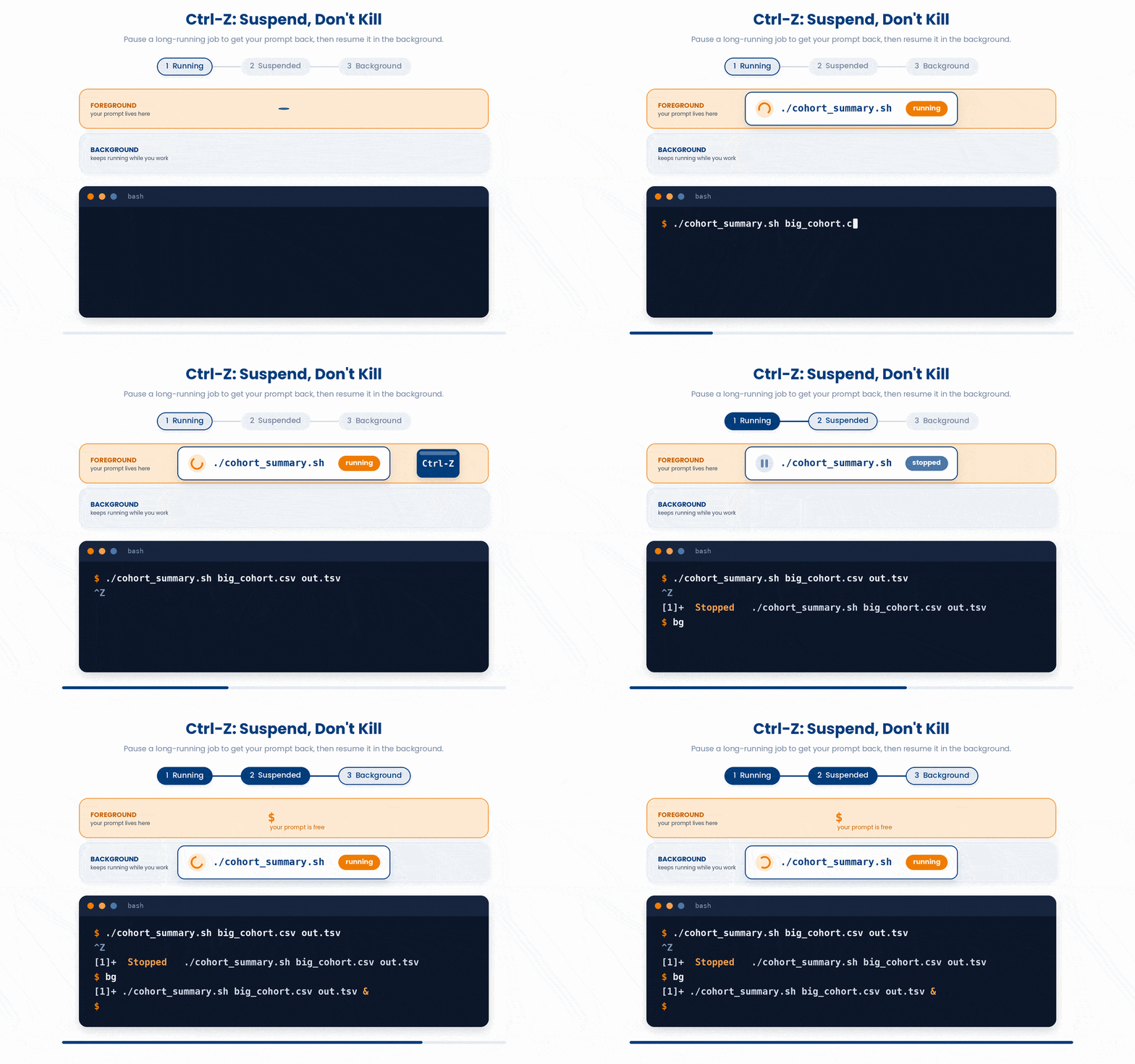
Suspending a job freezes it completely; it stops consuming CPU cycles, and your prompt returns. From here, you have two choices to resume it:
- bg: Resumes the job, but keeps it running in the background.
- fg: Pulls the job back into the foreground so it owns the terminal again.
Try this snippet in the Bash Scratchpad on the right.
$ bg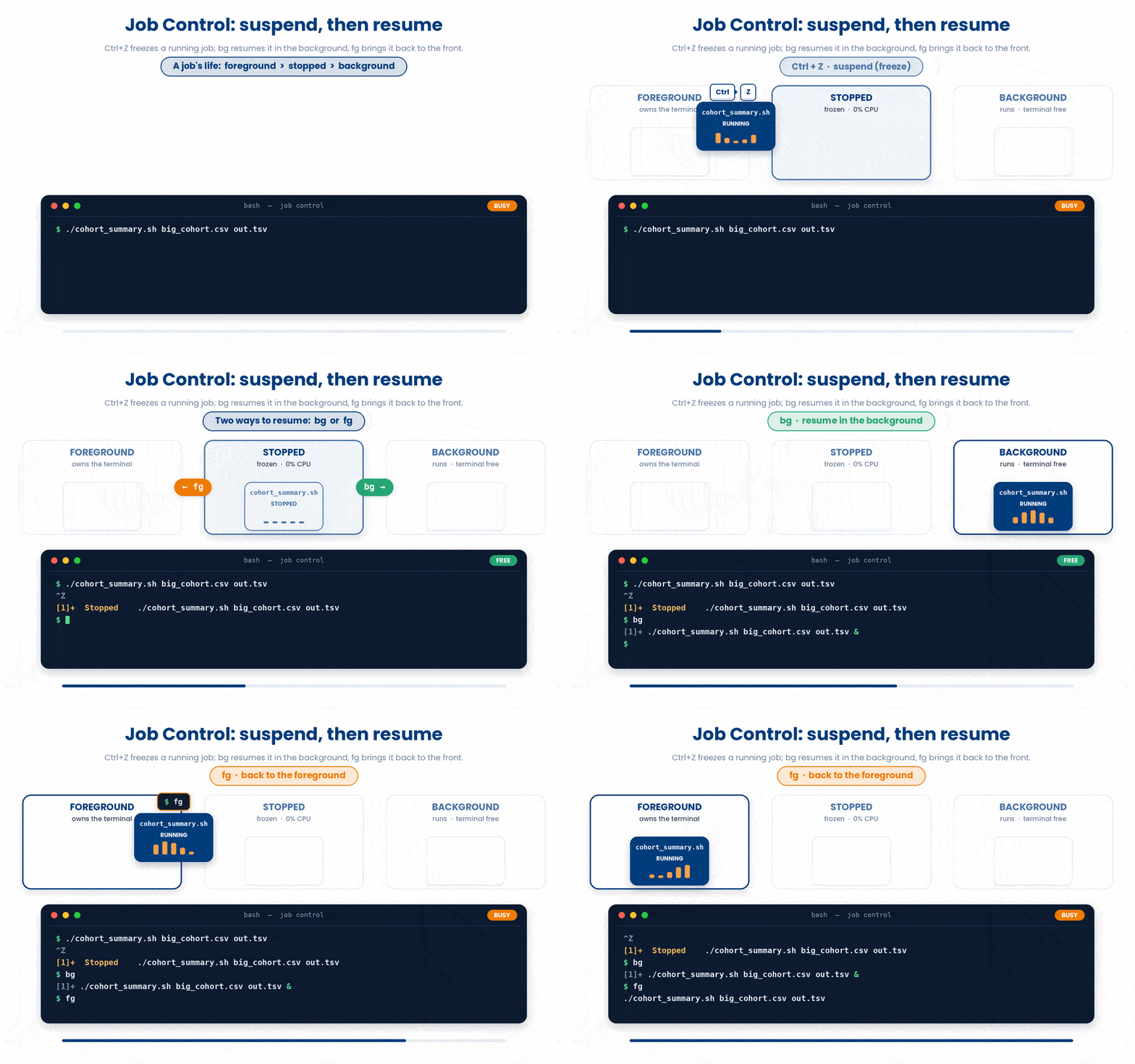
If you accidentally start a long job in the foreground, the magic rescue workflow takes just a few keystrokes:
- Press Ctrl-Z to pause it.
- Type bg and hit Enter to push it to the background.
Your job safely carries on, and your prompt is free for your next task.
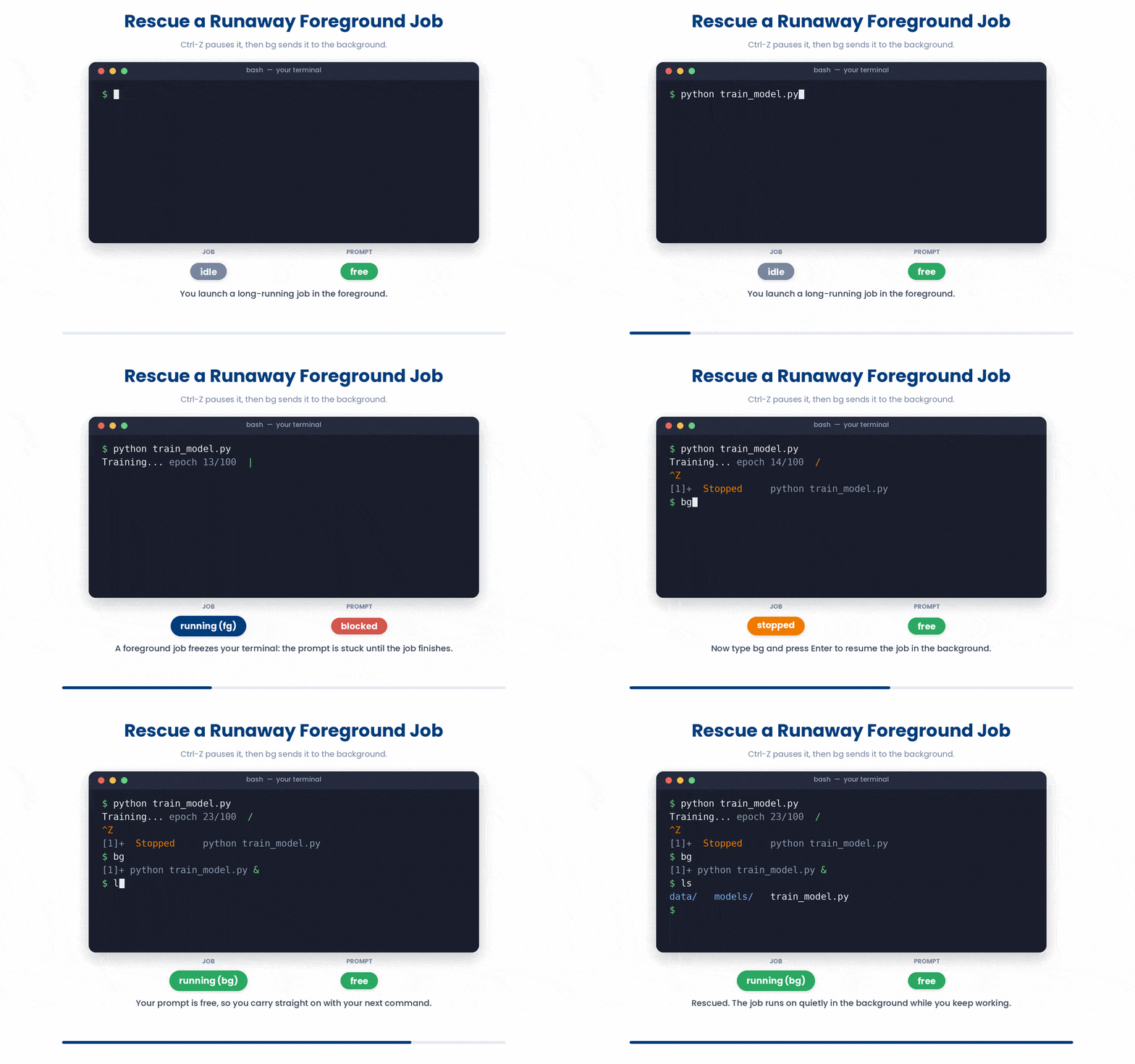
6 Listing and Naming Jobs - jobs and %
The jobs command lists all processes currently running or suspended in your current terminal session.
Try this snippet in the Bash Scratchpad on the right.
$ ./cohort_summary.sh big_cohort.csv out.tsv &
$ ./convert_ecg_all.sh &
$ jobs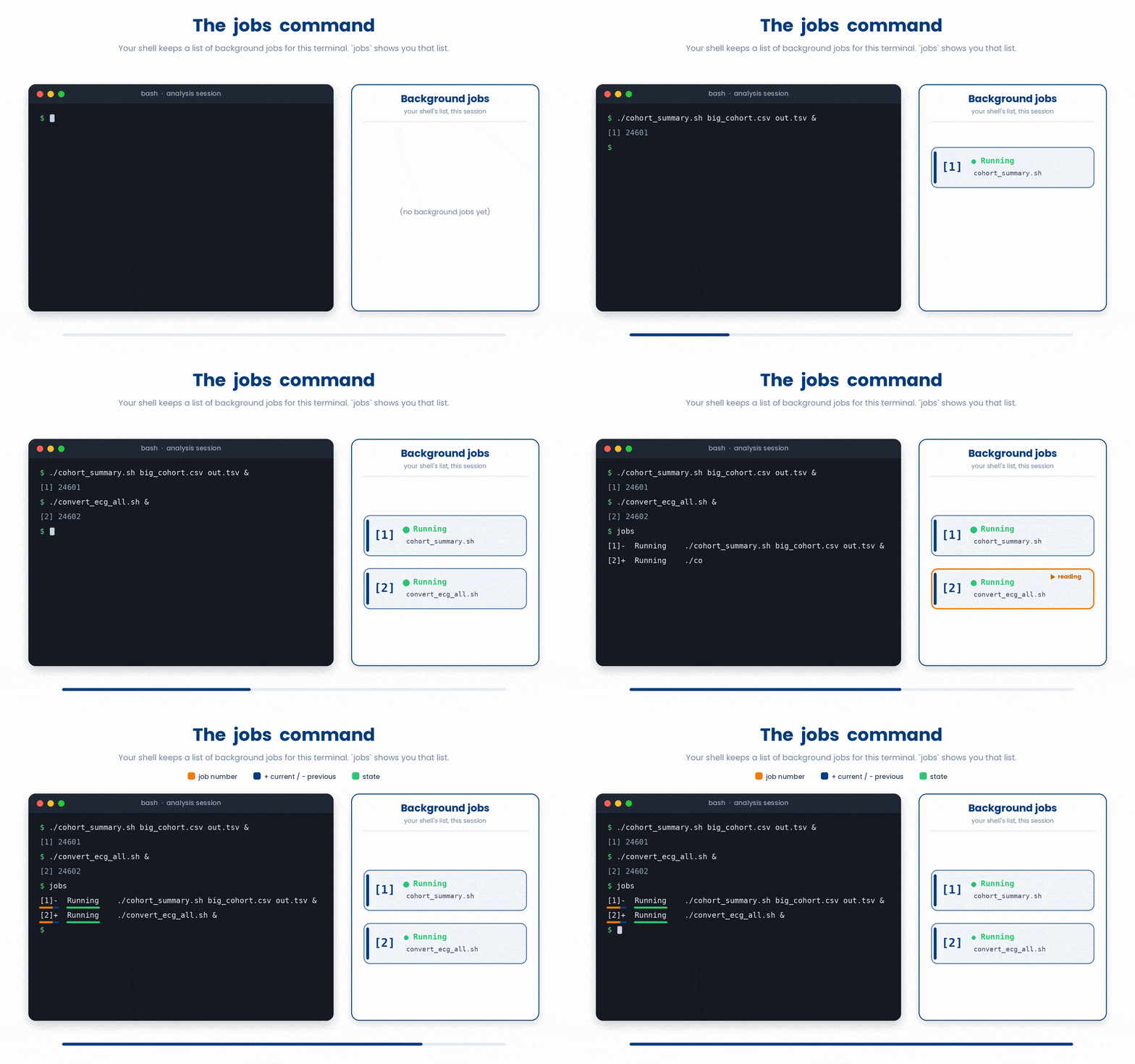
To interact with a specific job, refer to it using a percent sign (%) followed by its job number or symbol:
- %1 - job number 1.
- %+ or %% - the most recent job (the one marked + in jobs).
- %- - the previous job (marked -).
- fg %1 - brings job 1 into the foreground (interative mode).
- bg %2 - resumes job 2 in the background.

With a single job you can drop the number entirely - plain fg and bg act on the most recent.
7 Stopping a Job - Signals and kill
Managing a process involves sending it a SIGNAL—a lightweight notification delivered by the operating system kernel. You likely already use two signals daily via keyboard shortcuts:
- Ctrl-C sends SIGINT - "interrupt and stop". The polite stop for a foreground job.
- Ctrl-Z sends SIGTSTP - "suspend". The pause you just used.
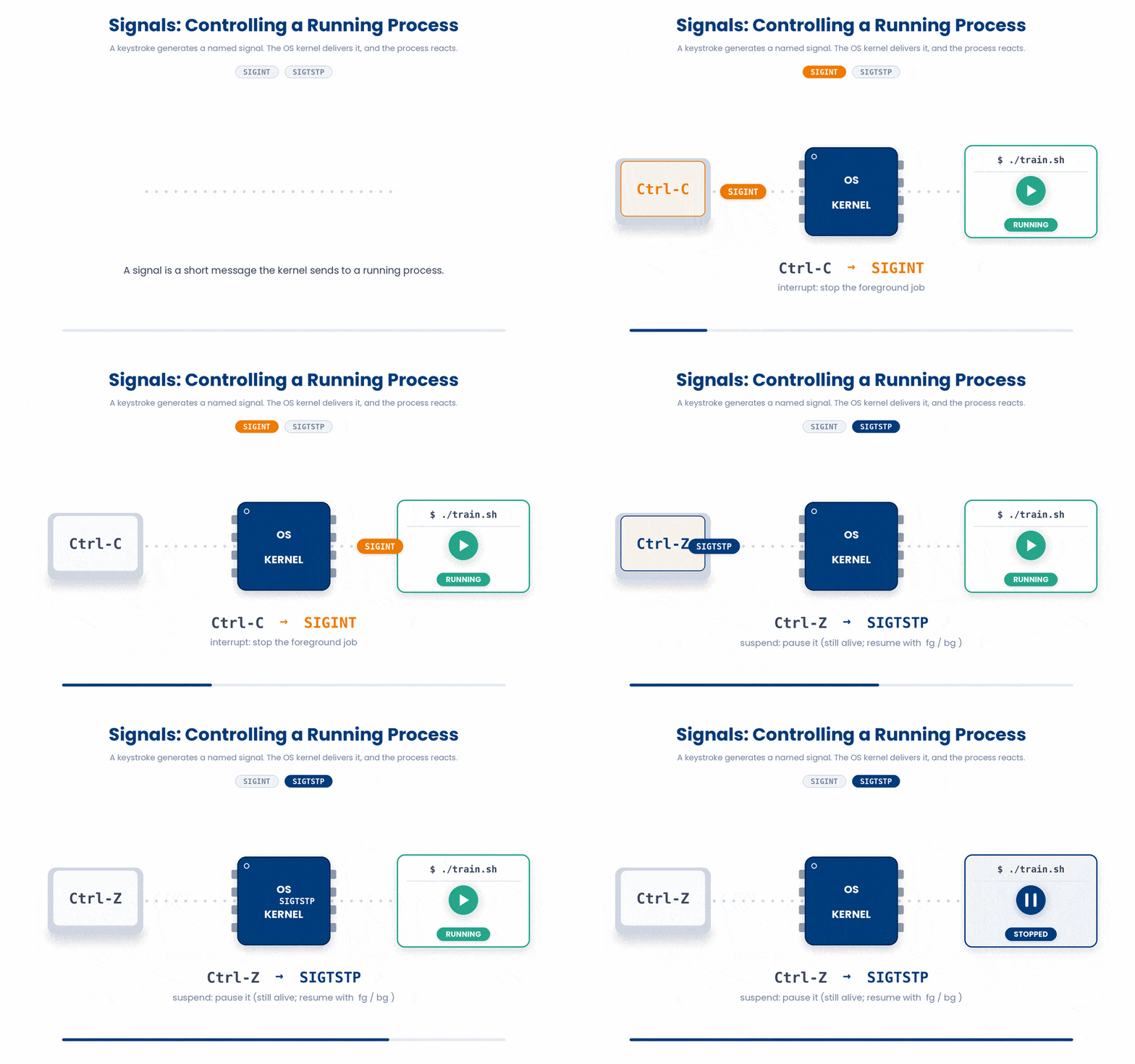
Because you cannot use keyboard shortcuts on background jobs, you must use the kill command. Despite its aggressive name, kill simply sends a signal to a job:
- kill %1 - sends SIGTERM, the polite "please terminate". The program is given time to save progress and clean up temporary files first.
- kill -9 %1 - sends SIGKILL, the forceful stop handled directly by the kernel. The program cannot ignore it and dies instantly with no cleanup.
Try this snippet in the Bash Scratchpad on the right.
$ ./cohort_summary.sh big_cohort.csv out.tsv &
$ kill %1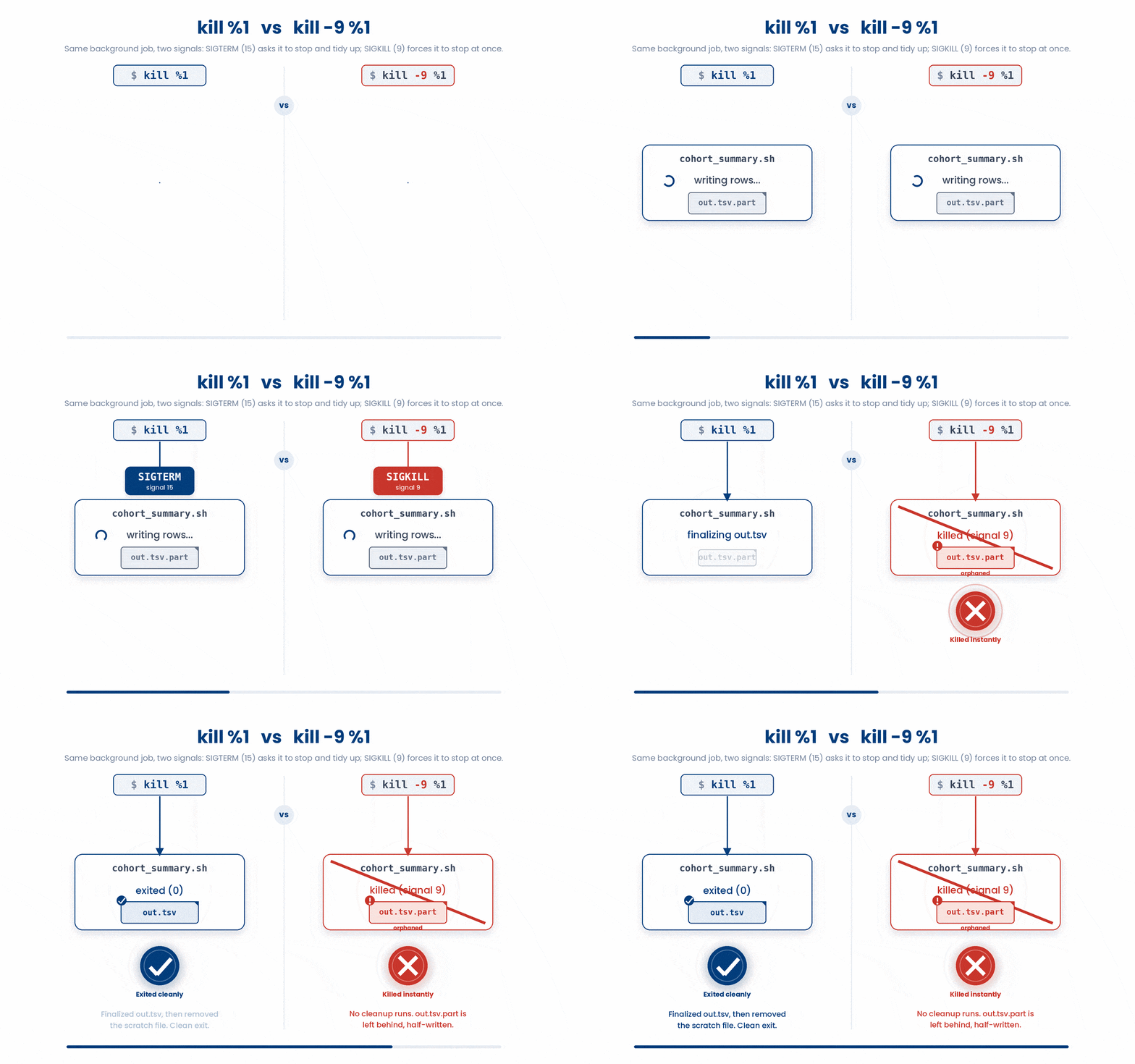
Always try kill %1 first. Only use kill -9 as a last resort if a job is completely frozen. kill -9 doesn't give the program a chance to close files properly, which can corrupt half-written data.
8 Keeping a Job Alive After You Log Out
When you close a terminal or lose your SSH connection, the shell automatically sends a SIGHUP (Hang Up) signal to all its active jobs, causing them to terminate.
If you are running a long script (like an overnight data processing job), you need to protect it from SIGHUP using one of two methods,
Method A: Start the job with nohup
If you know ahead of time that a job will take a while, prepend it with nohup. You should also redirect its output to a log file and append & to run it in the background:
Try this snippet in the Bash Scratchpad on the right.
$ nohup ./cohort_summary.sh big_cohort.csv out.tsv &> run.log &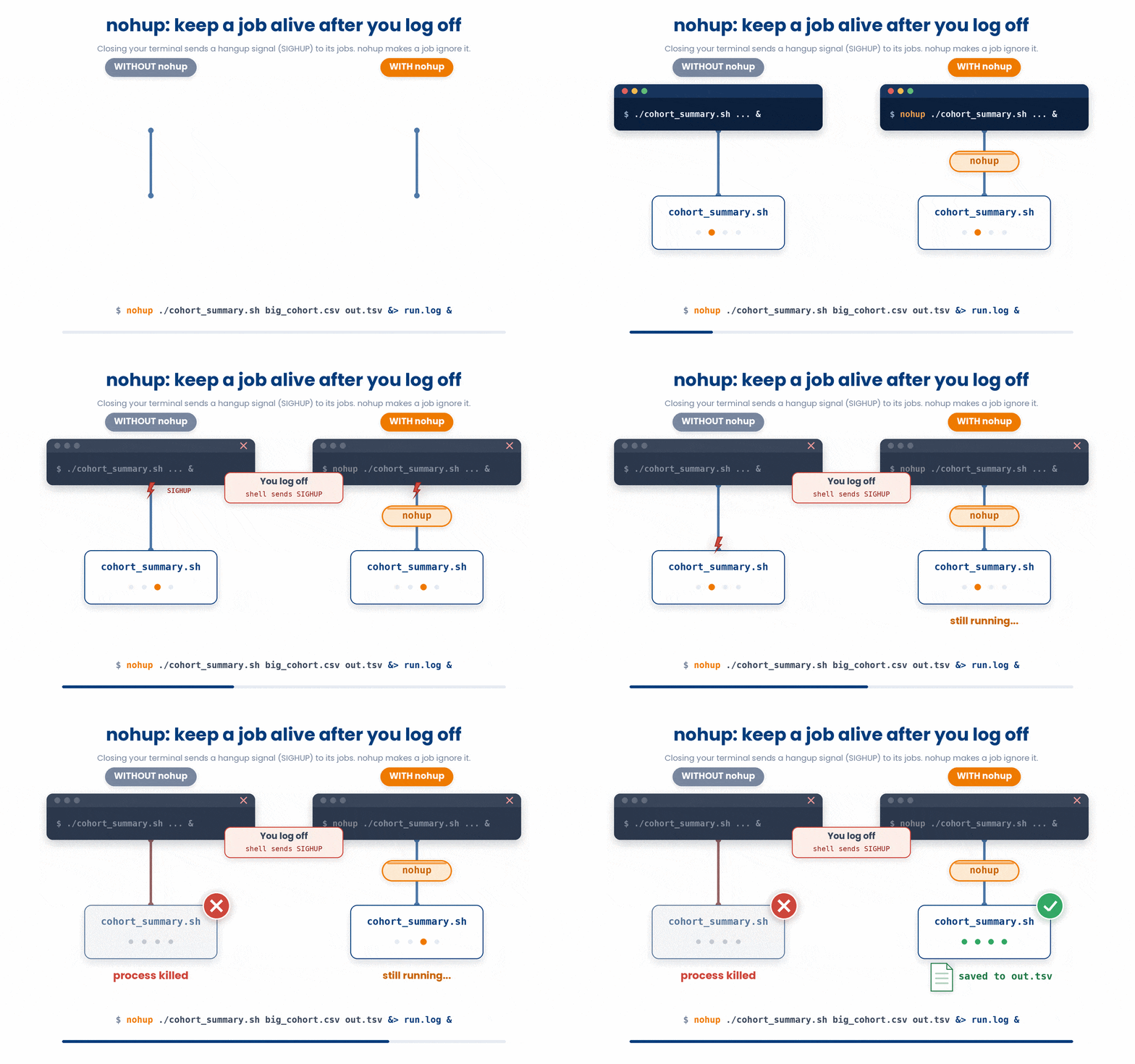
Method B: Use disown on an already running job
If a job is already running and you realize you need to log out, you can detach it from your current shell session so closing the terminal won't kill it:
Try this snippet in the Bash Scratchpad on the right.
$ ./cohort_summary.sh big_cohort.csv out.tsv &
$ disown %1
Whichever method you choose, you can monitor the progress of your background job in real-time by tracking its log file:
Try this snippet in the Bash Scratchpad on the right.
$ tail -f run.logtail -f keeps following run.log as the job appends new lines to it; press Ctrl-C when you are done watching to get your prompt back.
9 Check your understanding
You have reached the end of the module. Try the same questions again — your answers here, paired with your pre-test answers, are how we measure what the module taught you. Answer every question and confidence rating, then click Submit and see results to view your score.
What does adding & to the end of a command do?
You press Ctrl-Z on a running foreground job. What happens?
A job is suspended. Which command makes it continue running in the background?
What is the difference between kill %1 and kill -9 %1?
Which command lets a job keep running after you close the terminal?
After running a command with & the shell prints [1] 20345. What are these two numbers?
What does the jobs command list, and how do you refer to job number 1?
A background script keeps printing over your prompt. What do you add to send its output to a log file?
I can start a command in the background and get my prompt back.
I can suspend a foreground job with Ctrl-Z and resume it with bg or fg.
I can list jobs and stop one with kill, and I know when -9 is a last resort.
10 Your results
Here is how your post-test answers compare with your pre-test answers. The pre/post pairing is the most reliable way to see what this module actually taught you.
Submit the post-test to see your results.
What is the one thing from this module that is still unclear to you?