

1 Before you start
This is not graded, and it does not count towards anything. Answer every question even if you are only guessing — having a go at something before you have been taught it is one of the best ways to remember it afterwards. The lesson ends with another short check, and there you will be shown the correct answer for anything you missed. Choose an option for every question and confidence rating, then click Submit answers.
What does the -P 8 flag do in xargs -P 8 -I {} cmd {}?
In GNU parallel, what does the {} placeholder stand for?
For an input file ecg/P-001.dat, what does the parallel placeholder {/.} produce?
Why use parallel -k?
Which situation is NOT safe to parallelise as-is?
Why does a plain serial for loop over independent files leave most of a multi-core machine idle?
You must parallelise a job over files whose names contain spaces. Which pairing handles this safely?
Your conversion script loads a 2 GB file into RAM on an 8-core, 8 GB machine. What does the lesson advise?
I can explain why a plain for loop uses only one CPU core.
I can run a command on many files at once with xargs -P or GNU parallel.
I know why writing to one shared file from many parallel jobs is dangerous.
2 Introduction
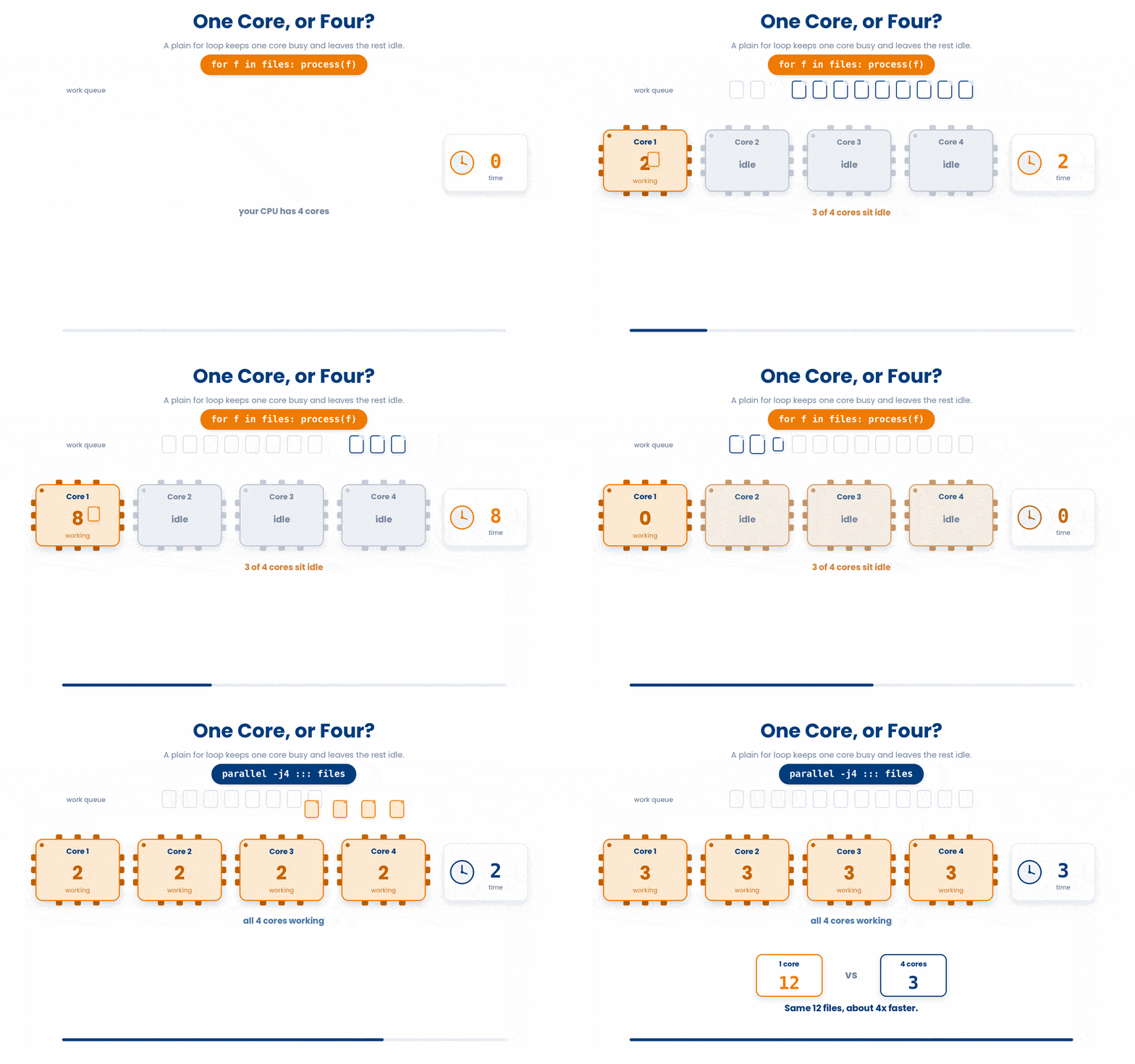
You now know how to find files and run a command on each one. The next question is speed. When you have 500 patient files to compress, or a Quality Control (QC) script to run on 60 cohort chunks, doing them one at a time wastes most of your computer's power. Every modern laptop has several CPU cores, but a plain for loop uses exactly one.
This lesson is about putting the rest of your machine to work. You will learn:
- Why a serial for loop leaves most of your machine idle.
- xargs -P - the parallel flag you already know.
- GNU parallel - a friendlier tool built for exactly this job.
- The traps of parallel writes and how to keep your output straight.
3 The Problem - One Core at a Time
Say you have a folder of per-patient vitals files and a slow conversion step. A normal for loop runs them strictly in order i.e. file 2 does not start until file 1 is completely finished.
Try it on the eight vitals files. We'll stand in for the slow conversion step with sleep 1, and time how long the whole loop takes:
Try this snippet in the Bash Scratchpad on the right.
time for f in vitals/*.csv
do
 sleep 1
doneEight files, one second each, back to back: about eight seconds. Image a grocery store with eight checkout lanes open but only one cashier working, while everyone queues in that single line. The other seven lanes sit empty, and those empty lanes are your other seven CPU cores, idle the whole time.

Because each file is independent and doesn't rely on the others, this work is "embarrassingly parallel." This is the ideal case for running several jobs at once.
First, before we do parallelization, let's find out how many cores you have. The nproc command prints your available CPU count:
Try this snippet in the Bash Scratchpad on the right.
nprocHold onto that number. This is the number of your CPU count.
4 xargs -P - The Parallel Flag
You met xargs in the finding-files lesson: it takes a list of inputs and builds command lines from it. If you add the -P N flag, xargs will run up to N of those commands at the same time.
Here is the shape of it. This counts the lines in every vitals file, two at a time:
Try this snippet in the Bash Scratchpad on the right.
ls vitals/*.csv | xargs -P 2 -I {} wc -l {}How to read this: ls lists the files, the pipe hands that list to xargs, -I {} means "drop each filename where the {} is", and -P 2 means "keep 2 of these running at once". The reason why you are using 2 is because you would only have 2 CPUs loaded as per your nproc command just now.
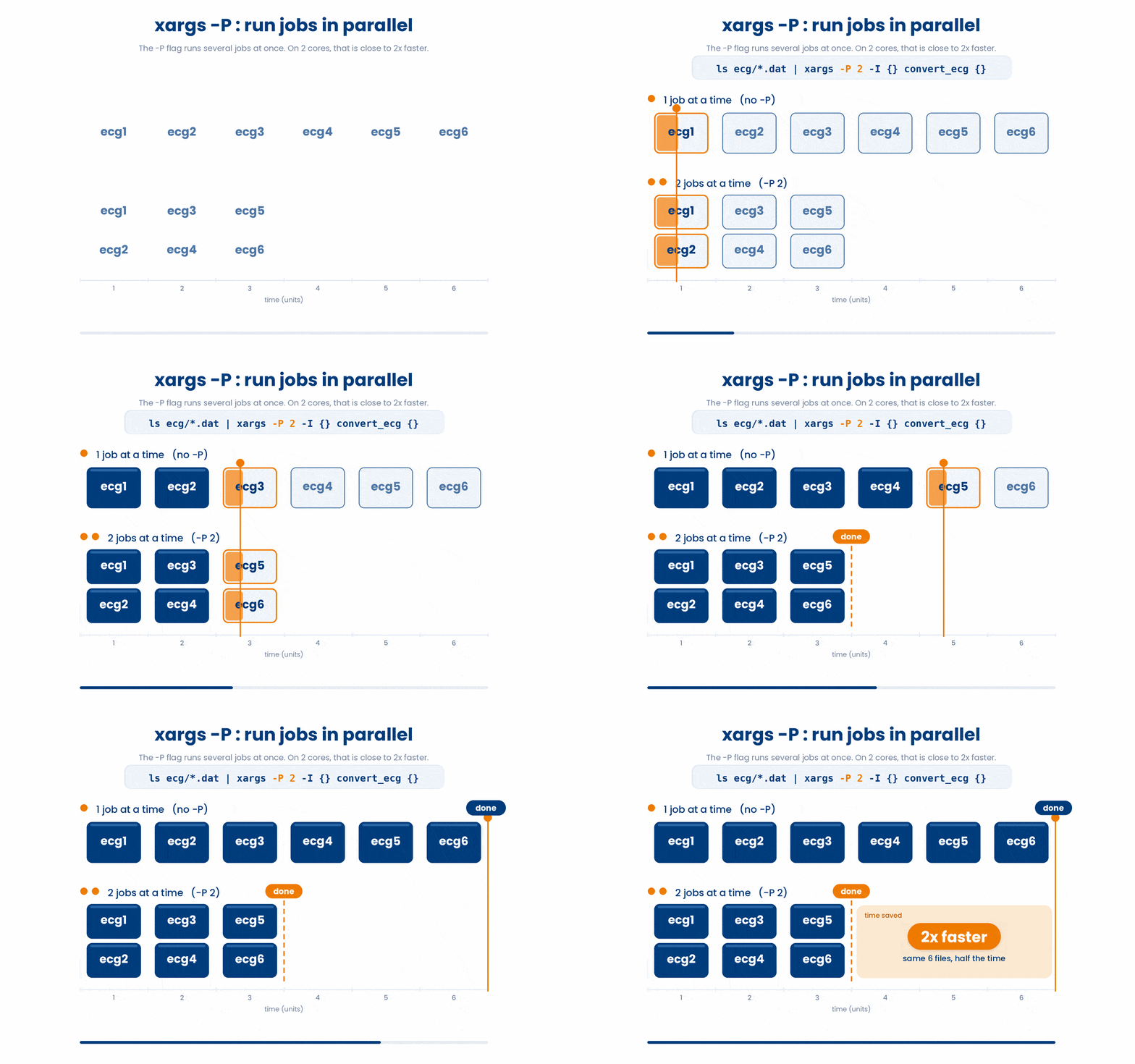
So back to the eight one-second jobs. The serial loop took about eight seconds: one lane, one job at a time. Now hand the same work to xargs and open a second lane:
Try this snippet in the Bash Scratchpad on the right.
time ls vitals/*.csv | xargs -P 2 -I {} sleep 1This finishes in roughly half the time: about five seconds instead of eight. Two lanes clear the eight jobs in four rounds instead of eight.
The point is the shape of it: one lane gave you eight seconds, two lanes give you about half that.
4.1 Safe with find -print0
The same whitespace caution from the find lesson applies here. Filenames with spaces will break your command unless you pair find -print0 with xargs -0:
Try this snippet in the Bash Scratchpad on the right.
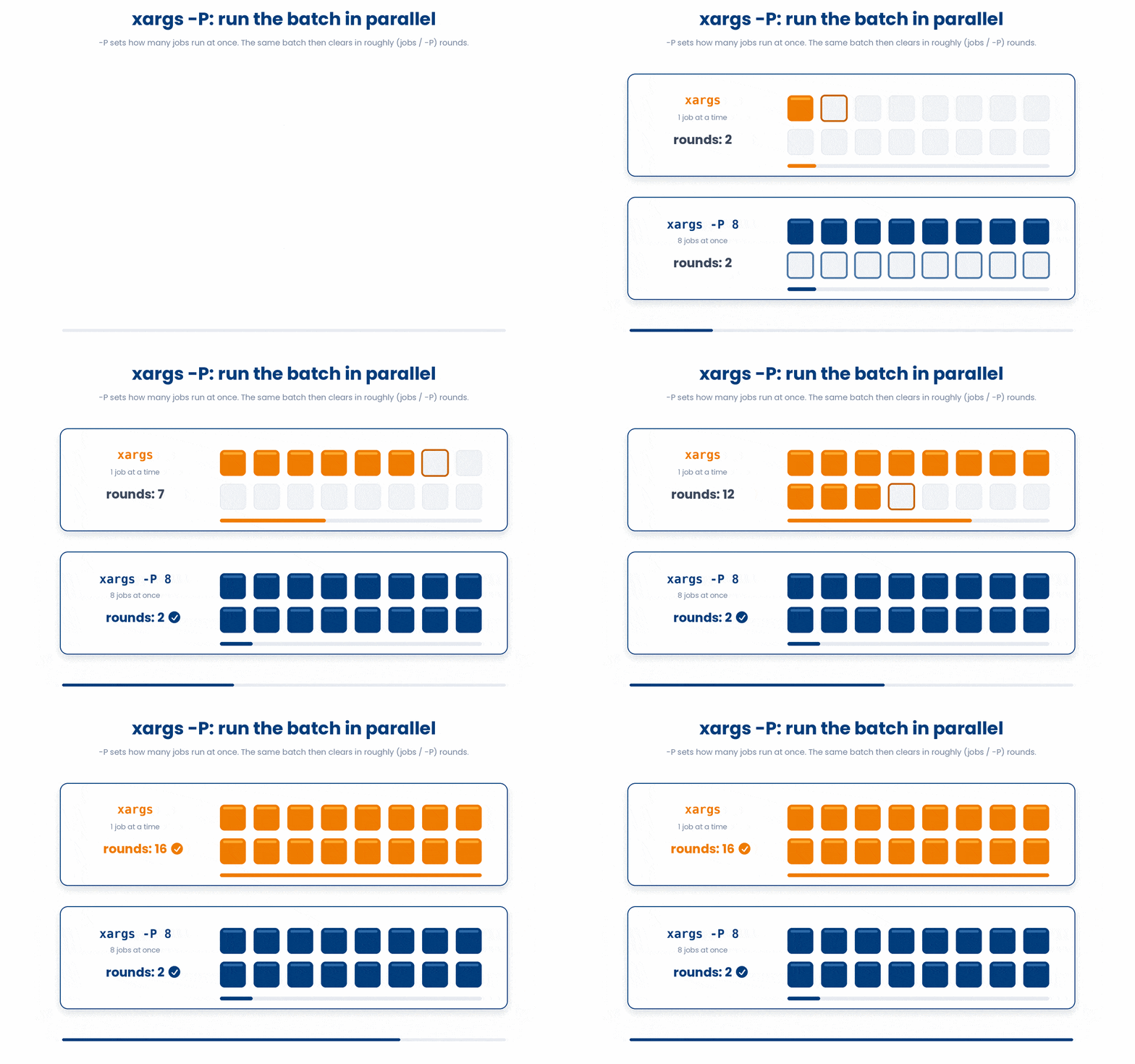
find vitals -name '*.csv' -print0 | xargs -0 -P 2 -I {} wc -l {}A good default for -P is the number of cores your machine has. You can also use -P 0, which tells xargs to run as many jobs as possible at once. This is great for tiny, fast jobs, but risky for memory-hungry scripts.
5 GNU parallel - Built For The Job
While xargs -P is great becomes it comes pre-installed on almost every system, GNU parallel is a dedicated tool built exactly for this job. It is friendlier, smarter, and safer.
Note: GNU parallel is not installed in this course's in-browser scratchpad, so the parallel examples in this section are for reading and for running on a real machine. The runnable Try-it cards in this lesson all use xargs -P, which is always available.
Here is how the same command looks using parallel:
$ find ecg -name '*.dat' | parallel convert_ecg {}What makes GNU parallel good?
It's smart: You don't need to specify -P. It automatically detects how many CPU cores you have and uses them efficiently.
It has progress bars: Add the --bar or --eta flag, and it will give you a beautiful visual progress bar so you know exactly how long your 500 patient files will take.
It handles spaces better: It generally handles weird characters in filenames more gracefully out-of-the-box than xargs.
5.1 Feeding files in
There are a few different ways to hand your list of files over to parallel.
You can use three colons (:::) to pass arguments directly on the command line. The shell expands the *.dat into a list of files, and parallel runs one job per file.
$ parallel convert_ecg ::: ecg/*.datIf you have a massive list of files saved in a text document, use four colons (::::) to read directly from that file.
$ parallel convert_ecg :::: patient_files.txtJust like xargs, you can simply pipe (|) a list of files directly into parallel.
$ ls ecg/*.dat | parallel convert_ecg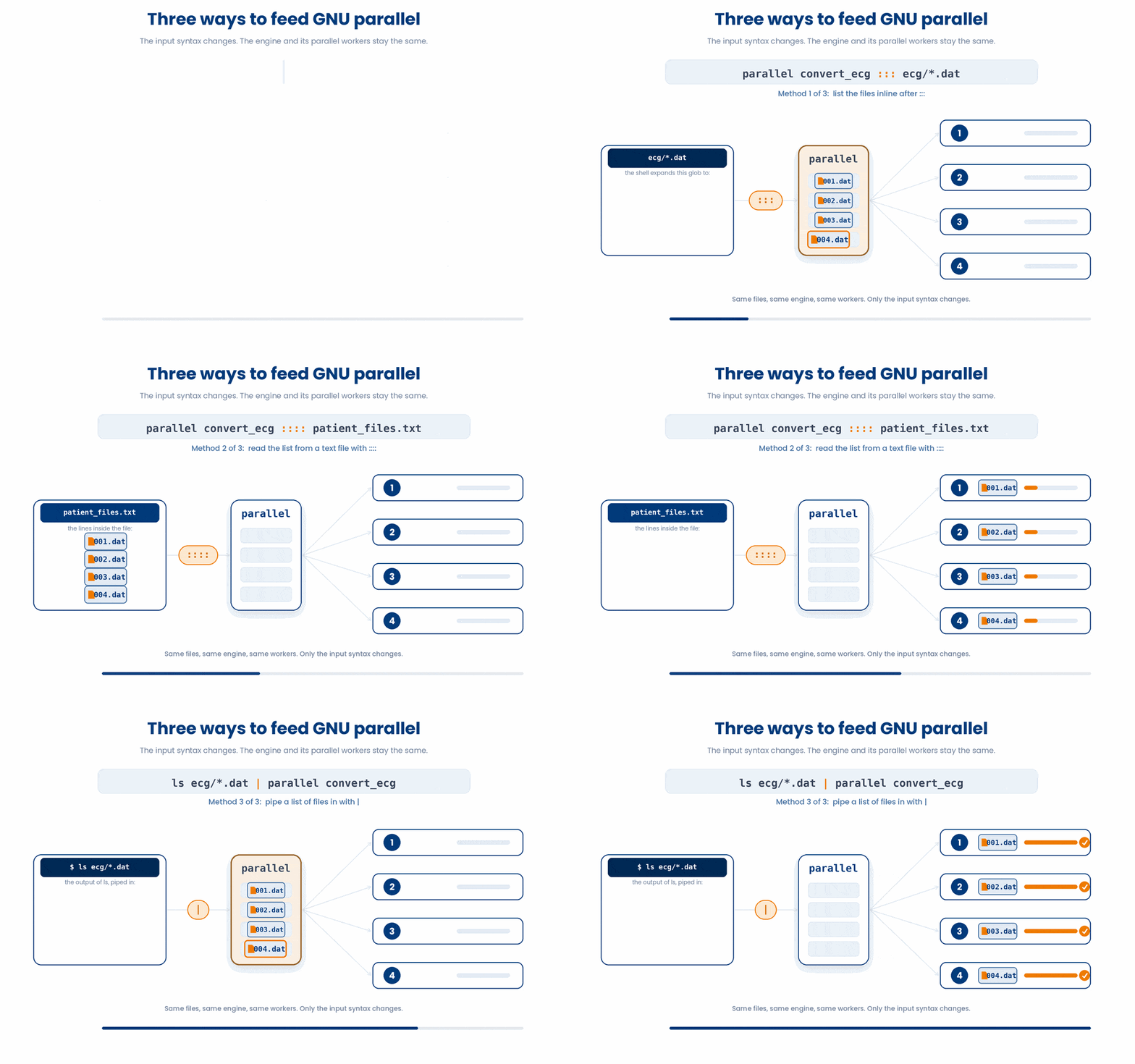
5.2 Handy placeholders
One of the best features of GNU parallel is its built-in text manipulation. Instead of writing complex bash string-replacements, parallel uses simple placeholders.
Here is how they alter an input file named ecg/P-001.dat:
- {} - the whole item (e.g. ecg/P-001.dat).
- {.} - the item with its extension removed (ecg/P-001).
- {/} - just the filename, no folder (P-001.dat).
- {/.} - filename, no folder and no extension (P-001).
- {#} - the job number.
By combining these placeholders, you can read an input file from one folder and write the output to a completely different folder with a new extension.

$ parallel convert_ecg {} -o results/{/.}.csv ::: ecg/*.datWhat this says is: Read ecg/P-001.dat, and writes to results/P-001.csv. This single line—reading an input, writing a matching output, running one job per core—is the most useful parallel pattern you will use on cohort data.
For example, echoing each filename without its folder or extension:
$ parallel echo {/.} ::: ecg/P-001.dat ecg/P-002.dat6 Race conditions
Running jobs in parallel is amazing, but it introduces a new danger. When multiple jobs run at the exact same time, their output can overlap, interleave, and become completely unreadable gibberish.
You have to manage this traffic, whether the jobs are printing text to your screen or writing data to a file.
6.1 Terminal output
If your script prints results directly to the terminal, a basic xargs -P command will tangle half of job 1's output with job 4's output. GNU parallel fixes this automatically: it is smart enough to group the output. It waits until a job finishes, then prints its output all at once so it remains readable.
By default, parallel prints jobs as they finish. If you need them printed in the exact order they were submitted (as if the loop had been serial), use the -k flag:
$ parallel -k "echo start {}; sleep 1; echo end {}" ::: 1 2 3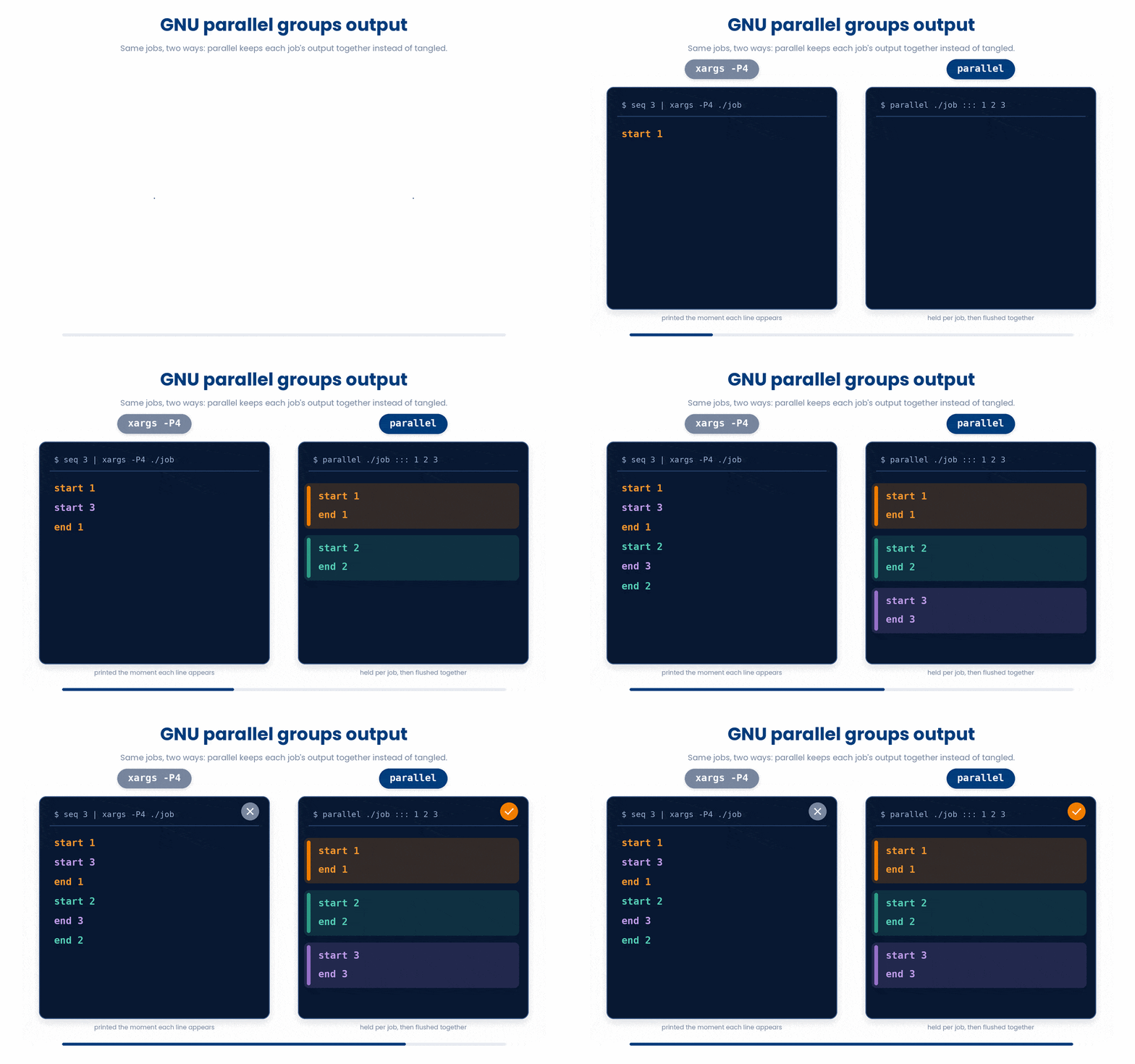
6.2 File output (Race conditions)
Imagine you have 8 scripts running at once, and they are all trying to write error messages to the same results.log file at the exact same millisecond. The text will overlap, scramble, and become completely unreadable gibberish. This is called Race Conditions.
To avoid this, never write to the same file. Have each job write to its own unique log file. You can do this by using the {} placeholder in your output redirection:
Try this snippet in the Bash Scratchpad on the right.
ls vitals/*.csv | xargs -P 4 -I {} sh -c 'wc -l "$1" > "$1.log"' _ {}
6.3 Other safety and visual flags
When managing large batches of output, GNU parallel gives you two incredibly helpful tools:
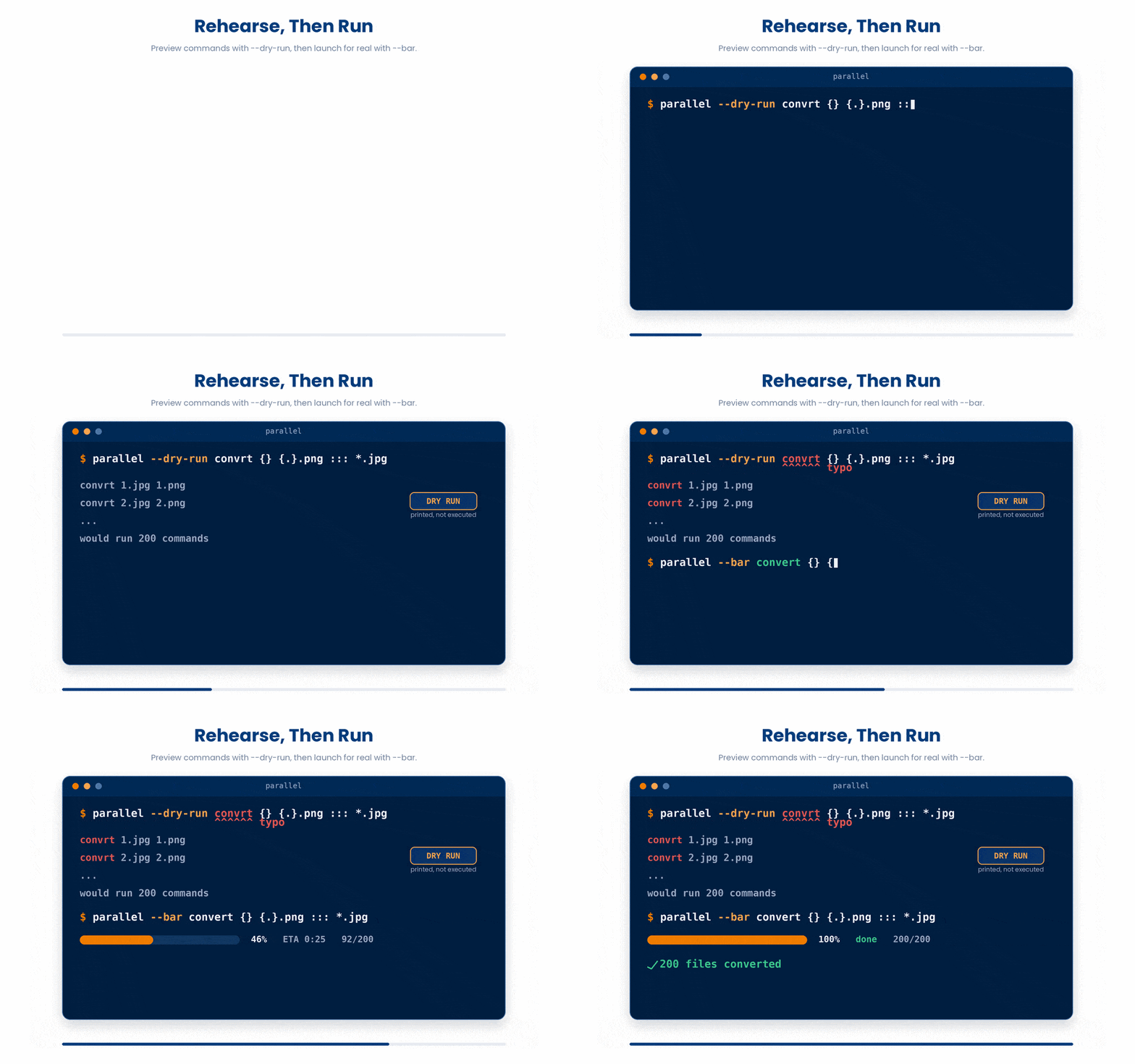
- The Progress Bar (--bar): Gives you a visual progress bar and an estimated time of completion for long runs.
- The Lifesaver (--dry-run): Prints the commands parallel would run, without actually running them. Always use this to double-check your syntax before launching hundreds of jobs!
7 When NOT To Parallelise
Parallel is not always safe or faster. Watch for these:
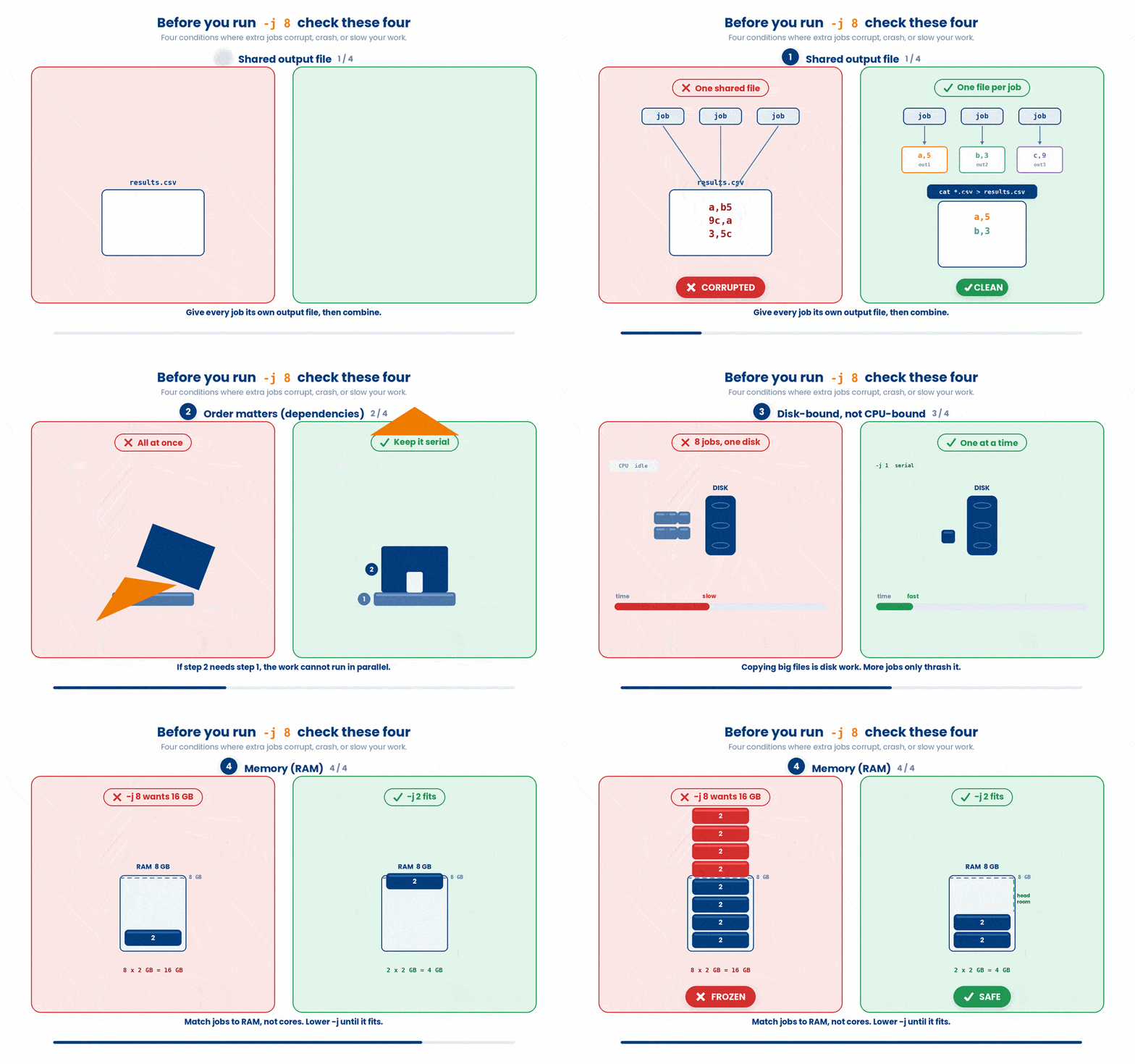
- Shared output file - ten jobs all appending to one results.csv will interleave and corrupt it. Write one output file per job (the {/.} pattern), then combine afterwards.
- Order matters (Dependencies) - if Step 2 strictly depends on the result of Step 1, the work is not independent. You cannot build the roof of a house before the walls are finished. These tasks must stay serial.
- Disk-bound, not CPU-bound - If your script is mostly just copying or moving large files, your CPU isn't doing the hard work—your hard drive is. This is called thrashing and running it in parallel will actually make it slower.
- Memory (RAM) - Say you have an 8-core machine with 8 GB of RAM. If you run 8 copies of a script, and each copy loads a 2 GB file into memory, you suddenly need 16 GB of RAM. Your computer will freeze or crash. Lower the number of jobs until it safely fits in your memory using -j (e.g., -j 2).
8 Check your understanding
You have reached the end of the module. Try the same questions again — your answers here, paired with your pre-test answers, are how we measure what the module taught you. Answer every question and confidence rating, then click Submit and see results to view your score.
What does the -P 8 flag do in xargs -P 8 -I {} cmd {}?
In GNU parallel, what does the {} placeholder stand for?
For an input file ecg/P-001.dat, what does the parallel placeholder {/.} produce?
Why use parallel -k?
Which situation is NOT safe to parallelise as-is?
Why does a plain serial for loop over independent files leave most of a multi-core machine idle?
You must parallelise a job over files whose names contain spaces. Which pairing handles this safely?
Your conversion script loads a 2 GB file into RAM on an 8-core, 8 GB machine. What does the lesson advise?
I can explain why a plain for loop uses only one CPU core.
I can run a command on many files at once with xargs -P or GNU parallel.
I know why writing to one shared file from many parallel jobs is dangerous.
9 Your results
Here is how your post-test answers compare with your pre-test answers. The pre/post pairing is the most reliable way to see what this module actually taught you.
Submit the post-test to see your results.
What is the one thing from this module that is still unclear to you?