

1 Before you start
This is not graded, and it does not count towards anything. Answer every question even if you are only guessing — having a go at something before you have been taught it is one of the best ways to remember it afterwards. The lesson ends with another short check, and there you will be shown the correct answer for anything you missed. Choose an option for every question and confidence rating, then click Submit answers.
Which keyword closes both for and while loops in bash?
What does for i in {1..5} expand to?
Which idiom reads a file one line at a time?
Inside a for loop, what does continue do?
What is $((count + 1))?
What does break do inside a loop?
Which loop keyword runs the body as long as a condition stays TRUE?
What does for f in *.csv; do ... done loop over?
I can write a for loop that processes every file matching a pattern.
I can write a while loop that reads a file line by line.
I can use break and continue to control how a loop runs.
2 Introduction
If you ever find yourself running the same command twice with a small change, it is time to use a loop. Bash loops are simple, slightly quirky, and the bread-and-butter of automation. By the end of this lesson you will be able to process a folder full of patient files without typing each filename, and you will know how to read a file one line at a time.
- for loops over a list of words, files, or numbers.
- while loops while a condition is true.
- until loops until a condition becomes true (rarely used).
- The classic pattern: while read line; do ... done < file.

3 for Loops - The Workhorse
Every for loop in bash relies on three magic keywords: for, do, and done. The concept is simple: you provide a list of items, and the script runs your commands once for every item in that list.
3.1 Looping over lists
Let's say we have three medical codes we need to process. We define a temporary variable (like code) that will hold one value at a time as it steps through the list.
for code in I10 E11 J45
do
    echo "Searching for code $code"
done
Notice the semicolon (;) before the word do? That is required if you want to put do on the exact same line as the for statement. If you find semicolons hard to remember, you can drop it by simply putting do on its own line:
for code in I10 E11 J45
do
    echo "Searching for code $code"
done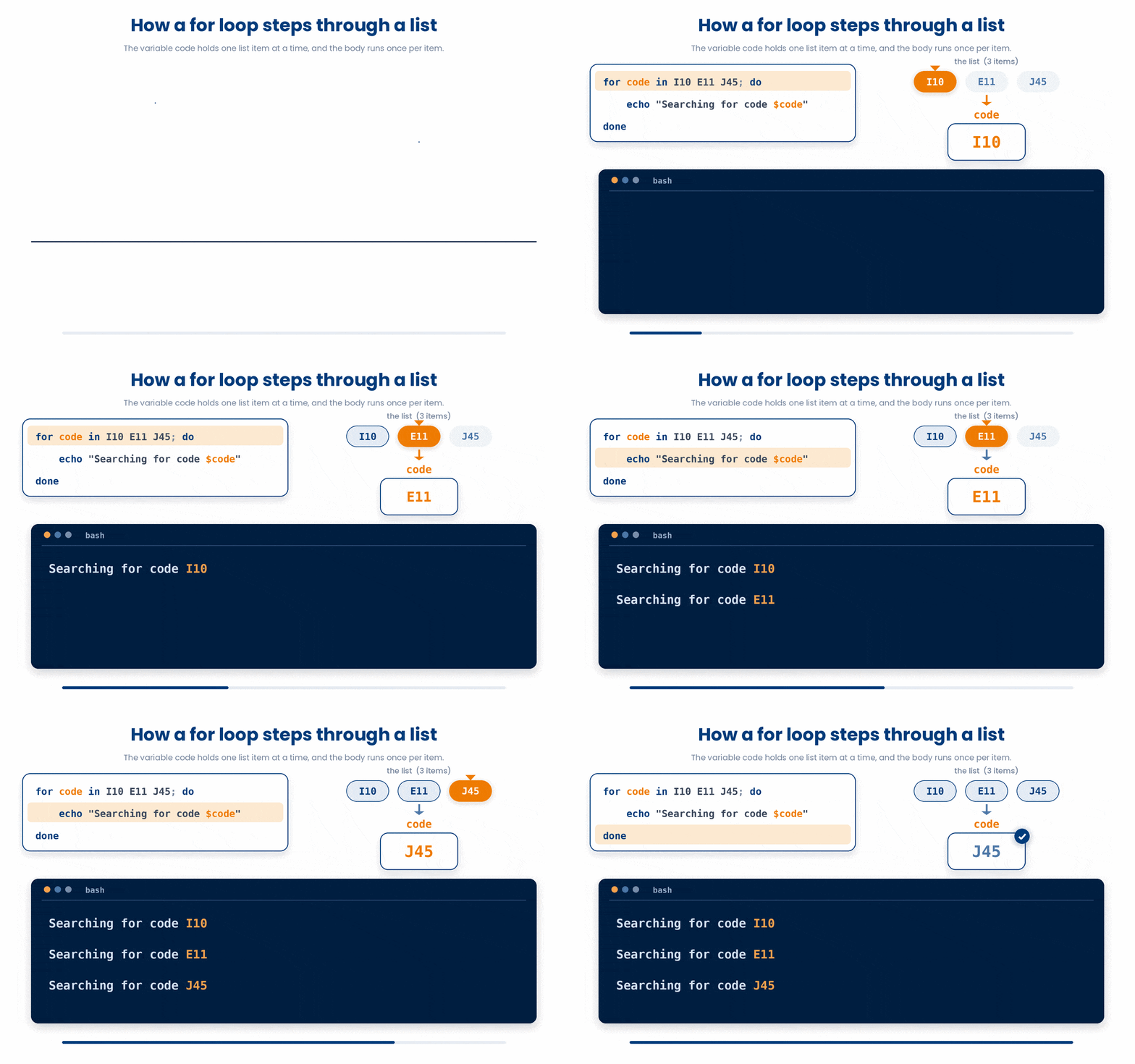
3.2 Looping over numbers
If you just need to repeat something a specific number of times, you do not have to type out 1 2 3 4 5. You can use bash's brace expansion {start..end}.
for i in {1..5}
do
    echo "Visit $i"
done
You can even add a "step" to skip numbers using {start..end..step}:
for i in {2..20..2}
do
    echo $i
done # 2, 4, 6, ..., 20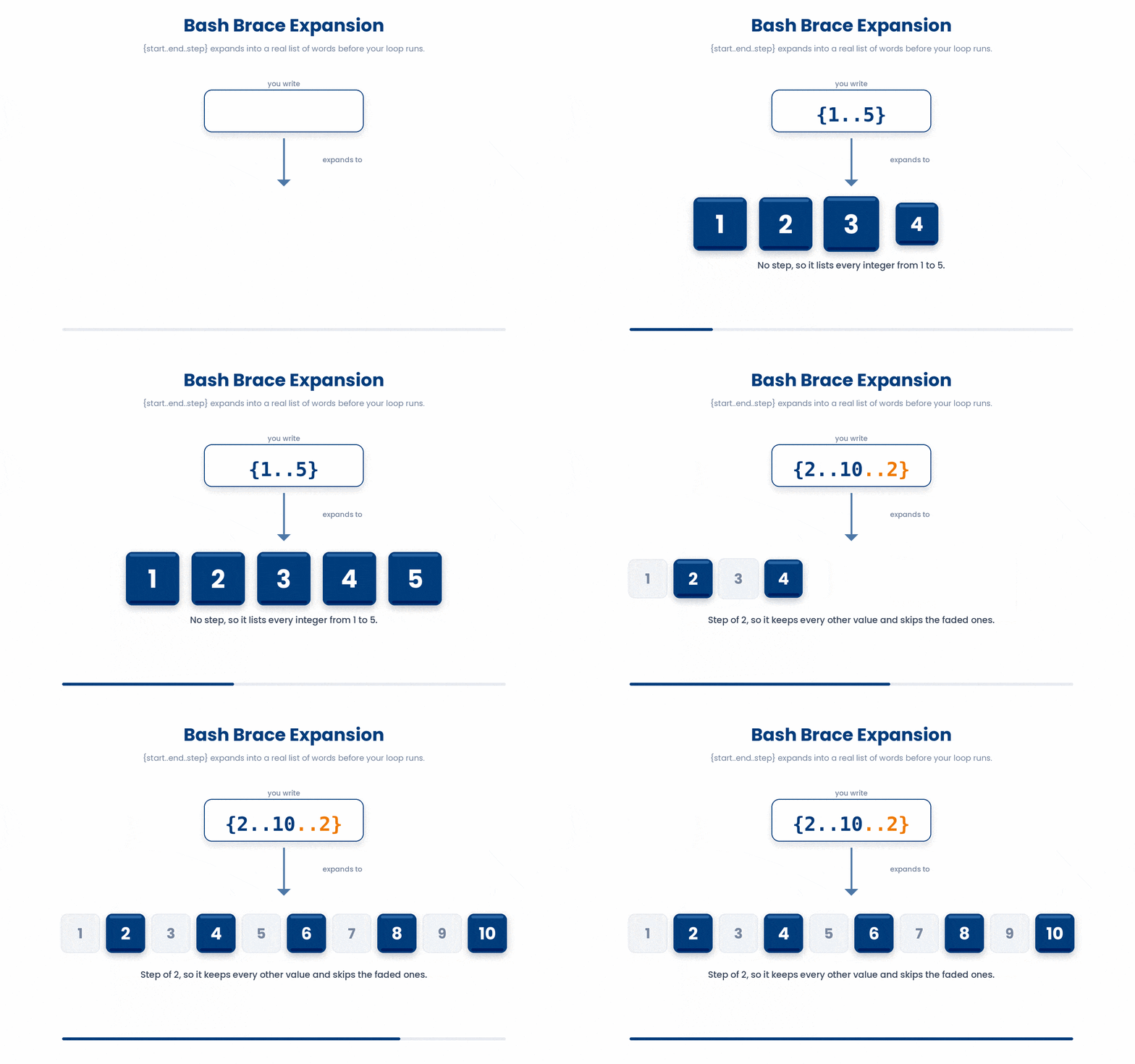
Brace expansion only works with hardcoded numbers. If you need to count up to a variable, like $max_visits, you will use a command called seq instead: for i in $(seq 1 $max_visits); do.
Try this snippet in the Bash Scratchpad on the right.
for i in {1..5}
do
    echo "Visit $i"
done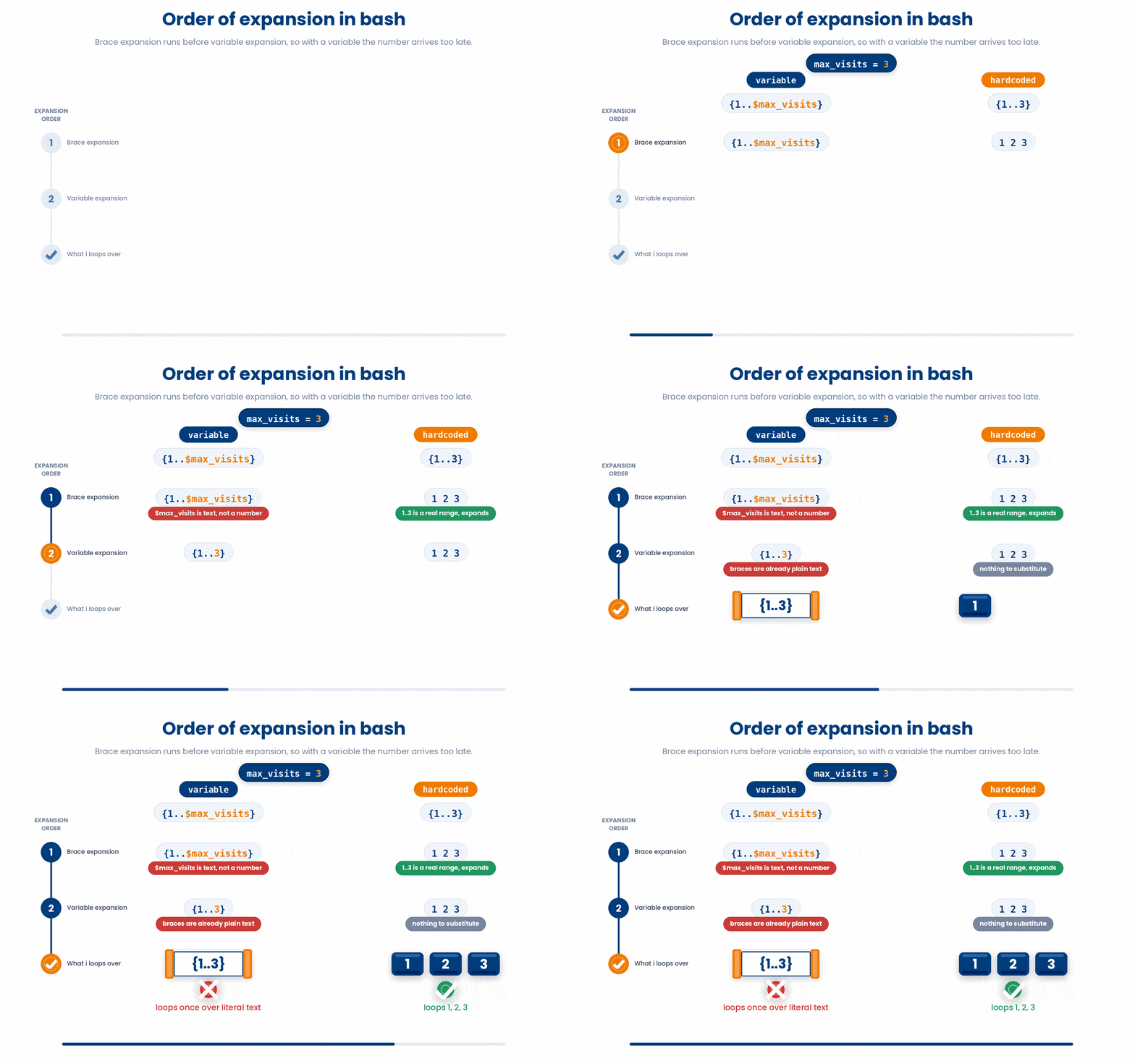
3.3 Looping over files
In the real world, you will spend most of your time looping over files in a directory. You can use the * wildcard to quickly grab everything that matches a pattern.
for patient in vitals/patient_*.txt
do
    echo "Processing $patient"
done
The shell is smart enough to expand vitals/patient_*.txt into a full list of matching files before the loop even starts running. If there are five matching files, the loop runs five times.
Try this snippet in the Bash Scratchpad on the right.
for f in vitals/patient_*.txt
do
    n=$(wc -l < "$f")
    echo "$f has $n lines"
done
4 When You Need a Counter
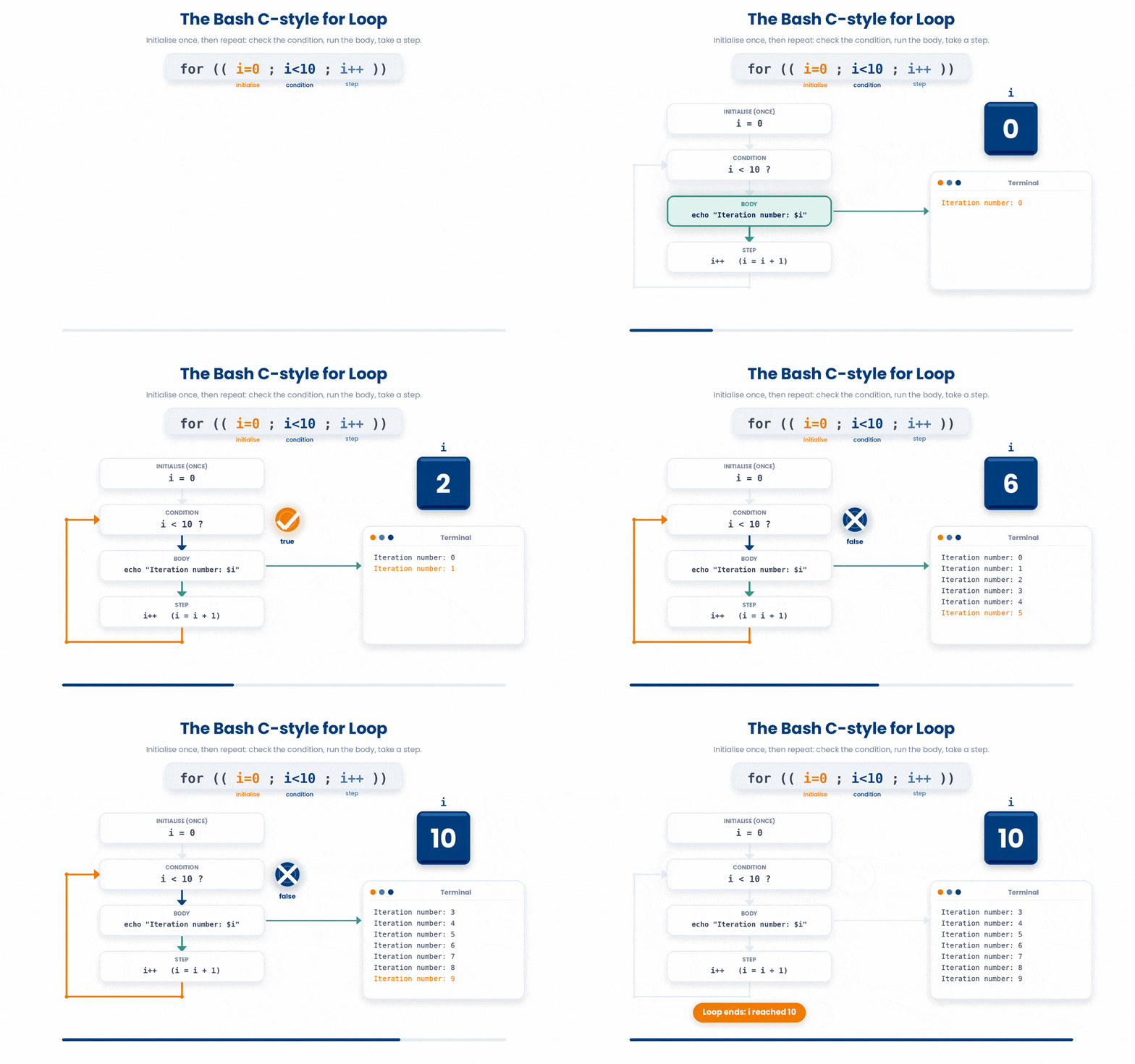
Sometimes you don't have a list of files; you just need a literal numeric counter. Bash has a special double-parenthesis syntax (( ... )) that lets you do math and counting.
for (( i=0
i<10
i++ ))
do
    echo "Iteration number: $i"
done
This loop is built in three distinct steps:
- Initialize: i=0 (Start counting at zero).
- Condition: i<10 (Keep going as long as i is strictly less than 10).
- Step: i++ (Add exactly 1 to i after every loop).
5 while Loops - Loop While a Condition Holds
A while loop doesn't count. Instead, it runs continuously as long as a specific condition remains true.
count=0
while [[ $count -lt 5 ]]
do
    echo "count is $count"
    count=$((count + 1))
done
We use the [[ ... ]] brackets to test our condition (just like an if statement). Inside the loop, we use $(( ... )) to actually do the math. Whenever you wrap an equation in $(( )), bash evaluates it as numbers rather than text, allowing you to use standard math operators like +, -, *, and /.
![A while loop repeats its body only for as long as its condition stays true and stops the moment the condition becomes false, with [[ ]] testing the condition and $(( )) evaluating the arithmetic.](GIF_while_loop.gif)
5.1 The most useful while pattern - reading a file line by line
If you only memorize one piece of code from this lesson, make it this one. This is the standard way to process a file one line at a time in bash.
while IFS= read -r patient_id
do
    echo "processing: $patient_id"
done < patient_ids.txt
It looks a bit crowded, but each tiny piece is there to prevent a specific kind of bug:
- IFS= : This temporarily clears the "Internal Field Separator." In plain English, it stops bash from accidentally deleting leading or trailing spaces from your lines.
- read : The command that actually grabs the next line of text.
- -r : Stands for "raw." It stops bash from trying to interpret backslashes (\) as special escape characters.
- < patient_ids.txt - This feeds your file into the bottom of the loop so read can consume it line by line.
You will use this exact block of code constantly whenever you have a list of URLs, file paths, or sample IDs stored in a text file.
Try this snippet in the Bash Scratchpad on the right.
while IFS= read -r line
do
    echo "note: $line"
done < notes.txt
6 break and continue
Sometimes you need to interrupt a loop halfway through.
- break - exit the current loop immediately.
- continue - skip the rest of this iteration, jump to the next.
for n in 1 2 3 4 5
do
    if [[ $n -eq 3 ]]
then
        continue
    fi
    if [[ $n -eq 5 ]]
then
        break
    fi
    echo $n
done
# prints 1 2 4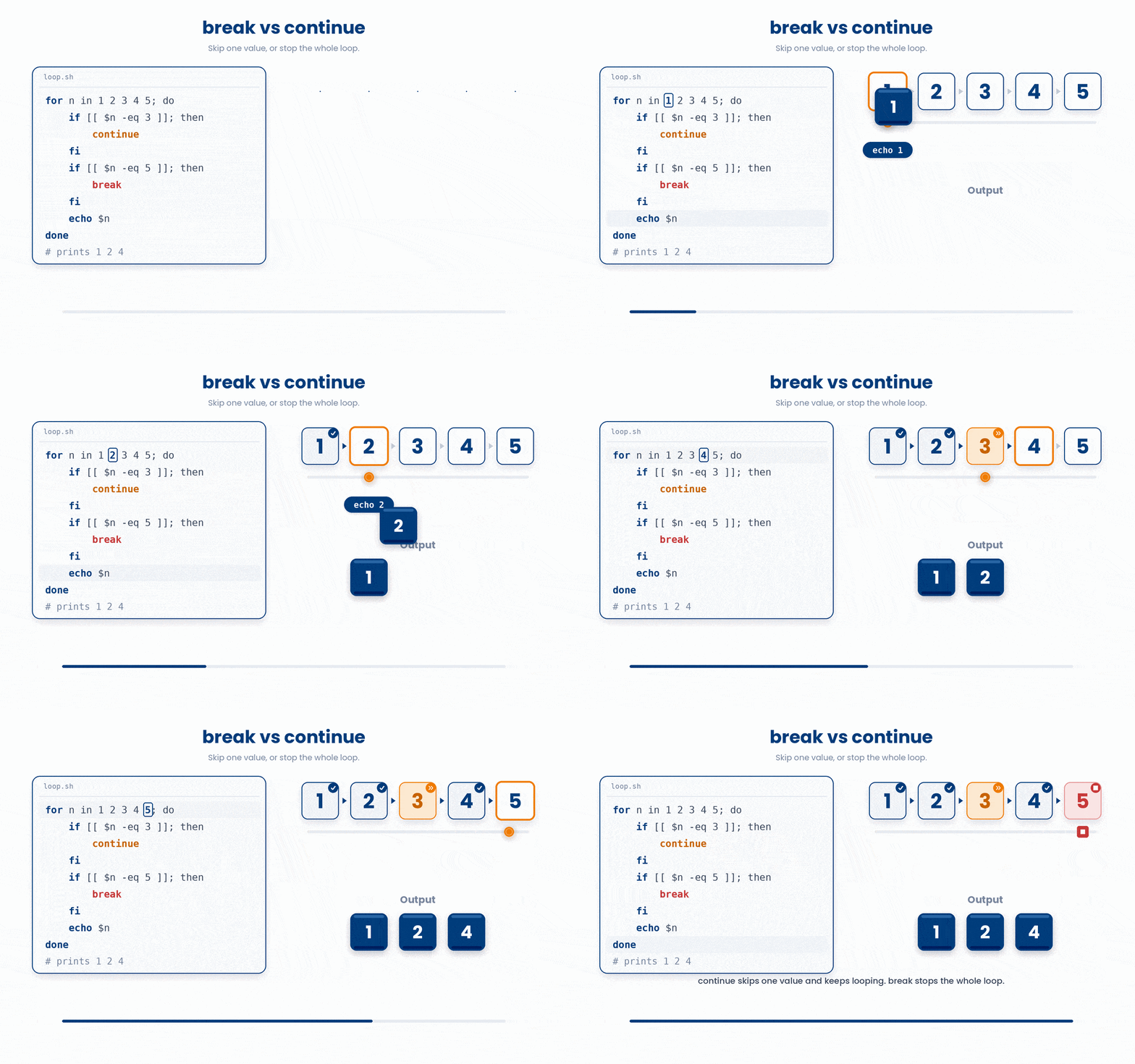
7 Putting It Together - Process a Folder of Patient Files
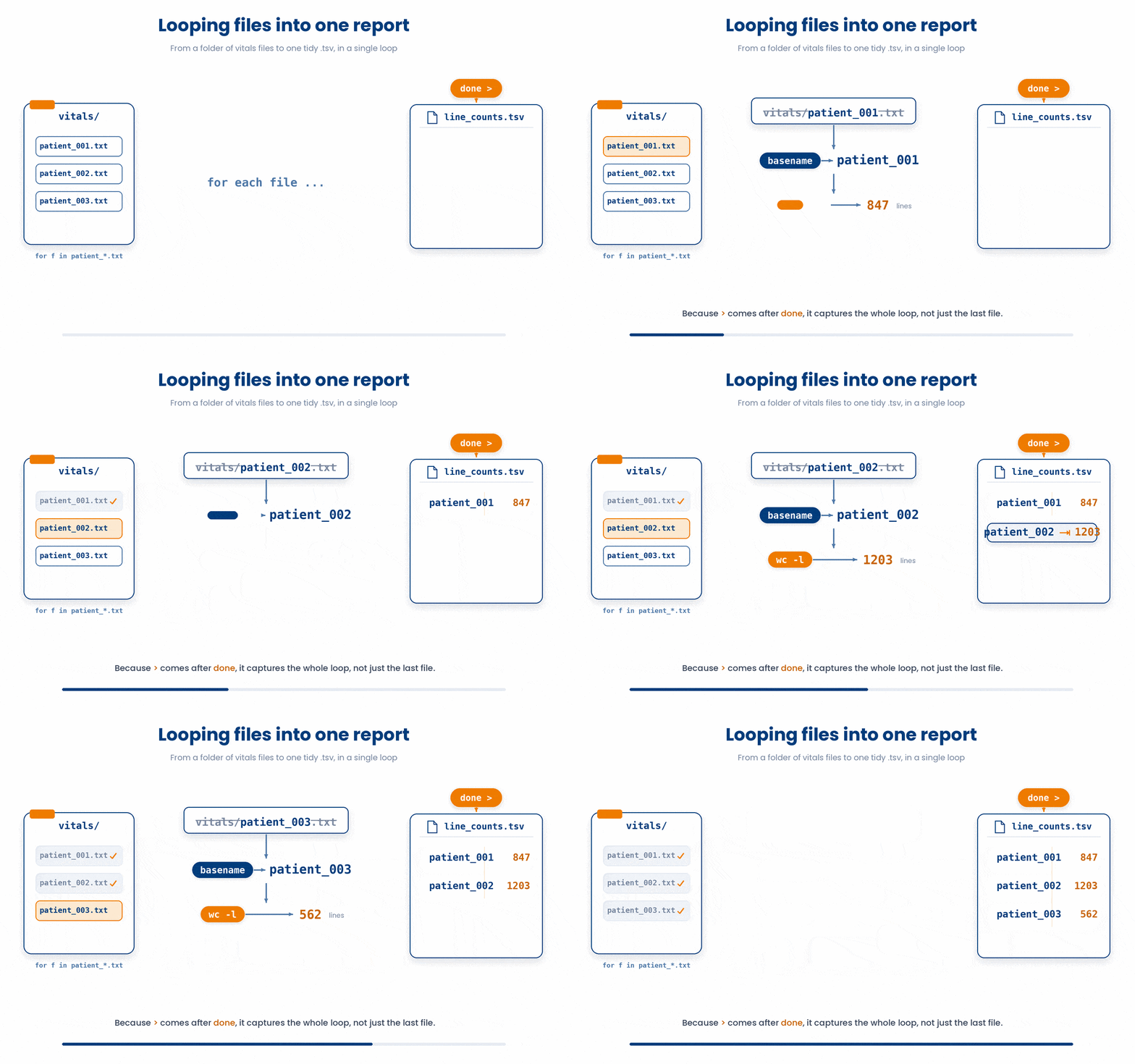
Let's combine everything into a real-world scenario. Imagine you have a folder full of patient vital sign files, and you want to count how many records (lines) are in each file, saving the results to a neat .tsv report.
# count lines in every vitals file in the folder
for f in vitals/patient_*.txt
do
    base=$(basename "$f" .txt)
    n=$(wc -l < "$f")
    echo "$base $n"
done > line_counts.tsv
Walk through it slowly: We loop over the files, use basename to strip away the messy folder paths and .txt extensions, use wc -l to count the lines, and then spit out a clean row. By redirecting the output of the entire loop using > line_counts.tsv, we generate a complete data report in just 5 lines of code.
8 Check your understanding
You have reached the end of the module. Try the same questions again — your answers here, paired with your pre-test answers, are how we measure what the module taught you. Answer every question and confidence rating, then click Submit and see results to view your score.
Which keyword closes both for and while loops in bash?
What does for i in {1..5} expand to?
Which idiom reads a file one line at a time?
Inside a for loop, what does continue do?
What is $((count + 1))?
What does break do inside a loop?
Which loop keyword runs the body as long as a condition stays TRUE?
What does for f in *.csv; do ... done loop over?
I can write a for loop that processes every file matching a pattern.
I can write a while loop that reads a file line by line.
I can use break and continue to control how a loop runs.
9 Your results
Here is how your post-test answers compare with your pre-test answers. The pre/post pairing is the most reliable way to see what this module actually taught you.
Submit the post-test to see your results.
What is the one thing from this module that is still unclear to you?