

1 Before you start
This is not graded, and it does not count towards anything. Answer every question even if you are only guessing — having a go at something before you have been taught it is one of the best ways to remember it afterwards. The lesson ends with another short check, and there you will be shown the correct answer for anything you missed. Choose an option for every question and confidence rating, then click Submit answers.
Which of these correctly assigns the value 42 to the variable count?
What does the command echo "$id_systolic" do if id=P001?
Which quoting style allows variables to expand but prevents word splitting?
What does $(date) do inside a command?
Which environment variable holds the path to your home folder?
How do you safely reference the variable file immediately before the text _backup?
Which command makes a variable available to other programs and scripts launched from that terminal?
What does echo '$HOME' (in single quotes) print?
I can set a bash variable and read it back, and I know why spaces around = matter.
I can choose between single quotes, double quotes, and no quotes for a given task.
I can capture the output of a command into a variable with $(...).
2 Introduction
From this lesson onwards we move from using the shell to writing scripts in it. The first building block of any script is a variable - a name that holds a value so you can reuse it. Bash variables look simple but a few quoting rules catch nearly everyone the first time. We will go through them carefully.
- Setting a variable - the = sign with NO spaces.
- Reading a variable back - $var and ${var}.
- Quoting rules - single, double, and unquoted.
- Environment variables - PATH, HOME, USER - and how to read them.
- Command substitution - capturing output with $(...).
3 Setting and Reading a Variable
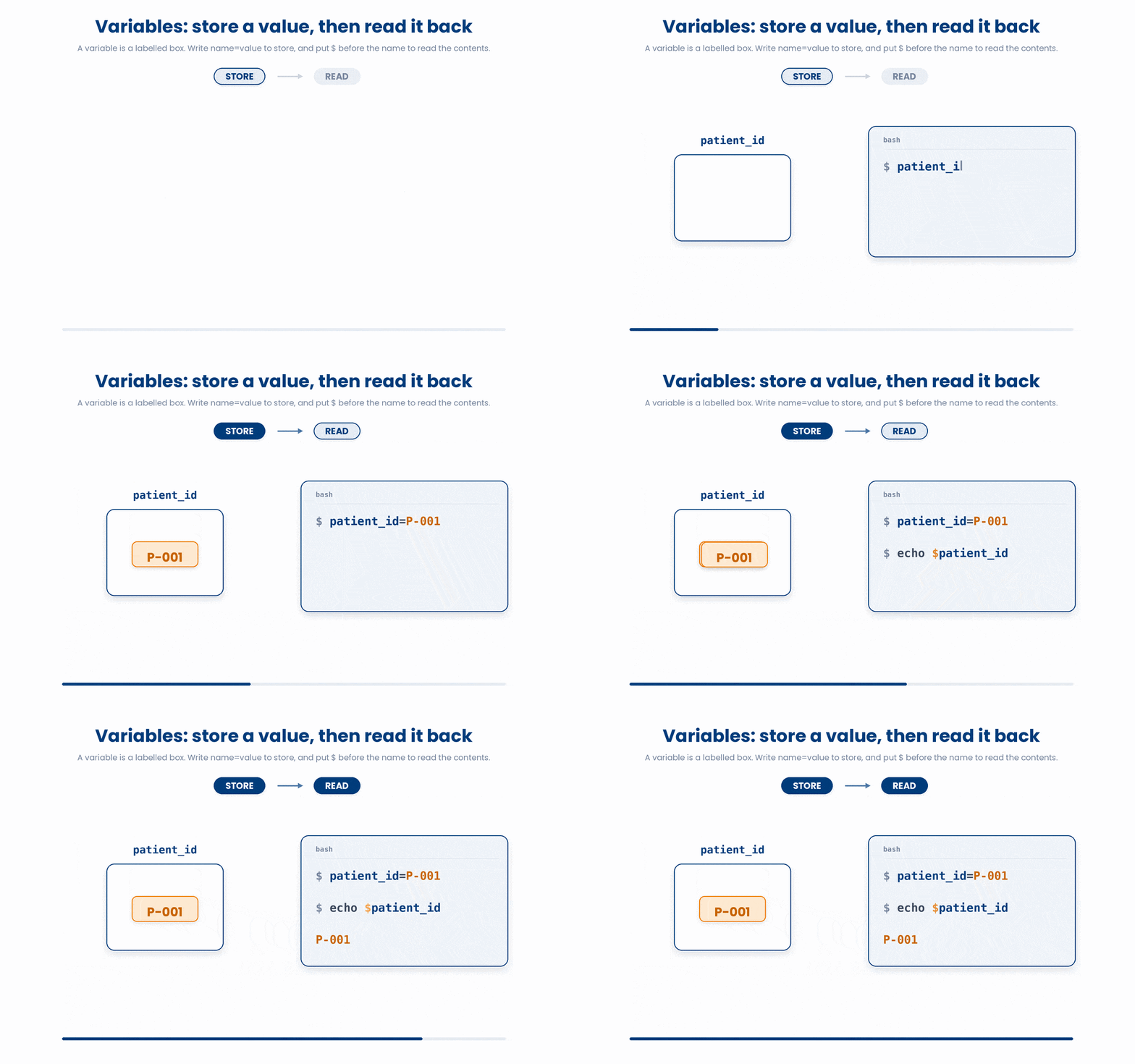
In bash, a variable is simply a labeled box where you can store data—like a patient's ID, a specific number, or a file path—so you don't have to keep retyping it throughout your script.
To put data into your box, write the variable name, an equals sign (=), and the value. To peek inside the box and read the value back, just put a dollar sign ($) in front of the name.
$ patient_id=P-001
$ echo $patient_id
P-001Note: There can be absolutely no spaces around the equals sign.
If you type patient_id = P-001, bash will completely misunderstand you. Instead of making a variable, it thinks you are trying to run a program called patient_id and handing it = and P-001 as instructions.
The error message bash spits out is rarely helpful. So, whenever bash complains about an assignment, always check your spaces first.
3.1 Variable names
When naming your variables, you must follow a few strict rules, but there is also an unwritten rule (a convention) that will make your code much easier to read:
- Allowed Characters: You can only use letters, digits, and underscores (_).
- No Leading Numbers: A variable cannot start with a digit (e.g., 1_patient will break).
- Case Matters: Bash is strictly case-sensitive. path, Path, and PATH are three entirely completely variables.
- The Convention: Always use lowercase for your own variables (like patient_id or bmi). Leave UPPERCASE names for system-wide environment variables (like PATH or USER).
4 ${var} - The Safer Form
Sometimes, using a simple $name creates ambiguity. If you want to print a variable directly next to other text, bash won't know where the variable's name actually ends.
For example, what if we want to print our id variable right next to the word _systolic?
$ id=P001
$ echo $id_systolic
# prints nothing - bash looked for a variable called id_systolic
Bash looked at the code above and tried to find a variable called id_systolic, which doesn't exist!
To fix this, wrap the variable name in curly braces (${}). This draws a clear, unmistakable boundary around the name:
$ echo ${id}_systolic
P001_systolic
As a habit, write ${var} everywhere. It costs two characters and saves you from one of the most common bash surprises.
Try this snippet in the Bash Scratchpad on the right.
$ id=P-001
$ echo $id_systolic
$ echo ${id}_systolic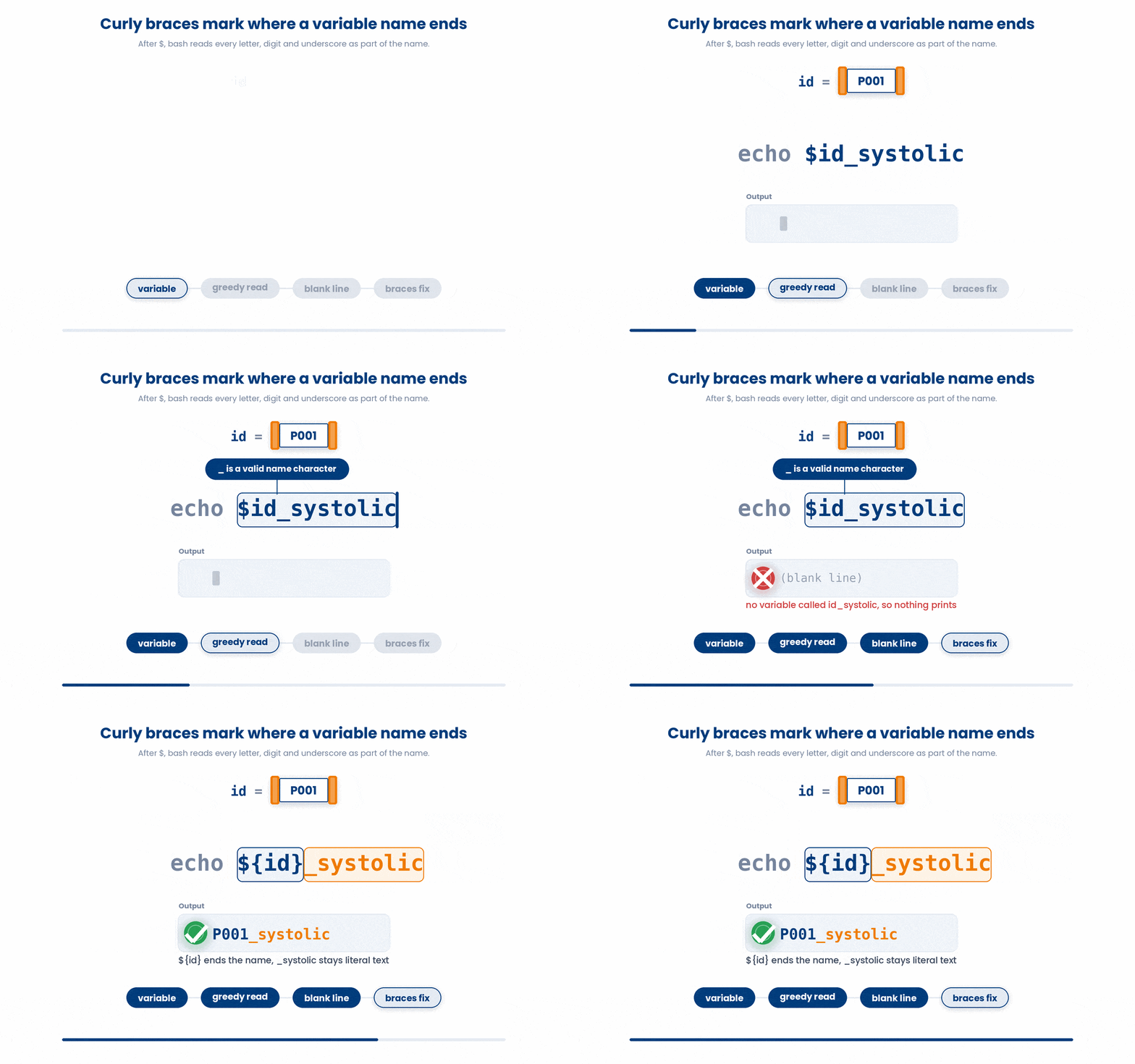
5 Demystifying bash quotes
In Bash, quotes are strict instructions that tell the terminal exactly how to read your code. Bash has three different "reading modes"—unquoted, double-quoted, and single-quoted—and knowing the difference will save you hours of debugging.
5.1 Unquoted - splits on whitespace, expands variables
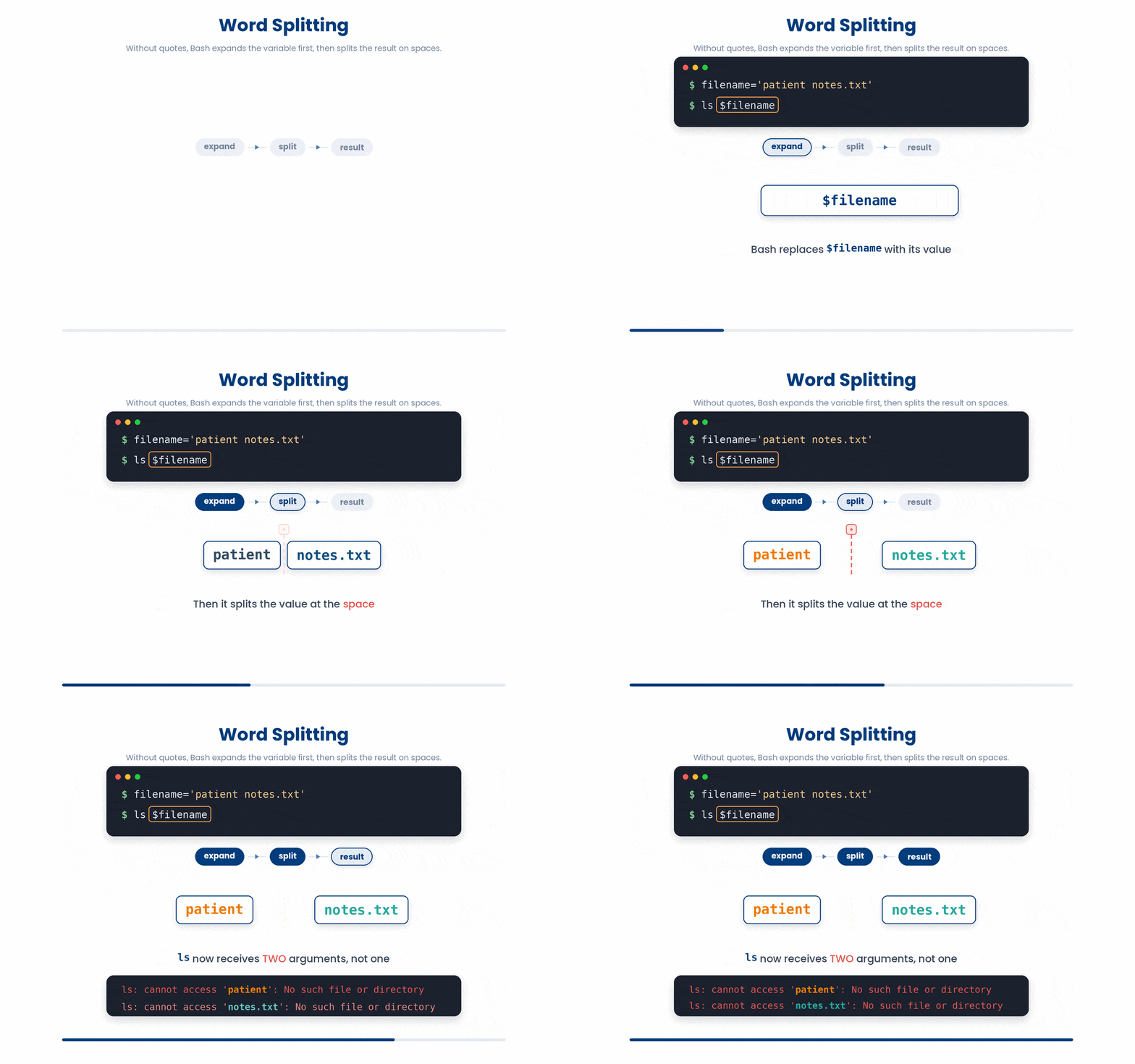
If you don't use quotes, Bash does two things in order: first, it expands any variables into their actual values. Second, it looks at the result and splits it into separate pieces at every space.
This causes massive problems if your variables contain filenames with spaces:
$ filename='patient notes.txt'
$ ls $filename
ls: cannot access 'patient': No such file or directory
ls: cannot access 'notes.txt': No such file or directory
Why did it fail? Because Bash expanded $filename into patient notes.txt, and then immediately split it at the space. The ls command thought you were asking it to find two completely different files: one named patient and one named notes.txt.
5.2 "double quotes" - variables expand, splitting does NOT happen
However, when you wrap a variable in double quotes, Bash still expands the variable to reveal its value, but it refuses to split the result on spaces. It glues everything inside the quotes together into one single argument.
$ ls "$filename"
ls: cannot access 'patient notes.txt': No such file or directory
# still no such file, but at least it is the right filename
The file still might not exist, but at least the ls command is looking for the correct, full filename: 'patient notes.txt'.
Always put double quotes around your variables (e.g., "$name"). It costs you nothing when the value is a simple, single word, and it saves your script from crashing when the value accidentally contains space.

5.3 'single quotes' - literally nothing expands
Single quotes tell Bash to turn off its brain completely. Absolutely nothing expands inside single quotes. Variables stay as text, and special characters are ignored. What you see is exactly what you get.
This is perfect when you want to print a literal dollar sign, or when you are writing complex regular expressions where you don't want Bash interfering.
$ echo '$bmi is your BMI'
$bmi is your BMI
$ echo "$bmi is your BMI"
28.4 is your BMI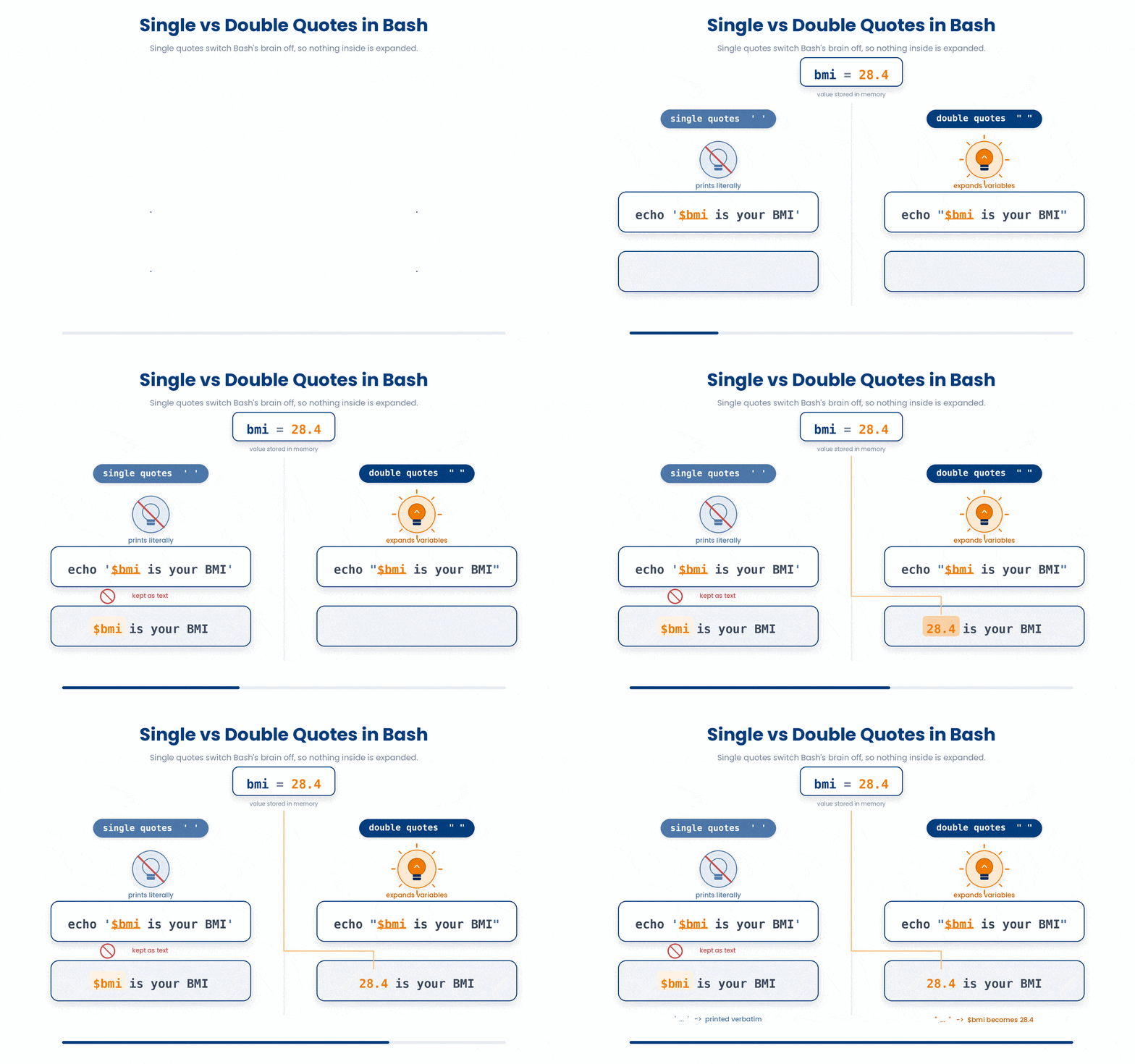
Try it out!
Try this snippet in the Bash Scratchpad on the right.
$ name='Alice Tan'
$ echo $name
$ echo "$name"
$ echo '$name'6 Environment Variables
When you open your terminal, bash doesn't start with a blank slate. It pre-loads dozens of variables that describe your workspace, known as your Environment Variables. You can think of these as the terminal's built-in settings.
Here are a handful that you will meet everywhere:
- $HOME - the path to your home folder (same as ~).
- $USER - your username.
- $PATH - colon-separated list of folders where bash looks for commands.
- $PWD - the folder you are currently in (same as pwd).
- $SHELL - which shell you are running (usually /bin/bash).
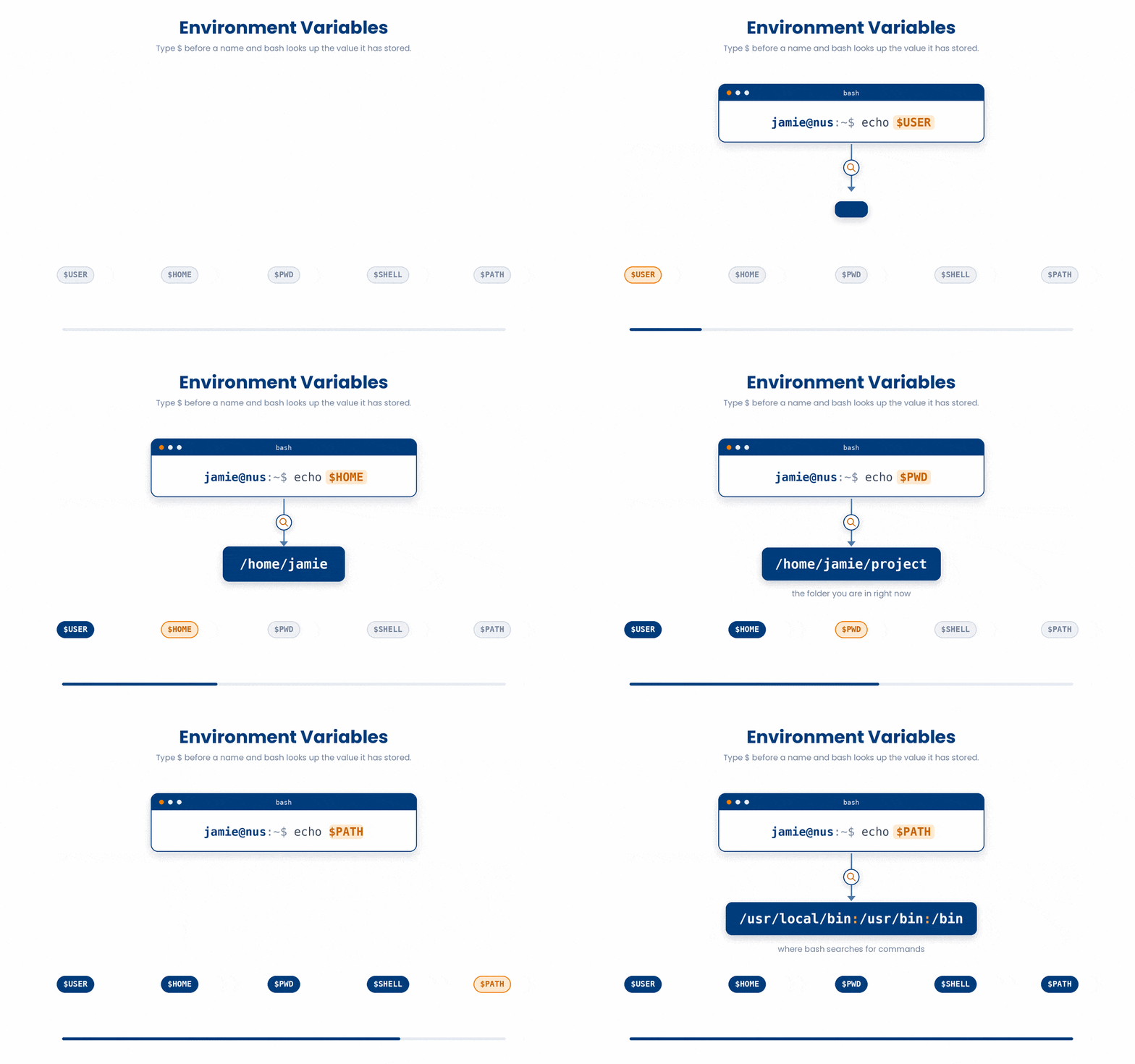
- You can peek at these settings by simply echoing them:
$ echo $HOME
/home/student
$ echo $USER
student
$ echo $PATH
/usr/local/bin:/usr/bin:/bin:/home/student/.local/bin
Try this snippet in the Bash Scratchpad on the right.
$ echo "home: $HOME"
$ echo "user: $USER"
$ echo "shell: $SHELL"To see every environment variable, run env or printenv.
You can easily create your own variables. If you want a variable to be available to other scripts or programs you run from that terminal, you need to use the export keyword so it gets passed down:
$ export COHORT_DIR=/data/cohorts/2026
$ echo $COHORT_DIR
/data/cohorts/2026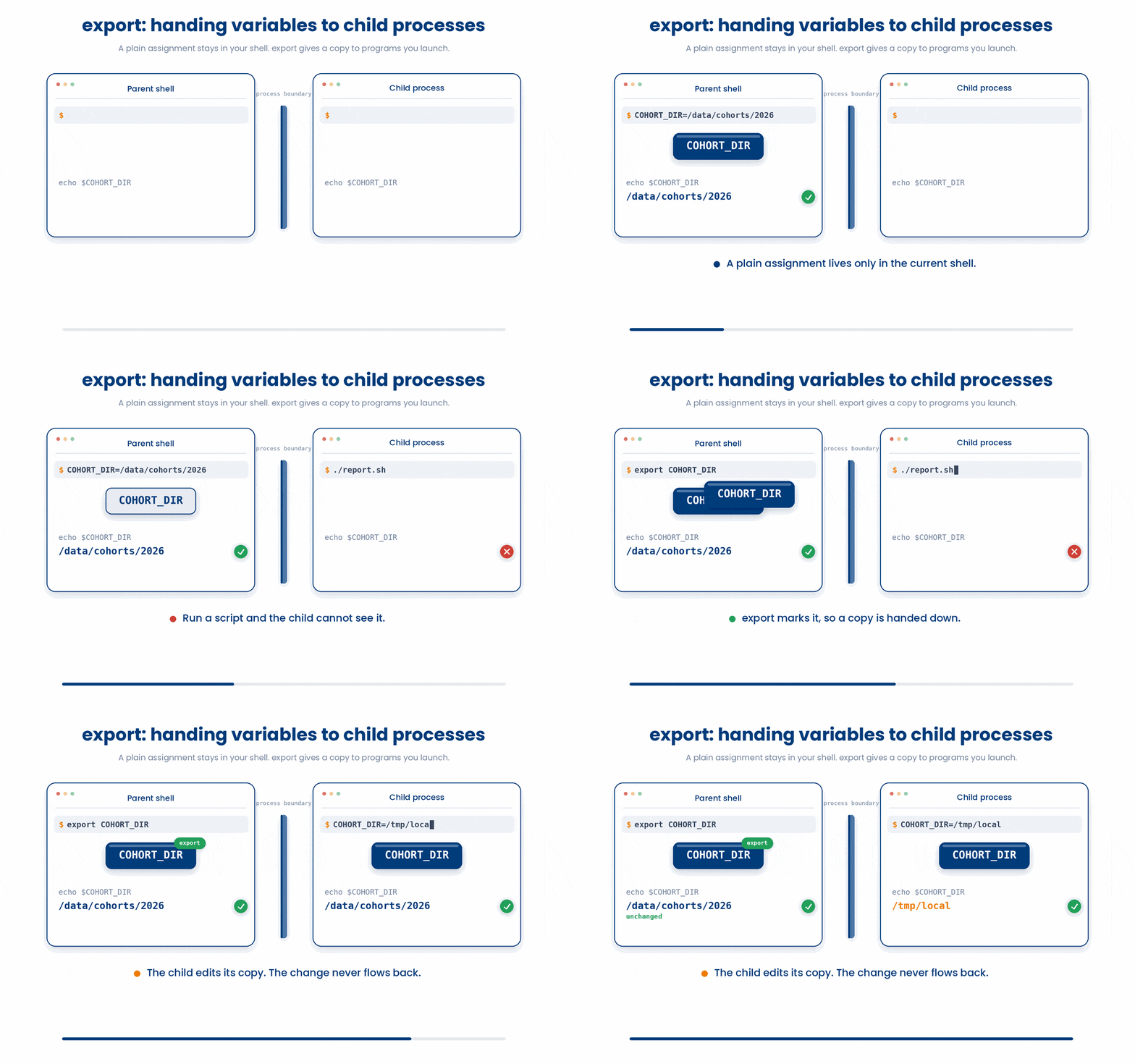
7 Command Substitution - $(...)
Sometimes you don't just want to run a command; you want to save its answer to use later. This is called Command Substitution.
By wrapping a command in $(...), bash will run the command behind the scenes and replace the syntax with whatever the command printed out.
$ today=$(date +%Y-%m-%d)
$ echo "Today is $today"
Today is 2026-05-24
$ patient_count=$(wc -l < cohort_2026.csv)
$ echo "Cohort has $patient_count rows (including header)"
Cohort has 201 rows (including header)
Try this snippet in the Bash Scratchpad on the right.
$ count=$(wc -l < cohort_2026.csv)
$ echo "Cohort has $count rows (incl header)"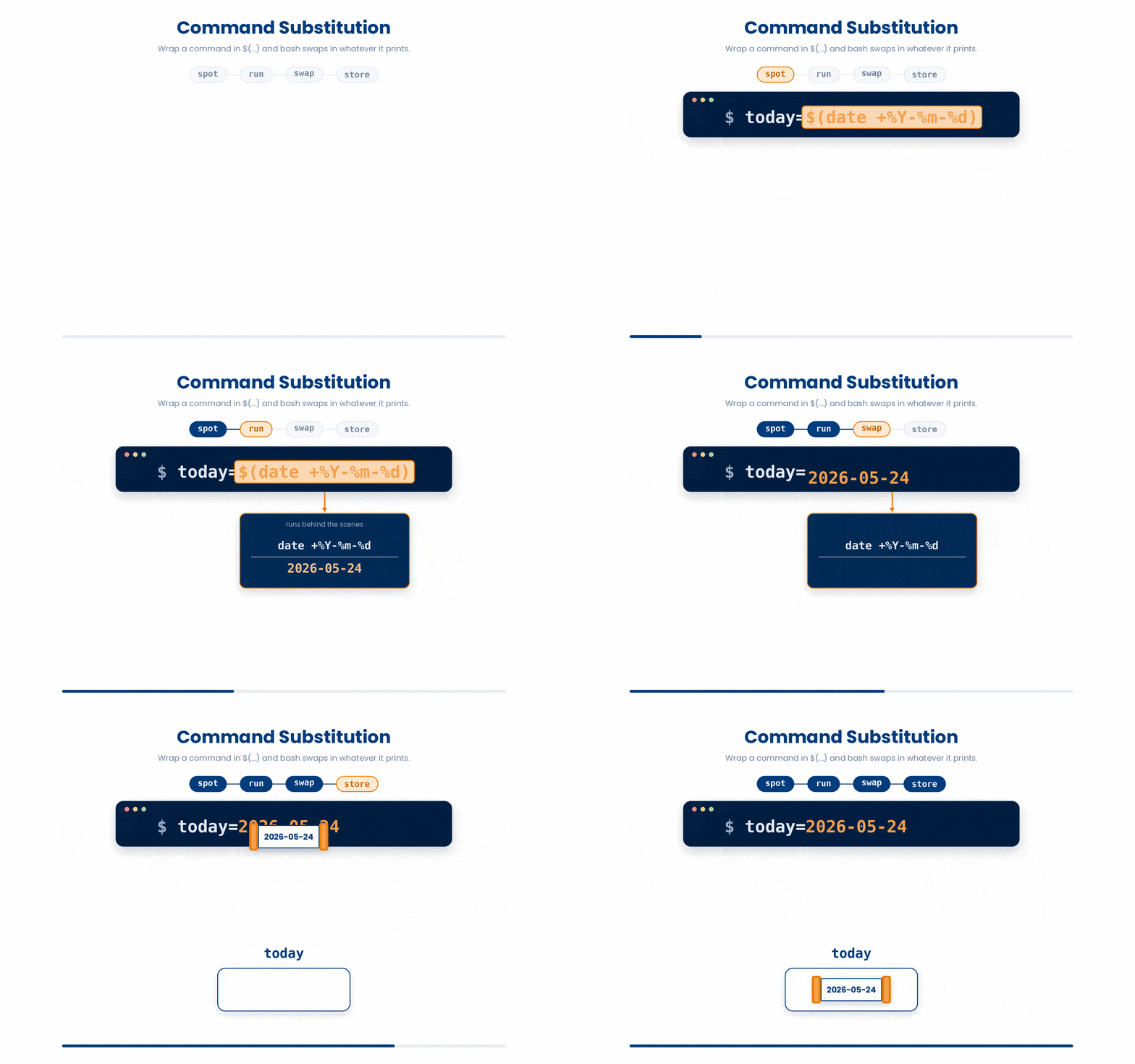
8 Check your understanding
You have reached the end of the module. Try the same questions again — your answers here, paired with your pre-test answers, are how we measure what the module taught you. Answer every question and confidence rating, then click Submit and see results to view your score.
Which of these correctly assigns the value 42 to the variable count?
What does the command echo "$id_systolic" do if id=P001?
Which quoting style allows variables to expand but prevents word splitting?
What does $(date) do inside a command?
Which environment variable holds the path to your home folder?
How do you safely reference the variable file immediately before the text _backup?
Which command makes a variable available to other programs and scripts launched from that terminal?
What does echo '$HOME' (in single quotes) print?
I can set a bash variable and read it back, and I know why spaces around = matter.
I can choose between single quotes, double quotes, and no quotes for a given task.
I can capture the output of a command into a variable with $(...).
9 Your results
Here is how your post-test answers compare with your pre-test answers. The pre/post pairing is the most reliable way to see what this module actually taught you.
Submit the post-test to see your results.
What is the one thing from this module that is still unclear to you?