

1 Before you start
This is not graded, and it does not count towards anything. Answer every question even if you are only guessing — having a go at something before you have been taught it is one of the best ways to remember it afterwards. The lesson ends with another short check, and there you will be shown the correct answer for anything you missed. Choose an option for every question and confidence rating, then click Submit answers.
Which command finds every .py file anywhere under the current folder?
What does the * in find . -name '*.csv' mean?
Which find call lists only directories, not files?
Why pair find -print0 with xargs -0?
What does the {} mean in find . -name '*.sh' -exec chmod +x {} \;?
Which find option matches files modified within the last 24 hours?
How do you find files LARGER than 100 megabytes?
In find -exec, what is the difference between ending the command with \; and ending it with +?
I can find files anywhere under a folder by name, type, and size.
I know how to run a command on every file find returns, using -exec or xargs.
I know why -print0 / -0 matter when filenames might contain spaces.
2 Introduction
When your project folders start to grow, locating a specific dataset or script can feel like searching for a needle in a haystack. This is where the find command becomes your best friend. Instead of clicking through endless folders, find acts as a highly customizable search engine right inside your terminal. xargs is its partner - it takes the list of files find produces and runs a command on each.
In this section, we will learn about the following:
- find's basic shape: where to look, then what to look for.
- Common predicates: -name, -iname, -type, -size, -mtime.
- Acting on what you find: -delete and -exec.
- xargs - safer, more flexible way to act on a file list.
3 find - The Basic Shape
While grep finds text inside files, find finds the files themselves. It is the right tool for "where did I put that script?", "show me every .csv under this folder tree", or "delete every empty file older than a week".
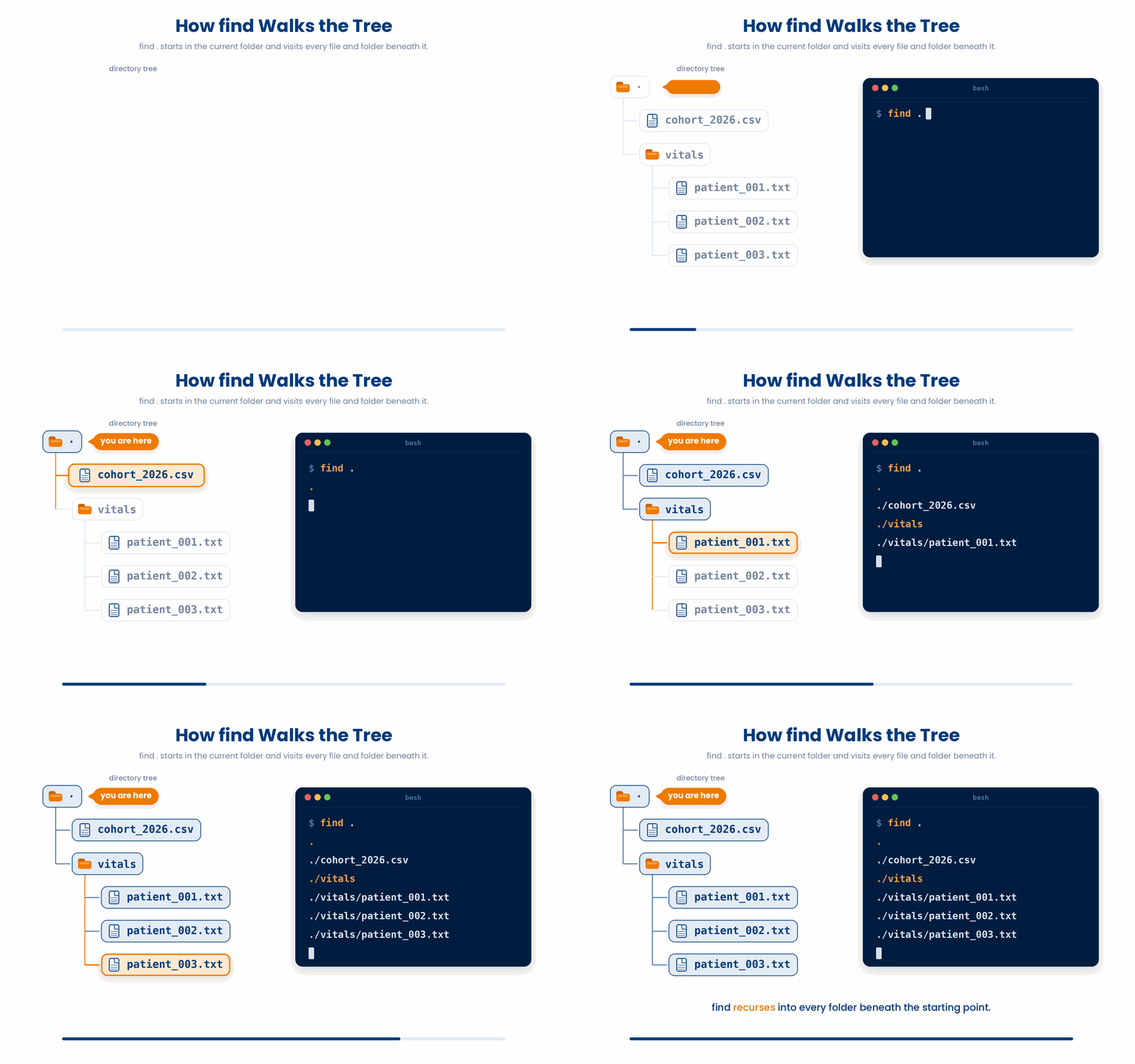
$ find .
.
./cohort_2026.csv
./vitals
./vitals/patient_001.txt
./vitals/patient_002.txt
...
In the example above, the dot (.) is the current folder. find . means "show me everything starting from where I am standing right now".
To make this command truly useful, we need to add predicates to narrow the results down.
4 Filtering With Predicates
4.1 By name - -name and -iname
The most common way to search is by the name of the file. You can use an asterisk (*) as a wildcard to find patterns.
$ find . -name 'patient_*.txt'
./vitals/patient_001.txt
./vitals/patient_002.txt
$ find . -iname '*.CSV' # case-insensitive
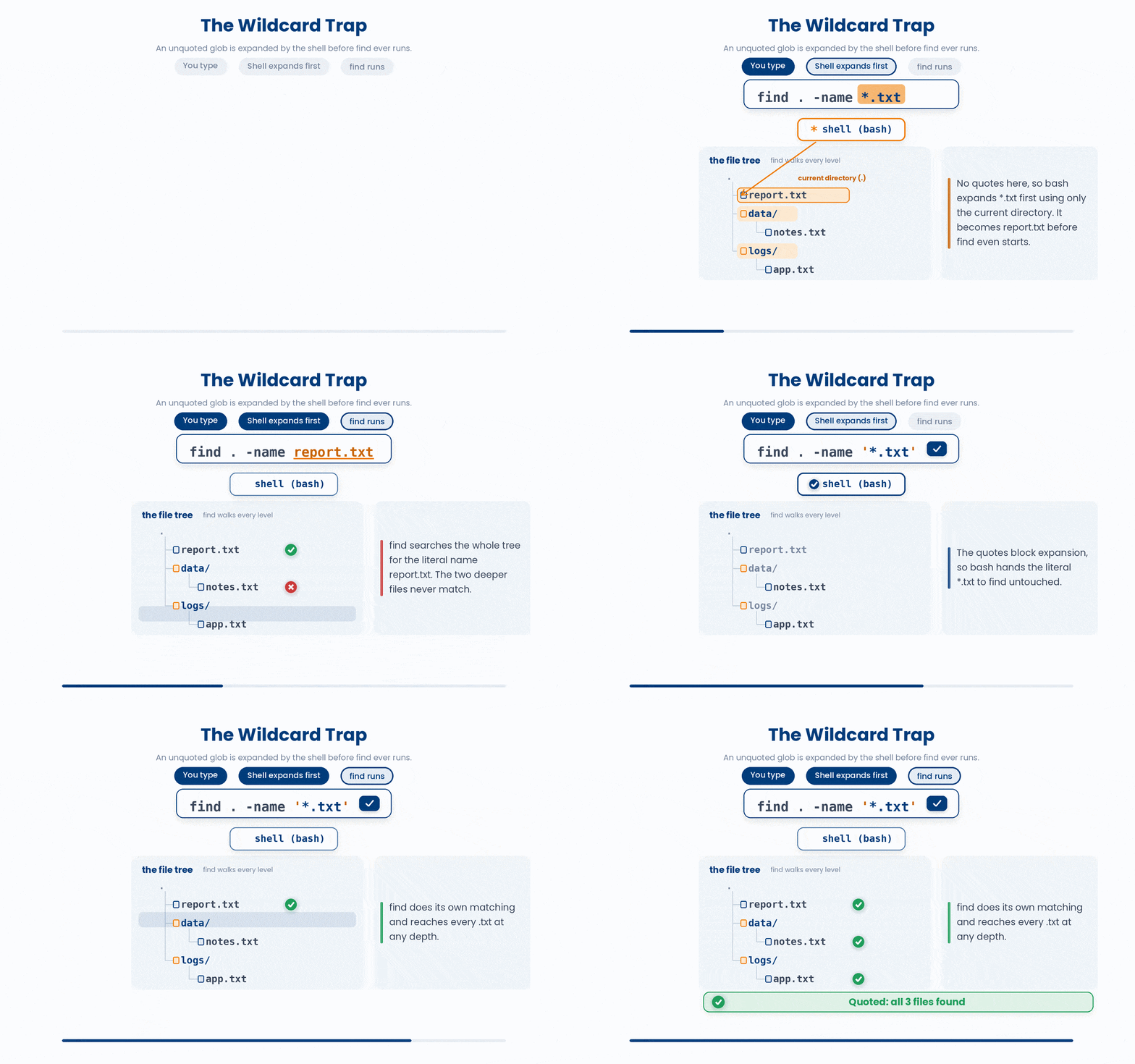
The Wildcard Trap: Always wrap your search patterns in quotes (like '*.txt'). If you forget the quotes, bash will try to guess what *.txt means before the find command even runs. This can cause the command to only search your immediate folder instead of the whole tree!
4.2 By type - -type
Sometimes you only want to look for folders, or you only want to look for files. The -type flag lets you filter by the exact kind of item:
- -type f - regular files only.
- -type d - directories only.
- -type l - symbolic links.
$ find . -type d
.
./vitals
./scripts
./archive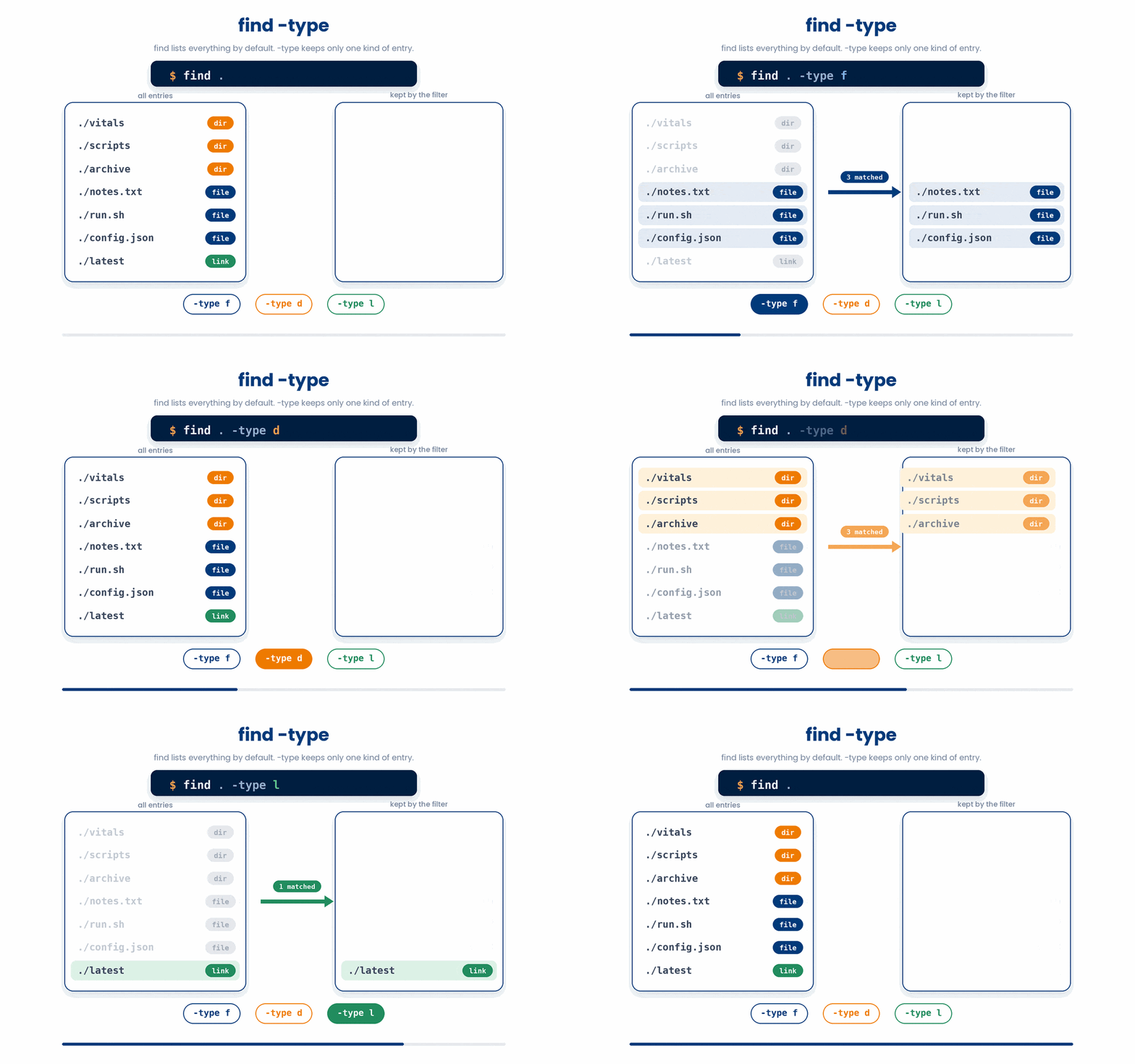
4.3 By size - -size
If you need to clear up disk space or find an unusually large dataset, you can filter by exact, minimum, or maximum sizes.
- -size +1G - bigger than 1 GiB.
- -size -100k - smaller than 100 KiB.
- -size 0 - exactly zero bytes (empty files).
$ find /var/log -type f -size +100M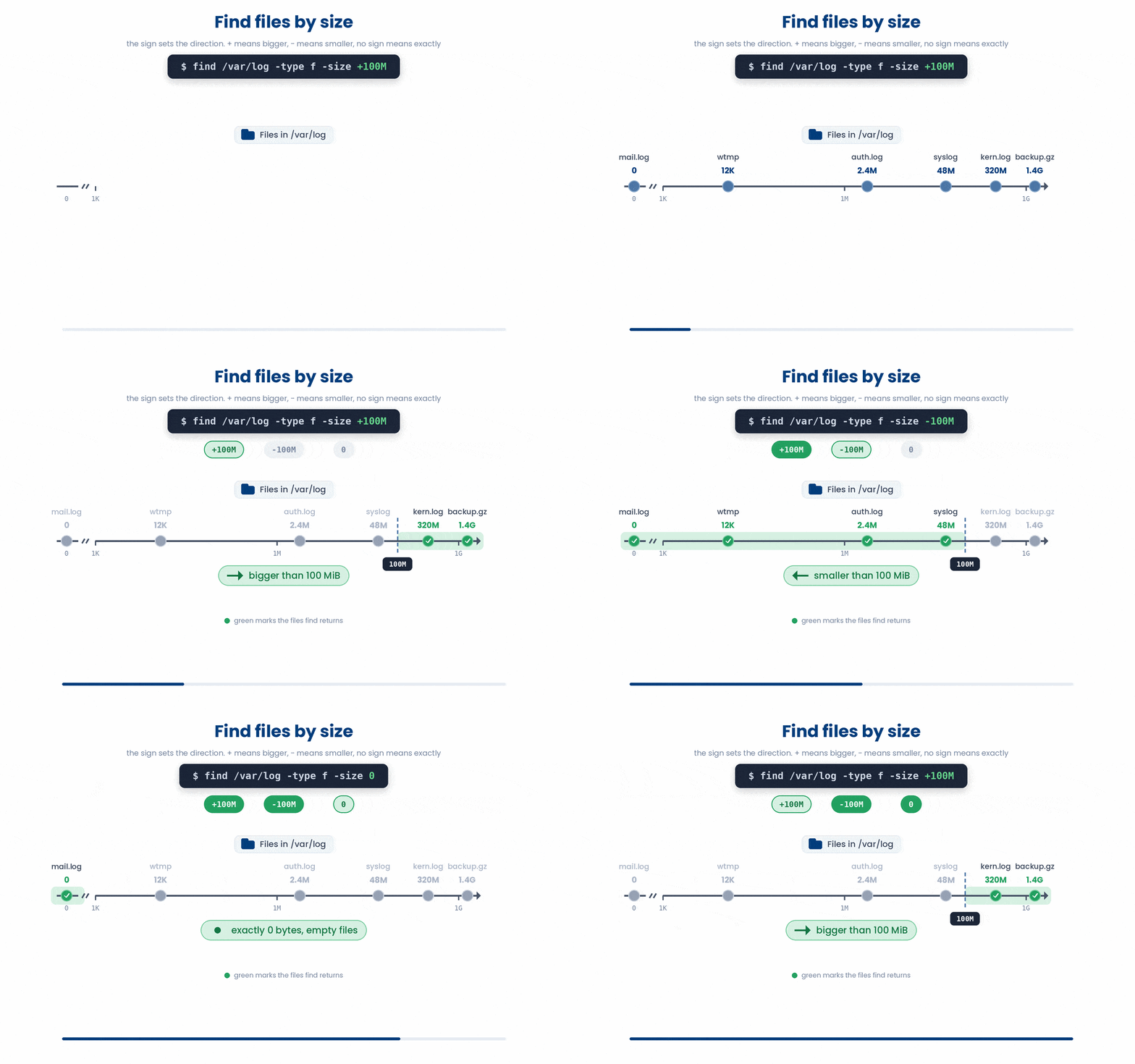
4.4 By modification time - -mtime
Have you ever saved a file, immediately forgotten where you put it, and wished you could just search for "things I worked on today"?
The modification time (-mtime) flag does exactly that, measuring in days:
- -mtime -7 - modified within the last 7 days.
- -mtime +30 - modified more than 30 days ago.
- -mtime 0 - modified today.
$ find ~/cohort -mtime -1
# what did I touch in the last 24 hours?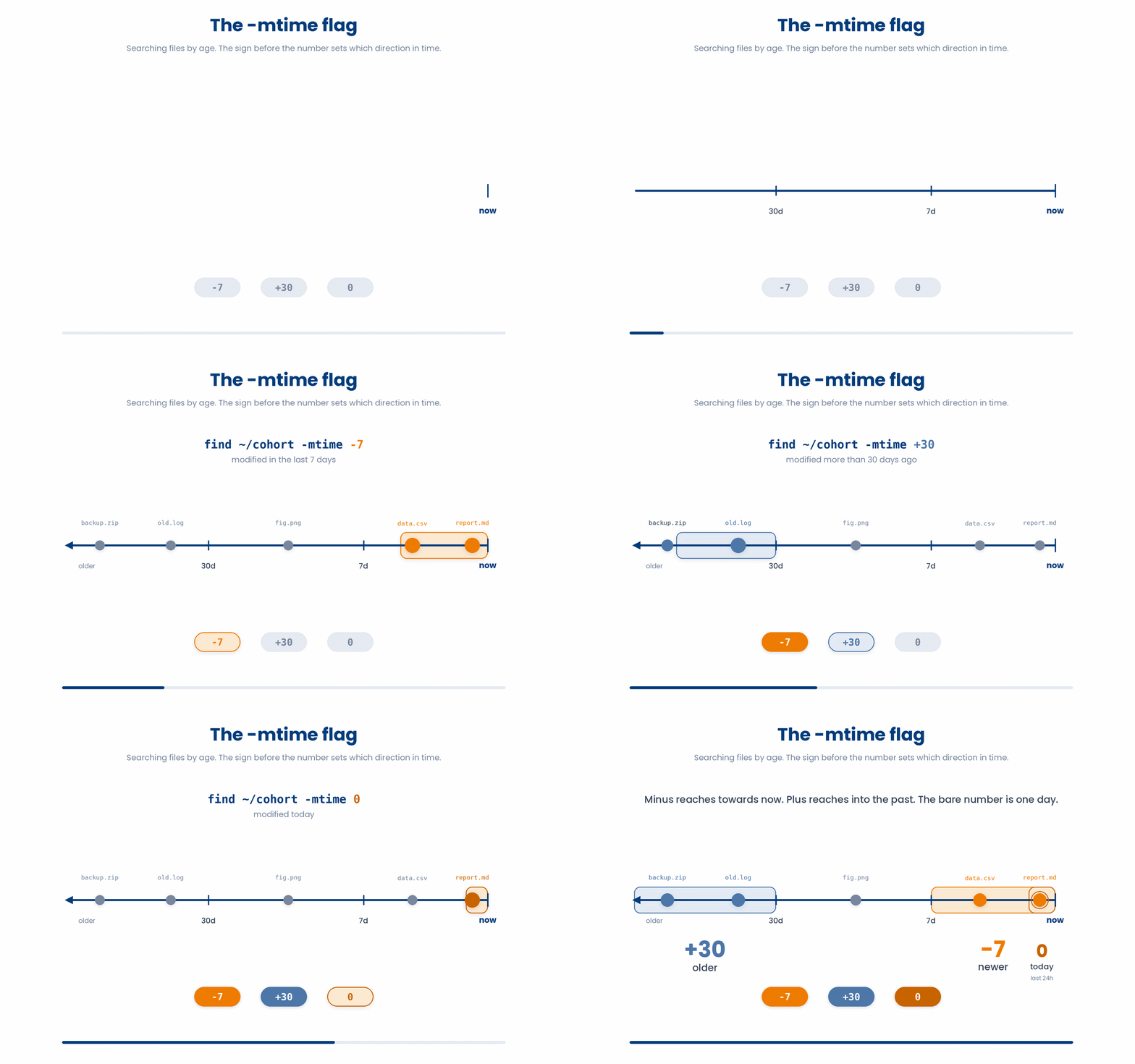
4.5 Combining predicates
The true magic of find is that you do not have to use just one filter. You can stack them together to create incredibly specific queries.
$ find . -type f -name 'patient_*.txt' -size +10k
# patient files over 10 KiB, anywhere under the current tree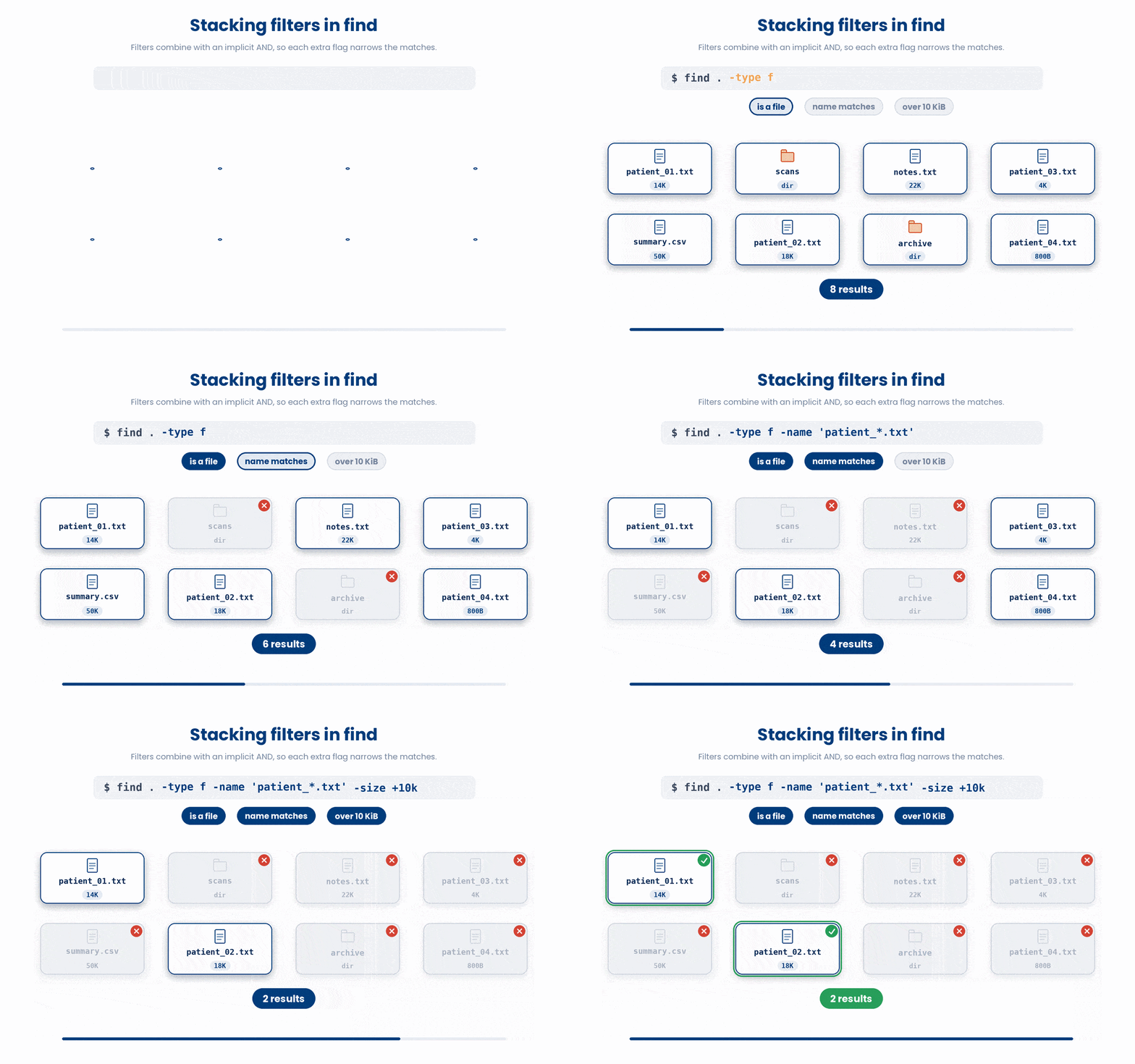
Try these codes out and see what responses you will get!
Try this snippet in the Bash Scratchpad on the right.
$ find . -name 'cohort_*.csv'
$ find . -type d
$ find . -size 05 Acting On What You Find
Finding your files is only half the battle. Usually, you want to do something with them—like delete old logs, compress large datasets, or move files into an archive. You have three main ways to take action.
5.1 -delete - careful with this
If you want to remove files, find has a built-in -delete flag. However, use this with extreme caution. Just like the rm command, there is no recycle bin and no "undo."
$ find . -name '*.tmp'
./build/scratch.tmp
./build/cache.tmp
$ find . -name '*.tmp' -delete
# now they are gone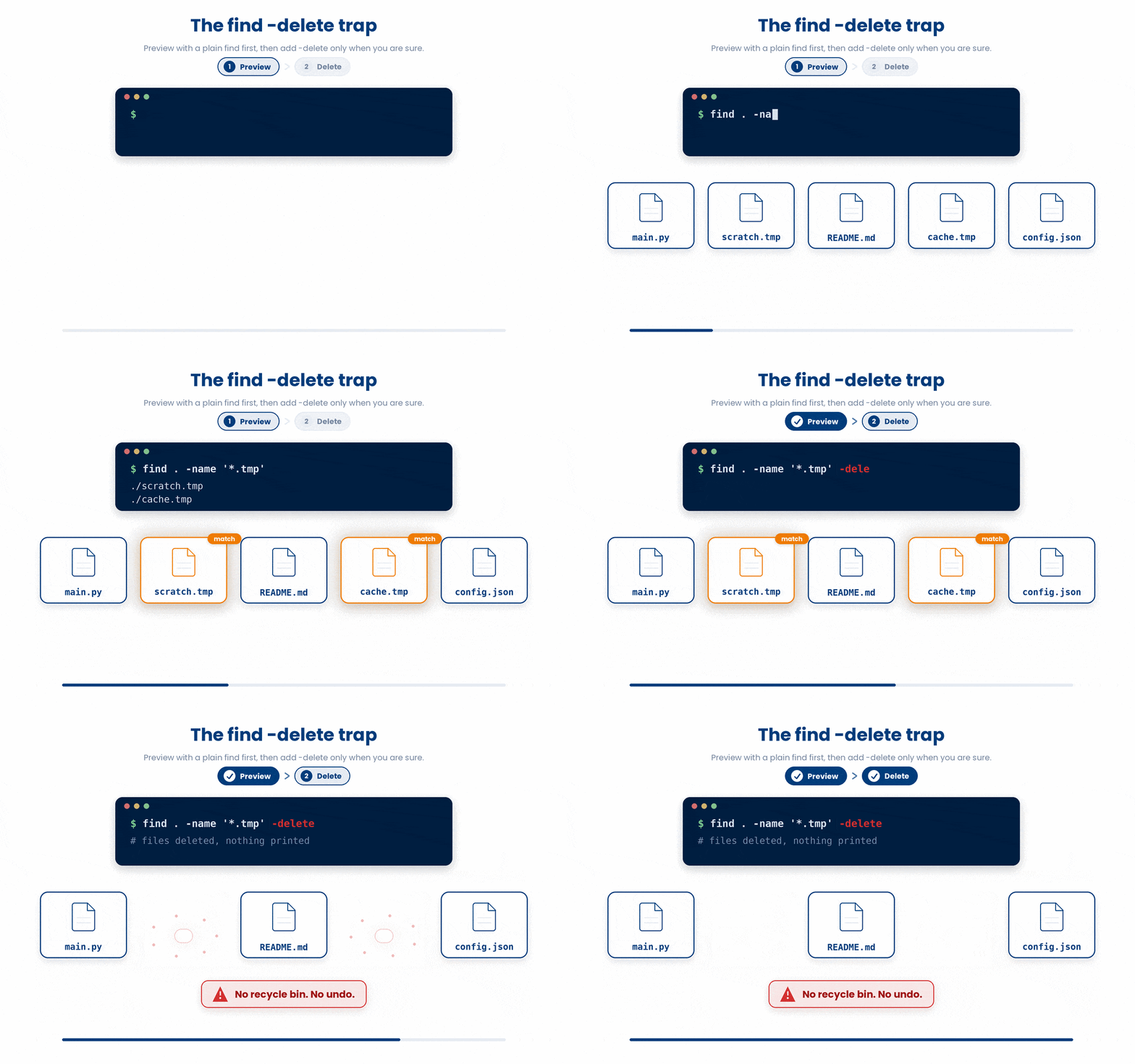
Note: Always run your find command without the -delete flag first. Look at the printed list to guarantee you aren't accidentally matching files you want to keep. Only add -delete once you are 100% sure.
5.2 -exec - run a command per match
If you want to do something other than delete (like compress, move, or change permissions), use the -exec flag. This tells find to run a specific command on every single file it matches.
The syntax looks a little strange at first:
{} acts as a placeholder for the file's name.
\; tells find where your command ends. (You must include the backslash so the shell doesn't misinterpret the semicolon)
$ find . -name '*.sh' -exec chmod +x {} \;
# make every .sh under here executable
$ find . -name '*.log' -exec gzip {} \;
# compress every log file
Running commands one by one with \; is slow. If you have thousands of files, replace \; with + at the end. This tells find to batch the files together and process them all at once
$ find . -name '*.log' -exec gzip {} +Try this snippet in the Bash Scratchpad on the right.
$ find scripts -name '*.sh'
$ find scripts -name '*.sh' -exec grep -l TODO {} \;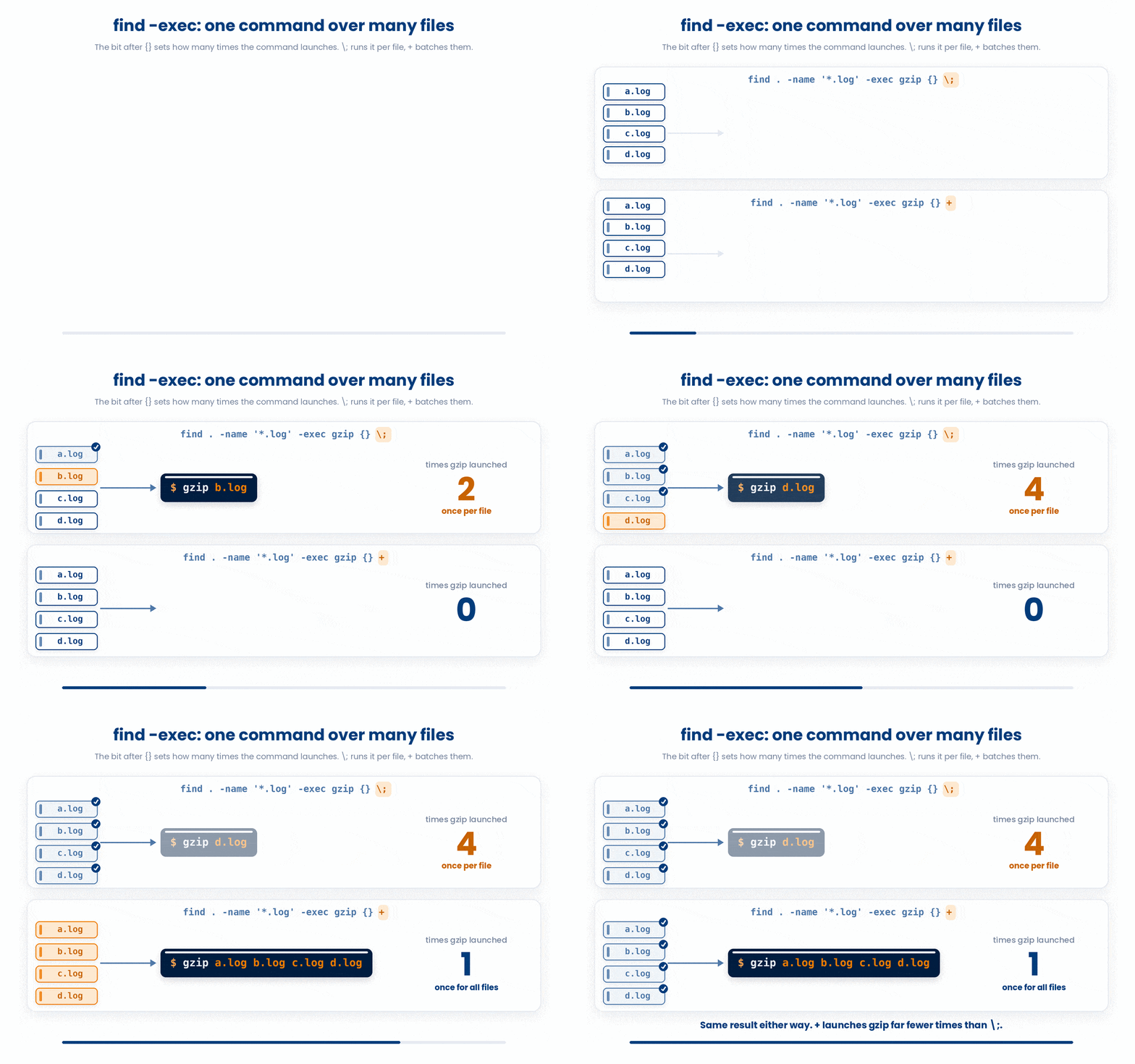
6 xargs - Build Commands From a List
xargs is a companion tool that takes a list of items (like the output from find) and feeds them into another command. It is incredibly fast, and it's the right tool to use when your list of files comes from somewhere else, like a text file or a grep search.
$ find . -name '*.log' | xargs rm
# delete every .log file under here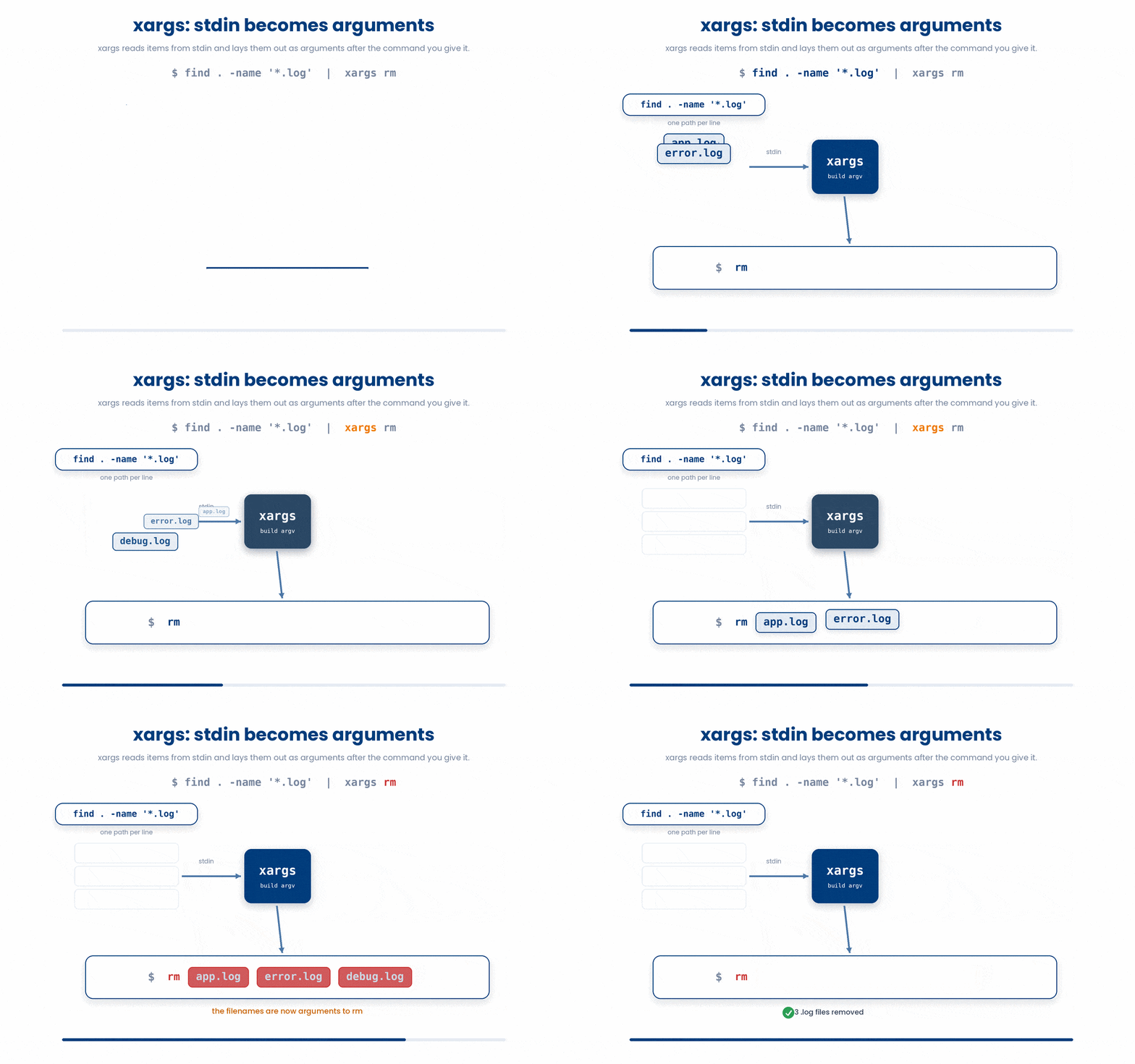
6.1 The whitespace problem - use -print0 and -0
By default xargs splits its input on whitespace. If any filename has a space, that breaks. The fix: both sides use null bytes as separators. For example, if a colleague names a file final report v2.log, xargs will break it into three separate chunks: final, report, and v2.log. This can cause catastrophic errors!
To fix this, get into the habit of pairing find -print0 with xargs -0. This forces both tools to use invisible "null bytes" to separate files instead of spaces, making it perfectly safe.
$ find . -name '*.log' -print0 | xargs -0 rm
# safe even if filenames contain spaces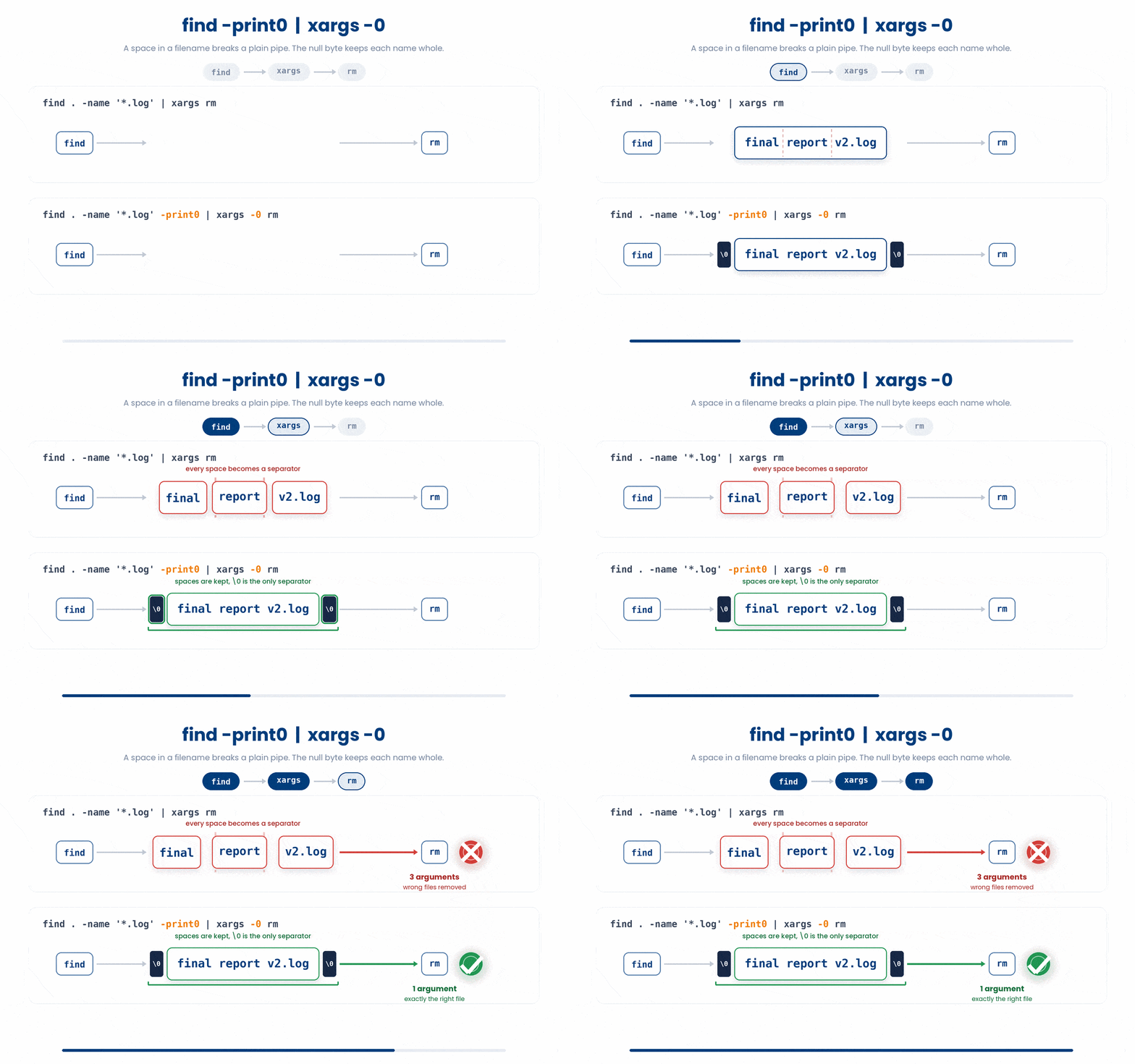
6.2 xargs -I {} for one-at-a-time
If you need the filename more than once, or somewhere other than the end, use -I {}. This lets you use the {} placeholder exactly like you did with -exec:
$ find . -name 'patient_*.txt' | xargs -I {} mv {} archive/Try this snippet in the Bash Scratchpad on the right.
$ find vitals -name 'patient_*.txt'
$ find vitals -name 'patient_*.txt' | xargs wc -l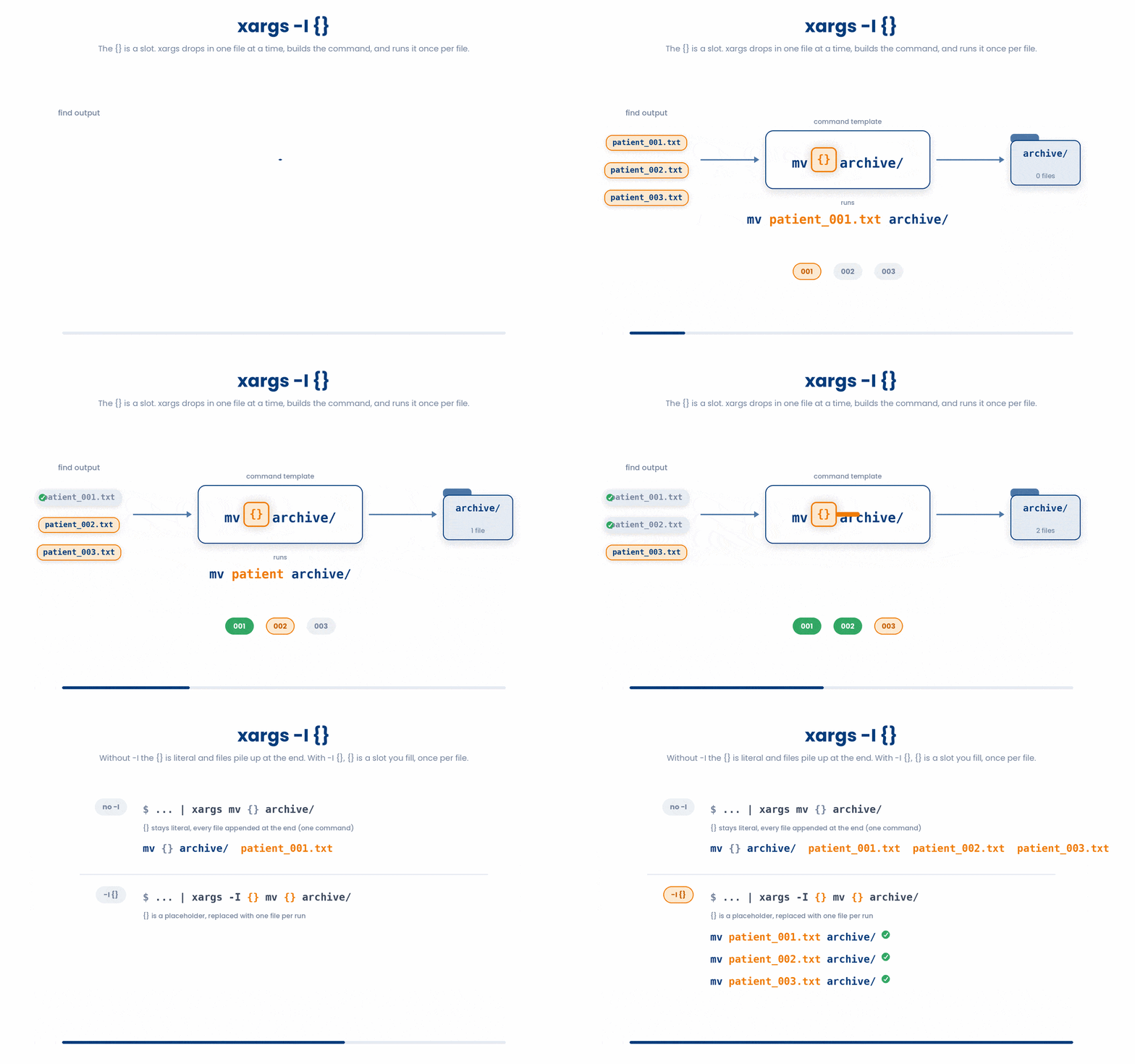
7 Common Pitfalls
If your command isn't working, check this list:
- Unquoted search patterns: If you write find . -name *.csv (no quotes), your terminal will expand *.csv before find runs, usually breaking your search. Always quote your wildcards: '*.csv'.
- Forgetting the \; on -exec: If you get the error "find: missing argument to -exec", you forgot to end your command with \; (or +).
- Running xargs without -0: If your command is doing weird things to files with spaces in their names, you forgot to use the -print0 and -0 safety net.
- Running -delete blindly: If your pattern matched more than you thought, you just lost real files. Always run the filter alone first to verify!
8 Check your understanding
You have reached the end of the module. Try the same questions again — your answers here, paired with your pre-test answers, are how we measure what the module taught you. Answer every question and confidence rating, then click Submit and see results to view your score.
Which command finds every .py file anywhere under the current folder?
What does the * in find . -name '*.csv' mean?
Which find call lists only directories, not files?
Why pair find -print0 with xargs -0?
What does the {} mean in find . -name '*.sh' -exec chmod +x {} \;?
Which find option matches files modified within the last 24 hours?
How do you find files LARGER than 100 megabytes?
In find -exec, what is the difference between ending the command with \; and ending it with +?
I can find files anywhere under a folder by name, type, and size.
I know how to run a command on every file find returns, using -exec or xargs.
I know why -print0 / -0 matter when filenames might contain spaces.
9 Your results
Here is how your post-test answers compare with your pre-test answers. The pre/post pairing is the most reliable way to see what this module actually taught you.
Submit the post-test to see your results.
What is the one thing from this module that is still unclear to you?