

1 Before you start
This is not graded, and it does not count towards anything. Answer every question even if you are only guessing — having a go at something before you have been taught it is one of the best ways to remember it afterwards. The lesson ends with another short check, and there you will be shown the correct answer for anything you missed. Choose an option for every question and confidence rating, then click Submit answers.
Which command counts how many lines in diagnoses.csv contain the code I10?
Which cut command extracts the SECOND column of a comma-separated file?
Which pipeline counts how often each value in column 1 of votes.txt appears?
Why does uniq usually need sort in front of it?
Which command converts all lowercase letters in a file to uppercase?
Which grep flag makes the search ignore upper/lower case?
What does grep -v error log.txt print?
Which command sorts numbers in true numeric order (so 10 comes after 9)?
I can use grep to find lines matching a pattern and count how many there are.
I can extract a single column from a CSV with cut.
I can combine sort | uniq -c to count how often each unique value appears.
2 Introduction
Most of what you will do at a Linux terminal is text wrangling - finding lines, picking columns, sorting, counting. These five commands are the workhorses. Each does one tiny job; the magic happens when you chain them with pipes. By the end, the question "how do I extract X from this file?" will have an obvious shape: pick a tool per stage, glue with |.
- grep - find lines that match a pattern.
- cut - pick columns or character ranges from each line.
- sort - sort lines alphabetically or numerically.
- uniq - squash adjacent duplicate lines (often paired with sort).
- tr - translate or delete individual characters.

3 grep - Find Lines That Match
grep prints every line of its input that contains a given pattern. Simplest form: grep PATTERN FILE.
$ grep P-002 diagnoses.csv
P-002,61,M,172,88,152,95
Here are some useful flags that can make grep more useful.
- -i - case insensitive ("hypertension" or "Hypertension" both match).
- -v - INVERT - show lines that do NOT match.
- -c - just count matching lines.
- -n - prefix each match with its line number.
- -r - recursive: search every file under a folder.
- -l - list only the FILENAMES that have a match.
- -w - whole word match (so "F" does not match "Female").
- -E - extended regular expressions (alternation with |, +, etc.).

3.1 Patterns are regex by default
The PATTERN is a regular expression, not a literal string. This is where characters like . * [ ] have special meaning. For a literal dot, escape with \. or use grep -F (fixed strings).
$ grep '@nus.edu.sg' emails.txt # dots are regex "any character"
$ grep -F '@nus.edu.sg' emails.txt # literal match
Try this snippet in the Bash Scratchpad on the right.
$ echo -e 'hypertension
diabetes
Hypertension' > dx.txt
$ grep h dx.txt
$ grep -i h dx.txt
$ grep -v h dx.txtTry this snippet in the Bash Scratchpad on the right.
$ grep ,M, cohort_2026.csv | head -n 3
$ grep -c ,F, cohort_2026.csv
$ grep -c ,M, cohort_2026.csv4 cut - Pick Columns
cut pulls out part of each line. The most common shape is "columns from a delimited file": say what the separator is with -d and which fields (columns) with -f.
$ cat cohort_2026.csv
patient_id,age,sex,height_cm,weight_kg,systolic,diastolic
P-001,54,F,168,72,138,84
P-002,61,M,172,88,152,95
$ cut -d, -f1 cohort_2026.csv
patient_id
P-001
P-002
$ cut -d, -f1,6 cohort_2026.csv
patient_id,systolic
P-001,138
P-002,152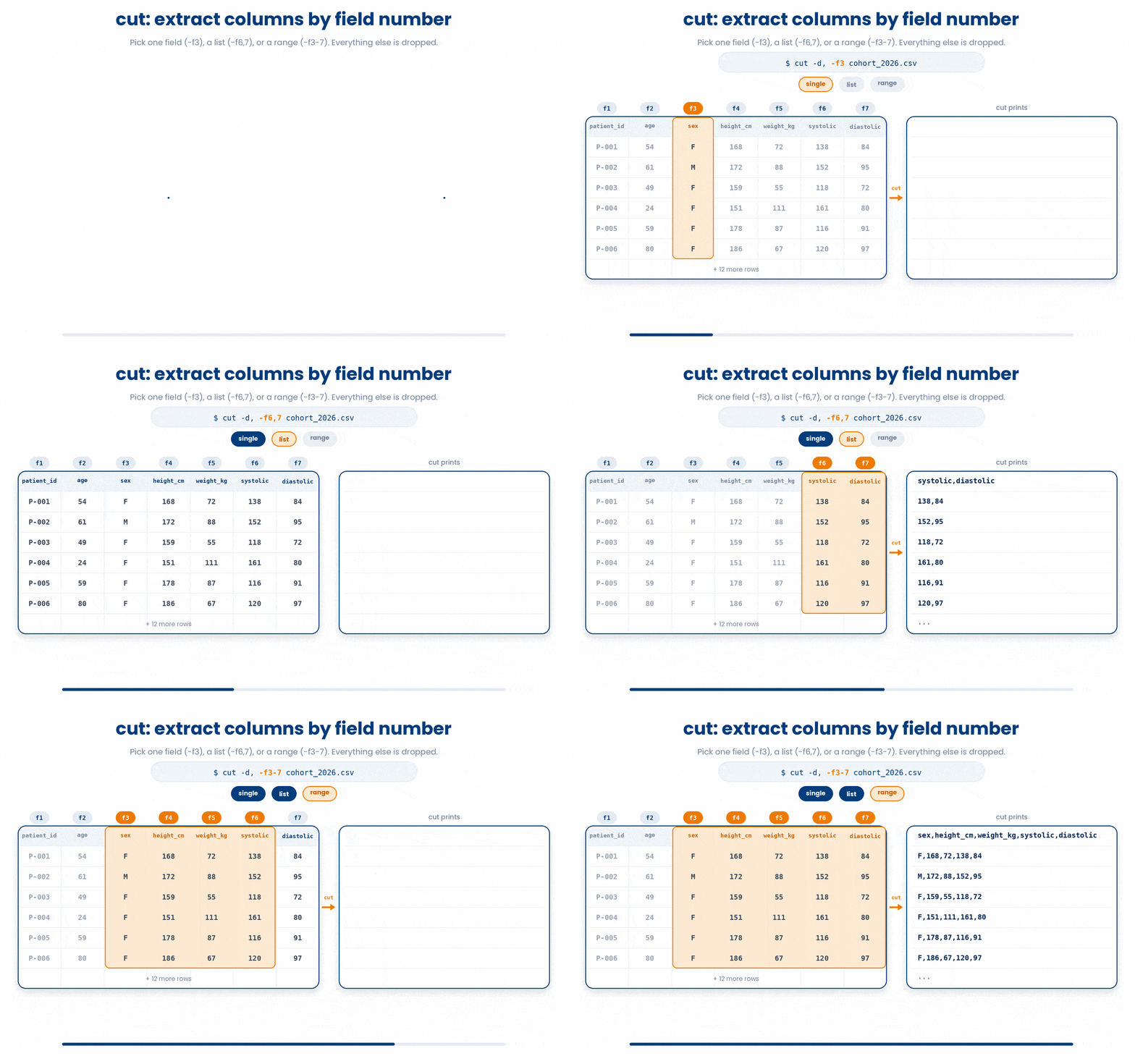
Field numbers start at 1, not 0. Pick a range with -f2-4 or open-ended -f2- (column 2 to the end). For TSV files use -d$'\t' (the dollar-sign quoting tells bash to interpret \t as a real tab).
Try this snippet in the Bash Scratchpad on the right.
$ cut -d, -f3 cohort_2026.csv
$ cut -d, -f6,7 cohort_2026.csv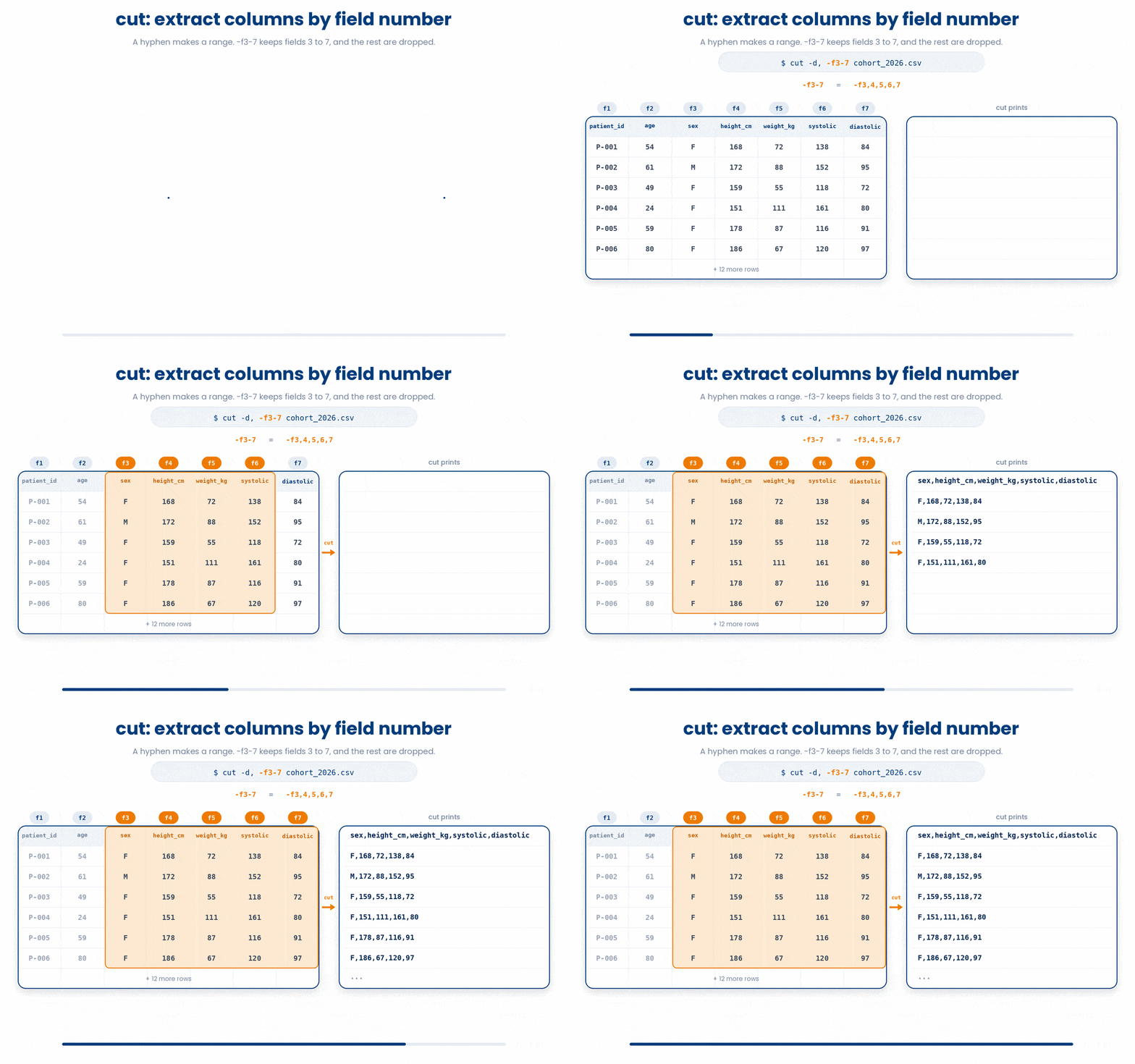
5 sort - Put Lines In Order
The sort command is essential for rearranging lines in text files.
$ cat dx.txt
hypertension
diabetes
asthma
$ sort dx.txt
asthma
diabetes
hypertension
By default, it sorts alphabetically, but it becomes incredibly powerful when combined with various flags.
- sort -n - numeric sort (3 comes before 11; default would put 11 first).
- sort -r - reverse order.
- sort -k2 - sort by the SECOND whitespace-separated column.
- sort -t, -k6 - sort by column 6 in a comma-separated file.
- sort -u - dedupe as you sort (same as sort | uniq).
Try this snippet in the Bash Scratchpad on the right.
$ sort -t, -k6 -n cohort_2026.csv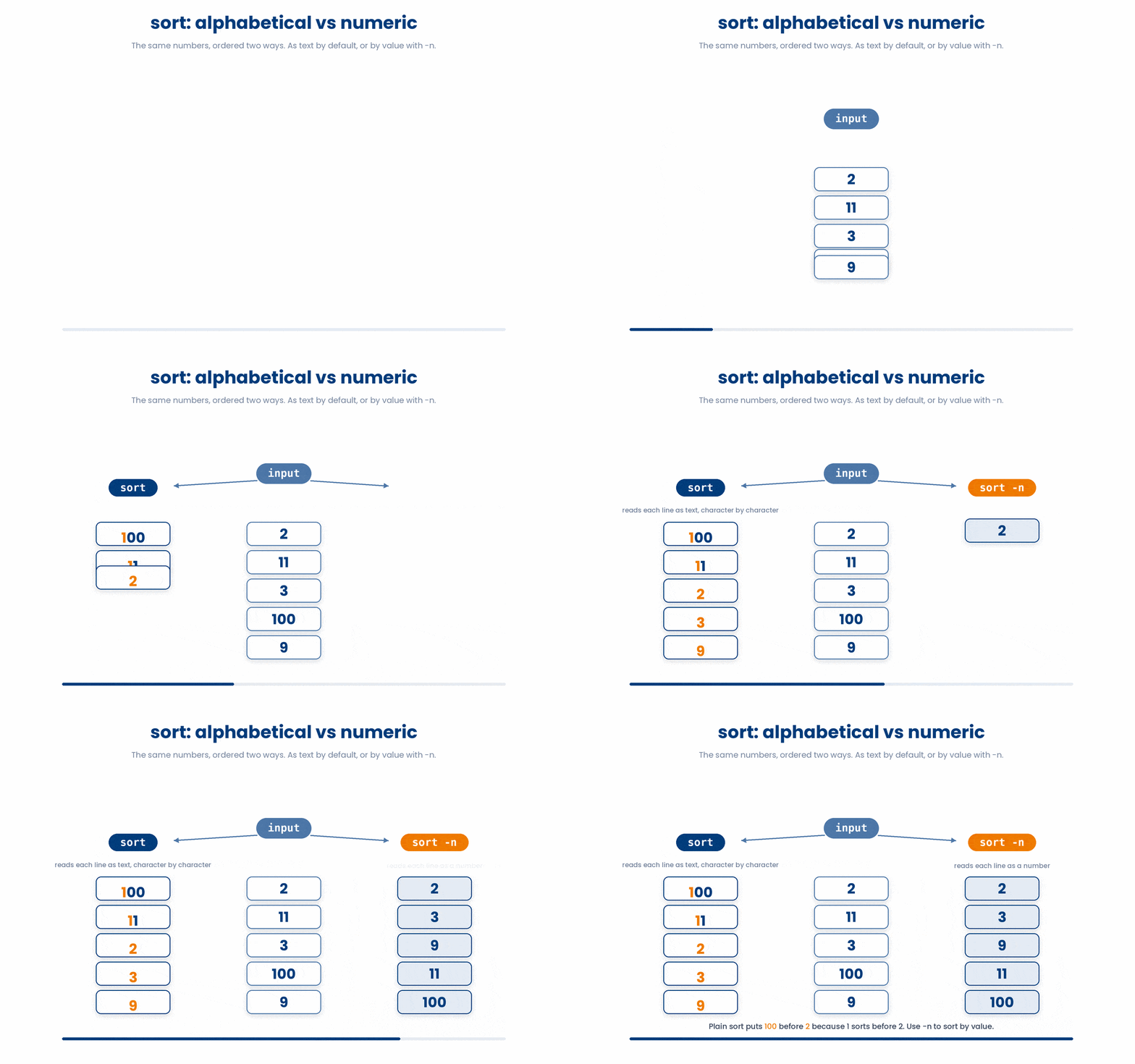
6 uniq - Squash Adjacent Duplicates
uniq removes duplicate lines that are right next to each other. It does not find duplicates anywhere in the file - they have to be adjacent. That is why you almost always pipe sort | uniq.
$ cat sex_column.txt
F
F
M
F
$ sort sex_column.txt | uniq
F
M
$ sort sex_column.txt | uniq -c
  3 F
  1 M
uniq -c (count) is by far the most useful form. Combined with sort -rn it gives you "top items by frequency" in one pipeline: sort | uniq -c | sort -rn.
Try this snippet in the Bash Scratchpad on the right.
# Top ages in the cohort, most frequent first
tail -n +2 cohort_2026.csv |
  cut -d, -f2 |
  sort | uniq -c | sort -rn |
head7 tr - Translate or Delete Characters
tr works one character at a time. Two main forms: replace each character in set A with the matching character in set B, or delete every character in set A.
$ echo 'Hello World' | tr 'a-z' 'A-Z'
HELLO WORLD
$ echo 'P-001 P-002 P-003' | tr ' ' ','
P-001,P-002,P-003
$ echo 'BMI=28.4' | tr -d 'A-Z='
28.4
tr only reads from stdin - it does NOT take a filename. Pipe a file in with cat or <:
$ tr 'a-z' 'A-Z' < notes.txt > NOTES_LOUD.txtTry this snippet in the Bash Scratchpad on the right.
$ cat notes.txt | tr 'a-z' 'A-Z'
$ head -n 2 cohort_2026.csv | tr ',' ' '8 Check your understanding
You have reached the end of the module. Try the same questions again — your answers here, paired with your pre-test answers, are how we measure what the module taught you. Answer every question and confidence rating, then click Submit and see results to view your score.
Which command counts how many lines in diagnoses.csv contain the code I10?
Which cut command extracts the SECOND column of a comma-separated file?
Which pipeline counts how often each value in column 1 of votes.txt appears?
Why does uniq usually need sort in front of it?
Which command converts all lowercase letters in a file to uppercase?
Which grep flag makes the search ignore upper/lower case?
What does grep -v error log.txt print?
Which command sorts numbers in true numeric order (so 10 comes after 9)?
I can use grep to find lines matching a pattern and count how many there are.
I can extract a single column from a CSV with cut.
I can combine sort | uniq -c to count how often each unique value appears.
9 Your results
Here is how your post-test answers compare with your pre-test answers. The pre/post pairing is the most reliable way to see what this module actually taught you.
Submit the post-test to see your results.
What is the one thing from this module that is still unclear to you?