

1 Before you start
This is not graded, and it does not count towards anything. Answer every question even if you are only guessing — having a go at something before you have been taught it is one of the best ways to remember it afterwards. The lesson ends with another short check, and there you will be shown the correct answer for anything you missed. Choose an option for every question and confidence rating, then click Submit answers.
Which channel number is stderr?
Which command captures BOTH normal output and errors into all.log?
What does tee do?
Why would you use process substitution <(command) instead of a pipe?
Which line CORRECTLY captures both output and errors of mycmd into log.txt?
Which channel number is standard input (stdin)?
What does 2> errors.log do?
You want to discard error messages but still see normal output. Which works?
I can capture error messages from a command into a separate file.
I can save the output of a long pipeline to a file while still seeing it scroll past, using tee.
I understand what process substitution does and when I might use it.
2 Introduction
The previous lesson gave you the four common redirection operators. This lesson covers the rest - the operators you reach for once your pipelines get longer and you want to capture errors, send output to two places at once, or feed two files into one command.
- Capturing error messages: 2> and 2>>.
- Capturing everything (output AND errors): &> and 2>&1.
- Saving to a file AND still seeing output: tee.
- Feeding two files in: process substitution with <(...).

3 stdout and stderr - Two Separate Channels
Every command has two output channels - standard output (stdout, channel 1) for normal results and standard error (stderr, channel 2) for warnings and errors. > only redirects stdout. If a command fails, you need an extra step to capture the error.
$ ls patient_999.csv > out.txt
ls: cannot access 'patient_999.csv': No such file or directory
$ cat out.txt
(empty - the error went to your terminal, not the file)
To redirect stderr, use 2>. The 2 is the channel number; > is shorthand for 1>.
$ ls patient_999.csv 2> errors.txt
$ cat errors.txt
ls: cannot access 'patient_999.csv': No such file or directory
- Try it out!
Try this snippet in the Bash Scratchpad on the right.
$ ls /etc /nope 2> err.txt
$ cat err.txt2>> appends to the error file instead of overwriting. That is how you build an error log over many runs.
4 Capturing Everything - &> and 2>&1
Sometimes you want both stdout and stderr in the same file - for instance an overnight cohort analysis where you want one log to read in the morning. Two ways to do this:
- &> : This shortcut takes both the regular output and any error messages your script makes and sends them together into a file instead of your screen.
- 2>&1 : This tells the computer to route any error messages to the exact same place that your normal, successful output is already going.

4.1 Modern shorthand: &>
Modern bash has a built-in shortcut to merge both channels 1 and 2 into one file. The ampersand (&) essentially tells the terminal, "Grab everything."
$ ./analyse_cohort.sh &> run.log
# both normal output and errors land in run.log4.2 Classic form: 2>&1
In older scripts, you may still see 2>&1. It looks a bit like algebraic alphabet soup, but it reads literally left to right as: "send Channel 2 to wherever Channel 1 is currently going."
$ ./analyse_cohort.sh > run.log 2>&1
# same effect as &>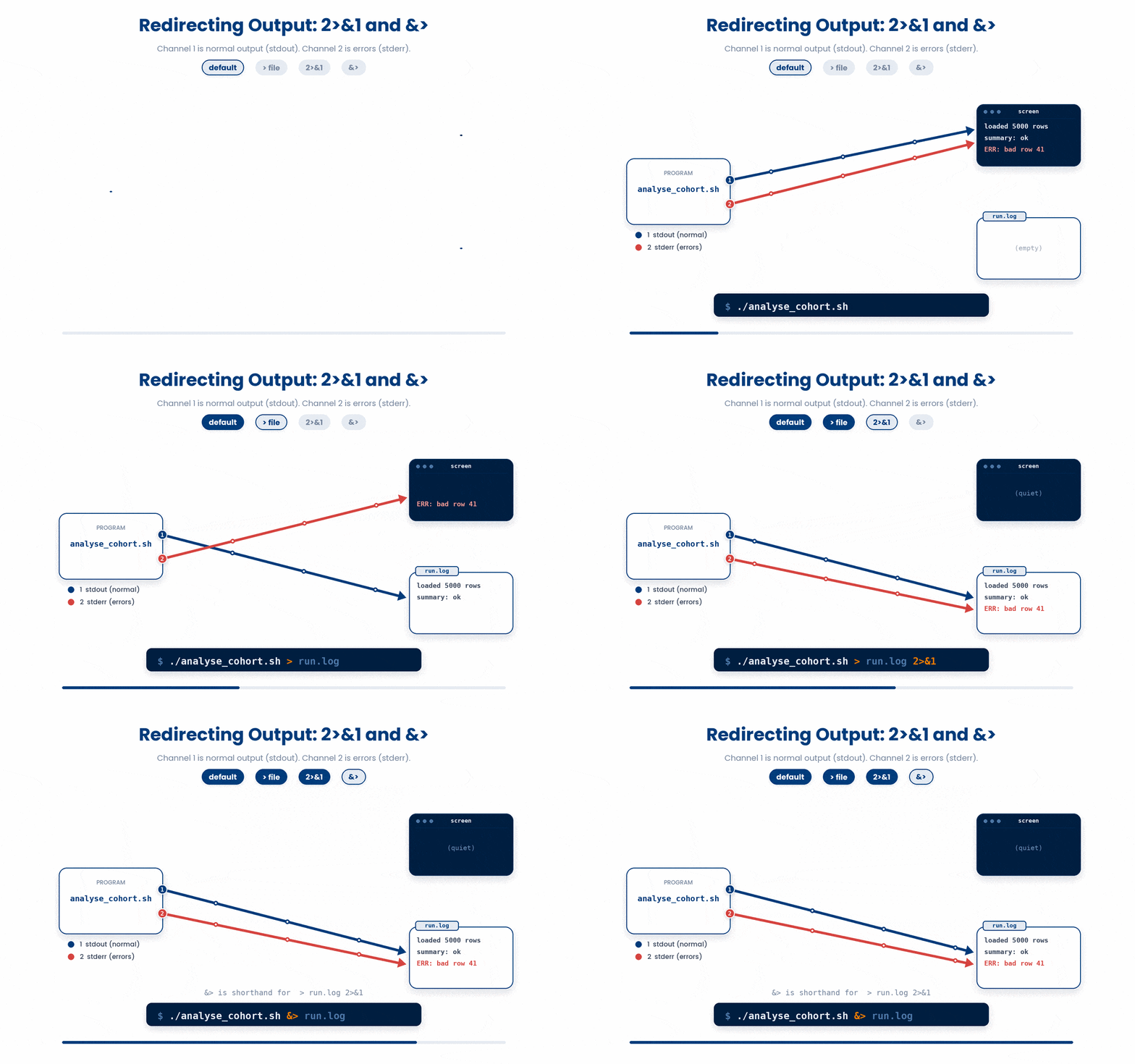
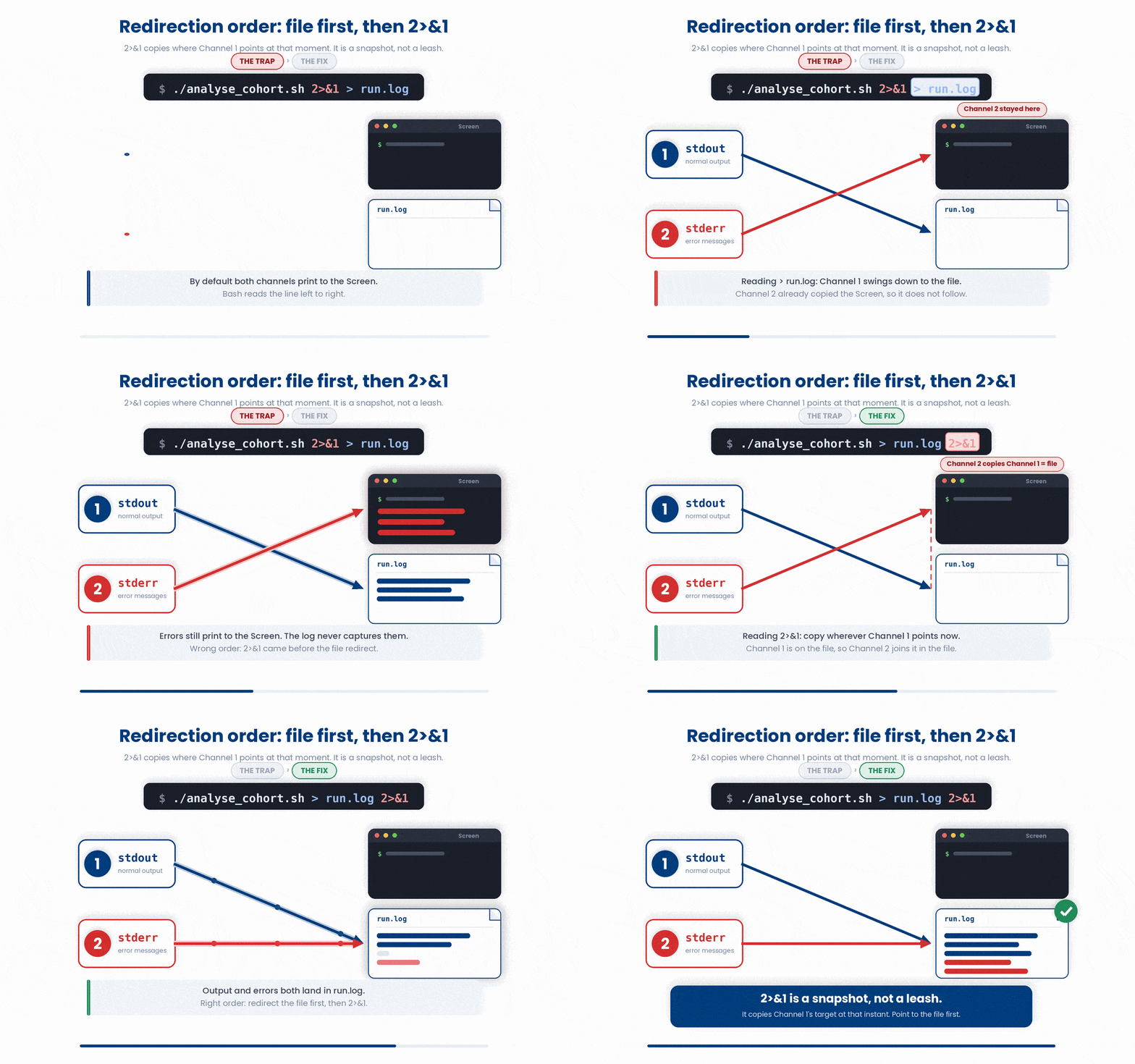
A subtle gotcha: When using the classic form, the order of your commands is strictly enforced. You must write the file redirect (>) first, followed by the channel redirect (2>&1).
Here is a wrong example.
$ ./analyse_cohort.sh 2>&1 > run.logWhy does this fail? Bash reads left to right. In the wrong example above, it sees 2>&1 first and sends the errors to where Channel 1 is currently pointing (your screen). Then, it sees > run.log and points Channel 1 to the file. Your errors will still print to the screen, missing the log file entirely! Always point to your file first.
Try this snippet in the Bash Scratchpad on the right.
$ ls cohort_2026.csv nope.csv &> both.txt
$ cat both.txt
$ ls cohort_2026.csv nope.csv > both2.txt 2>&1
$ cat both2.txt5 Saving AND Seeing - tee
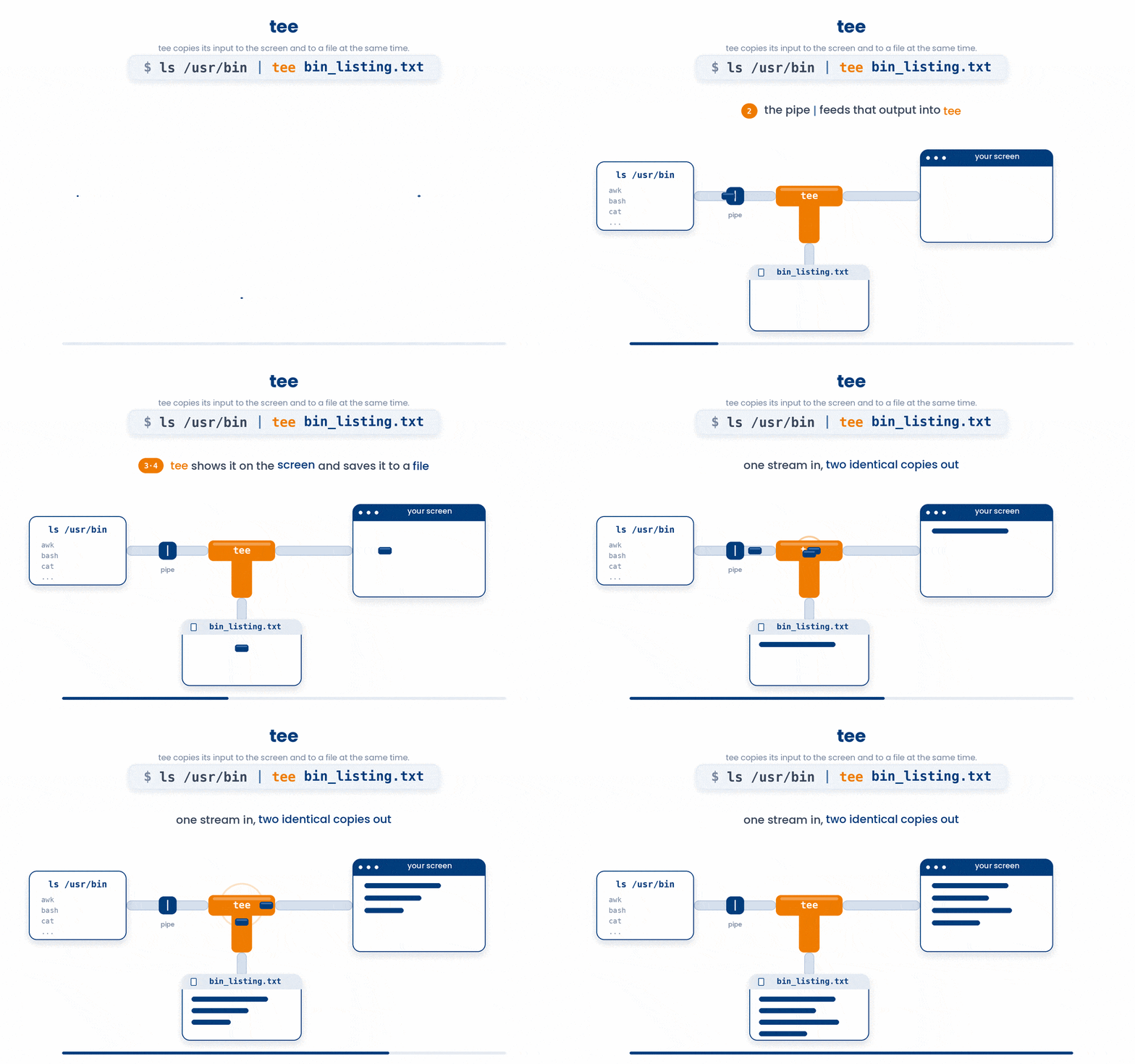
tee takes its stdin and writes it to both a file and its own stdout. The name tee comes from the shape of a T pipe where water steams in two directions.
Try this snippet in the Bash Scratchpad on the right.
$ ls /usr/bin | tee bin_listing.txtHere is what happens step-by-step:
- ls /usr/bin lists out all the files
- the pipe | takes that output and feeds it into tee
- tee displays the output on your terminal screen
- tee also saves an exact copy of that output into bin_listing.txt
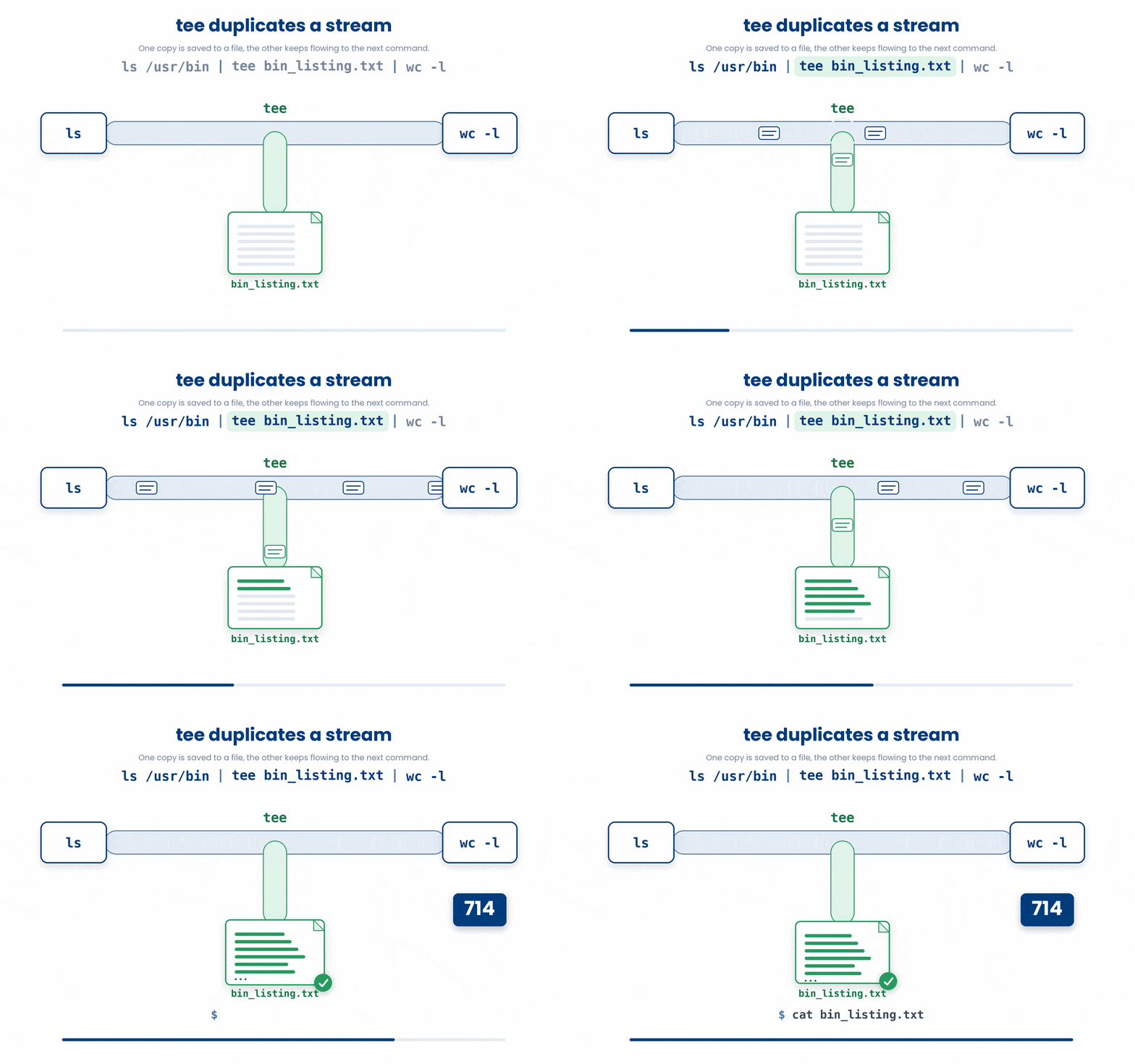
Put tee in the middle of a pipeline to save and keep going.
Try this snippet in the Bash Scratchpad on the right.
$ ls /usr/bin | tee bin_listing.txt | wc -l
$ cat bin_listing.txtTwo things happened: bin_listing.txt now contains the full listing, and 714 was printed because the listing also flowed onward into wc -l.
5.1 tee -a to append
The -a flag is the exact equivalent of the >> redirector. It appends the output to the end of the file without overwriting existing contents. This is ideal for continuous logging across multiple script runs.
$ date | tee -a daily_log.txt
Sat May 24 11:45:00 UTC 20266 Process Substitution - <(...)
Most of the time in Bash, we pass data around using a pipe (|). However, However, some commands, like diff, are stubborn. diff is designed to compare two distinct files. It doesn't want data streamed at it through a pipe; it explicitly wants two file paths so it can open them, read them side-by-side, and compare them.
If you didn't have <(...), and you wanted to compare the sorted versions of two CSV files, you would have to manually create temporary files, run your comparison, and then clean up:
$ sort cohort_2025_csv > temp_2025.txt
$ sort cohort_2026.csv > temp_2026.csv
$ diff temp_2025.txt temp_2026.txt
$ rm temp_2025.txt temp_2026.txt
This is tedious and leaves junk on your hard drive if the script crashes before the cleanup step.
Process substitution is a neat trick Bash does to skip the manual temporary files. It acts as a "disposable container."
$ diff <(sort cohort_2025.csv) <(sort cohort_2026.csv)Here is exactly what Bash does behind the scenes:
- It runs the inner commands: Bash kicks off sort cohort_2025.csv and sort cohort_2026.csv in the background.
- It creates "ghost" files: Instead of writing the output to your hard drive, Bash hooks the outputs of those sorts to temporary, invisible file descriptors in your computer's memory (usually paths that look like /dev/fd/63 and /dev/fd/64).
- It tricks the outer command: Bash replaces the <(...) syntax with the paths to those ghost files.
So, what diff actually ends up seeing and running is something like this:
$ diff /dev/fd/63 /dev/fd/64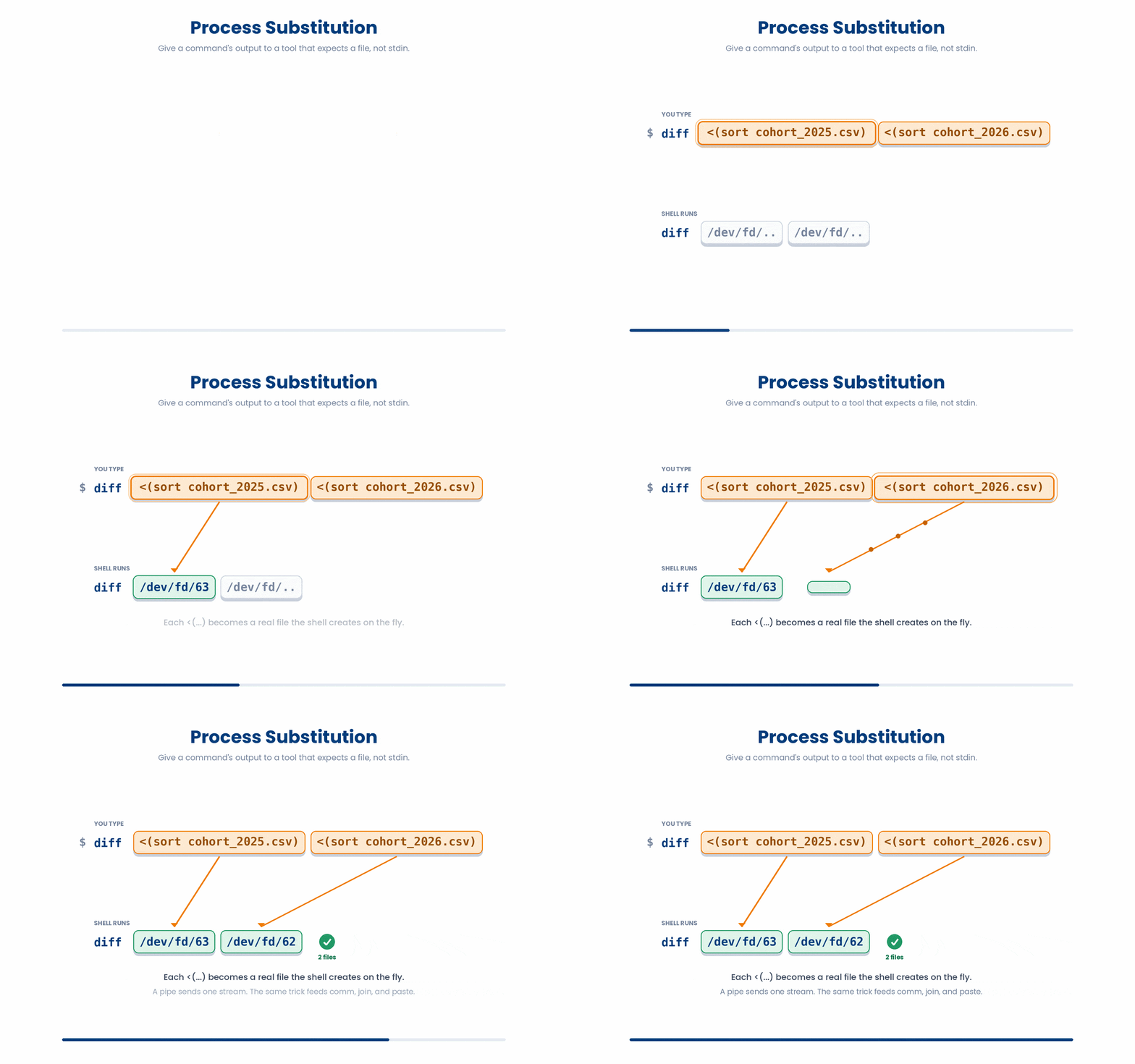
Try this snippet in the Bash Scratchpad on the right.
$ diff <(sort vitals/patient_001.txt) <(sort vitals/patient_002.txt)7 Putting It Together - A Real Pipeline Shape
A pipeline that uses several of these operators at once - the kind of line you might write while exploring a cohort:
Try this snippet in the Bash Scratchpad on the right.
$ cat cohort_2026.csv | tail -n +2  | cut -d, -f3 | sort | uniq -c | tee sex_counts.txt | sort -rn > sex_counts_sorted.txt
$ cat sex_counts_sorted.txtWhat the code does: drop the header, take column 3 (sex), sort it, count duplicates, save those counts (tee), then sort by count descending and save the top. You will meet cut, sort, and uniq properly in the Text Tools lesson; the point now is that pipelines this long are normal and readable - one verb per line.

8 Check your understanding
You have reached the end of the module. Try the same questions again — your answers here, paired with your pre-test answers, are how we measure what the module taught you. Answer every question and confidence rating, then click Submit and see results to view your score.
Which channel number is stderr?
Which command captures BOTH normal output and errors into all.log?
What does tee do?
Why would you use process substitution <(command) instead of a pipe?
Which line CORRECTLY captures both output and errors of mycmd into log.txt?
Which channel number is standard input (stdin)?
What does 2> errors.log do?
You want to discard error messages but still see normal output. Which works?
I can capture error messages from a command into a separate file.
I can save the output of a long pipeline to a file while still seeing it scroll past, using tee.
I understand what process substitution does and when I might use it.
9 Your results
Here is how your post-test answers compare with your pre-test answers. The pre/post pairing is the most reliable way to see what this module actually taught you.
Submit the post-test to see your results.
What is the one thing from this module that is still unclear to you?