

1 Before you start
This is not graded, and it does not count towards anything. Answer every question even if you are only guessing — having a go at something before you have been taught it is one of the best ways to remember it afterwards. The lesson ends with another short check, and there you will be shown the correct answer for anything you missed. Choose an option for every question and confidence rating, then click Submit answers.
What is the difference between > and >>?
What does the command ls /usr/bin | wc -l do?
Which command sends the contents of cohort_2026.csv as input to sort?
After running echo 'hello' > log.txt and then echo 'world' > log.txt, what is in log.txt?
What is standard output (stdout)?
What does the | (pipe) symbol do between two commands?
Which command appends a line to results.txt without erasing what is already there?
What does running > listing.txt on its own (with no command) do?
I can save the output of a command to a file with > and append to one with >>.
I can read the output of one command into the input of another using a pipe.
I can explain why doing both > and < on the same file in one command is dangerous.
2 Introduction
Every command so far has printed straight to your terminal. The real power of the shell is that you can take the output of one command and feed it somewhere else - into a file, or into another command. This lesson covers the four operators that make that possible.
- Sending output to a file: > (overwrite) and >> (append).
- Sending a file in as input: < .
- Chaining commands: | (pipe).
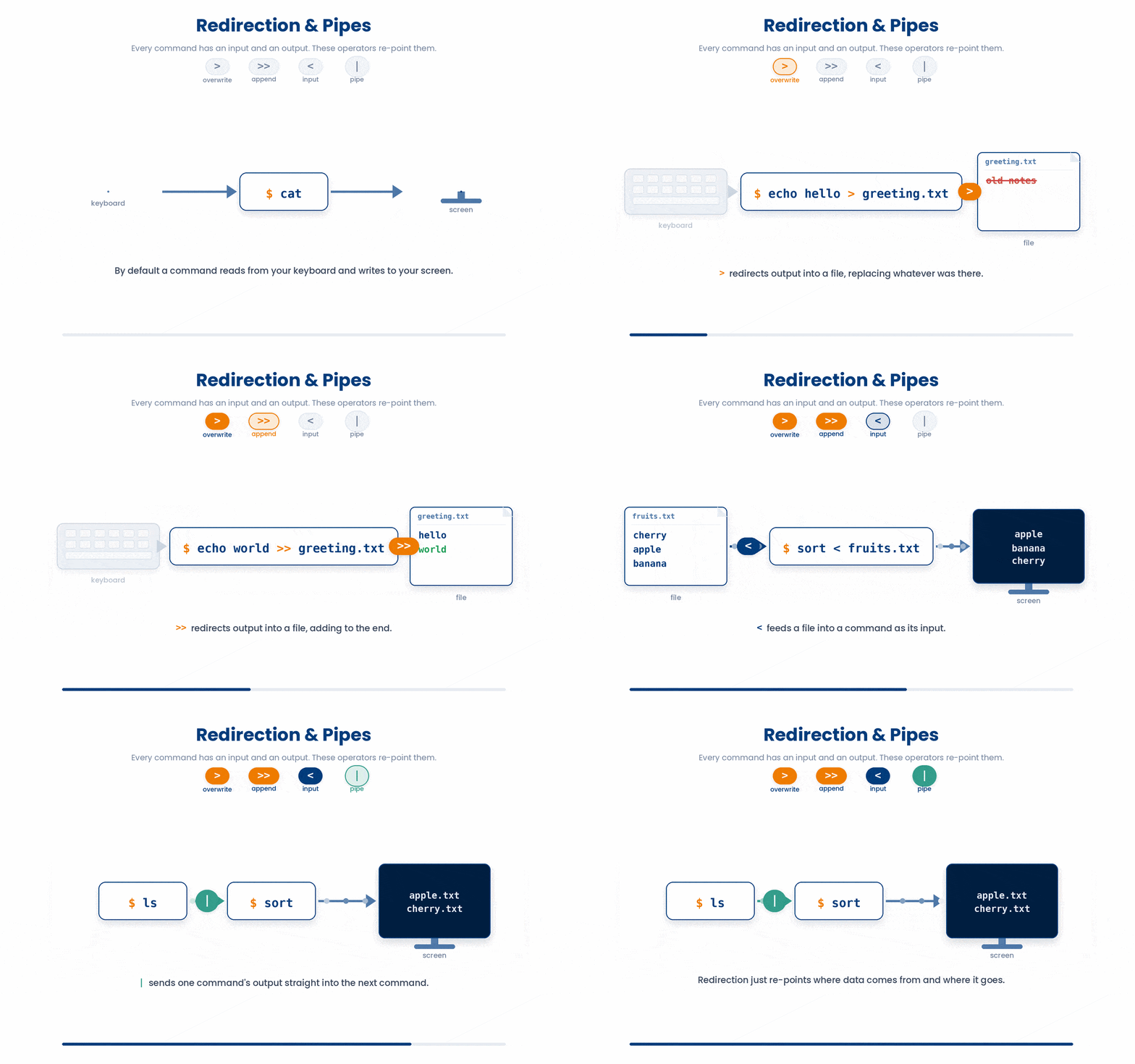
3 Understanding stdout - Where Output Goes By Default
Every command has three default channels: standard output (stdout) for normal results, standard error (stderr) for error messages, and standard input (stdin) for what you type. By default stdout and stderr both go to your terminal, and stdin reads the keyboard.
When you redirect with > or |, you change where stdout goes. Errors still come to your screen - we cover stderr in the next lesson. For now, picture every command as a tap pouring its output onto your terminal floor unless you tell it otherwise.
4 Sending Output to a File - > and >>
By default, the commands you run in the terminal will print their results straight to your screen. By using the > and >> redirection operators, you can tell the shell to capture that output and send it directly into a text file instead. This is incredibly useful for saving command results, creating logs, or building data files on the fly.
4.1 > overwrites
> filename at the end of a command sends the output into that file instead of your terminal.
Note: If the file already exists, it is wiped first.
Try this snippet in the Bash Scratchpad on the right.
$ ls -lh > listing.txt
$ cat listing.txt4.2 Empty trick - > with no command
> filename on its own empties the file (or creates it if it does not exist):
Try this snippet in the Bash Scratchpad on the right.
$ > listing.txt
$ cat listing.txt4.3 >> appends
>> adds to the end instead of overwriting:
Try this snippet in the Bash Scratchpad on the right.
$ echo 'first line' > diary.txt
$ echo 'second line' >> diary.txt
$ cat diary.txtUse >> whenever you are accumulating output across multiple commands - logs, results, growing lists.

Be careful. > vs >> - one character, very different result. > destroys; >> adds. Pause before pressing
5 Reading Input From a File - <
The mirror operator < sends a file as input to a command that would normally read from the keyboard.
Try this snippet in the Bash Scratchpad on the right.
$ wc -l < cohort_2026.csvYou will see < less often than > because most commands also accept a filename directly. wc -l cohort_2026.csv does the same thing as wc -l < cohort_2026.csv. The < form is useful in scripts and pipelines where a command only knows how to read stdin.
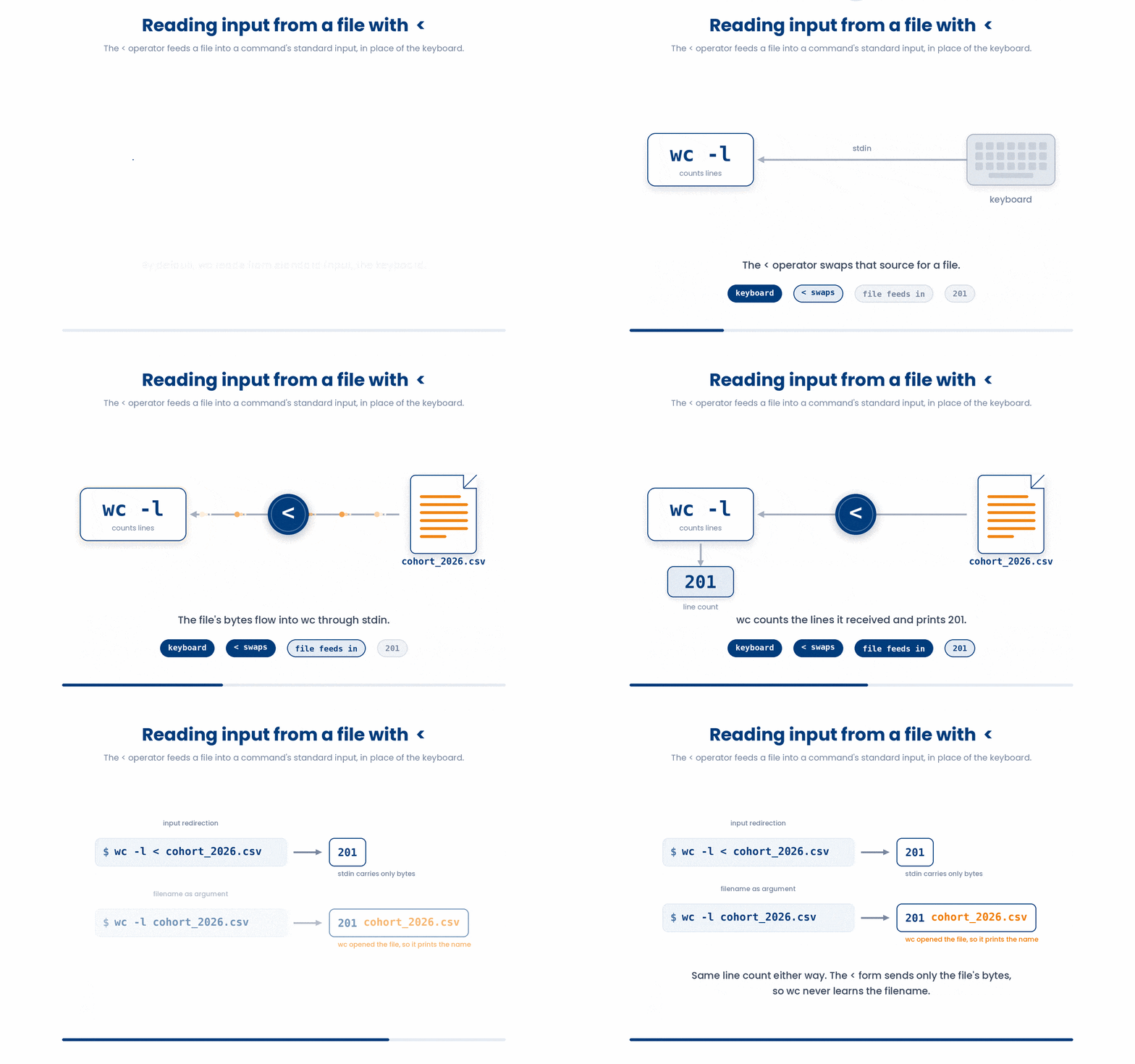
The < operator redirects a file into a command's standard input, so the command reads the file's bytes exactly as if they were typed at the keyboard and never receives the filename itself.
6 Pipes - | - The Heart of the Shell
The pipe | connects the stdout of one command to the stdin of the next. It lets you chain small commands without ever writing an intermediate file. This is the philosophy bash was built on: many small tools, each good at one job, glued with pipes.
Try this snippet in the Bash Scratchpad on the right.
$ ls /usr/bin | wc -lRead left to right: list /usr/bin, send the list into wc -l, which counts lines. The answer falls out as a single number, no intermediate file on disk.
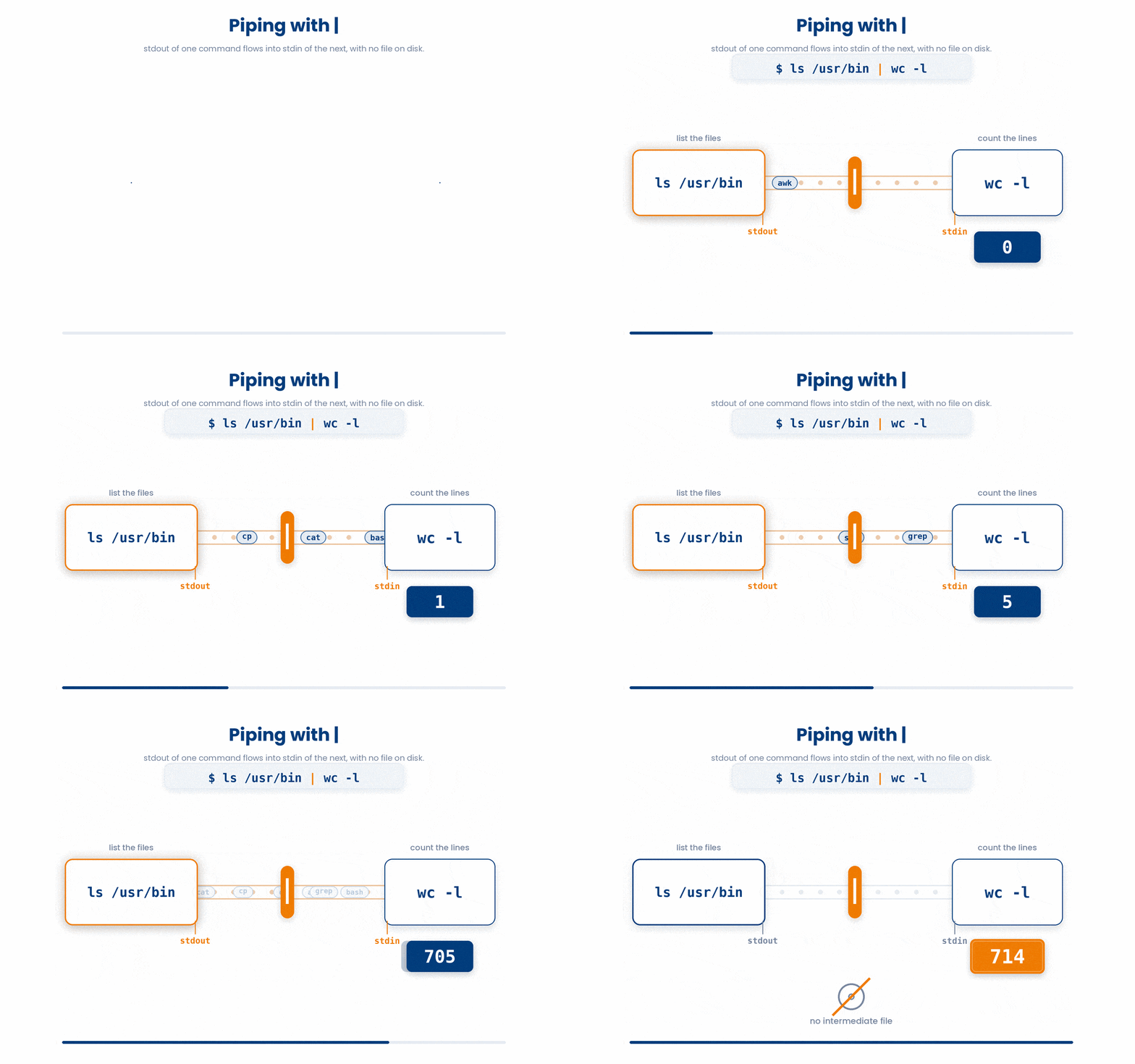
Pipes can be as long as you like. Four or five stages is normal. Each stage should do one thing, and the output of each stage should be readable on its own when you are debugging.
Try this snippet in the Bash Scratchpad on the right.
$ cat cohort_2026.csv | head -n 1
$ cat cohort_2026.csv | tail -n +2 | wc -lThe second command says: read cohort_2026.csv, skip line 1 (tail -n +2 starts from line 2), then count what remains. That is how you count data rows in a CSV without manually subtracting the header.
7 Combining Redirection and Pipes
Finish a pipeline by redirecting the last command into a file:
Try this snippet in the Bash Scratchpad on the right.
$ ls /usr/bin | wc -l > tool_count.txt
$ cat tool_count.txtOr start a pipeline from a file with <:
Try this snippet in the Bash Scratchpad on the right.
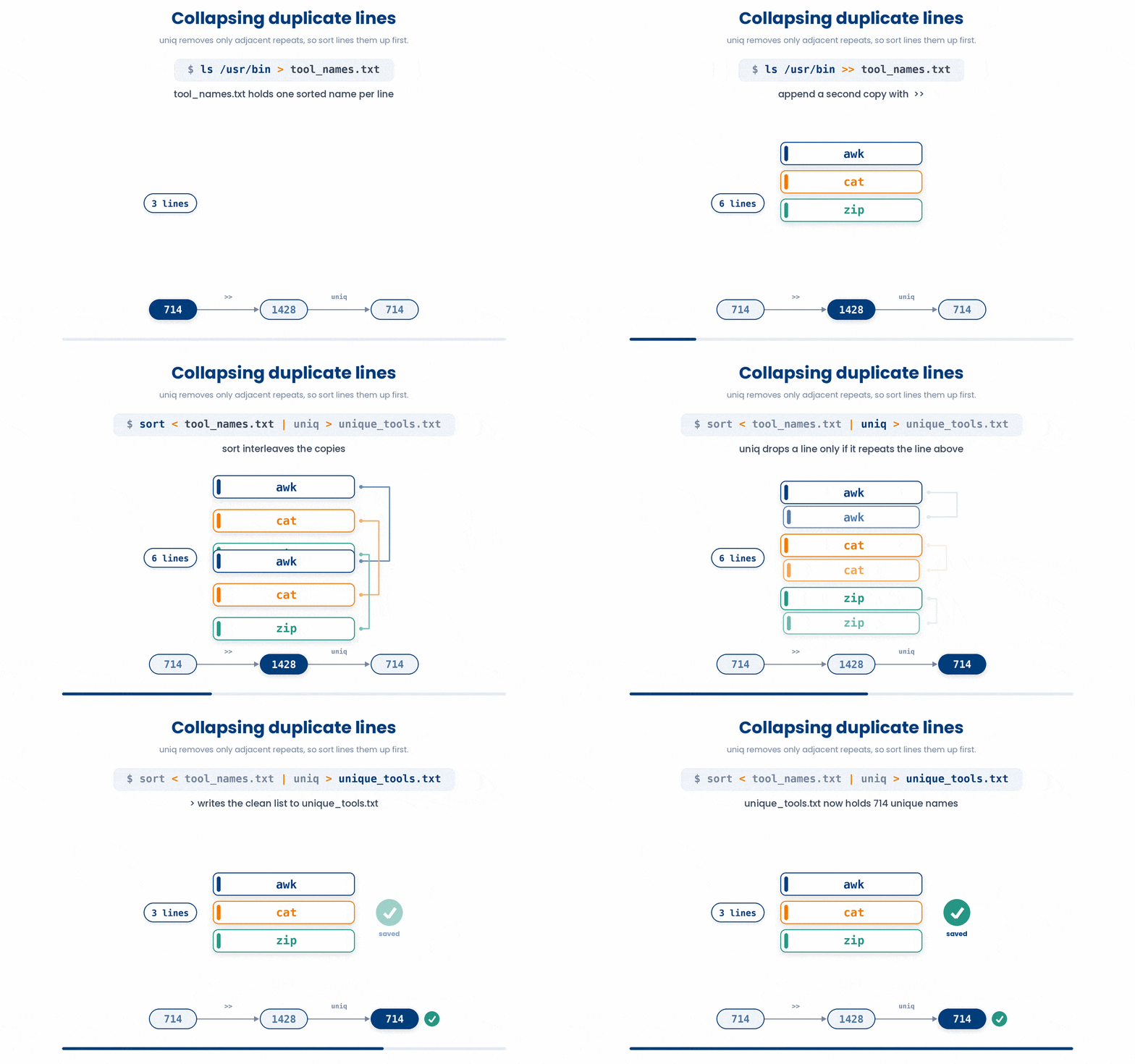
$ ls /usr/bin > tool_names.txt
$ ls /usr/bin >> tool_names.txt
$ sort < tool_names.txt | uniq > unique_tools.txt
$ wc -l < unique_tools.txtRead this as: appending the listing a second time leaves tool_names.txt with 1428 lines and every tool name duplicated. sort brings the identical names next to each other, uniq collapses each adjacent pair to a single copy, and you save the clean 714-line list.
8 Check your understanding
You have reached the end of the module. Try the same questions again — your answers here, paired with your pre-test answers, are how we measure what the module taught you. Answer every question and confidence rating, then click Submit and see results to view your score.
What is the difference between > and >>?
What does the command ls /usr/bin | wc -l do?
Which command sends the contents of cohort_2026.csv as input to sort?
After running echo 'hello' > log.txt and then echo 'world' > log.txt, what is in log.txt?
What is standard output (stdout)?
What does the | (pipe) symbol do between two commands?
Which command appends a line to results.txt without erasing what is already there?
What does running > listing.txt on its own (with no command) do?
I can save the output of a command to a file with > and append to one with >>.
I can read the output of one command into the input of another using a pipe.
I can explain why doing both > and < on the same file in one command is dangerous.
9 Your results
Here is how your post-test answers compare with your pre-test answers. The pre/post pairing is the most reliable way to see what this module actually taught you.
Submit the post-test to see your results.
What is the one thing from this module that is still unclear to you?