

1 Before you start
This is not graded, and it does not count towards anything. Answer every question even if you are only guessing — having a go at something before you have been taught it is one of the best ways to remember it afterwards. The lesson ends with another short check, and there you will be shown the correct answer for anything you missed. Choose an option for every question and confidence rating, then click Submit answers.
In the permission string -rw-r--r--, what can members of the group do?
Which command makes a script file executable for the owner?
What does chmod 644 set permissions to?
On a shared cluster where you do NOT have sudo, what can you NOT do?
What does the leading 'd' in drwxr-xr-x tell you?
In chmod numeric mode, which single digit means read + write + execute?
What does chmod go-w cohort.csv do?
A script shows -rw-r--r-- and running ./script.sh gives 'Permission denied'. Why?
I can read the rwx permission string from ls -l output.
I can change a file's permissions using either symbolic or numeric chmod.
I know why chown usually needs sudo and what to do when I cannot use it.
2 Introduction
Linux is built for many people sharing one machine. Every file carries a small record of who is allowed to do what. Most of the time you do not think about permissions - until something you expected to read or run suddenly refuses, and you need to know how to look.
- Reading the permission string in ls -l output.
- The three actions: read (r), write (w), execute (x).
- The three audiences: owner (u), group (g), others (o).
- Changing permissions: chmod with symbolic and numeric modes.
- Changing ownership: chown - and why it usually needs sudo.
3 Reading the Permission String
When you are writing bash scripts, you will eventually run into a frustrating "Permission denied" error. To understand why, you need to read the first column of the ls -l command.
Try this snippet in the Bash Scratchpad on the right.
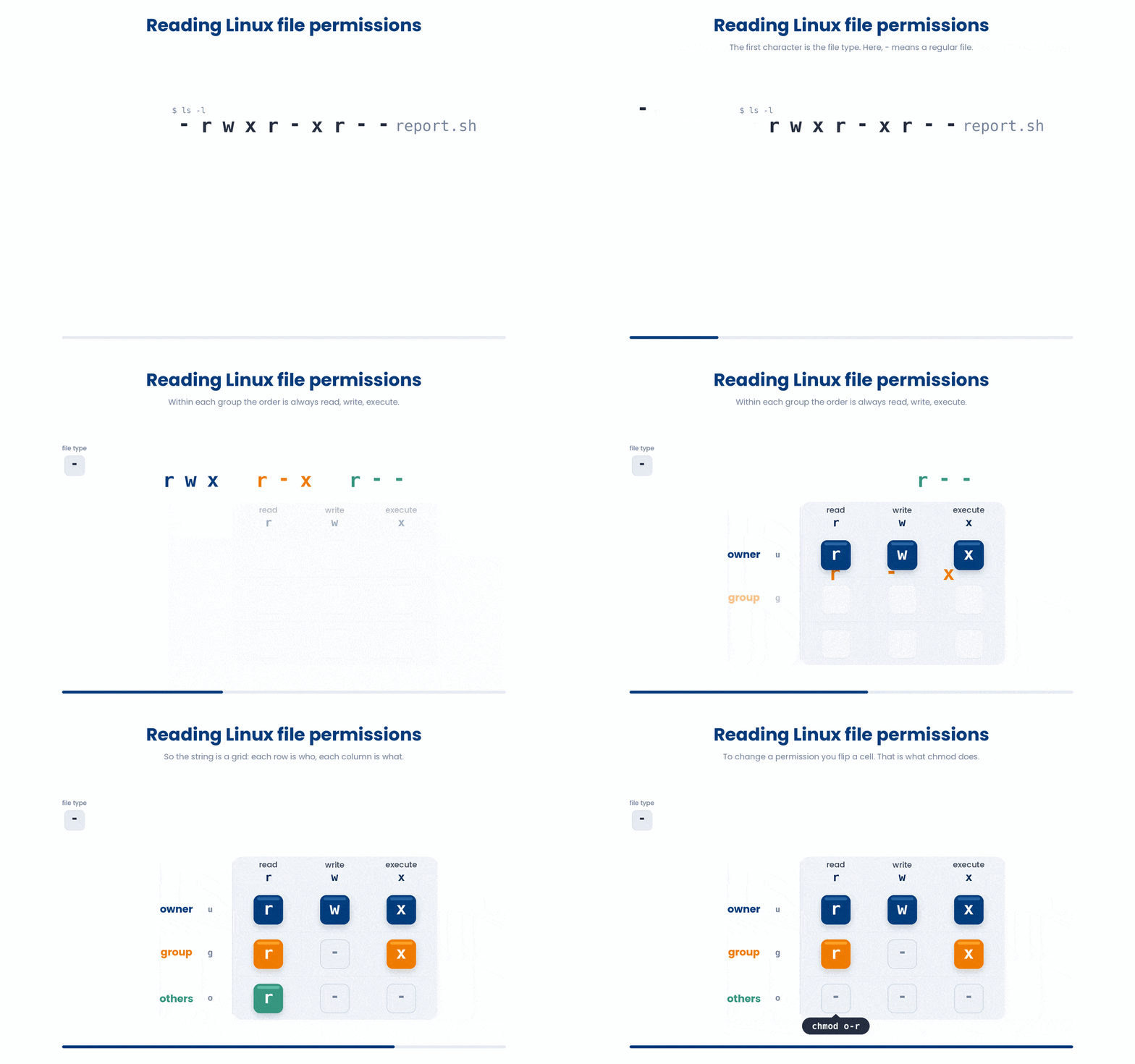
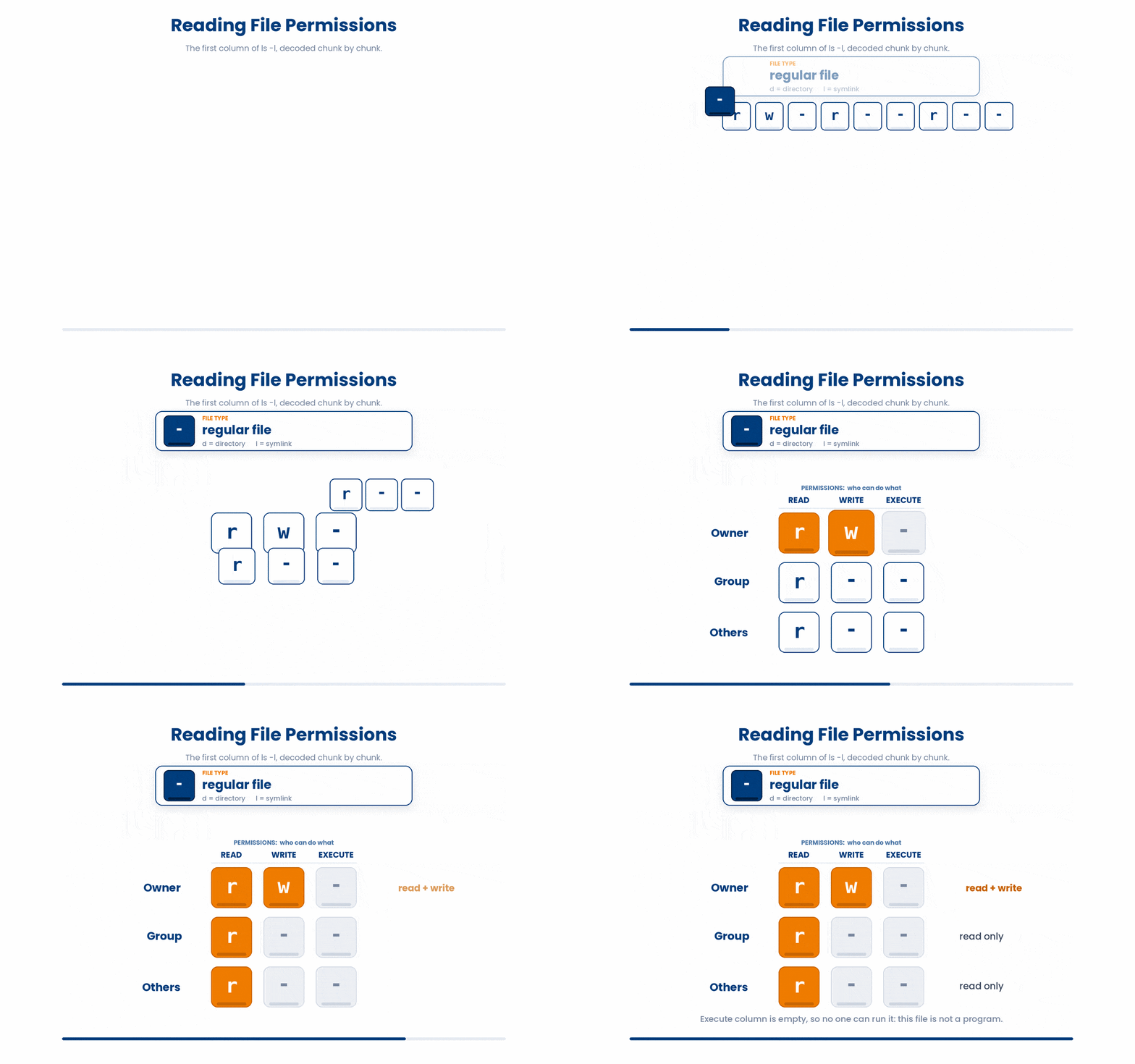
$ ls -lIt looks like a cryptic secret code, but it actually reads left to right in four simple chunks. Let's take the output -rw-r--r-- and split it up: - then rw- then r-- then r--.
- First character: The file type. A - means it is a regular file, a d means it is a directory (folder), and an l means it is a symlink (shortcut).
- Next three: What the OWNER can do.
- Next three: What the assigned GROUP can do.
- Last three: What EVERYONE ELSE on the system can do.
- So -rw-r--r-- means: regular file; owner can read and write; group can read; others can read. No one can execute it - it is not a program.
4 The Three Actions
Those letters behave slightly differently depending on whether you are looking at a file or a folder. Here is the breakdown:
- r (read) - on a file: read its contents. On a folder: list it with ls.
- w (write) - on a file: change its contents. On a folder: add, remove, or rename entries.
- x (execute) - on a file: run it as a program. On a folder: step into it with cd.
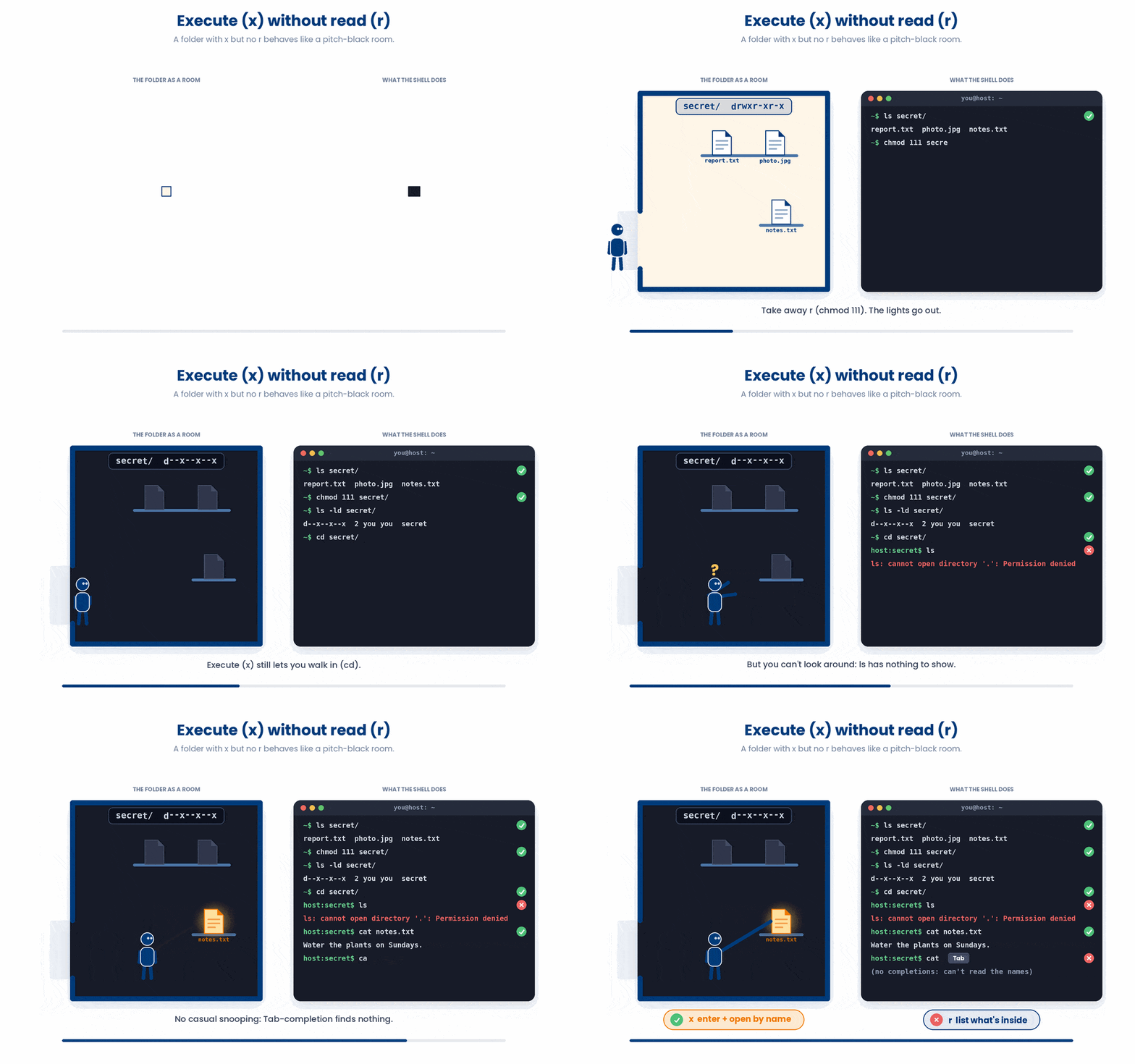
So, what happens if a folder has x but no r? This is entirely possible!
It is like walking into a pitch-black room. You can go inside (using cd), but you can't look around to see what is there (using ls). If you already know the exact name of a file hidden in the dark, you can still reach out and grab it—but casual snooping is impossible!
5 Changing Permissions - chmod
chmod changes the permission string. Two ways to write the change:
- symbolic: uses letters and math symbols (like +x to add execute, or -w to remove write) to adjust specific permissions, making it perfect for quick, targeted tweaks.
- numeric: uses a three-digit number (like 755 or 644) to instantly set all the permissions at once, which is the fastest method once you understand the simple math behind it.
5.1 Symbolic mode - easier to read
Now that you can read the permission string, how do you actually change it? This is where the chmod (change mode) command comes in.
- Pick your audience: u (owner), g (group), o (others), a (all).
- Direction: + (add), - (remove), = (set exactly).
- Action: r (read), w (write), x (execute).
$ chmod u+x analyse_cohort.sh # owner can now execute
$ chmod go-w cohort_2026.csv # group and others lose write
$ chmod a+r report.txt # everyone can read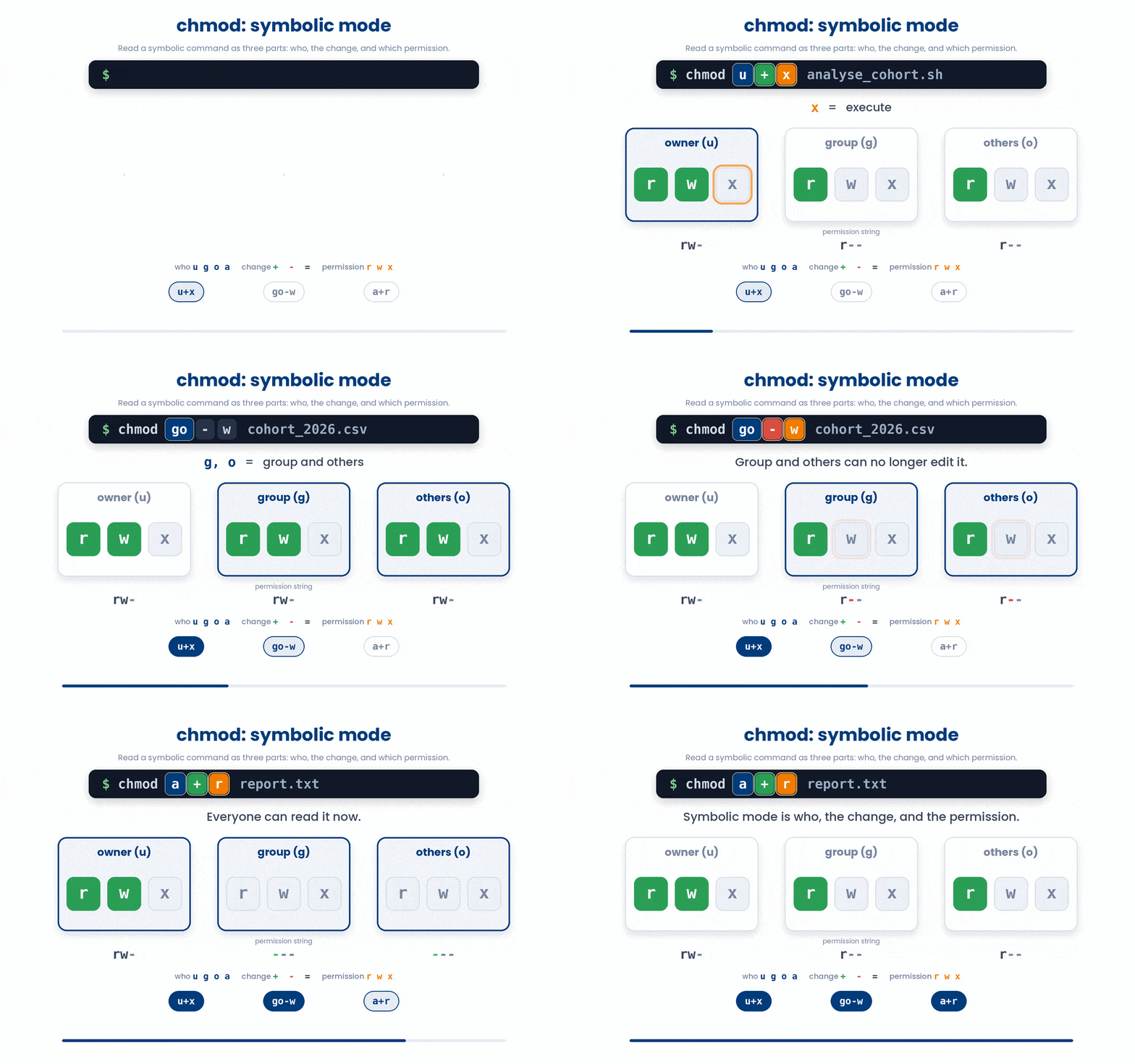
5.2 Numeric (octal) mode - three digits
Each chunk of rwx collapses to a digit by adding: r (read)=4, w (write)=2, x (execute)=1.
To figure out a permission number, you just add up the points for the actions you want to allow.
- Want to allow read (4) and write (2)? 4+2 = 6
- What to allow everything (read, write, execute)? 4+2+1 = 7
- Want to allow only read (4)? Just 4
Whenever you use chmod, you always provide three digits in a row. These three digits map directly to the three user groups we learned about: [Owner] [Group] [Everyone Else].
For example, Let’s break down chmod 755:
- First digit (7) is for the OWNER: 4+2+1 (Read, Write, Execute)
- Second digit (5) is for the GROUP: 4+1 (Read, Execute)
- Third digit (5) is for EVERYONE ELSE: 4+1 (Read, Execute)
$ chmod 755 analyse_cohort.sh
$ ls -l analyse_cohort.sh
-rwxr-xr-x 1 student staff 1204 May 24 11:30 analyse_cohort.sh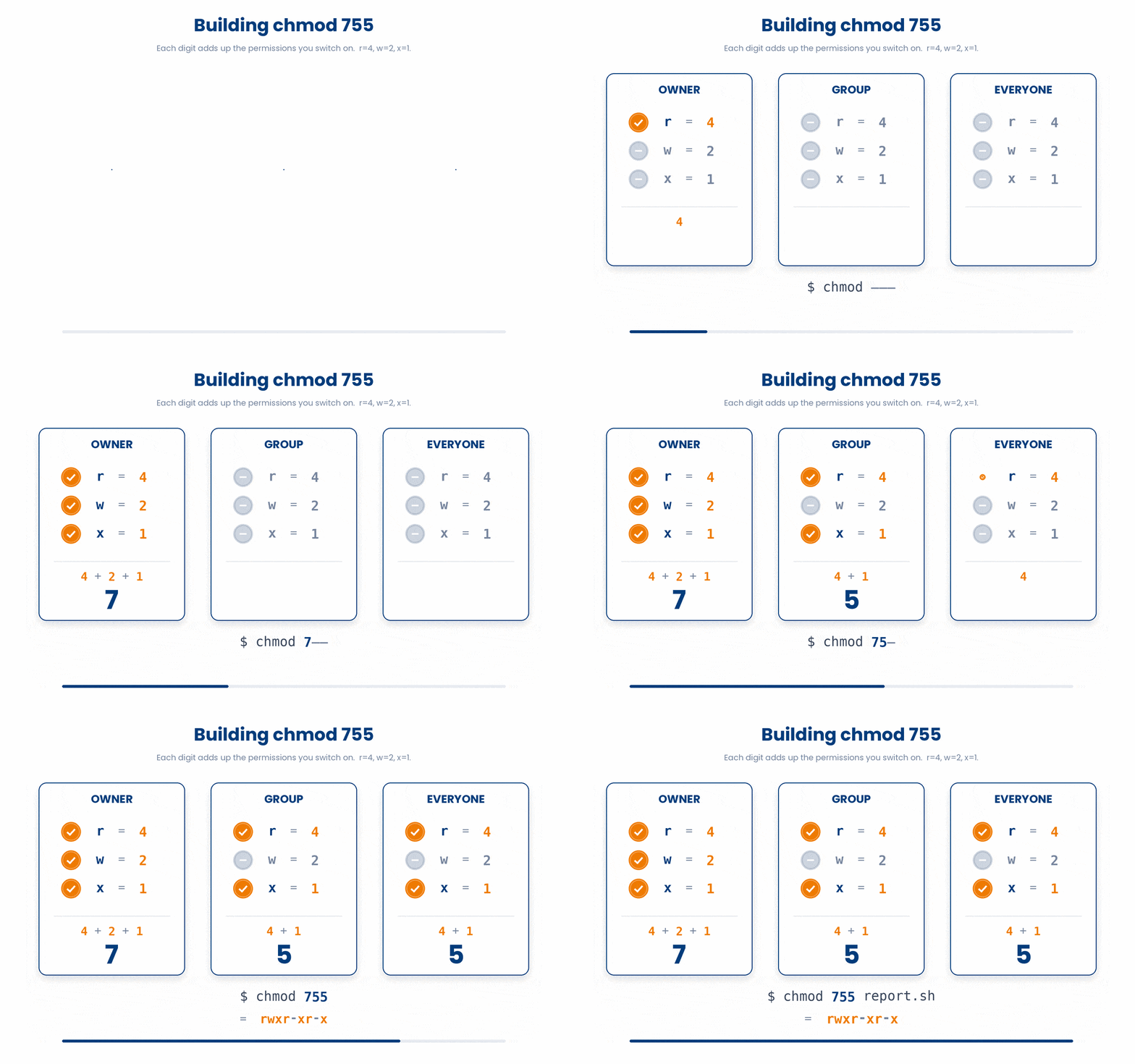
644 for data files and 755 for scripts and folders covers about 90% of cases. For the rest, fall back to symbolic mode.
Try this snippet in the Bash Scratchpad on the right.
$ ls -l scripts/qc.sh
$ chmod +x scripts/qc.sh
$ ls -l scripts/qc.sh
$ chmod 644 scripts/qc.sh
$ ls -l scripts/qc.sh6 Changing Ownership - chown
chown changes who owns a file. Because handing a file to another user is security-relevant, you can only chown a file you do not already own if you are root - in practice, with sudo.
$ sudo chown alice cohort_2026.csv
$ sudo chown alice:researchers cohort_2026.csv # owner alice, group researchers
On a shared machine where you do NOT have sudo (the norm on any research cluster), you cannot chown at all. What you can do is chmod files you own, and use group membership to share access.
7 Common Pitfalls
Even with a solid grasp of the point system, you are still going to hit a few roadblocks as you start working in the terminal. Here is a quick troubleshooting guide for the most common permission traps you will encounter:
- "Permission denied" when running a script usually means the execute bit is off. chmod +x analyse.sh and try again.
- "Operation not permitted" on chown - you are not root. Either ask the admin or make a copy you do own.
- chmod 777 everything - the "turn off all the safety" setting. Tempting when things do not work, almost never the right fix. If it works at 777 but not at 755, the real problem is somewhere else.
8 Check your understanding
You have reached the end of the module. Try the same questions again — your answers here, paired with your pre-test answers, are how we measure what the module taught you. Answer every question and confidence rating, then click Submit and see results to view your score.
In the permission string -rw-r--r--, what can members of the group do?
Which command makes a script file executable for the owner?
What does chmod 644 set permissions to?
On a shared cluster where you do NOT have sudo, what can you NOT do?
What does the leading 'd' in drwxr-xr-x tell you?
In chmod numeric mode, which single digit means read + write + execute?
What does chmod go-w cohort.csv do?
A script shows -rw-r--r-- and running ./script.sh gives 'Permission denied'. Why?
I can read the rwx permission string from ls -l output.
I can change a file's permissions using either symbolic or numeric chmod.
I know why chown usually needs sudo and what to do when I cannot use it.
9 Your results
Here is how your post-test answers compare with your pre-test answers. The pre/post pairing is the most reliable way to see what this module actually taught you.
Submit the post-test to see your results.
What is the one thing from this module that is still unclear to you?