

1 Before you start
This is not graded, and it does not count towards anything. Answer every question even if you are only guessing — having a go at something before you have been taught it is one of the best ways to remember it afterwards. The lesson ends with another short check, and there you will be shown the correct answer for anything you missed. Choose an option for every question and confidence rating, then click Submit answers.
Which command is best for a 50,000-line log file you want to scroll through?
How do you quit less and return to the shell?
Which command prints only the first 3 lines of a file?
wc -l cohort_2026.csv reports 201. The file has a header row. How many patient records does it contain?
You see a file called download.bin and have no idea what is in it. Which command tells you the file type?
Which command shows the LAST 10 lines of a file?
You want to watch a log file update live as new lines are added. Which command?
What does wc -w report?
I can choose between cat, less, head, and tail based on how big the file is.
I can count the number of lines in a file from the terminal.
I know what to type when I am stuck inside less.
2 Introduction
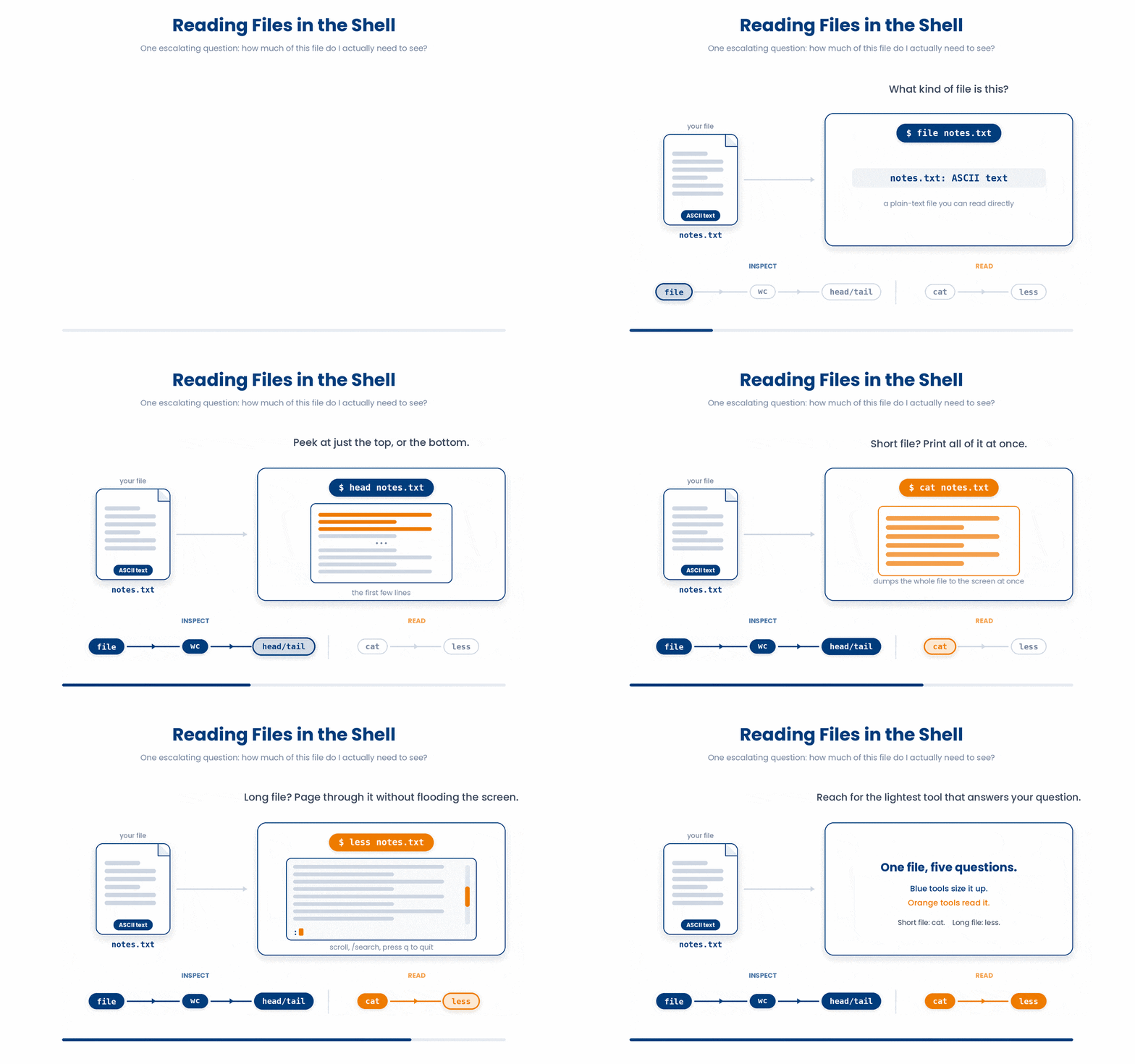
You have been moving files without looking inside them. This lesson is about peeking at file contents from the terminal - whether the file is two lines or two million. You will also learn a handful of inspection commands: how big is this file, what kind of file is it, how many lines.
- Reading short files: cat.
- Reading long files without flooding your screen: less.
- Peeking at the top or bottom: head and tail.
- Counting lines, words, and characters: wc.
- Asking "what kind of file is this?": file.
3 cat - Dump a Whole File
cat prints a file in one go. cat is right when the file is short - say fewer than 30 lines. It is wrong for a big file: if you cat a 10,000-line log, your terminal scrolls past everything in a fraction of a second.
Try this snippet in the Bash Scratchpad on the right.
$ cat notes.txt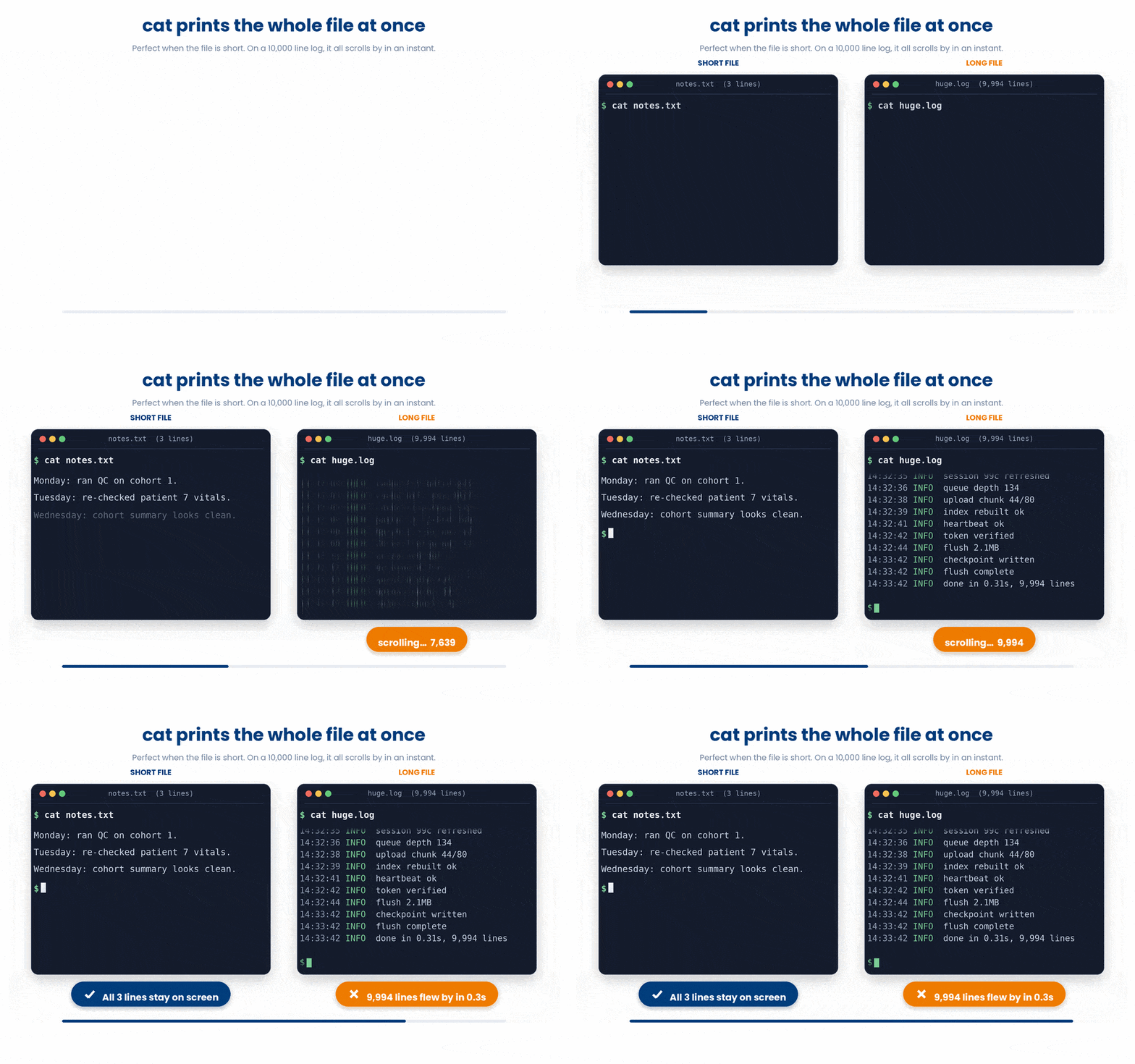
Besides, cat can also stick several files together by listing them as arguments. The name come from concatenate.
Try this snippet in the Bash Scratchpad on the right.
$ cd vitals
$ cat patient_001.csv patient_002.csv > two_patients.csv
$ cat two_patients.csv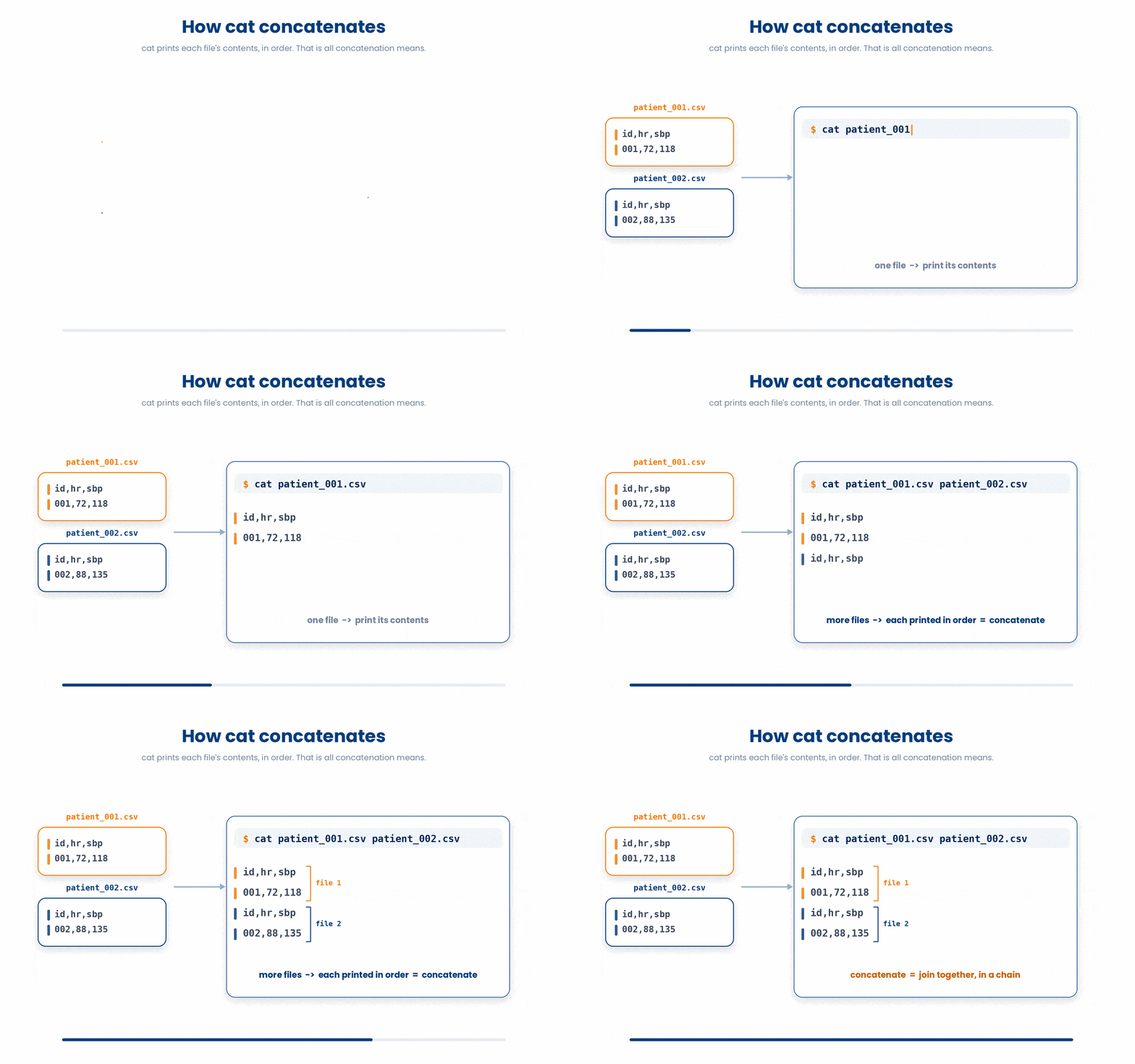
4 less - Scroll Through a Long File
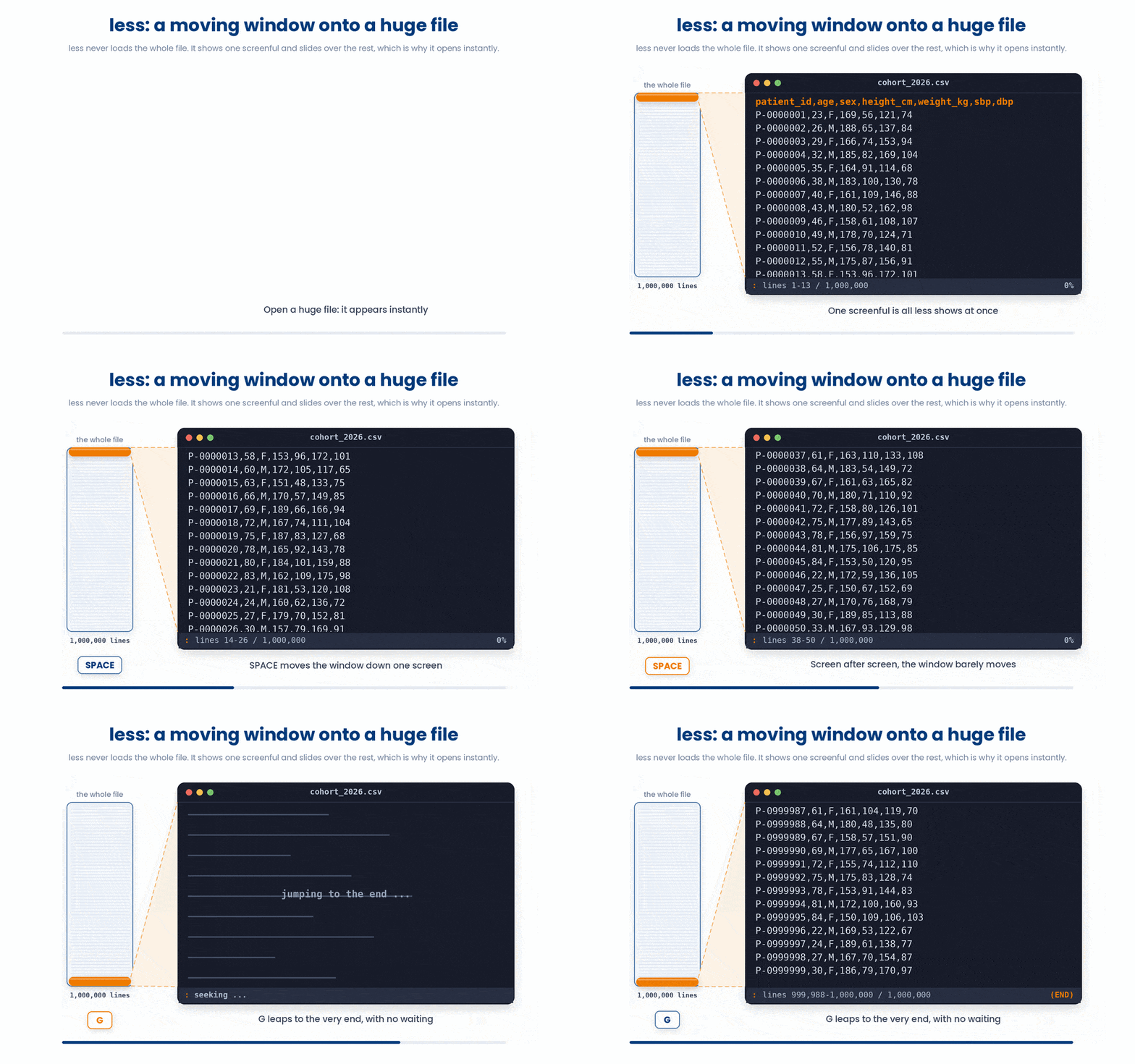
less opens the file in a pager - a little reader inside your terminal where you scroll, search, and quit. It loads instantly even for huge files because it only reads what fits on screen.
Try this snippet in the Bash Scratchpad on the right.
$ less cohort_2026.csvIf you ever open less and cannot get out, q is the escape hatch. less -N shows line numbers, handy for config files and scripts.
There are other keywords that you may use to make browsing the file easier.
- Space or Page Down - next page.
- b or Page Up - previous page.
- j and k - down and up one line.
- g - jump to the top.
- G - jump to the bottom.
- /word - search forward; n for next match.
- ?word - search backward.
- q - quit.
5 head and tail - Just the Edges
Often you just want a peek at the start or end. head prints the first 10 lines; tail prints the last 10.
Try this snippet in the Bash Scratchpad on the right.
$ tail cohort_2026.csv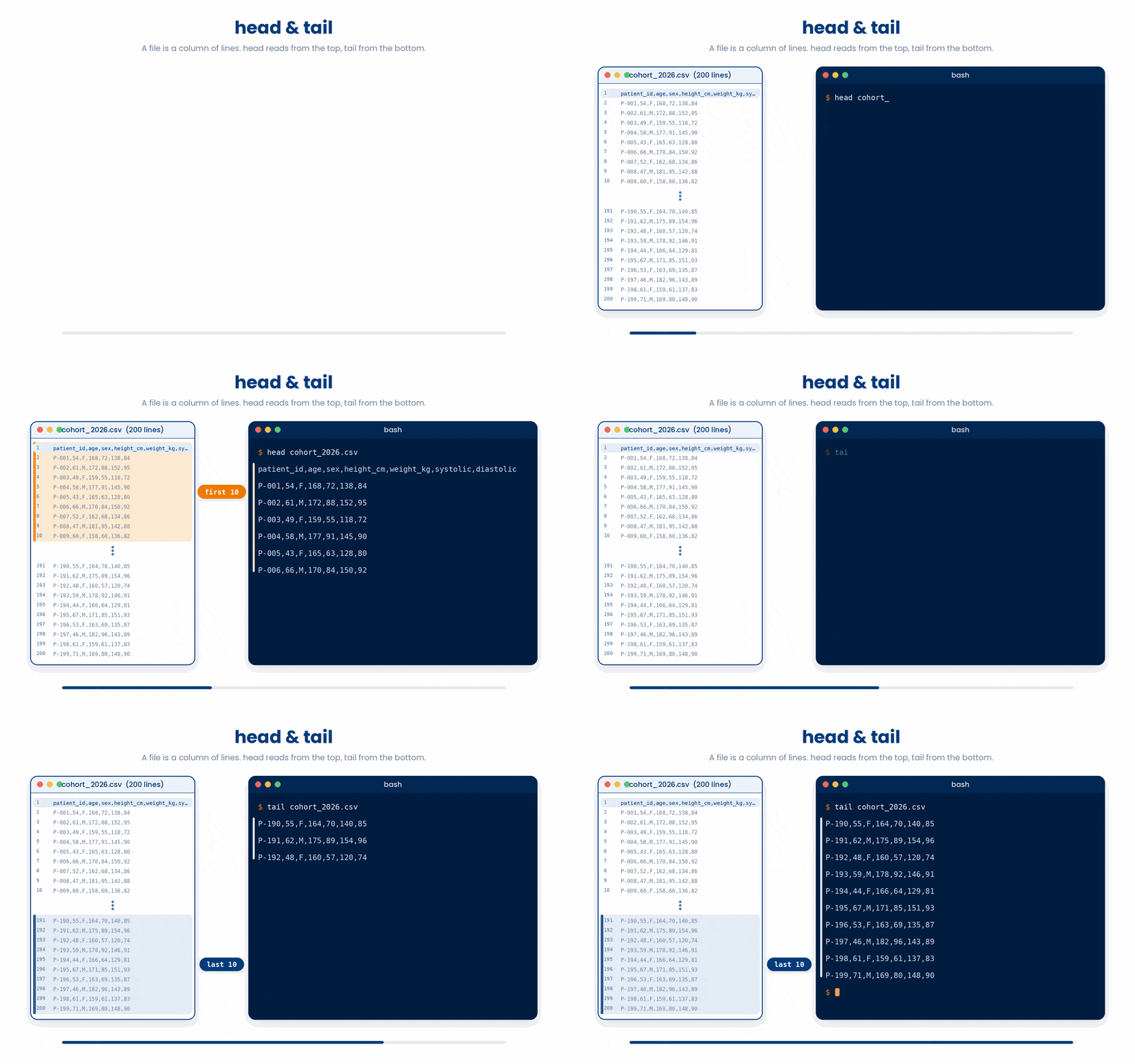
Both take -n to pick a different count:
Try this snippet in the Bash Scratchpad on the right.
$ head -n 5 cohort_2026.csv
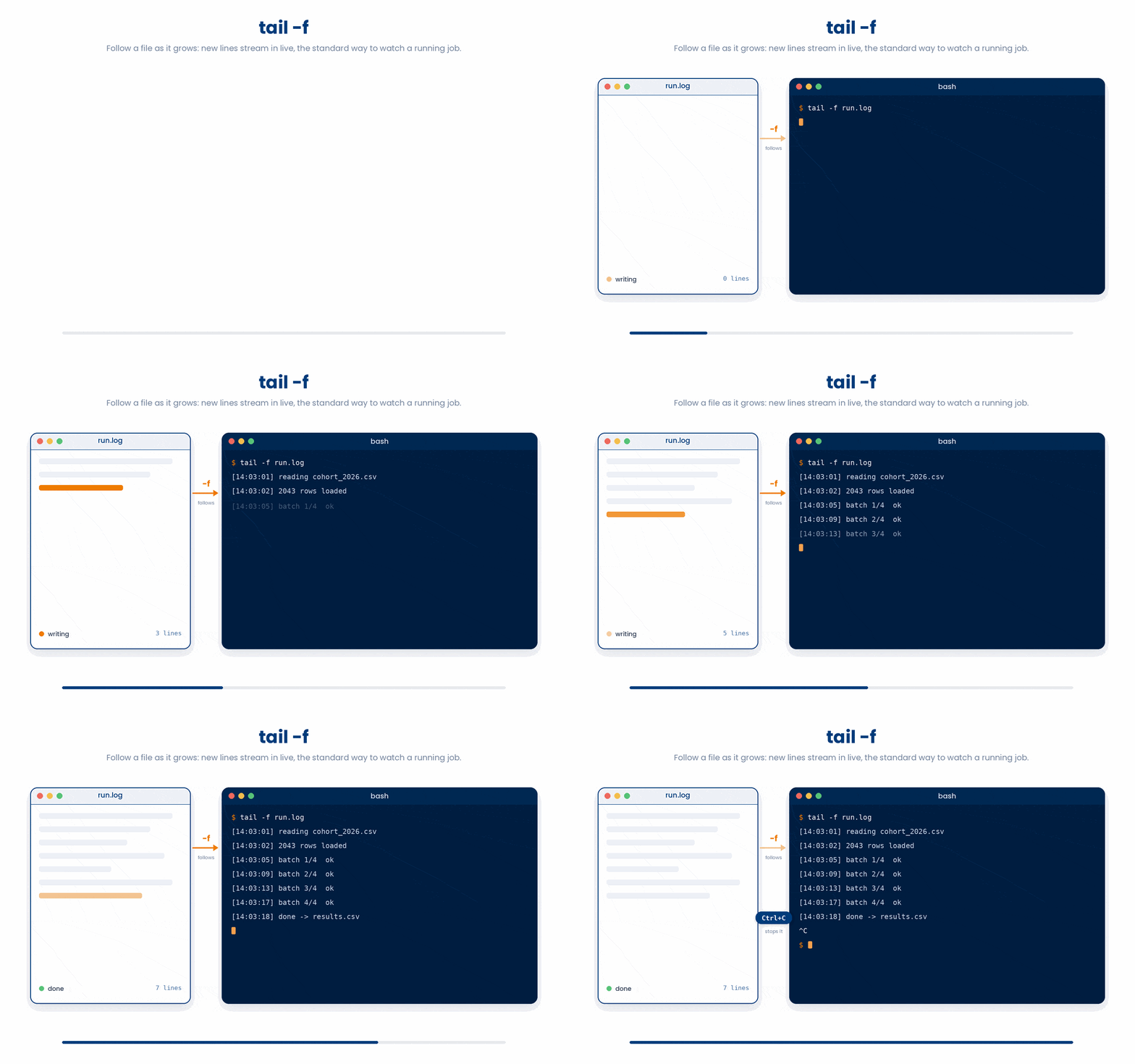
$ tail -n 2 cohort_2026.csvtail also has -f (follow). tail -f run.log keeps the file open and prints new lines as they appear - the standard way to watch a long-running job. Ctrl+C stops it.
6 wc - Counting Lines, Words, and Characters
wc (word count) reports lines, words, and characters in that order:
$ wc cohort_2026.csv
201 201 5127 cohort_2026.csv- wc -l - just the line count (the one you will want most often).
- wc -w - just the word count.
- wc -c - just the byte count.
wc -l answers "how many records are in this file". For a CSV with a header, remember to subtract one for the header.
$ wc -l cohort_2026.csv
201 cohort_2026.csv
# 200 patients plus a header row
Try this snippet in the Bash Scratchpad on the right.
$ wc cohort_2026.csv
$ wc -l cohort_2026.csv
$ wc -l notes.txt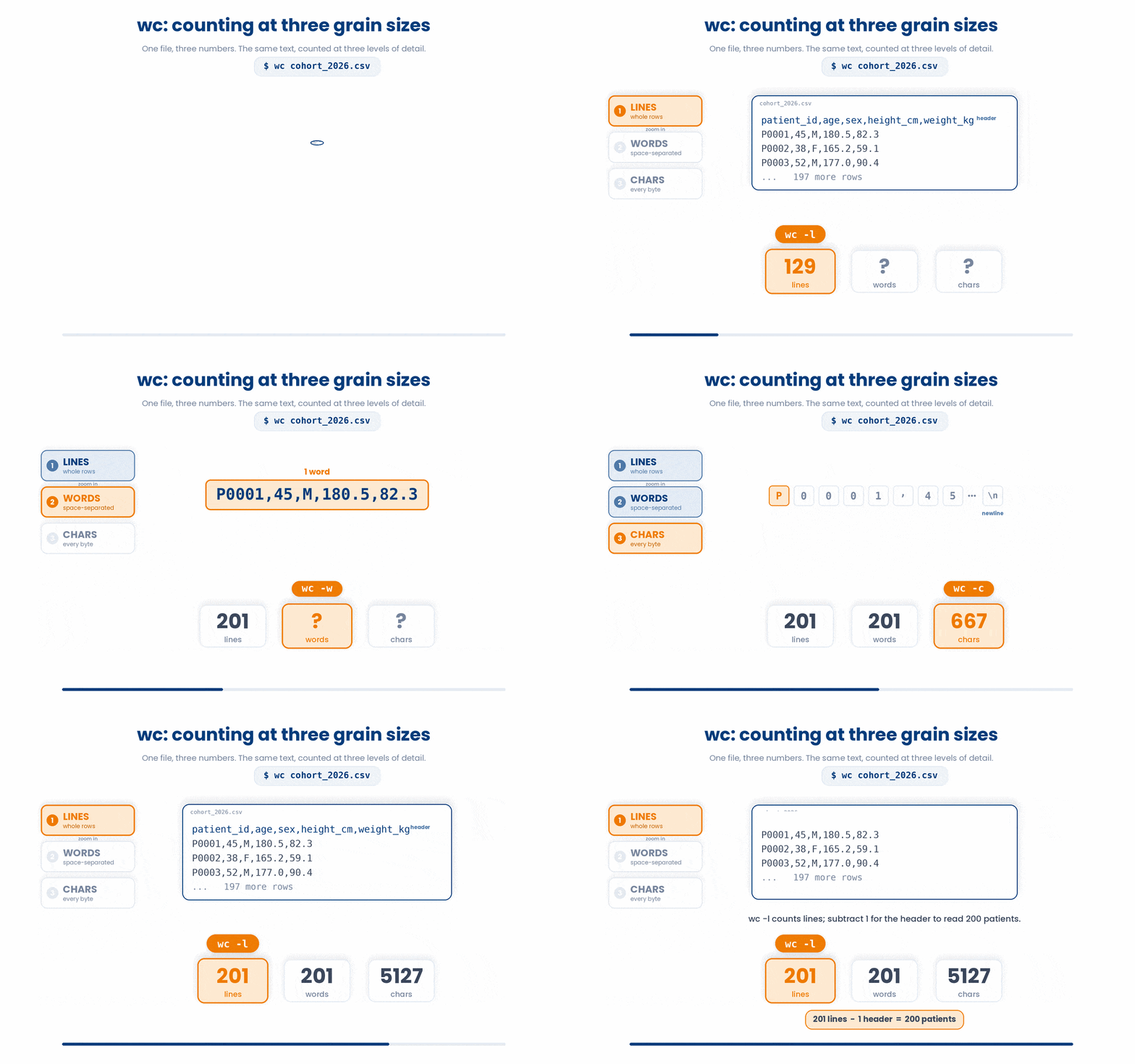
7 file - What Kind of File Is This?
Filenames in Linux are just labels. The .txt at the end of notes.txt is a hint, not a fact - nothing stops anyone renaming an image to mystery.txt. To learn what a file actually contains, use file. It peeks at the first few bytes and tells you what it sees.
Try this snippet in the Bash Scratchpad on the right.
$ file cohort_2026.csv
$ file scripts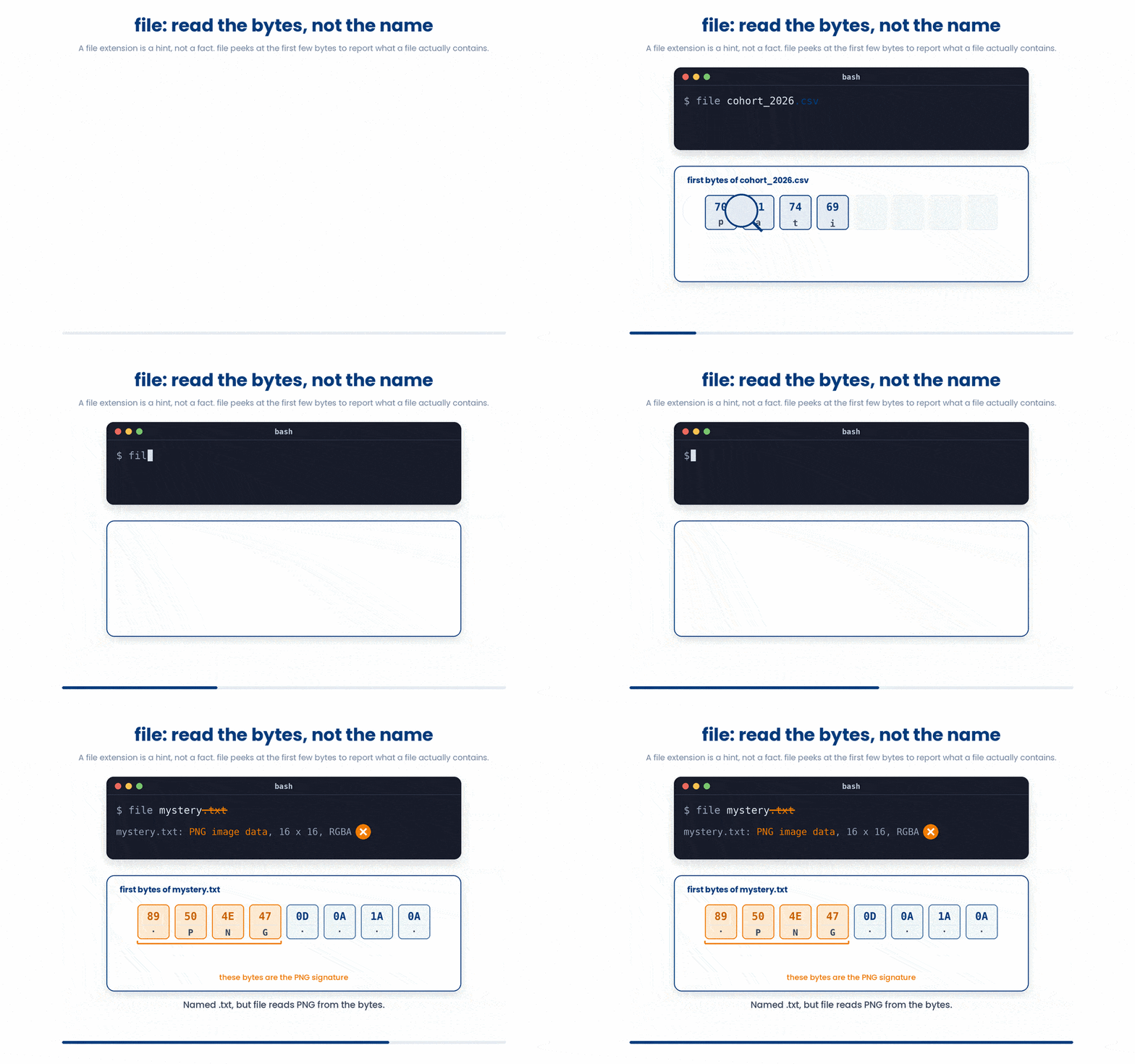
Useful when you download something with an ambiguous name and need to know whether to cat it, unpack it, or leave it alone.
8 Putting It Together
These commands are the inspection toolkit. A typical workflow when you meet an unfamiliar file:
- file the-thing - text, image, or compressed?
- wc -l the-thing - how many lines?
- head the-thing - what do the first few lines look like?
- less the-thing - scroll through it if you want more.
Later lessons chain these with pipes, but on their own they cover most "what is in this file?" questions.
9 Check your understanding
You have reached the end of the module. Try the same questions again — your answers here, paired with your pre-test answers, are how we measure what the module taught you. Answer every question and confidence rating, then click Submit and see results to view your score.
Which command is best for a 50,000-line log file you want to scroll through?
How do you quit less and return to the shell?
Which command prints only the first 3 lines of a file?
wc -l cohort_2026.csv reports 201. The file has a header row. How many patient records does it contain?
You see a file called download.bin and have no idea what is in it. Which command tells you the file type?
Which command shows the LAST 10 lines of a file?
You want to watch a log file update live as new lines are added. Which command?
What does wc -w report?
I can choose between cat, less, head, and tail based on how big the file is.
I can count the number of lines in a file from the terminal.
I know what to type when I am stuck inside less.
10 Your results
Here is how your post-test answers compare with your pre-test answers. The pre/post pairing is the most reliable way to see what this module actually taught you.
Submit the post-test to see your results.
What is the one thing from this module that is still unclear to you?