

1 Before you start
This is not graded, and it does not count towards anything. Answer every question even if you are only guessing — having a go at something before you have been taught it is one of the best ways to remember it afterwards. The lesson ends with another short check, and there you will be shown the correct answer for anything you missed. Choose an option for every question and confidence rating, then click Submit answers.
Which command creates a new, empty file called patient_001.txt?
You want to create the folder study/raw/vitals in one step, even though study/ does not exist yet. Which command works?
What is the difference between cp and mv?
Which command renames the file draft.csv to cohort_2026.csv?
After running rm important.csv, how do you get the file back?
Which command removes an EMPTY directory?
What does the -i flag add to commands like rm, cp, and mv?
You want to copy a folder and everything inside it. Which command works?
I can create folders and empty files from the terminal.
I can copy and move files, and I know which command keeps the original.
I know why rm should be used carefully and what -i does.
2 Introduction
Now that you can move around, the next step is to create, copy, move, and delete things. These are everyday commands - you will use them every time you sit at a terminal. The commands are short, but a couple are unforgiving, so we will cover the safety rails too.
- Making new folders and empty files: mkdir, touch.
- Copying and moving: cp, mv (and renaming).
- Removing: rm, rmdir, and why deletion in the terminal is permanent.
- Useful flags: -r recursive, -i interactive, -v verbose.
3 Making New Folders - mkdir
mkdir creates a folder in the current location:
$ pwd
/home/student
$ mkdir cohort_2026
$ ls
cohort_2026  notes.txt  scripts  vitals
List several folders in one command to create them all:
$ mkdir raw_vitals cleaned_vitals lab_reports figuresTo create a folder AND any missing parents in one go, add -p. Without -p, mkdir refuses to create nested folders if a step in the middle does not exist.
$ mkdir cohort_2026/raw/vitals
mkdir: cannot create directory 'cohort_2026/raw/vitals': No such file or directory
$ mkdir -p cohort_2026/raw/vitals
$ ls cohort_2026/raw
vitals
Try this snippet in the Bash Scratchpad on the right.
$ mkdir test_folder
$ ls
$ mkdir -p study/raw/vitals
$ ls study/raw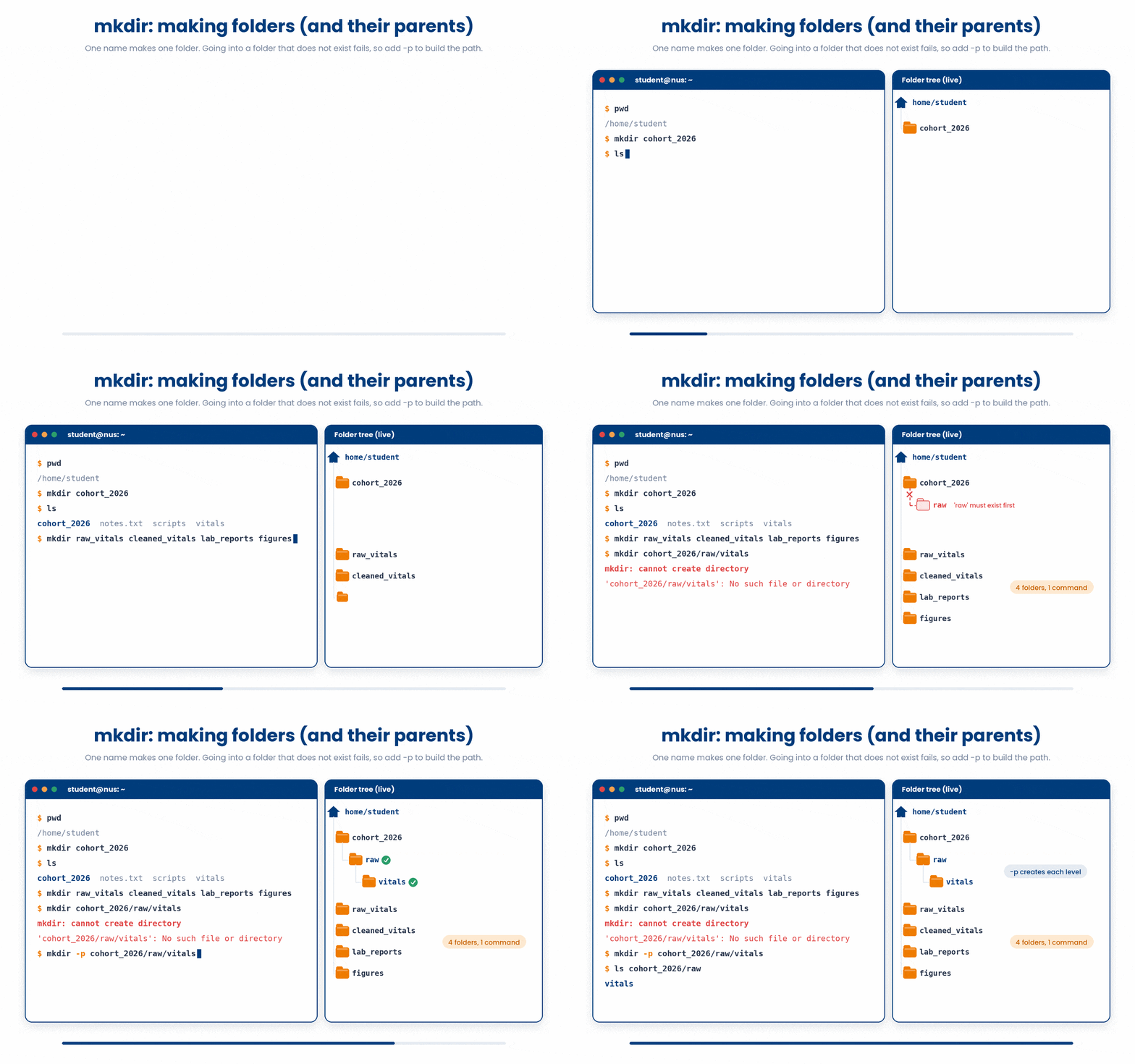
4 Making Empty Files - touch
touch creates an empty file. If the file already exists, touch leaves the contents alone and just updates the timestamp - occasionally useful in scripts. For now, think of touch as "make a new empty file".
$ touch patient_001.txt
$ ls -lh patient_001.txt
-rw-r--r-- 1 student staff 0 May 24 11:03 patient_001.txt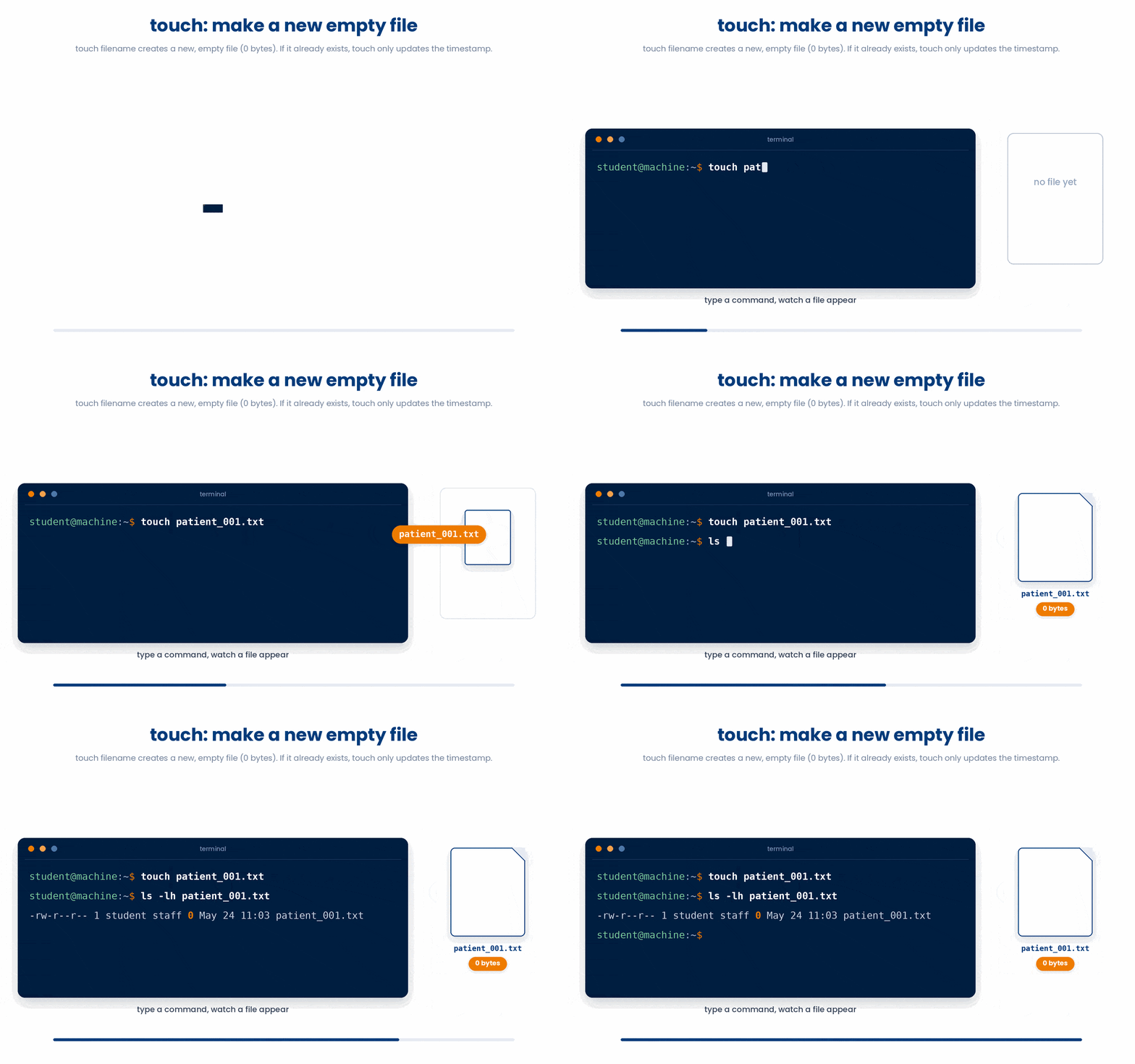
The 0 in the size column confirms the file is empty. You can pass several filenames at once.
Try this snippet in the Bash Scratchpad on the right.
$ touch a.txt b.txt c.txt
$ ls -lh5 Copying and Moving - cp and mv
5.1 cp - make a copy
The shape is always cp SOURCE DESTINATION. The source exists; the destination is where the copy lands.
$ cp cohort_2026.csv cohort_2026_backup.csv
$ ls
cohort_2026.csv  cohort_2026_backup.csv
If the destination is a folder, the copy lands inside it with the original name:
$ cp cohort_2026.csv archive/
$ ls archive
cohort_2026.csv
To copy a whole folder you must add -r (recursive):
$ cp vitals vitals_backup
cp: -r not specified
omitting directory 'vitals'
$ cp -r vitals vitals_backup
$ ls
vitals  vitals_backup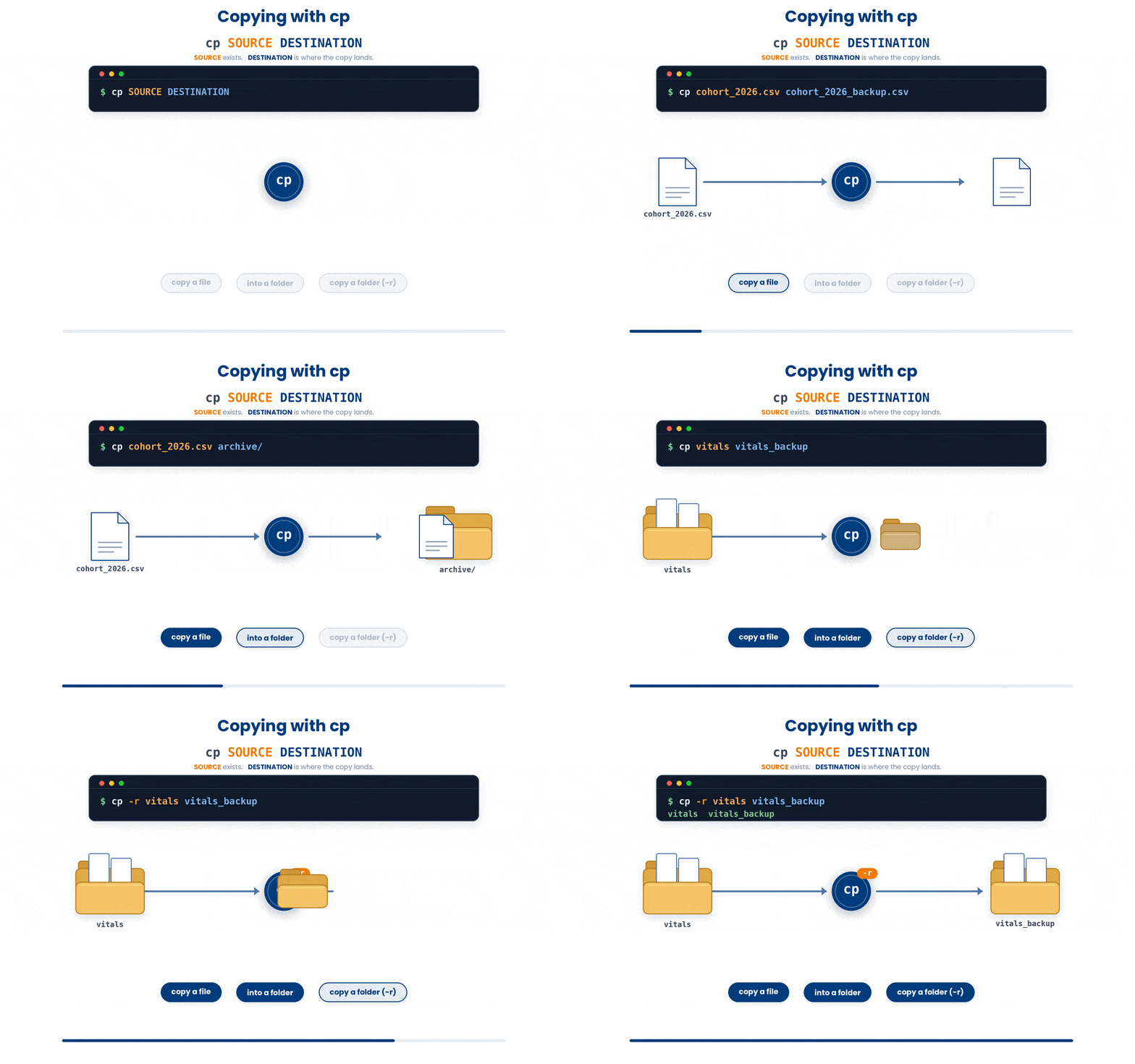
5.2 mv - move or rename
mv has the same shape but MOVES instead of copying. The source disappears from its old location.
$ mv cohort_2026.csv archive/cohort_2026.csv
$ ls archive
cohort_2026.csv
There is no separate "rename" command - mv with a different destination name in the same folder is how you rename:
$ mv draft_cohort.csv cohort_2026.csvmv does NOT need -r for folders. A folder and its contents move together in one step.
Try this snippet in the Bash Scratchpad on the right.
$ touch report.txt
$ cp report.txt report_v2.txt
$ mv report.txt archive.txt
$ ls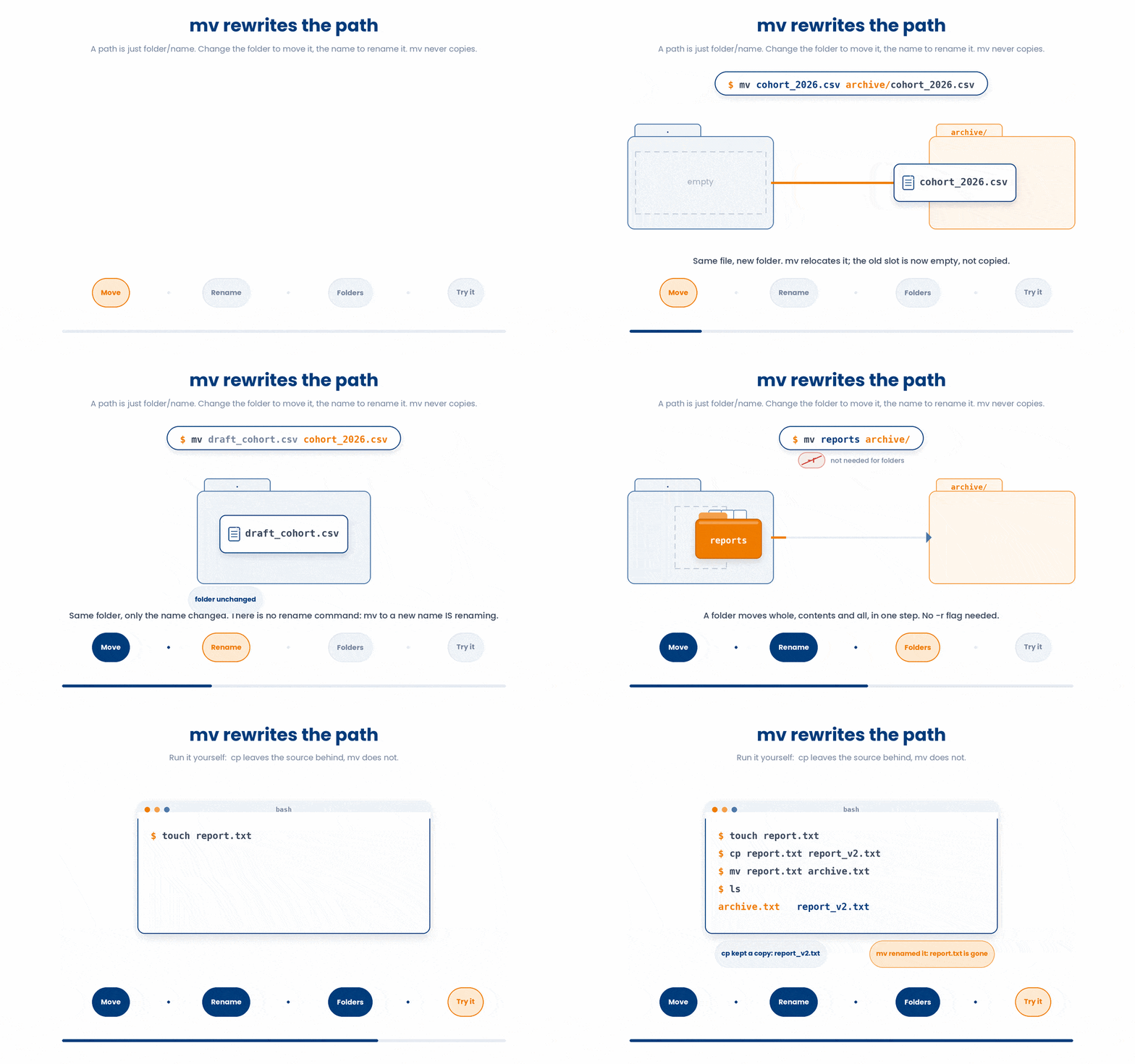
6 Removing - rm and rmdir
Deletion at the terminal is permanent. There is no Recycle Bin, no Trash, no Undo. Once a file is gone with rm, it is gone. Read that twice.
6.1 rm - remove files
$ rm draft_cohort.csv
$ ls
(draft_cohort.csv is no longer listed)
To remove a folder and everything in it, add -r:
$ rm -r old_studyYou will see rm -rf in online examples. The -f flag is "force" - it suppresses every prompt and ignores every warning. Avoid -f as a beginner. If you mistype the path, it silently obliterates whatever you mistyped.
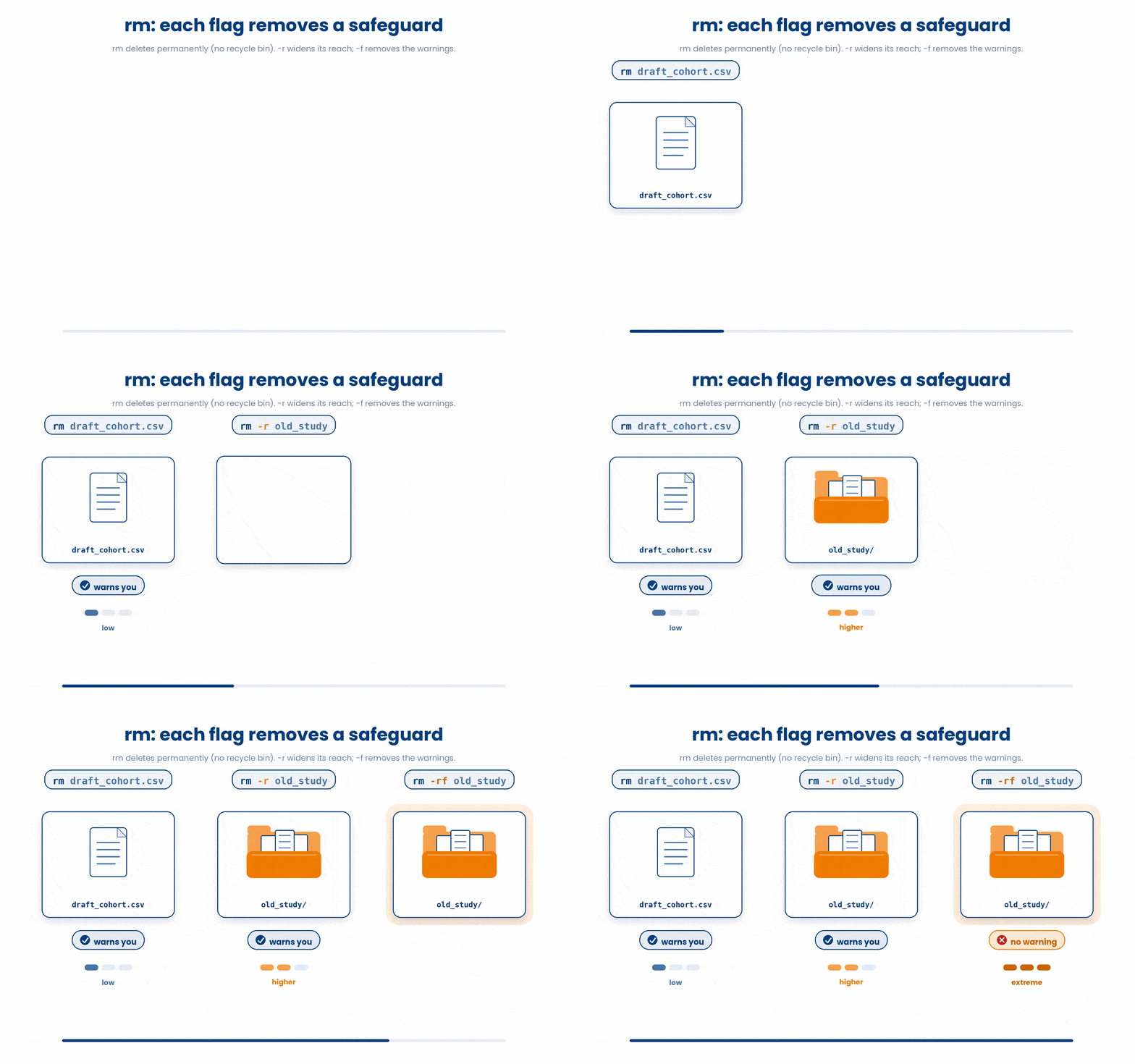
Until your fingers are calm, get into the habit of rm -i. Bash will ask you to confirm each file:
$ rm -i patient_001.txt
rm: remove regular file 'patient_001.txt'? y6.2 rmdir - remove an EMPTY folder
rmdir only removes folders that are completely empty. It is a safety net - if a folder still has anything in it, rmdir refuses, giving you a chance to notice.
$ rmdir scratch
rmdir: failed to remove 'scratch': Directory not empty
$ ls scratch
things_i_forgot_about.txt
Try this snippet in the Bash Scratchpad on the right.
$ cp cohort_2026.csv scratch.csv
$ ls
$ rm scratch.csv
$ mkdir tmp_dir
$ rmdir tmp_dir
$ ls7 Check your understanding
You have reached the end of the module. Try the same questions again — your answers here, paired with your pre-test answers, are how we measure what the module taught you. Answer every question and confidence rating, then click Submit and see results to view your score.
Which command creates a new, empty file called patient_001.txt?
You want to create the folder study/raw/vitals in one step, even though study/ does not exist yet. Which command works?
What is the difference between cp and mv?
Which command renames the file draft.csv to cohort_2026.csv?
After running rm important.csv, how do you get the file back?
Which command removes an EMPTY directory?
What does the -i flag add to commands like rm, cp, and mv?
You want to copy a folder and everything inside it. Which command works?
I can create folders and empty files from the terminal.
I can copy and move files, and I know which command keeps the original.
I know why rm should be used carefully and what -i does.
8 Your results
Here is how your post-test answers compare with your pre-test answers. The pre/post pairing is the most reliable way to see what this module actually taught you.
Submit the post-test to see your results.
What is the one thing from this module that is still unclear to you?