

1 Before you start
This is not graded, and it does not count towards anything. Answer every question even if you are only guessing — having a go at something before you have been taught it is one of the best ways to remember it afterwards. The lesson ends with another short check, and there you will be shown the correct answer for anything you missed. Choose an option for every question and confidence rating, then click Submit answers.
What does the command pwd do?
Which command shows hidden files (those starting with a dot)?
From any folder on the system, which command jumps straight to your home folder?
If you are in /home/student and you run cd ../tmp, where do you end up?
Which of these is an absolute path?
Which command shows a long listing with file sizes, owners, and permissions?
In a Linux path, what does a single dot . refer to?
In a Linux path, which character separates one directory from the next?
I can open a terminal and tell which folder I am currently in.
I can list the contents of a folder in both short and long format.
I can explain the difference between an absolute and a relative path.
2 Introduction
This is your first step on the Linux side of the bridging course. You will meet the terminal, learn how the filesystem is laid out, and start moving around without a mouse. By the end you will be able to open a terminal, see where you are, list what is around you, and step in and out of folders.
- The terminal and the shell - what they are and why bash is the default.
- The Linux filesystem - a tree of folders starting from the root /.
- Your first commands - pwd, ls, cd.
- Paths - absolute vs relative, and the shortcuts ~, ., and ..
None of the commands in this lesson can damage your machine - they only read, never write. Try every one in the in-browser terminal on the right.
3 The Terminal and the Shell
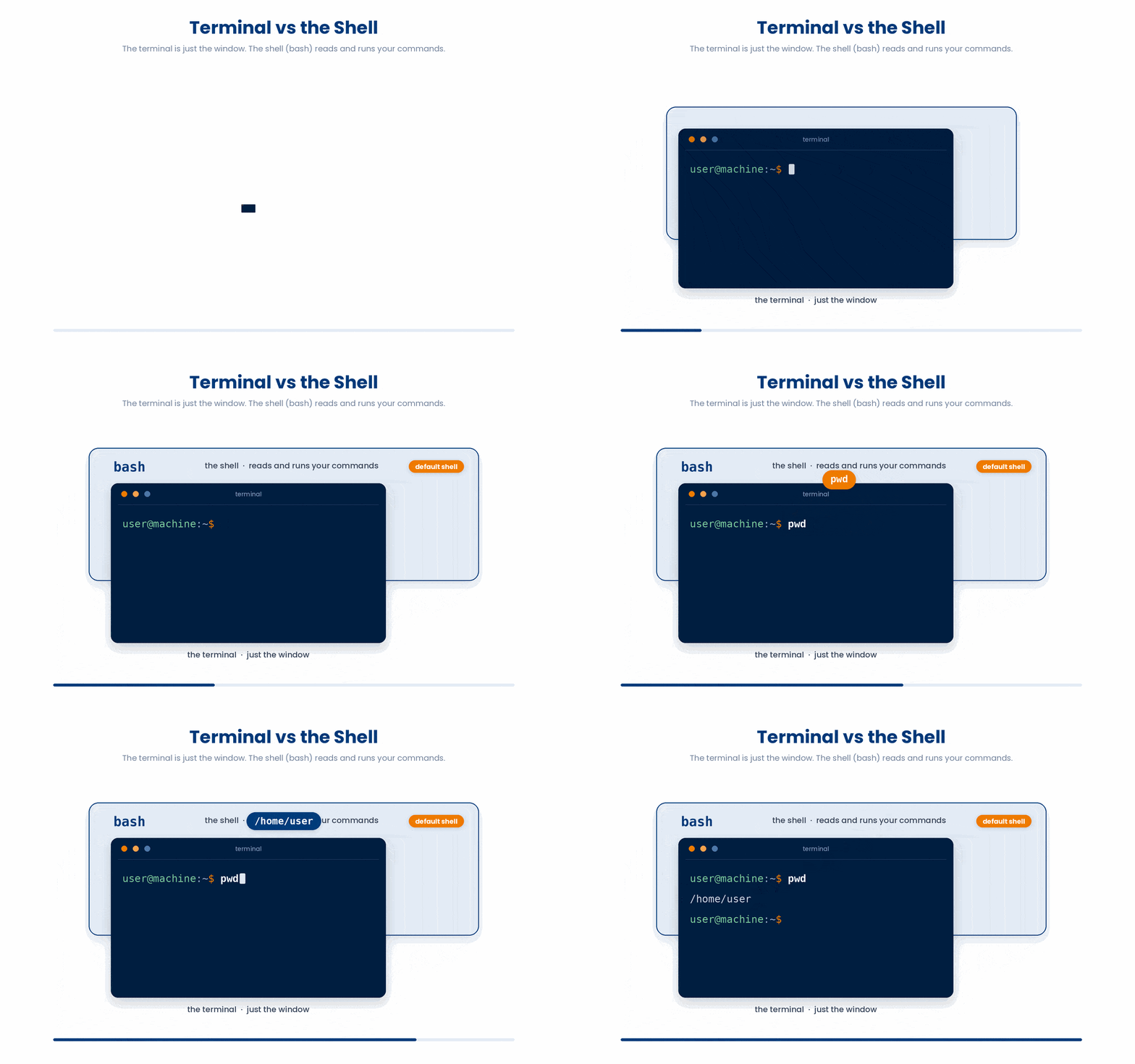
When you open a terminal on Linux (or macOS, or Windows with WSL) you get a window that waits for a command. The terminal is just the window. The thing reading and running your commands is the shell. bash is the default shell on almost every Linux server, including every HPC cluster you are likely to use. Everything in this course is bash.
You usually see a prompt like user@machine:~$ . The trailing $ is just a marker saying "ready". When examples show $ pwd, only type pwd.
4 Where Am I? - pwd
Every shell prompt is "inside" some folder. Commands look there by default, so the first useful question is: where am I?
The answer is pwd (print working directory).
$ pwd
/home/student
On a fresh login you start in your home folder, written /home/your-username. It is the one place on the system where you can freely create, edit, and delete files without asking permission.
Try this snippet in the Bash Scratchpad on the right.
$ pwd5 What Is Around Me? - ls
ls (list) shows the contents of the current folder. In a typical project folder for this course you might see something like a cohort dataset, a notes file, and a scripts folder:
$ ls
cohort_2026.csv  notes.txt  scripts  vitals
ls on its own does not tell you which entries are files and which are folders. Flags fix that. Flags are short options written with a leading dash.
- ls -l - long format: one entry per line, with size, owner, and date.
- ls -a - show hidden entries (filenames starting with a dot).
- ls -lh - long format with sizes in human units (K, M, G).
- ls -lt - long format sorted by modification time, newest first.
$ ls -lh
total 16K
-rw-r--r-- 1 student staff 5.1K May 24 10:25 cohort_2026.csv
-rw-r--r-- 1 student staff  105 May 23 18:01 notes.txt
drwxr-xr-x 2 student staff 4.0K May 24 10:22 scripts
drwxr-xr-x 2 student staff 4.0K May 24 10:22 vitals
Flags combine: ls -lh and ls -hl mean the same thing. You can also list another folder by passing its name: ls vitals shows what is inside vitals without stepping into it.
Try this snippet in the Bash Scratchpad on the right.
$ ls
$ ls -l
$ ls -lh
$ ls -lh vitalsTry this snippet in the Bash Scratchpad on the right.
$ ls
$ ls -a
$ ls -la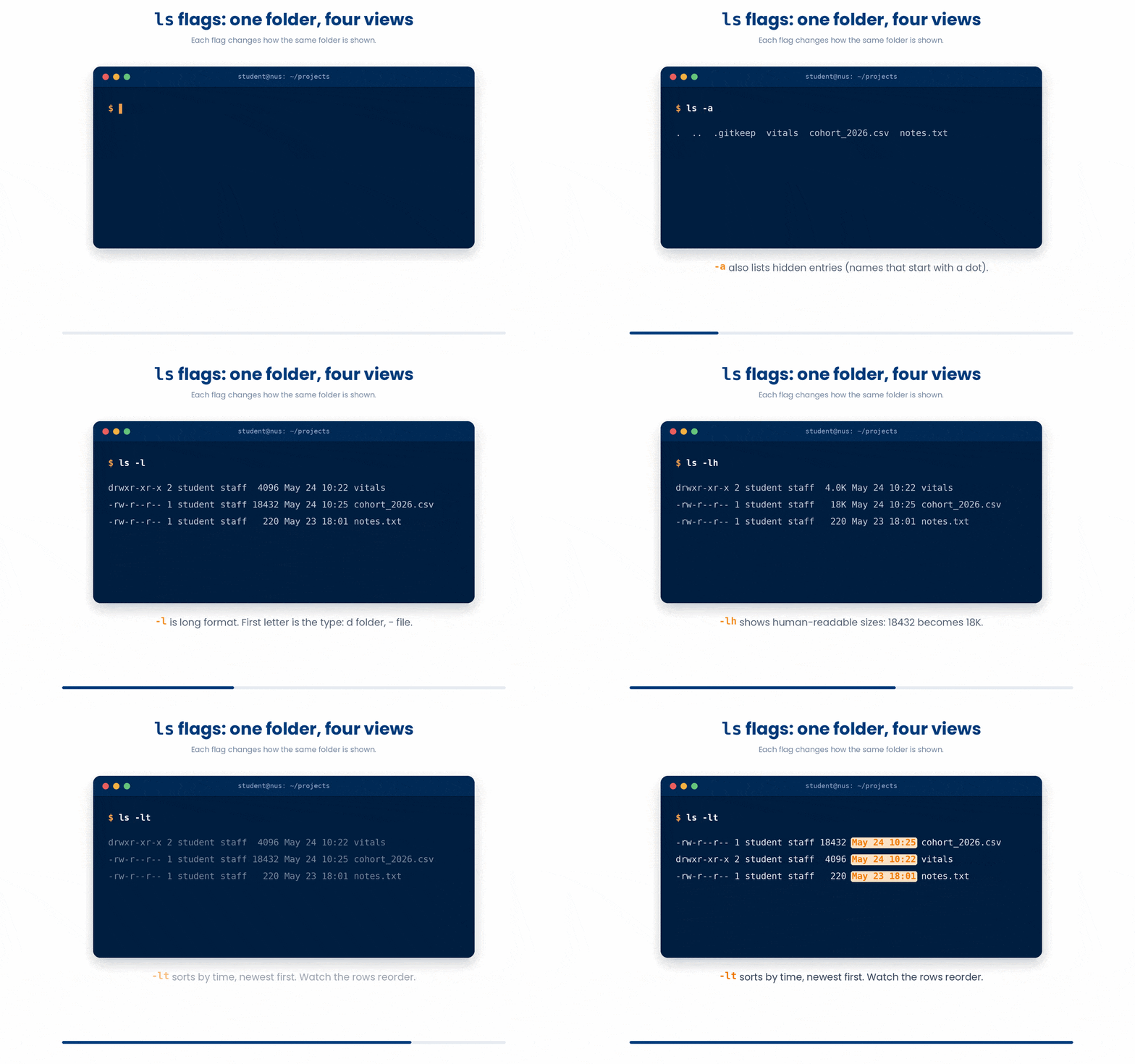
6 Moving Around - cd
cd (change directory) steps into a folder:
$ pwd
/home/student
$ cd vitals
$ pwd
/home/student/vitals
cd .. goes up one level. cd on its own (or cd ~) jumps back to your home folder from anywhere.
$ cd ..
$ pwd
/home/student
$ cd vitals
$ cd
$ pwd
/home/student
If you cd into something that does not exist, bash tells you so and leaves you where you were:
$ cd vitls
bash: cd: vitls: No such file or directory
Try this snippet in the Bash Scratchpad on the right.
$ cd vitals
$ pwd
$ cd ..
$ pwd
$ cd ~
$ pwd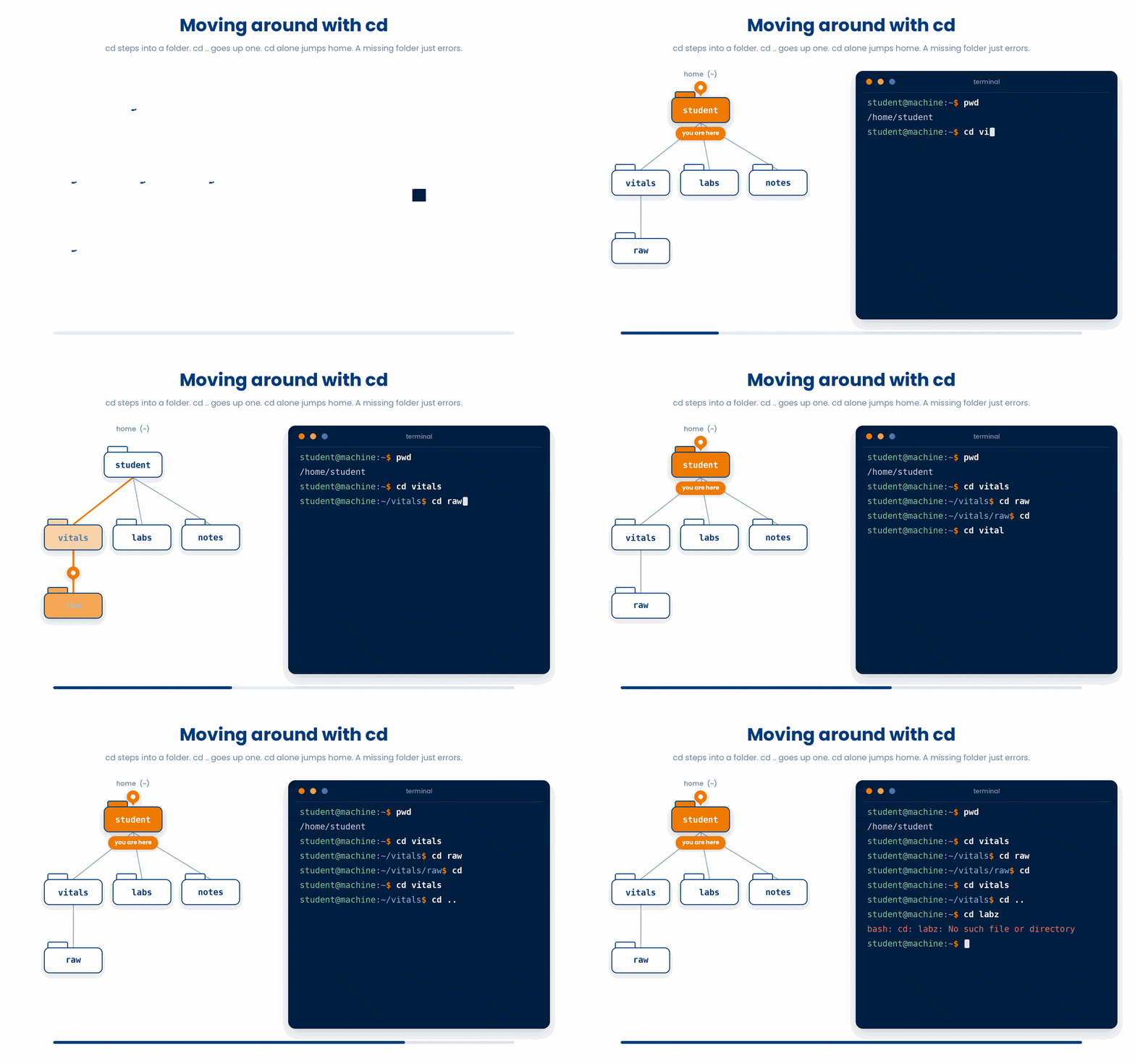
7 Paths - Absolute and Relative
A path is an address that tells the shell how to find a file or folder. There are two kinds.
7.1 Absolute paths
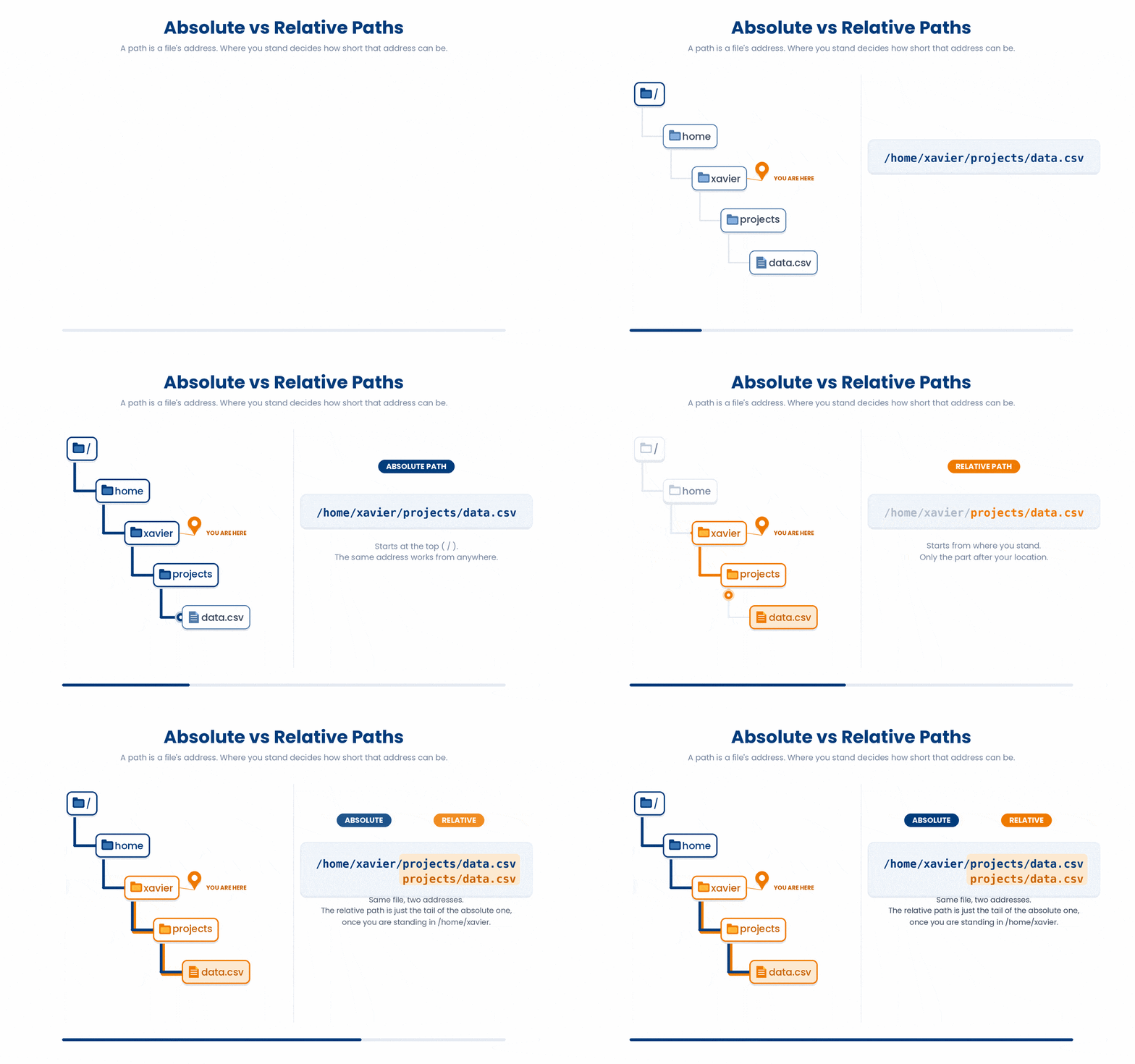
An absolute path starts with / and describes the location from the root of the filesystem. It means the same thing no matter where you currently stand.
/home/student/cohort_2026.csv
/usr/bin/python3
/var/log/syslog7.2 Relative paths
A relative path does NOT start with /. It is read relative to your current folder. If you are in /home/student and type cd vitals, the shell looks for vitals inside /home/student. From anywhere else the same command would look somewhere else.
7.3 Special path shortcuts
- ~ - your home folder, anywhere on the system.
- . - the current folder.
- .. - the parent folder, one level up.
- / - the root of the entire filesystem.
$ cd ~
$ pwd
/home/student
$ cd /
$ pwd
/
$ ls
bin  boot  etc  home  tmp  usr  var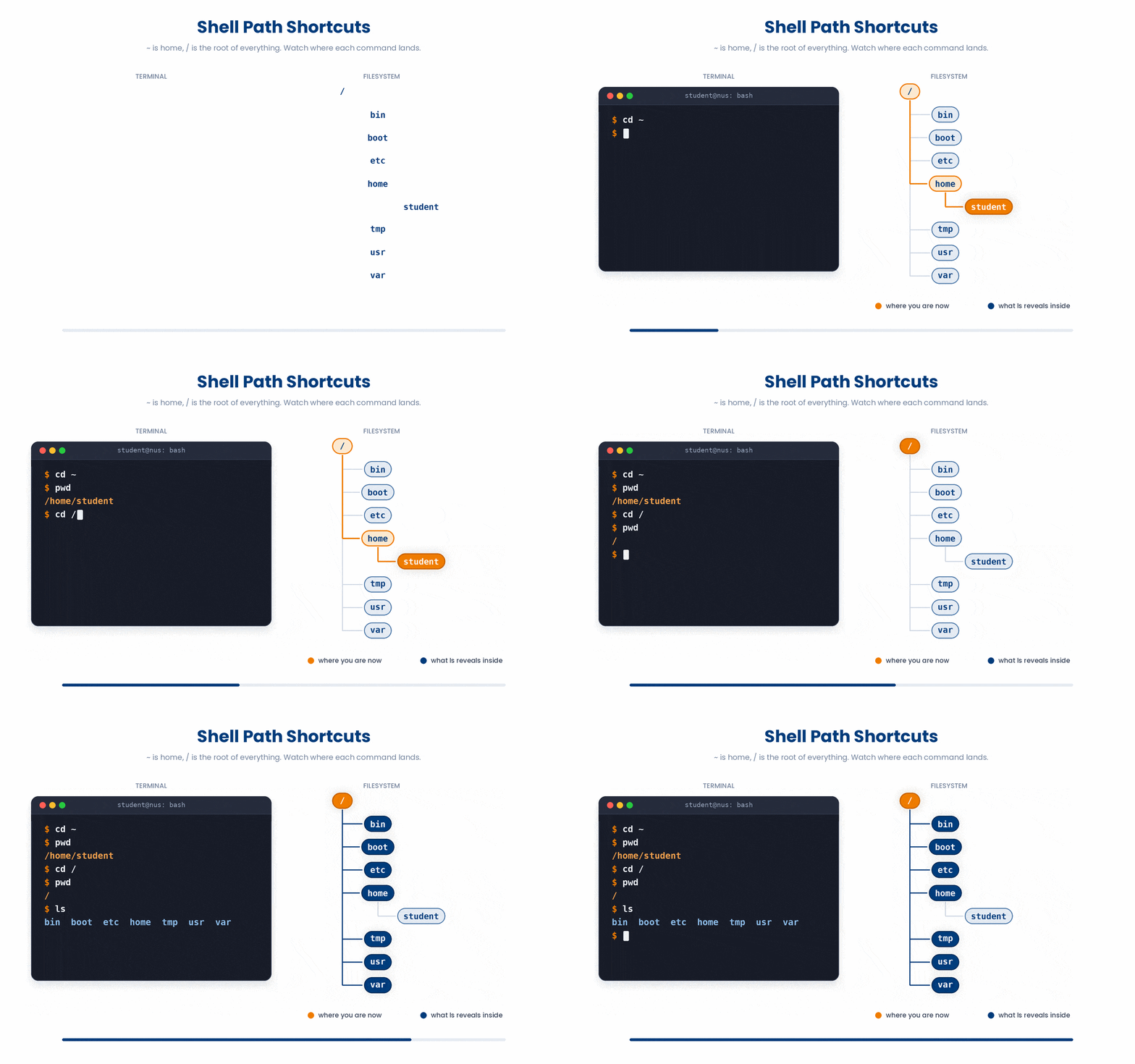
You will mix and match. cd ~/vitals jumps to vitals inside your home. cd ../scripts pops up one level then into a sibling folder.
Try this snippet in the Bash Scratchpad on the right.
$ cd /
$ pwd
$ ls
$ cd ~
$ pwd
$ cd vitals
$ cd ..
$ cd ~/scripts
$ pwdTry this snippet in the Bash Scratchpad on the right.
$ cd ~/scripts
$ pwd
$ cd ../vitals
$ pwd
$ cd /home/student/vitals
$ pwd8 Common Pitfalls
Linux is case sensitive. Patients and patients are two different folders. If "No such file or directory" surprises you and the file is there, check the capitals.
Spaces in filenames are awkward. cd My Notes does not work - bash sees two arguments. Quote it (cd "My Notes") or escape the space (cd My\ Notes).
9 Check your understanding
You have reached the end of the module. Try the same questions again — your answers here, paired with your pre-test answers, are how we measure what the module taught you. Answer every question and confidence rating, then click Submit and see results to view your score.
What does the command pwd do?
Which command shows hidden files (those starting with a dot)?
From any folder on the system, which command jumps straight to your home folder?
If you are in /home/student and you run cd ../tmp, where do you end up?
Which of these is an absolute path?
Which command shows a long listing with file sizes, owners, and permissions?
In a Linux path, what does a single dot . refer to?
In a Linux path, which character separates one directory from the next?
I can open a terminal and tell which folder I am currently in.
I can list the contents of a folder in both short and long format.
I can explain the difference between an absolute and a relative path.
10 Your results
Here is how your post-test answers compare with your pre-test answers. The pre/post pairing is the most reliable way to see what this module actually taught you.
Submit the post-test to see your results.
What is the one thing from this module that is still unclear to you?